Contact your Customer Success Manager to enable verifications in Console.
Order a verification
- Sign in to Console, open Verifications, and select Order verification.
- Select a Flow, if prompted. The flow determines the consumer experience and the options shown in the form.
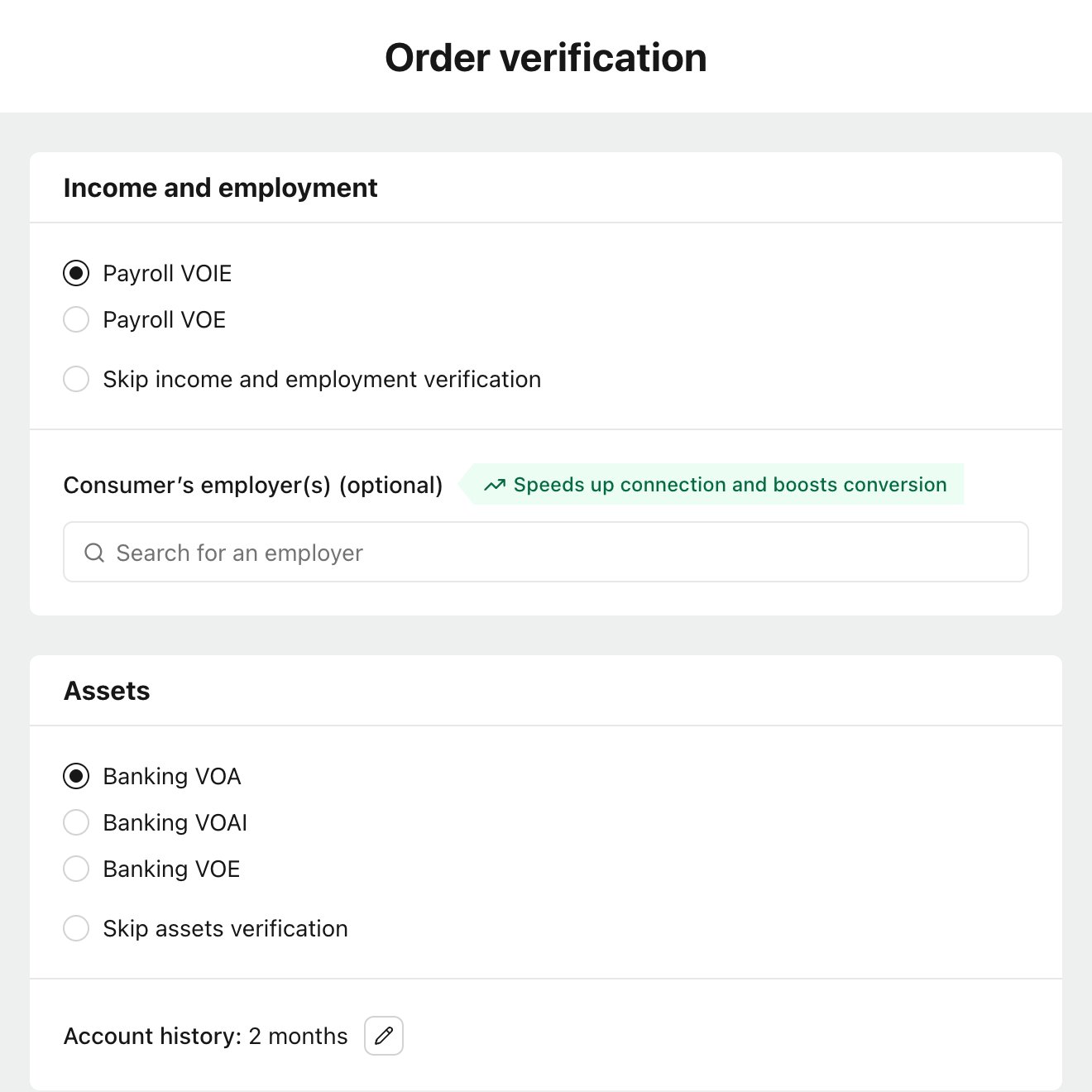
- Choose the reports you need. You can order income and employment, assets, or both, depending on the products enabled for your organization.
For payroll, you can optionally select the consumer’s employers. For banking, choose an Account history period using a preset or a custom start date.
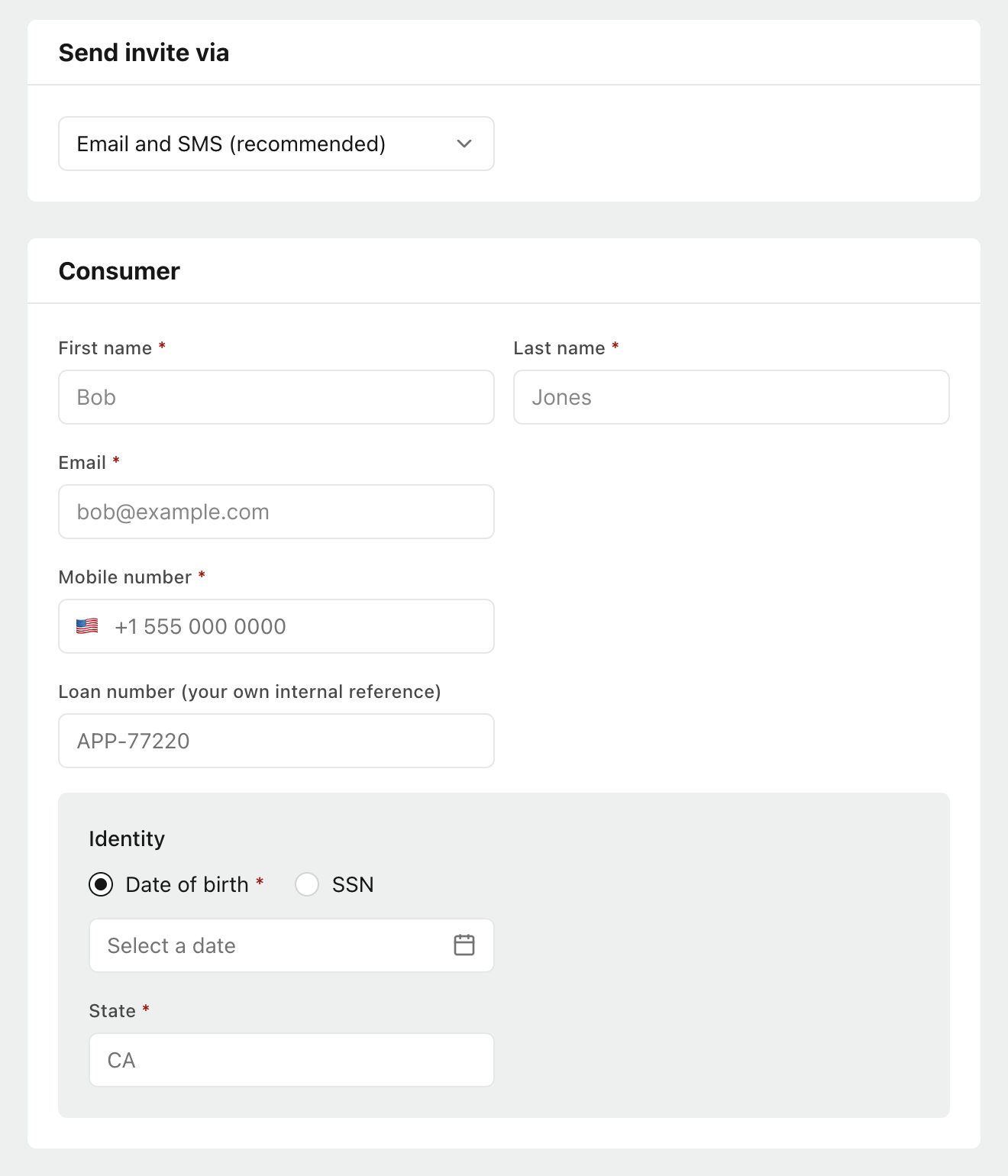
- If Send invite via is shown, choose from the available options: Email and SMS (recommended), Email only, or SMS only. The options depend on your organization’s settings.
- Enter the consumer’s first and last name, plus the contact details required for your invitation method. Banking orders also require the consumer’s state and either their date of birth or SSN. You can optionally add a loan number for your internal reference.
- Select Submit order, review the confirmation, and confirm the order.
Find and track verifications
Switch between two views on the Verifications page:- Consumer view groups verifications by consumer and shows the latest verification for each product.
- Verification view shows each verification as a separate row, including earlier orders for the same consumer.
Review reports and documents
Select a consumer. The Income and employment and Assets sections show verification status, data sources, and available reports. Hover over a verification’s status to see when it was ordered and who requested it. Use the download button beside a report to open its PDF. Payroll paystubs and tax documents are also available when provided by the connected source. Doc VOI results appear alongside payroll and banking verifications. You can review available results and documents. Ordering Doc VOI verifications in Console will be made available in the future.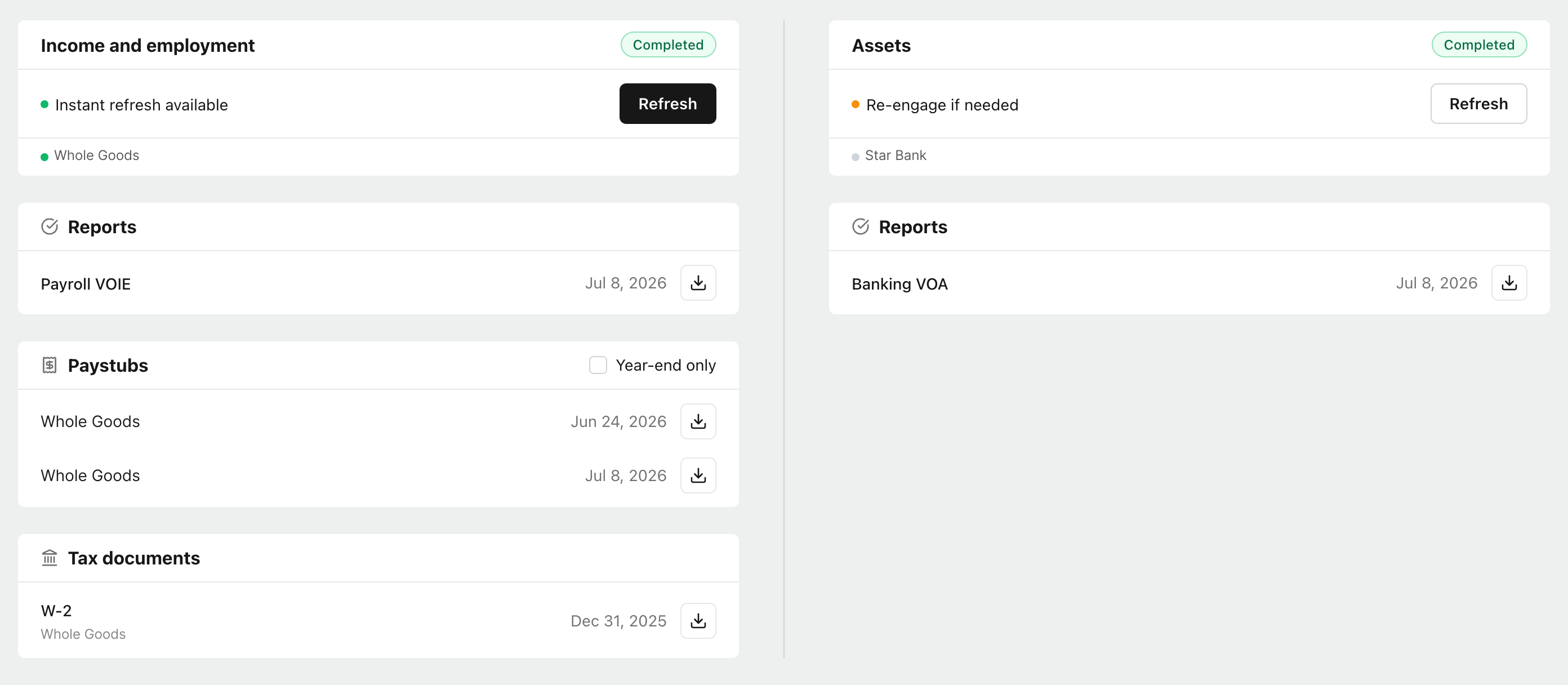
Managing Console orders
Resend an invitation or copy its link
For invitations sent by email or SMS, use Resend to send the invitation again through the original channels. Use Copy link to copy a connection invitation URL you can send directly to the consumer. These actions are available from the list or the consumer’s details when an invitation is available.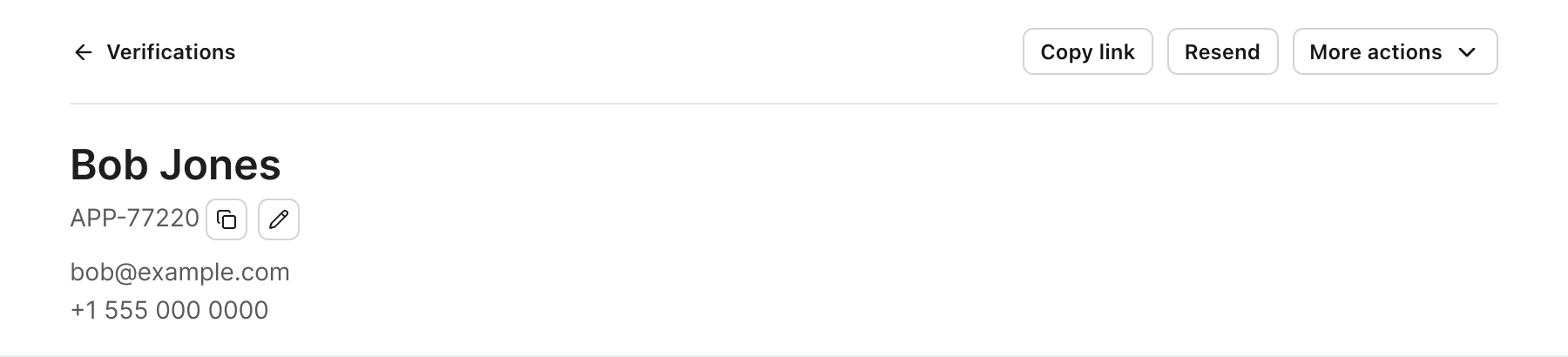
Refresh a completed verification
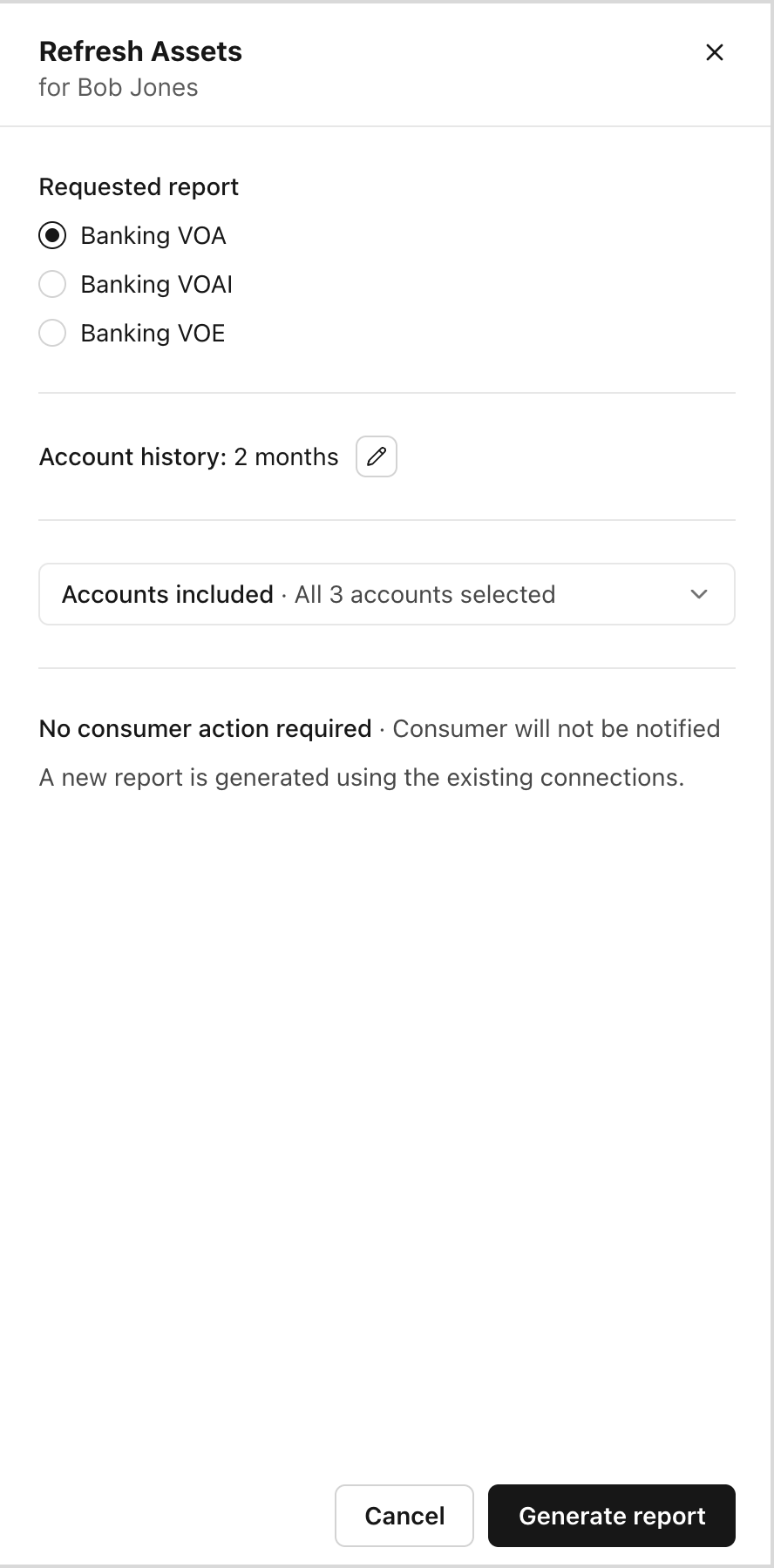
Open the consumer and select Refresh in the relevant section. Choose an available report type and follow the option shown:- Instant refresh: When the existing connection supports a refresh, generate a new report without asking the consumer to take action.
- Request updated data: If the consumer needs to reconnect, follow the prompts to request updated data.
- Use existing data: When offered, generate a report using the data already available. This does not ask the consumer to reconnect or provide newer data.