nCino streamlines the mortgage process by providing a centralized platform for loan origination, processing, and underwriting, as well as collaboration, tracking, and real-time information exchange tools for loan originators, processors, underwriters, and borrowers.
Admin setup
- Reach out to an Argyle representative to begin the setup process.
- Argyle will provide the following nCino integration credentials:
Argyle API KeyandArgyle API Secret— Required for payroll.Argyle Partner Client IDArgyle Flow ID— Determines the borrower’s payroll connection experience.Argyle Experience ID— Configures the borrower’s banking connection flow.
- Contact your nCino representative to complete the set-up process. More information can be found by visiting nCino’s implementation portal.
Employment & Income
Overview
Integrating Argyle direct payroll with nCino creates a seamless and automated workflow:- Borrowers are able to connect their payroll accounts through Argyle within nCino.
- Argyle delivers paystubs, W2s, and an income & employment verification report PDF to nCino.
- All payroll documents and verification reports are viewable in nCino and [optional] Encompass.
Borrower experience
-
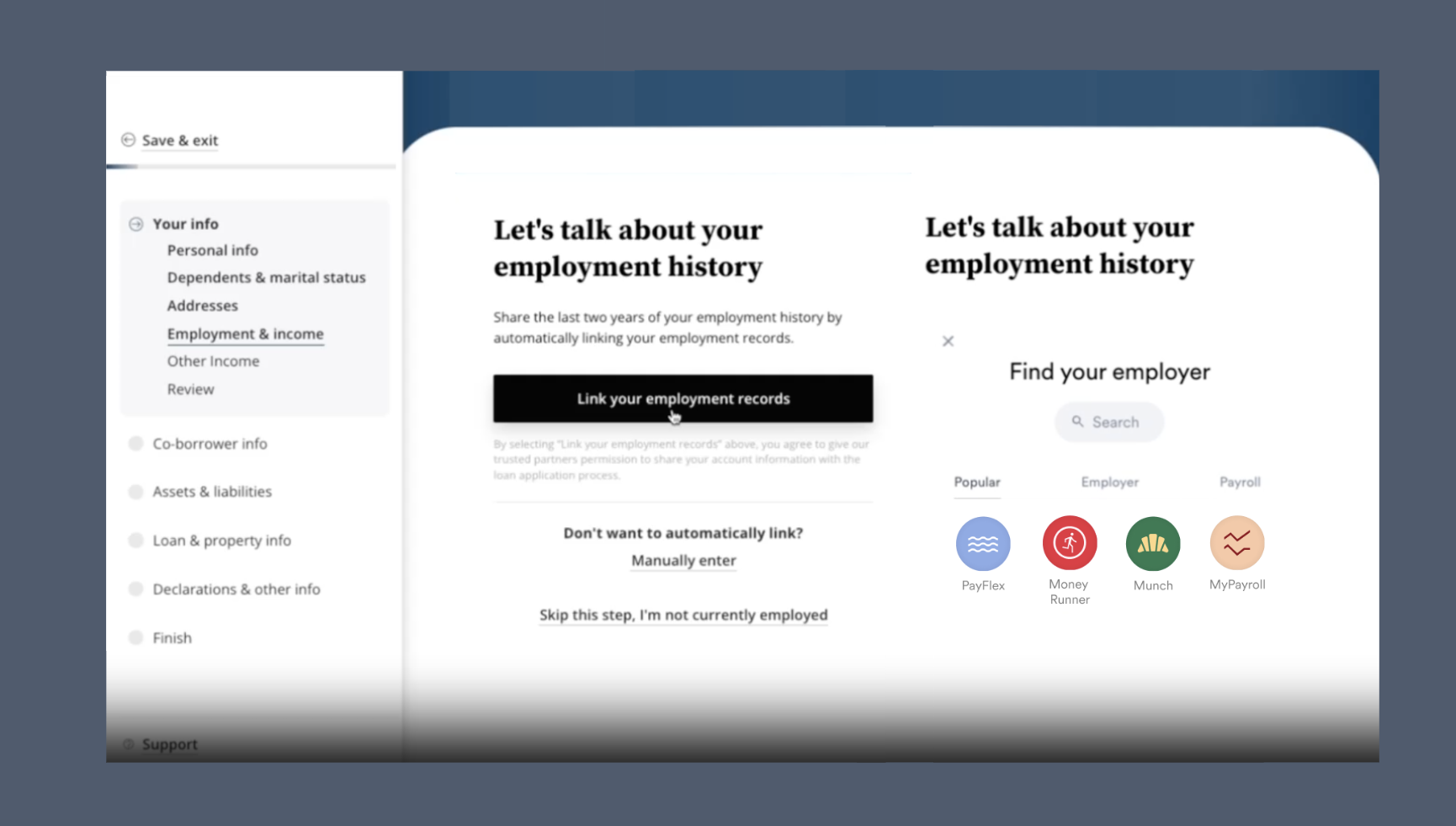
After the Argyle integration is enabled, borrowers will be able to connect their payroll accounts within nCino by selecting their source(s) of income.
-
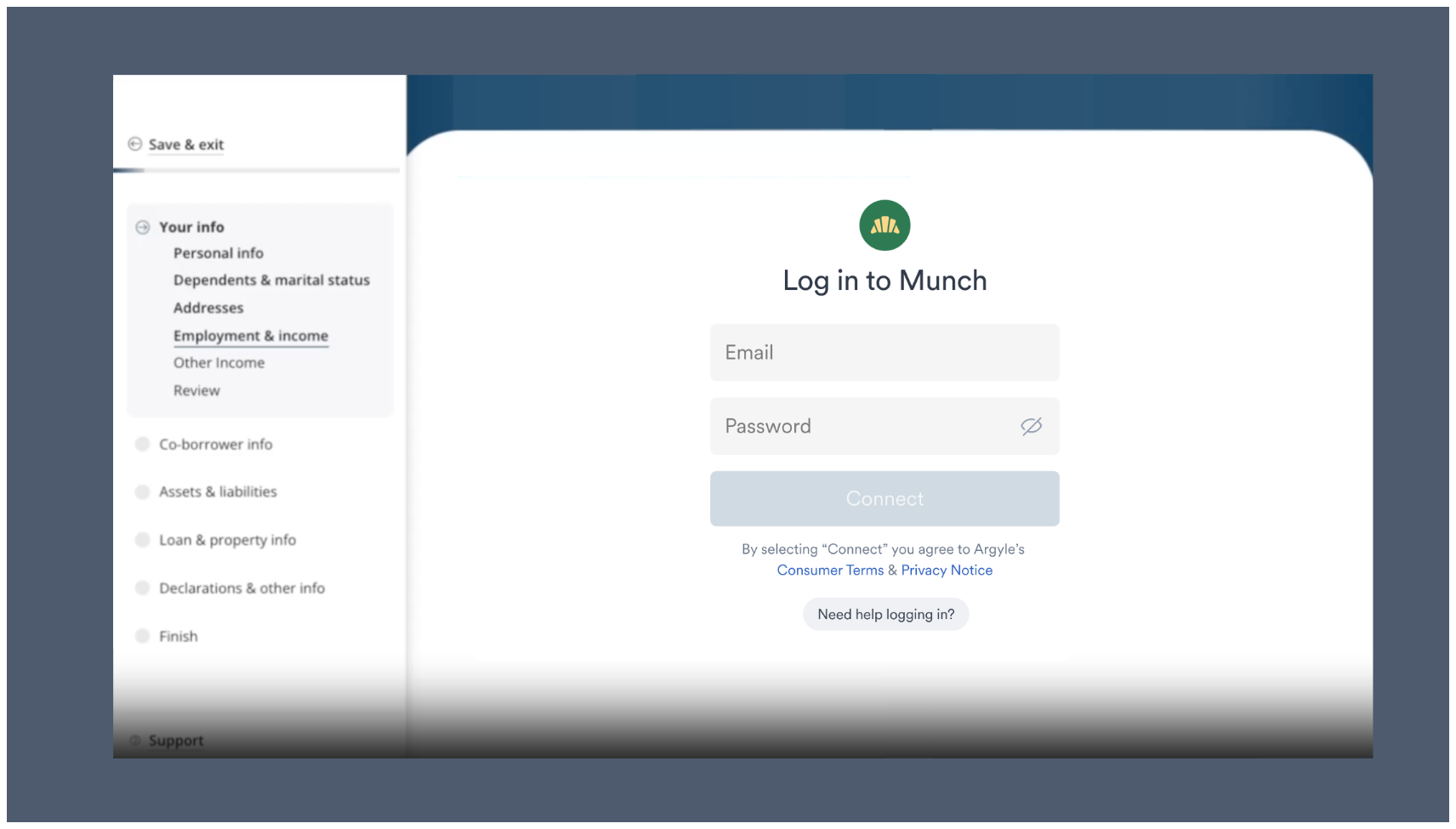
Borrowers enter their login credentials for the employer or payroll system they selected. These are the same login credentials they would use to manually retrieve copies of their paystubs and tax documents.
Verification reports and payroll documents
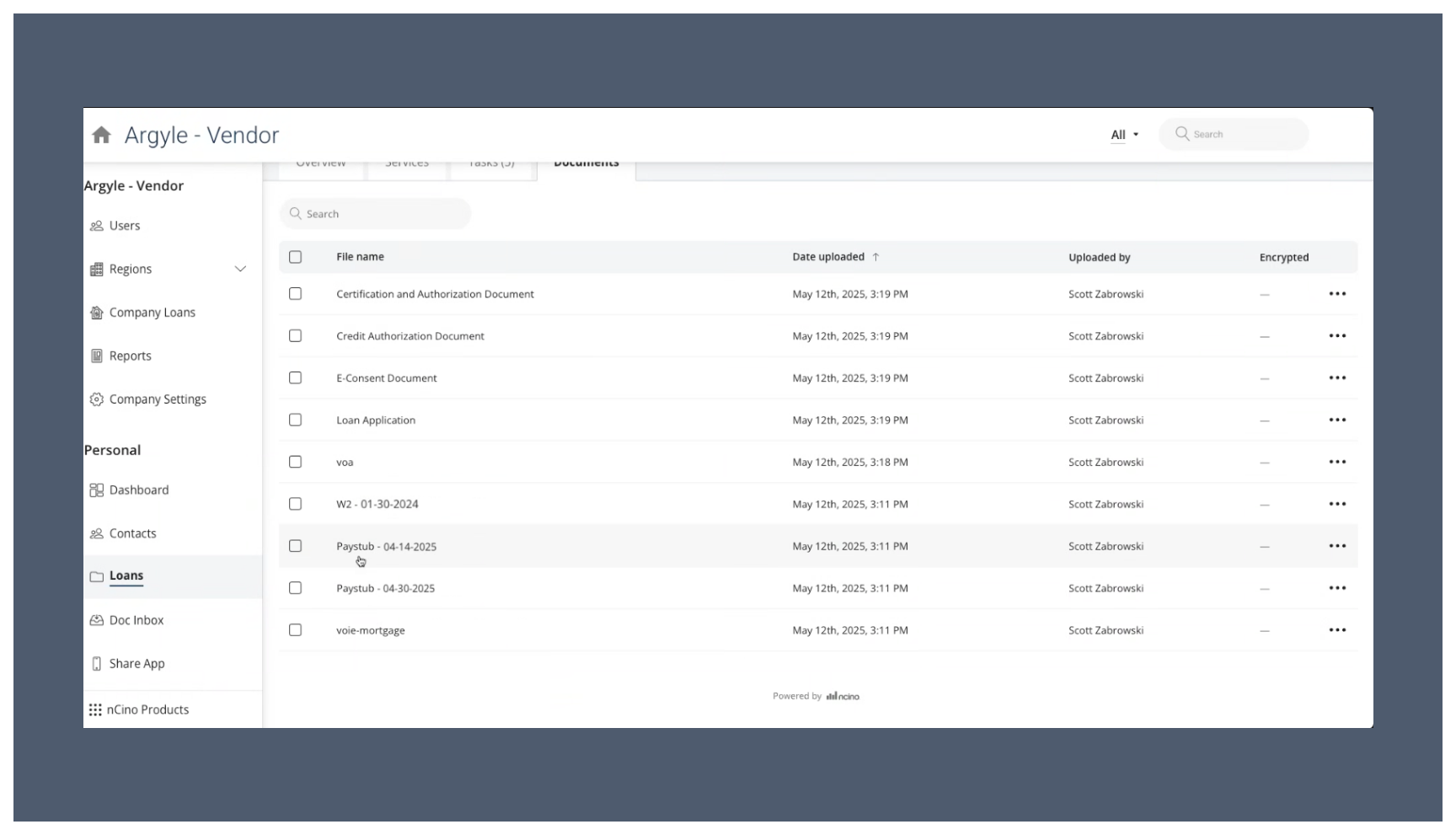
After each payroll account is connected, Argyle will deliver the following PDF documents to nCino:- All paystubs from the past 30 days
- The two most recent Form W-2 tax documents available
- A Verification of Income and Employment (VOIE) report (sample report)
Testing profiles
- Use Argyle’s sample user credentials to log in to:
- Any employer or payroll provider (if testing in Argyle’s Sandbox testing environment)
PlatformtronicorEmployertronicas the employer (if testing in Argyle’s Production environment)
- For specific scenario testing, the following sample users are also available:
Importing to Encompass®
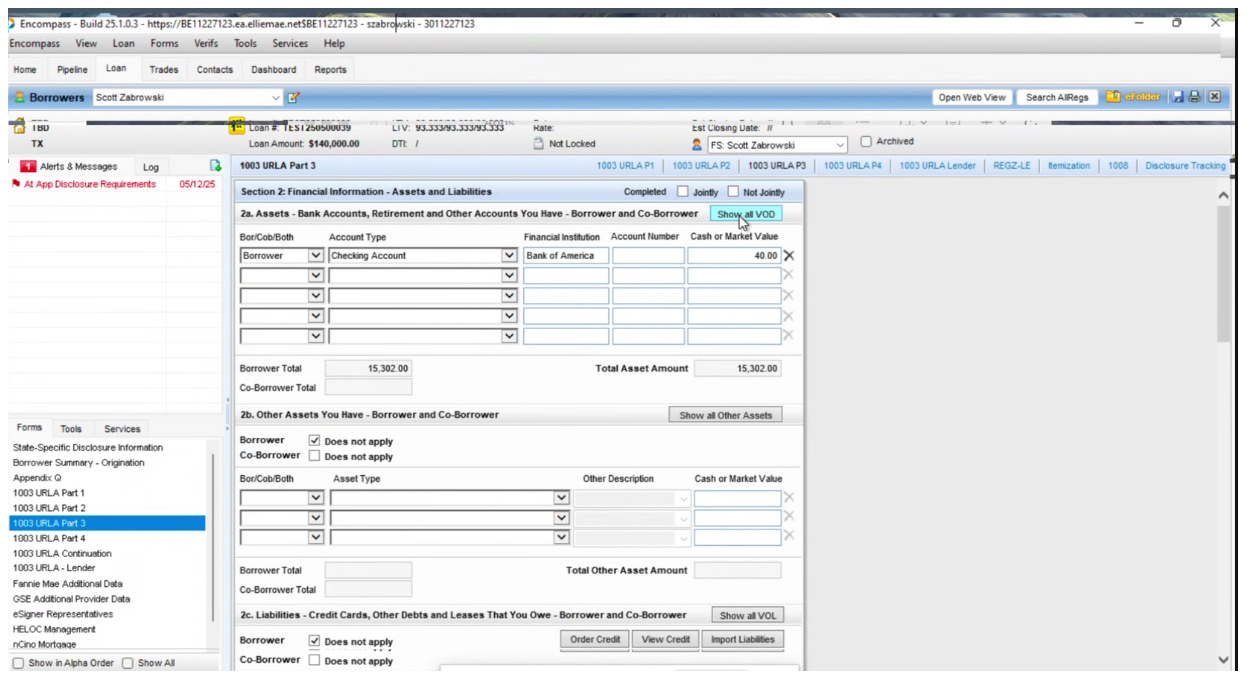
If you use Encompass® as your LOS alongside nCino as your POS, the PDF documents and verification reports requested in nCino can be made viewable within Argyle’s Encompass® integration.Reach out to your Argyle customer success manager to enable nCino and Encompass compatibility.
Financial accounts
Overview
- Argyle’s nCino banking integration allows borrowers to connect their financial accounts during the application process.
- Asset verification reports are made available within nCino, with the option to import the reports into Encompass® and automatically populate asset data in the 1003 URLA and report identifiers required by GSEs within the Encompass® loan file.
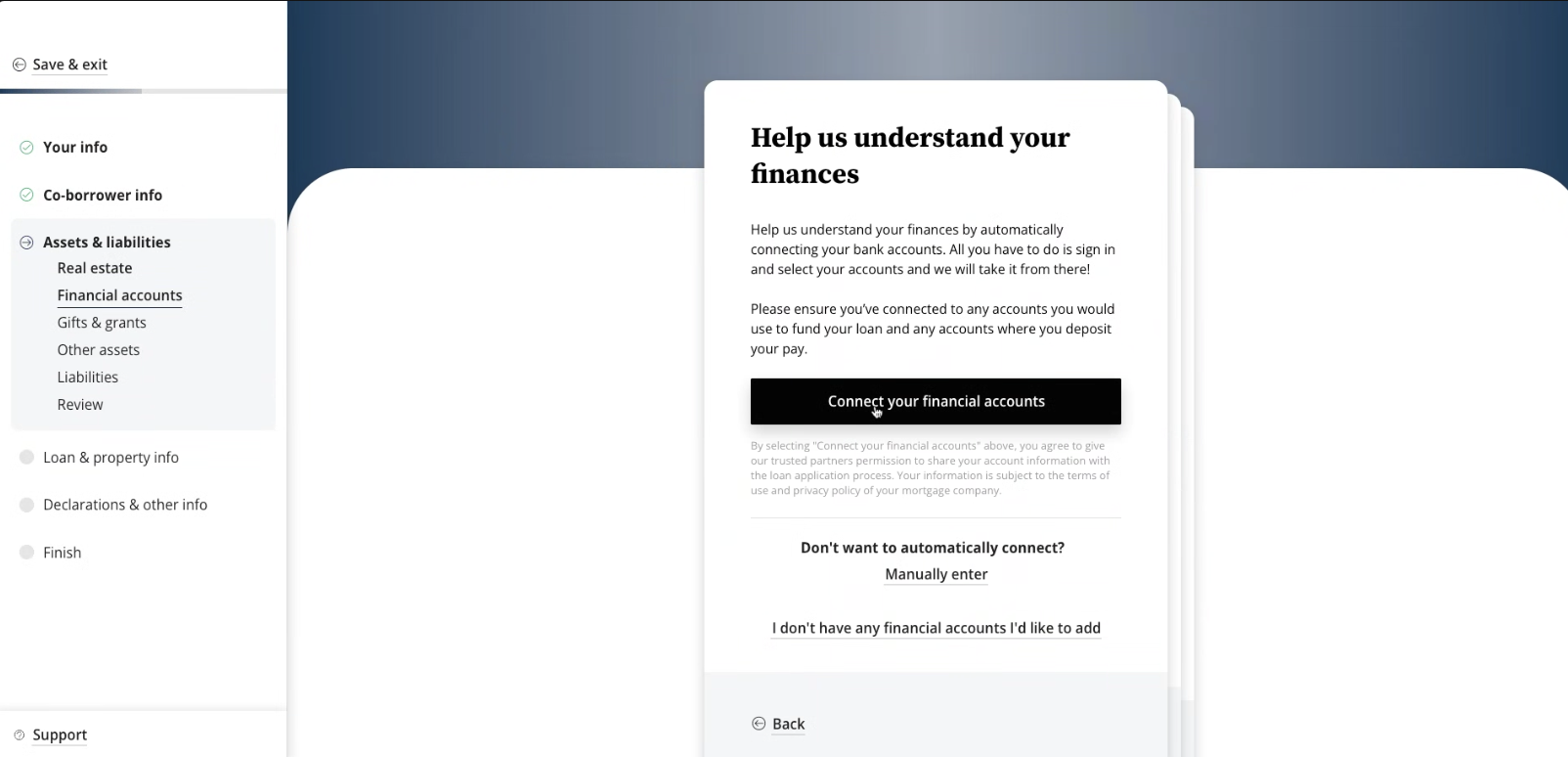
Borrower experience
-
In the Assets & liabilities section, the borrower can search for and connect their financial accounts using their login credentials.
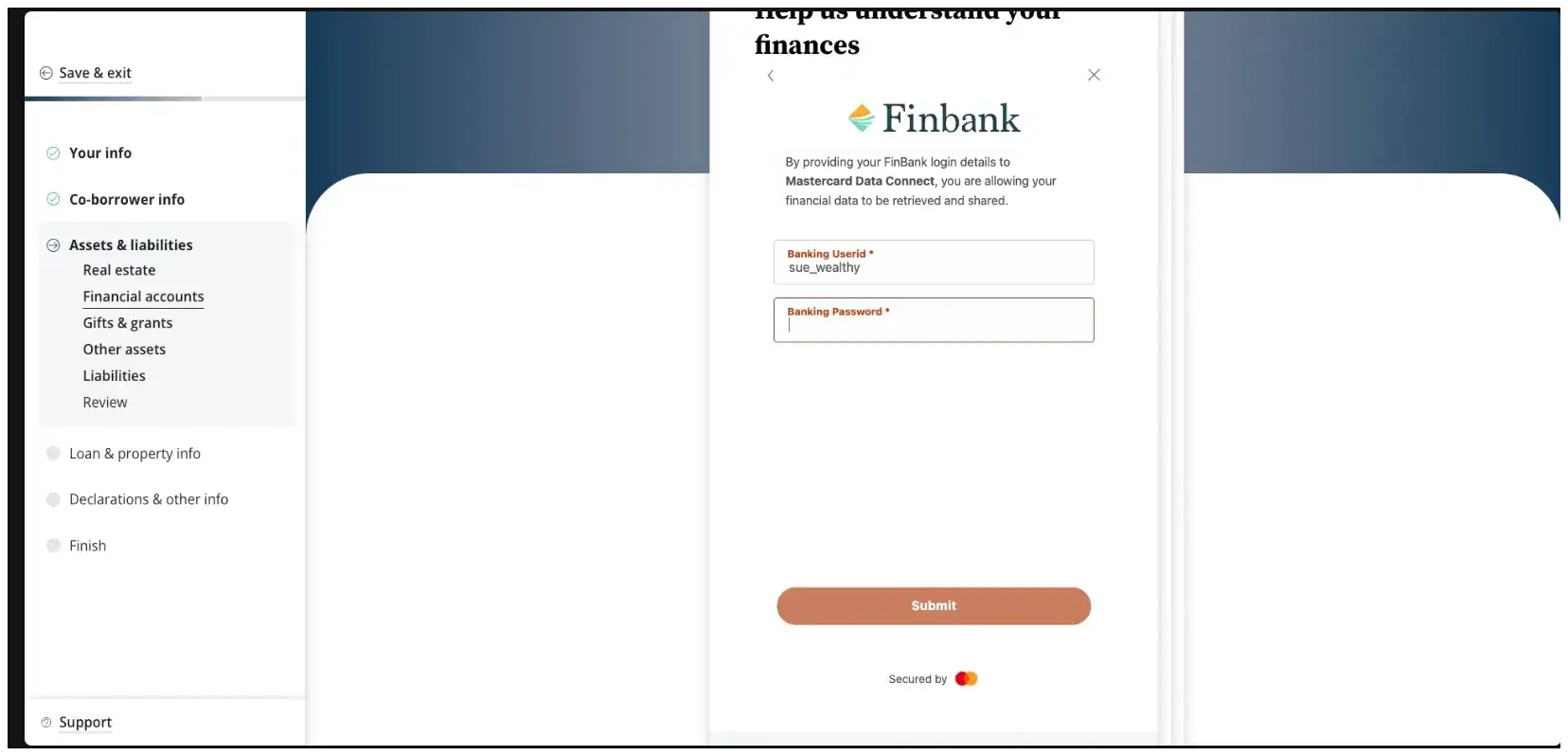
-
When the borrower has finished connecting their financial institutions, they can save and exit to the remainder of their nCino application.
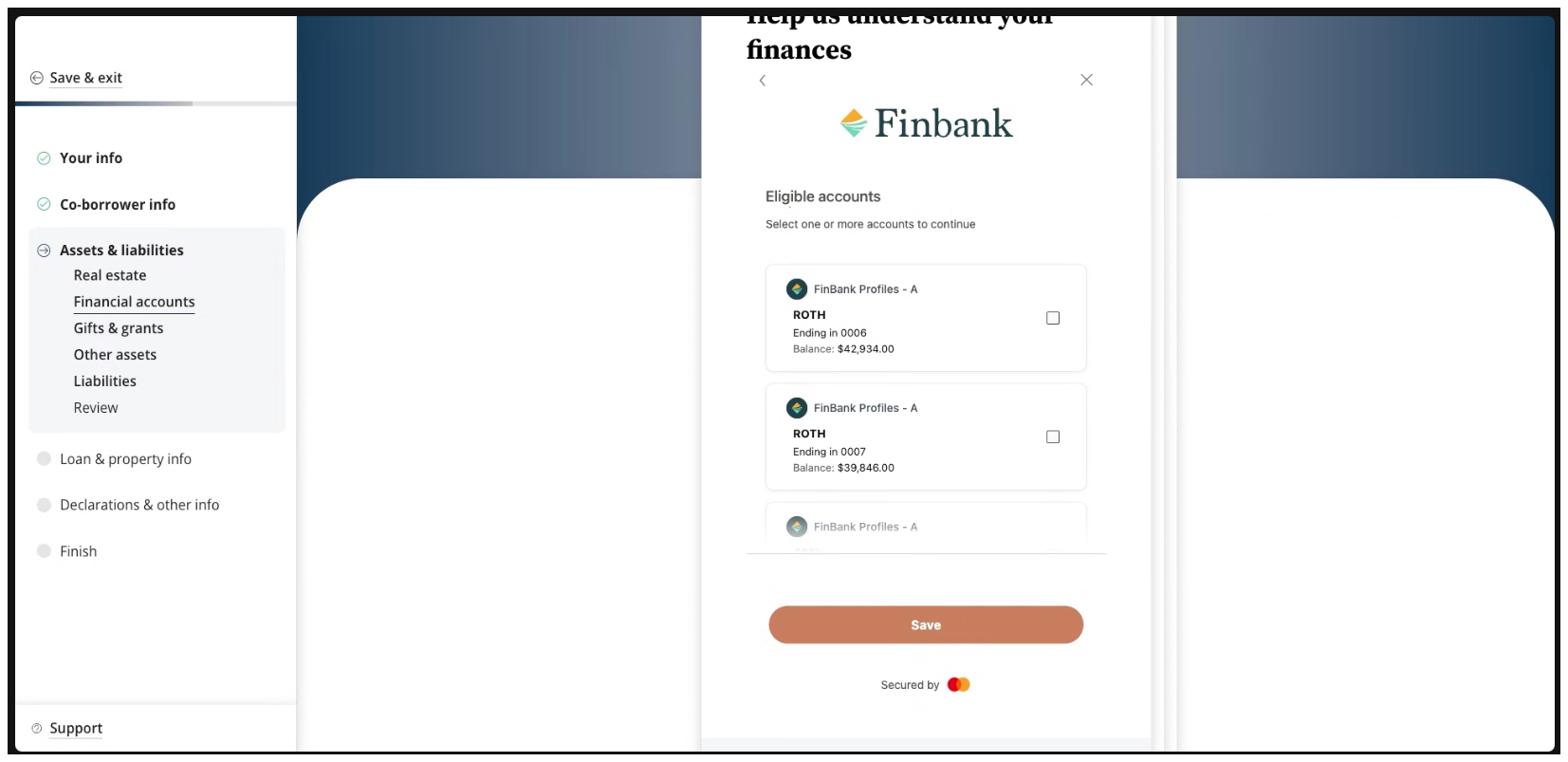
Asset reports
After the borrower connects their financial accounts, Argyle will deliver a Verification of Assets (VOA) report (sample report) or Verification of Assets & Income (VOAI) report (sample report) to nCino. The report type can be configured during admin setup. The report can be accessed within the Services section of your Loans dashboard by selecting View Reports.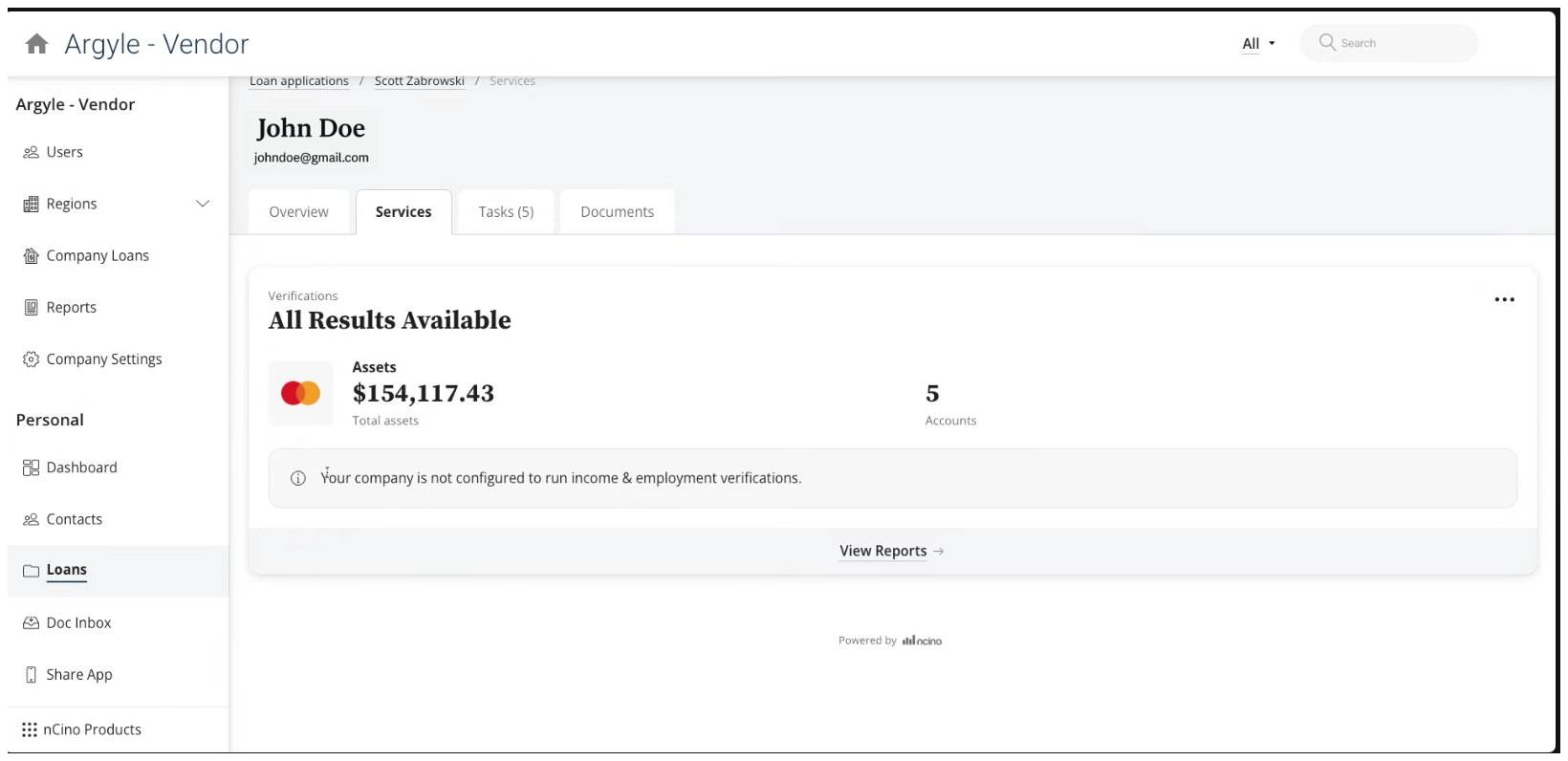
Testing profiles
- Use sample banking credentials to log into either the
FinBank BillableorFinBank Oauth Billablefinancial institutions for testing. - For specific scenario testing, the following sample users are also available:
Importing to Encompass®
If you use Encompass® as your LOS alongside nCino as your POS:- Asset reports in nCino can be imported to the Encompass® eFolder.
- Asset data will automatically populate the 1003 URLA section of the Encompass® loan file.
-
Argyle will automatically populate the Finicity GSE field within the Encompass® loan file.
The GSE field will automatically be updated after a refreshed report.