

Overview
Argyle’s 3-in-1 Verification Suite provides a single workflow within Encompass® for multiple verification methods, reducing manual fallbacks and shortening loan timelines.- Order Income & Employment and Asset verifications independently for multiple borrowers.
- Receive Day 1 Certainty® and AIM eligibility determinations.
- Order closing Employment verifications using refreshed data.
Wholesale lenders and brokers can also use the suite in Encompass TPO Connect, with broker-branded invites for payroll and banking orders.
Loan officer workflow
Required loan file details
- Select a loan in Encompass®.
-
Provide the following required details:
Select Argyle as the provider
- Under Services:
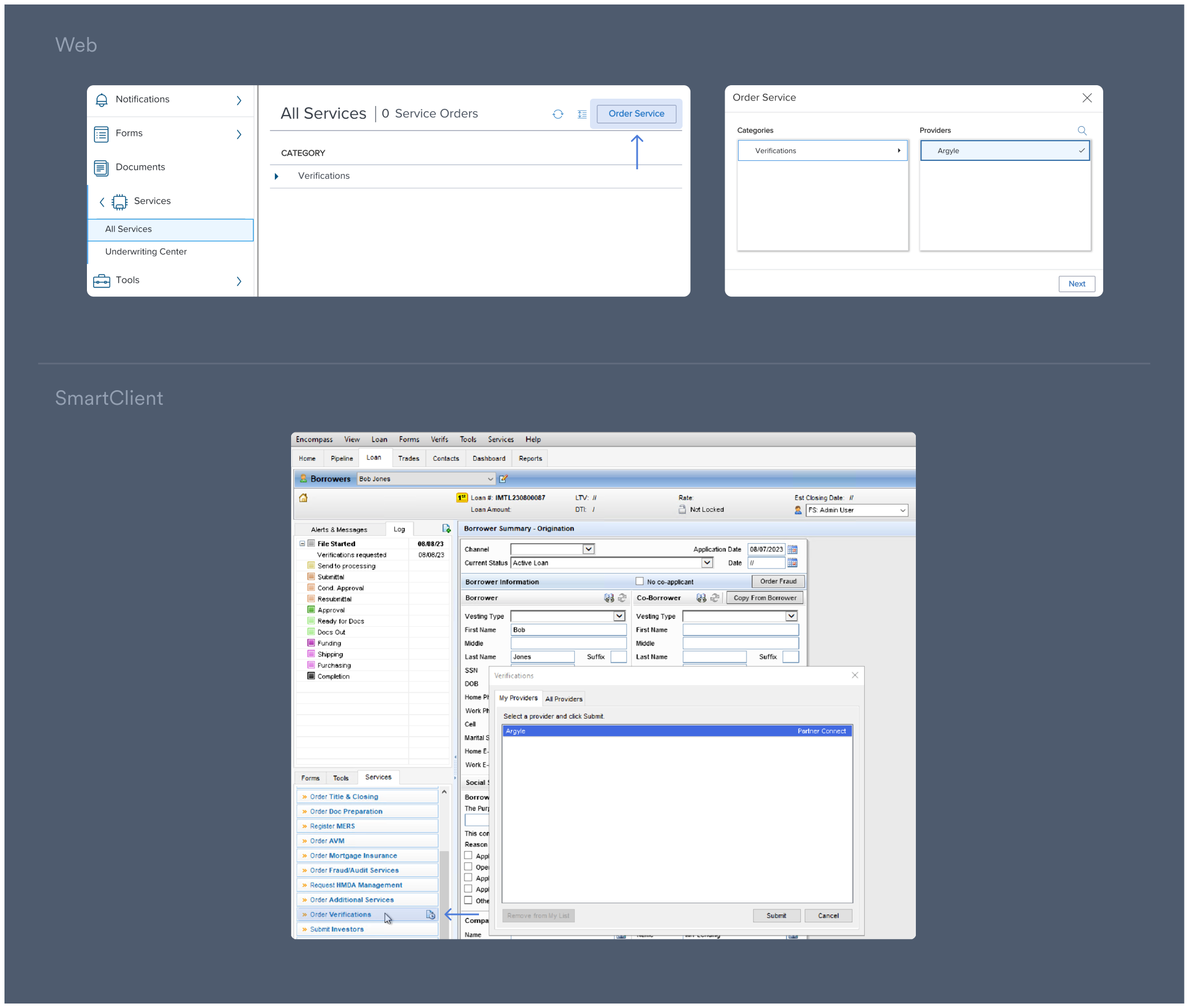
- [Web] Select All Services and then Order Service. In the pop-up, click Verifications under Categories.
- [SmartClient] Select Order Verifications.
- In the pop-up, select Argyle under Providers. Then click Next/Submit.
Ordering verifications
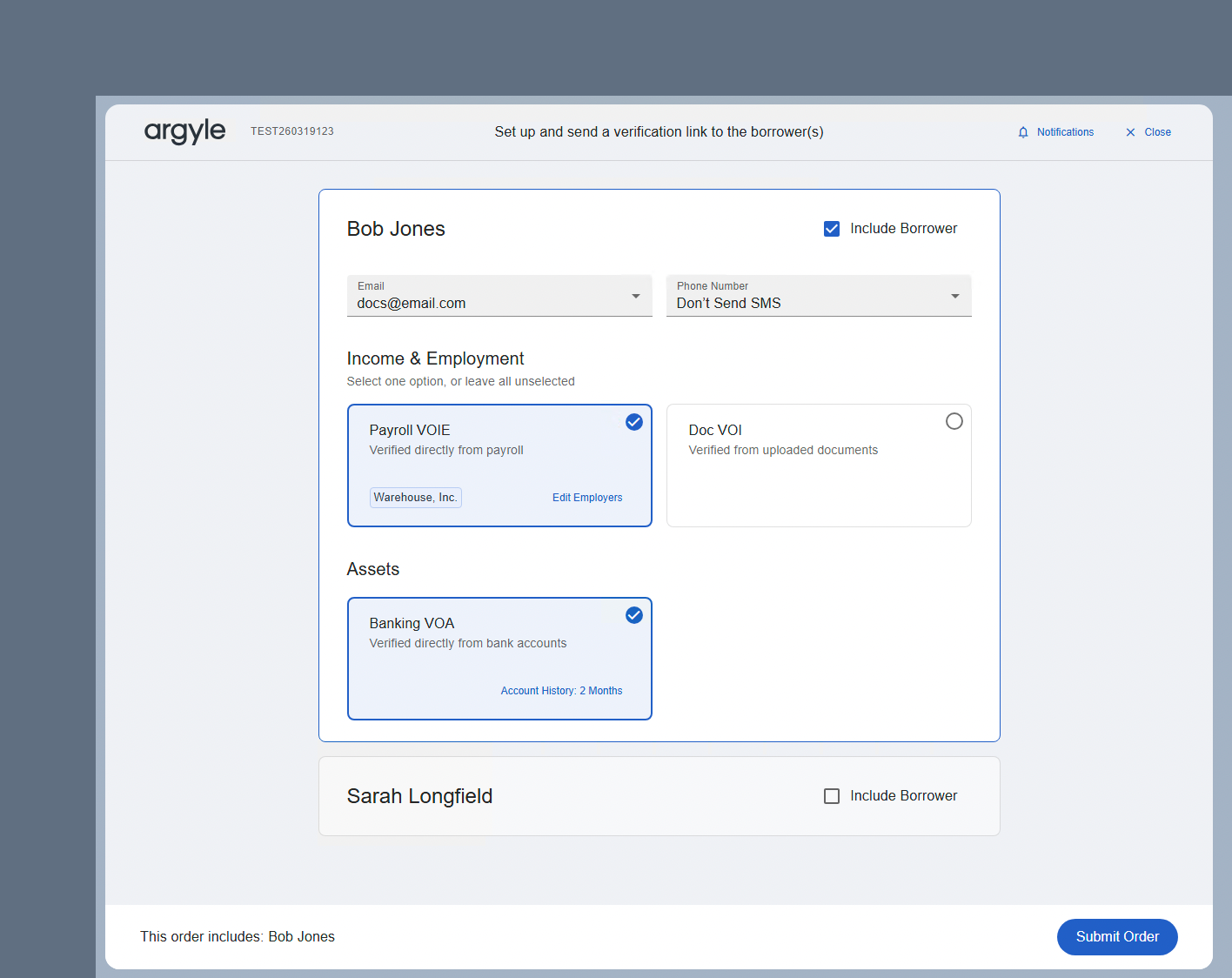
- Select the borrower(s) and verification methods you want to order.
-
Review borrower contact details for payroll and banking verifications.
Including both
EmailandSMSgenerally provides the best response rate. -
(Optional) Select Notifications in the upper-right of the Argyle window to choose which team members should receive updates on verification orders.
You can add or remove team members from notifications at any stage of the ordering process. Suggested team members are populated from contacts attached to the loan file. Standalone email addresses can also be entered.
-
For payroll verifications, adjust employments via
Edit Employers.Argyle automatically attempts to match employers from the Encompass® loan file. -
For asset verifications, adjust the desired
Account Historylength. -
For document verifications, selecting
Add Documentswill provide a list of required documents based on the borrower’s current and previous employments. SelectOpen eFolderto upload documents from the eFolder or local drive.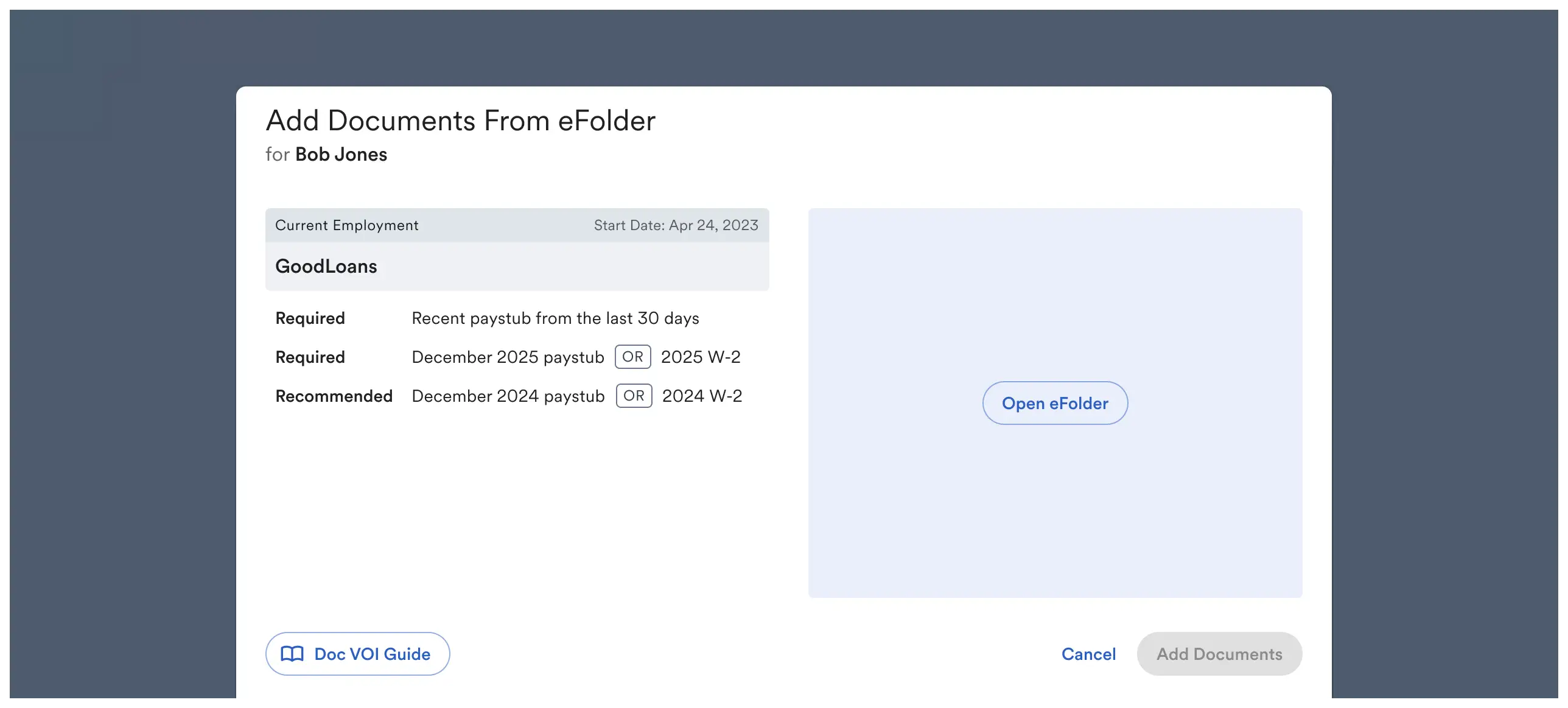
Track order progress
-
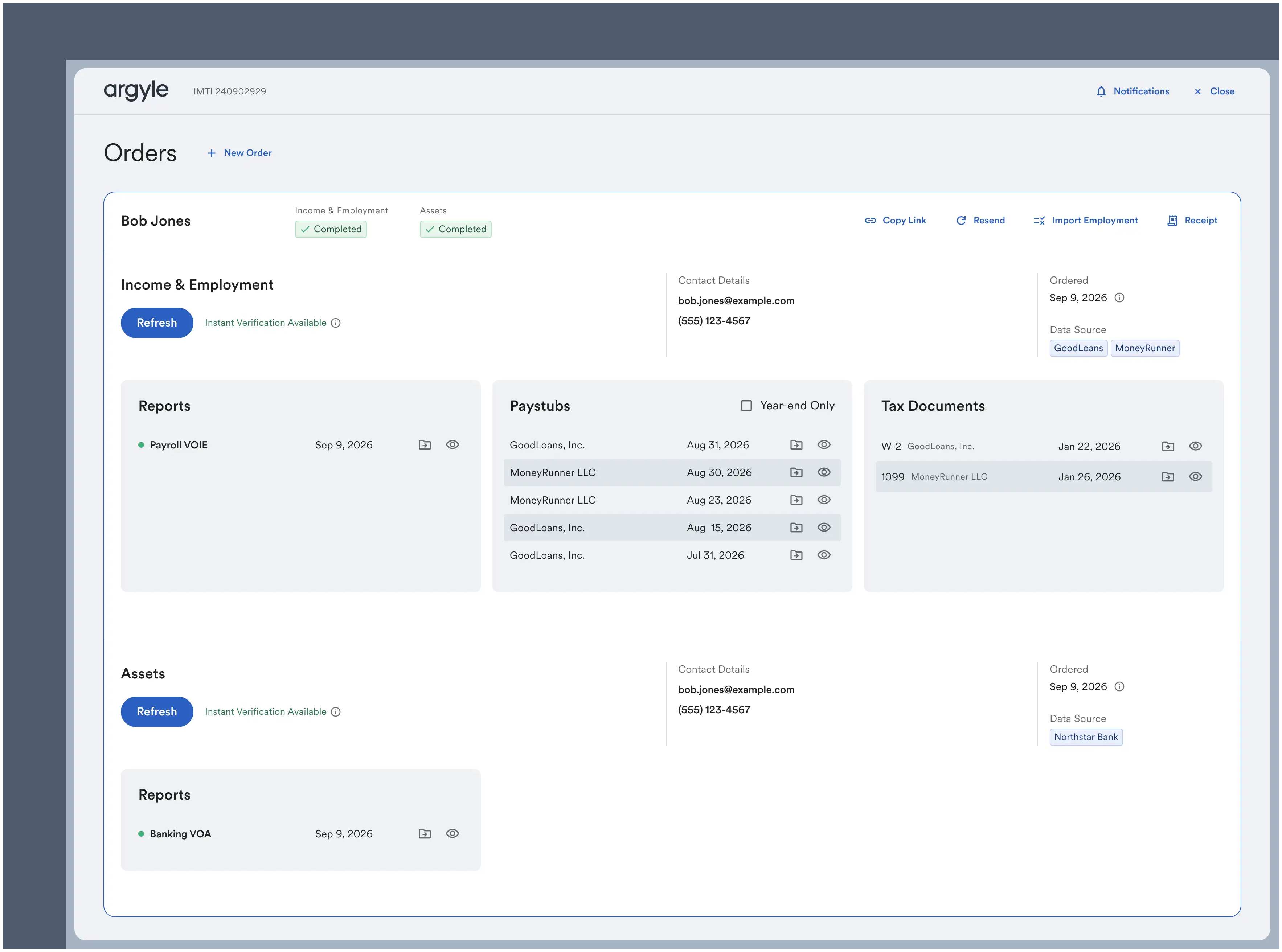
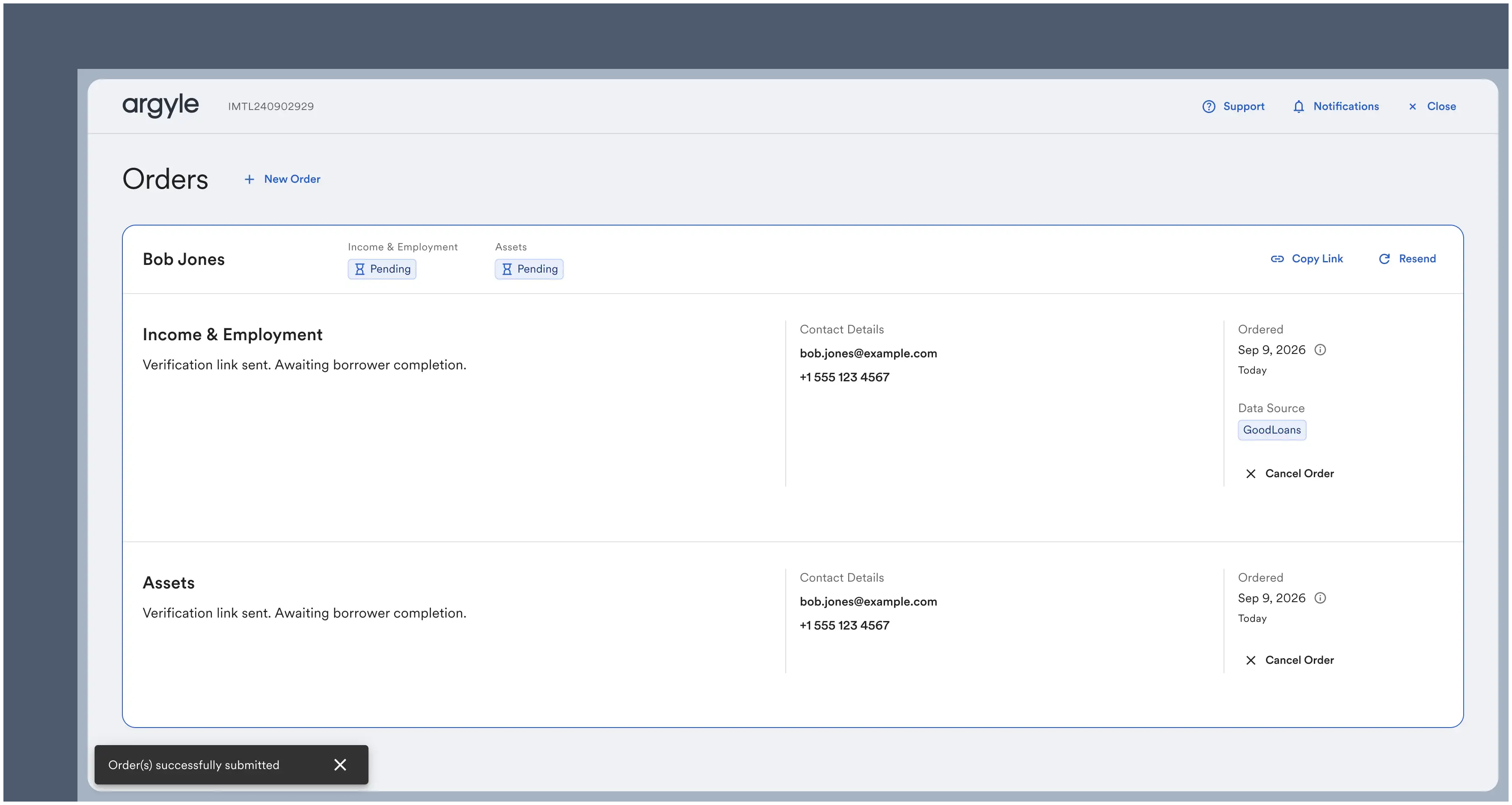
Submitted verifications are shown on the Orders screen and proceed independently.
-
The order status will be shown in the top left next to the borrower name.
Order status details
- Pending: Awaiting borrower action.
- In Progress: Connected data is syncing, a refreshed verification is being generated, or uploaded documents are being processed.
- Action Required: The borrower needs to take additional action before the order can be completed. Additional details and next steps will be displayed.
- Cancelled: The verification order was manually cancelled within Encompass®. Argyle may also cancel orders due to processing timeouts or unresolvable issues.
- Completed: The verification was successful. Reports and documents have been routed according to your document-mapping configuration.
-
For payroll and asset verifications, the borrower(s) will be sent an email and/or text invitation asking them to connect their respective payroll and financial institutions.
To resend an invitation, select Resend or select Copy Link to generate a URL that can be shared with the borrower.
- For document verifications, the borrower will not be contacted. Submitted documents will begin processing immediately, with a typical processing time of 10 minutes.
View reports and documents
-
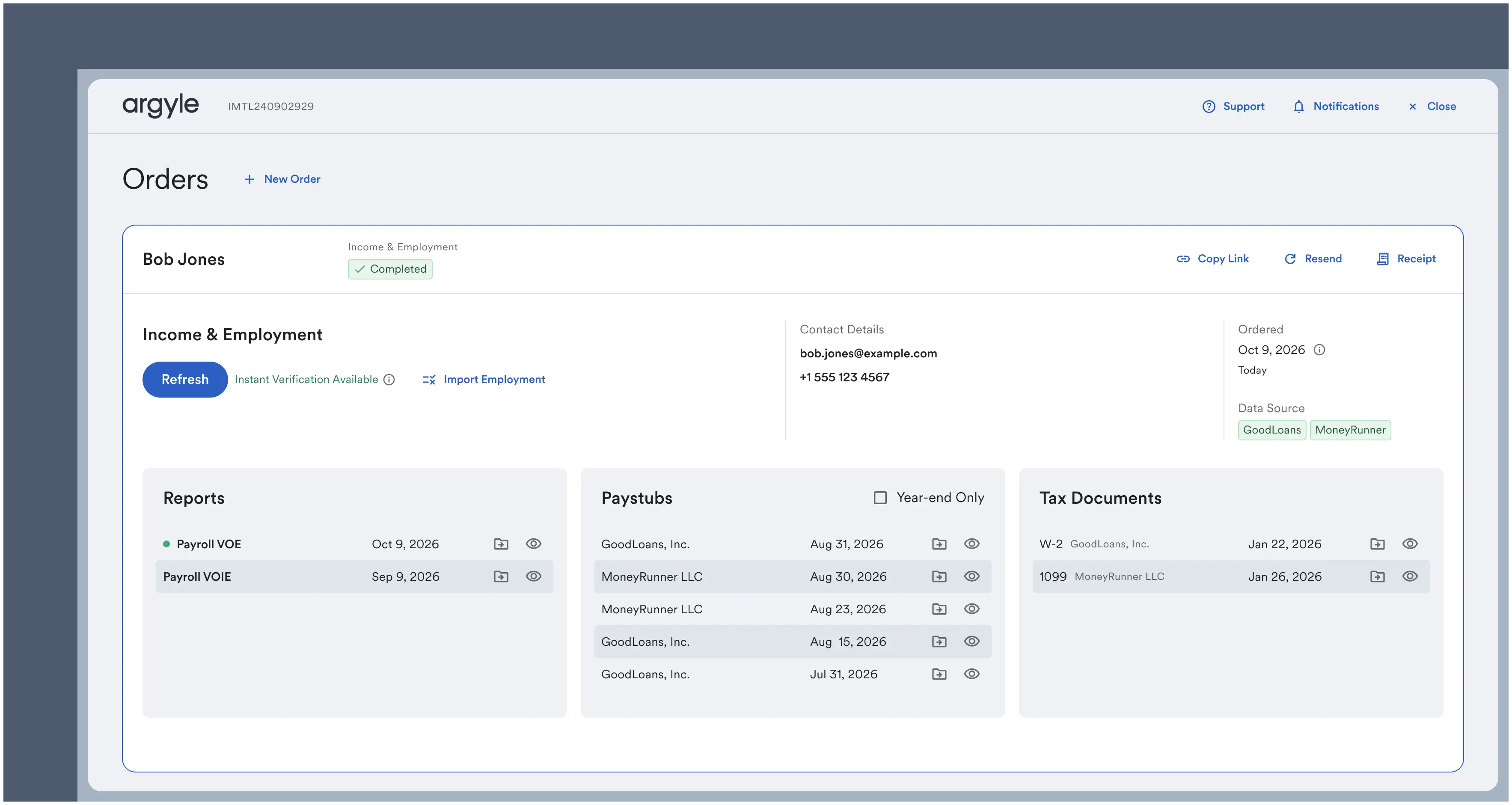
Once an order reaches Completed status:
- The Reports section will contain verification reports.
- The Paystubs and Tax Documents section will contain uploaded and retrieved payroll documents.
Reports and documents can also be viewed in the Connections section of Console. Each borrower has an external identifier that matches their Loan # in Encompass®. -
Automatic delivery to eFolder.
- Verification reports are automatically pushed to eFolder.
- For VOIE orders, the last 30 days of paystubs and the two most recent W-2s are also automatically pushed. Additional retrieved payroll documents can be pushed to eFolder as needed.
While payroll connections remain active, newly available data and documents continue to be delivered. New payroll documents appear in the Encompass® integration and can be previewed or pushed to eFolder as needed.
Import assets
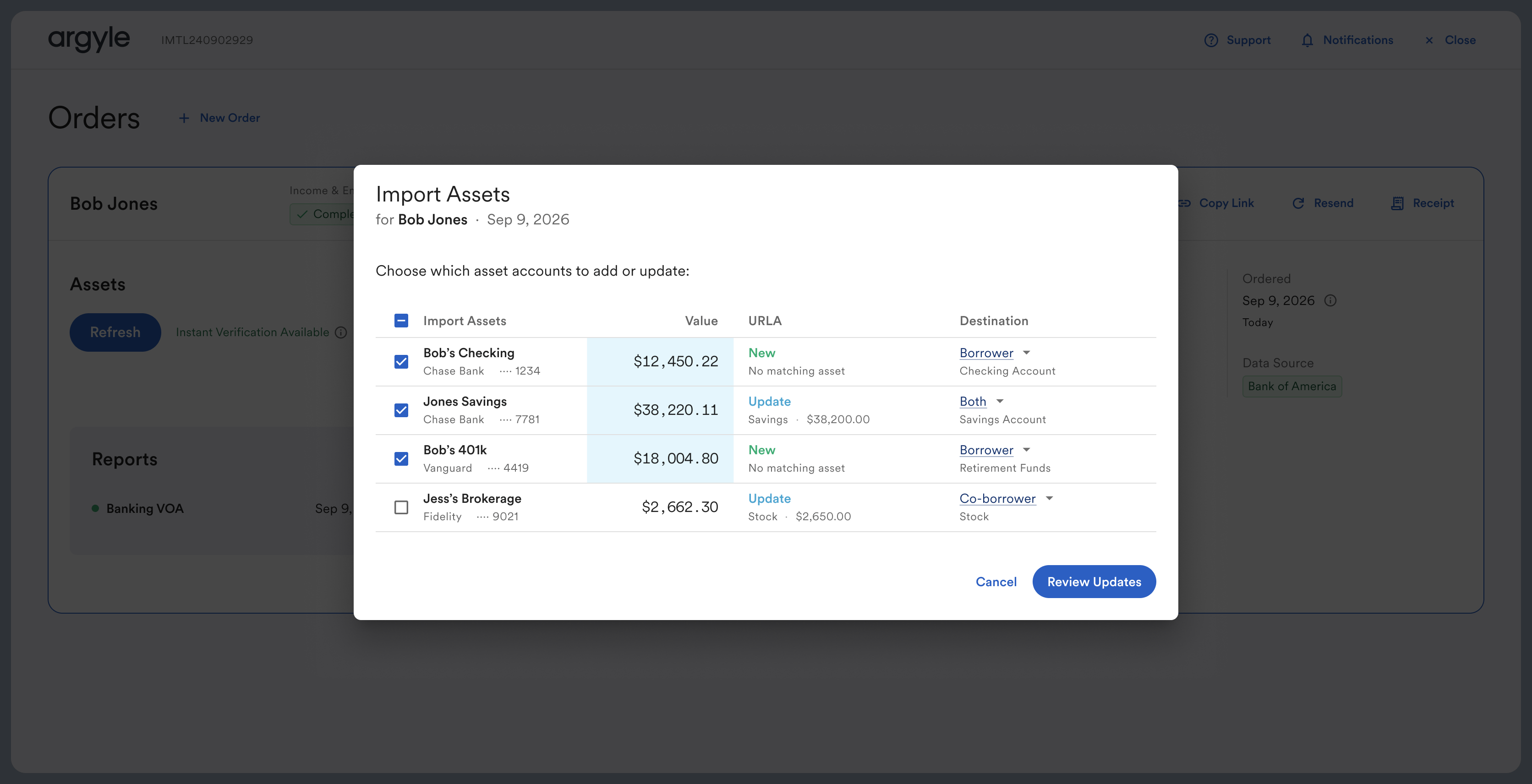
Loan officers can import asset account details from completed Banking VOA and VOAI reports into Encompass®.- For a completed asset verification order, select Import Assets.
- Choose which asset accounts to import.
- Review whether each account will be added as New or used to Update an existing URLA entry.
- Optionally adjust the Destination for each selected account: Borrower, Co-borrower, or Both when available.
- Select Review Updates and confirm the import.
Argyle only writes selected asset accounts after confirmation. Argyle attempts to update existing URLA assets in the loan file when a matching account is found to help avoid duplicate asset entries.
Order closing verifications
-
When Instant Verification Available is shown in green, an up-to-date report can be ordered by selecting Refresh that does not require additional borrower action.
-
When Re-engage if Needed is shown in orange, there are two verification options after selecting Refresh:
- Request Updated Data will resend a connection invitation to the borrower.
- Use Available Data will generate a report immediately with the most available data, and does not require additional borrower action.
 According to the GSE’s, reports based on data last updated 35 days ago or less are sufficient for rep & warrant consideration.
Banking reports account filtering
Loan officers can review and update the financial accounts included in refreshed banking reports:- For completed asset verification orders, select Refresh.
- In Accounts Included, include or exclude the financial accounts that should appear in the refreshed report.
- Submit the refresh.
The Accounts Included section appears when multiple financial accounts are available. At least one account must remain selected before the report can be refreshed.


Borrower experience
This borrower flow applies to payroll and banking verifications. No borrower action is required for document verifications.
-
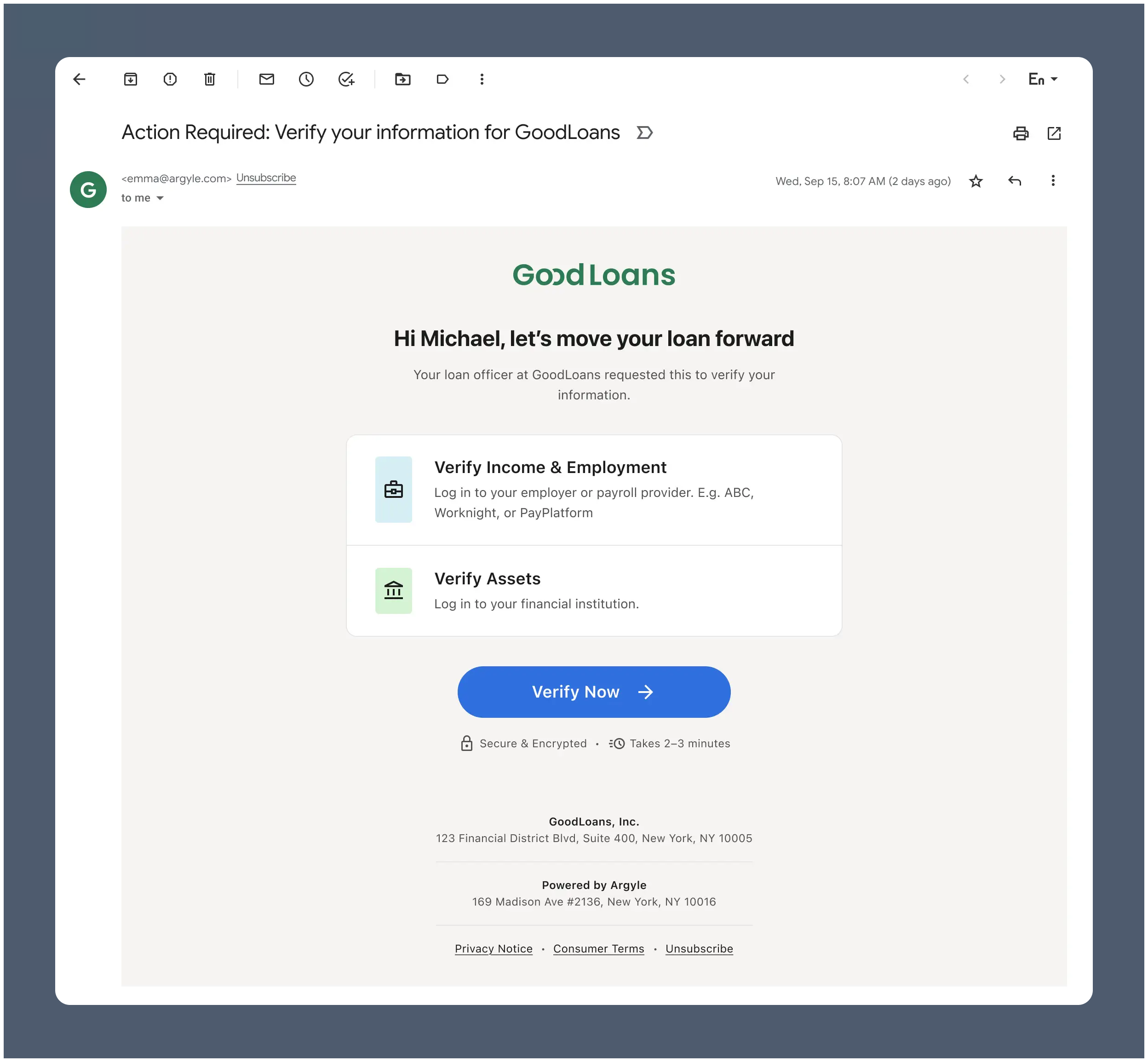
After order submission, each borrower receives a single Argyle invitation by email and/or text.
-
Selecting Verify Now opens a landing page that lists the requested verification methods.

-
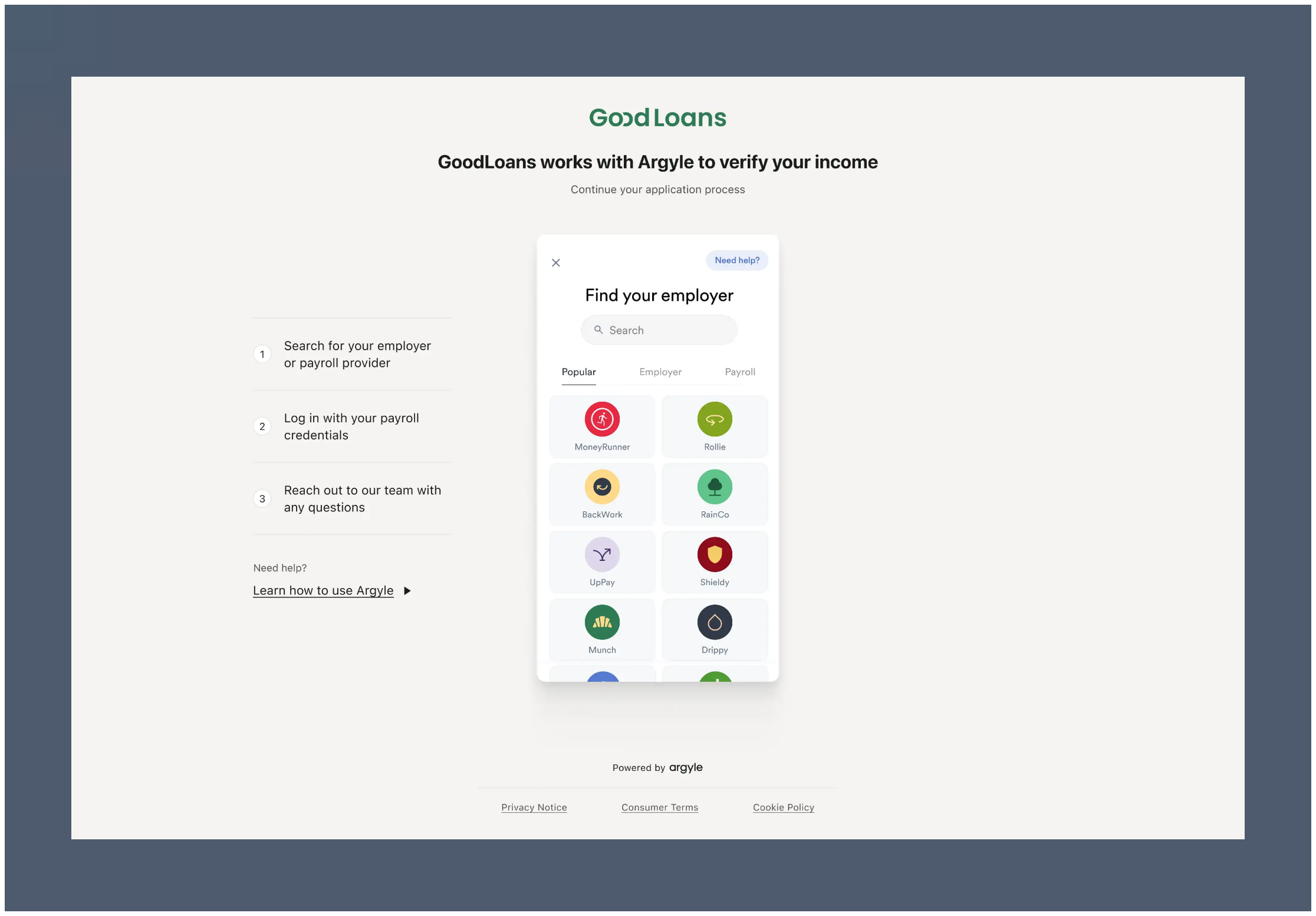
Selecting Payroll Provider takes the borrower to Argyle’s payroll connection experience.
-
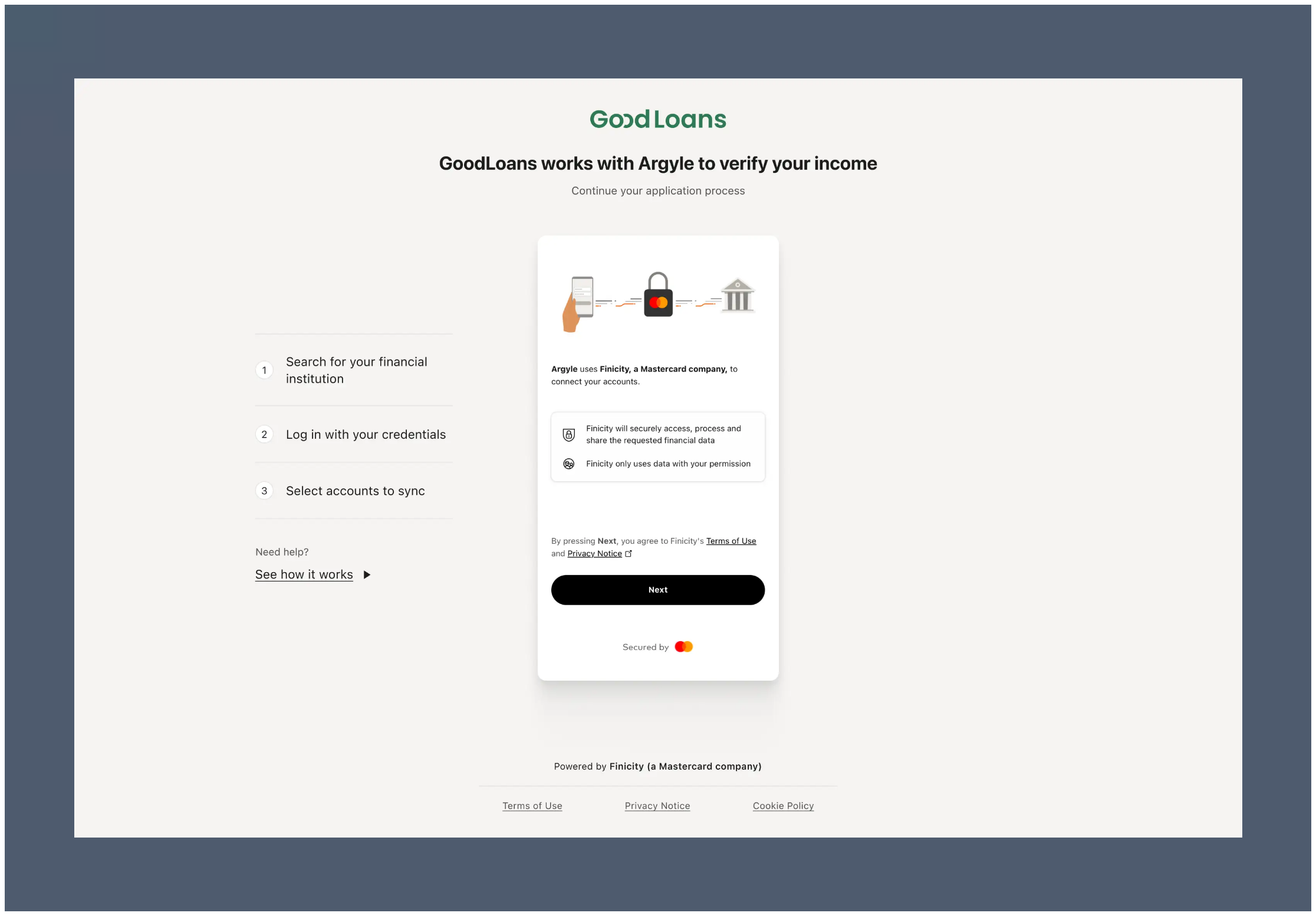
Selecting Bank Account takes the borrower to Mastercard’s financial account connection experience.
-
Borrowers can complete payroll and asset connections in either order and return later if needed.
- After each successful connection, the borrower returns to the same landing page until all requested verification methods are completed.
- If a refreshed verification later requires borrower action, a new invitation is sent and the borrower returns to the same landing page to reconnect the method that needs updated data.
Day 1 Certainty® and AIM
Argyle’s income & employment and asset verification reports provide lenders an automated way to achieve Day 1 Certainty® through Fannie Mae’s Desktop Underwriter® (DU®) validation service and assessment of borrower income and assets through Freddie Mac’s asset and income modeler (AIM).Reach out to your Customer Success Manager to enable Argyle’s Day 1 Certainty® and AIM functionality.
Payroll and Doc VOI reference fields
Payroll and Doc VOI reference fields
These mappings are provided for troubleshooting or integrations that write to Encompass directly. When using the Argyle Encompass integration, you do not need to populate these fields manually.
Doc VOI report IDs are not written to
GSEVENDOR.X60. If the loan has both payroll and Doc VOI reports, the payroll reference numbers populate GSEVENDOR.X60 and the AIM Check references populate the applicable Freddie Mac fields.- Select Import Employment for a Completed order.
- Resolve any conflicts between the employer name in the loan file and the employer name Argyle used during verification processing.
Resolving employer name mismatches helps maximize Day 1 Certainty® and AIM rep & warrant relief.
Receipts
- Select Receipt for an individual borrower to generate a receipt and push it to eFolder.
- Receipts are available for each individual borrower after orders are Completed and indicate the fees associated with the verification order.
To enable Receipt functionality, reach out to your Argyle Customer Success Manager.
Testing
Payroll test profiles
- Select
Argyle Sandboxfor Sandbox testing orArgylefor Production testing. - Enter your testing email or phone number and order a payroll report.
- After receiving the invitation, use Argyle’s sample user credentials to connect to:
- Sandbox: any employer or payroll provider
- Production:
PlatformtronicorEmployertronic
Banking test profiles
When you’re ready to begin testing, contact your Argyle Customer Success Manager to enable banking permissions.
- Sandbox: connect to
FinBank Profiles AorFinBank Profiles B - Production: connect to
FinBank BillableorFinBank Oauth Billable
For specific scenario testing, the following sample users are also available:
Doc VOI test documents
- Use the sample documents below for Doc VOI verifications.
- For all scenarios below, enter
Warehouse Services Incin 1003 URLA Part 2 as the current employer with a start date of02/01/2023, and leave the end date blank.
Do not adjust file names.
- Sandbox
- Production
GSE-eligible monthly income
GSE-eligible monthly income
Upload the following documents:
Not GSE-eligible monthly income
Not GSE-eligible monthly income
Upload the following documents:
Requires more data
Requires more data
Upload only the following document:
For further assistance, please reach out to support@argyle.com or your Customer Success Manager.