

Overview
Verify assets inside the Encompass® by ICE Mortgage Technology® platform with direct connections to financial institutions.- Generate Verification of Assets (VOA) and Verification of Assets & Income (VOAI) reports.
- Generate closing Verifications of Employment (VOE).
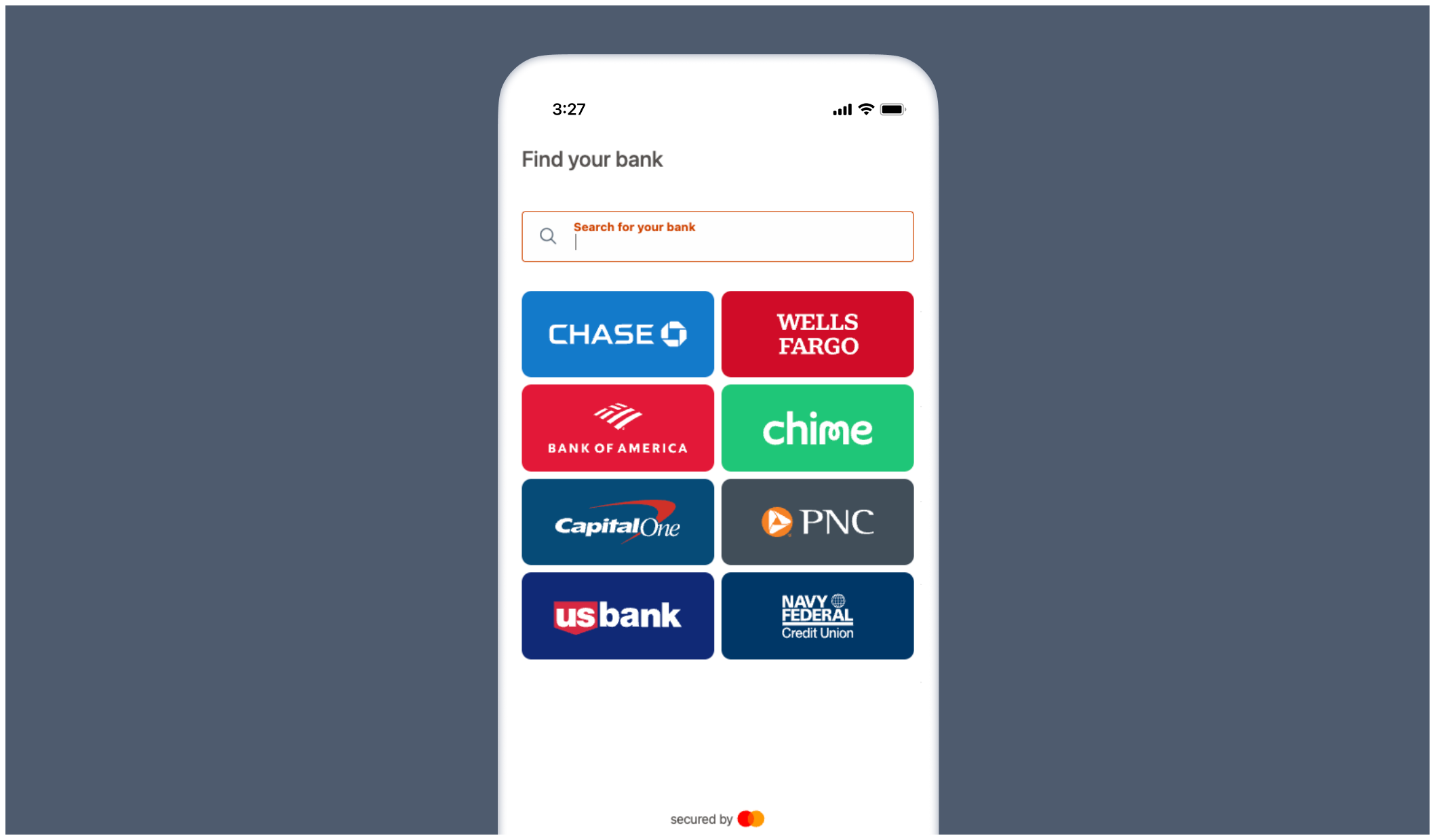
How it works
- Borrowers are invited to securely connect their financial accounts.
- An asset verification report is automatically generated and added to the Encompass® eFolder.
- Additional asset reports and closing verification reports can be ordered within Encompass®.
Ordering verifications
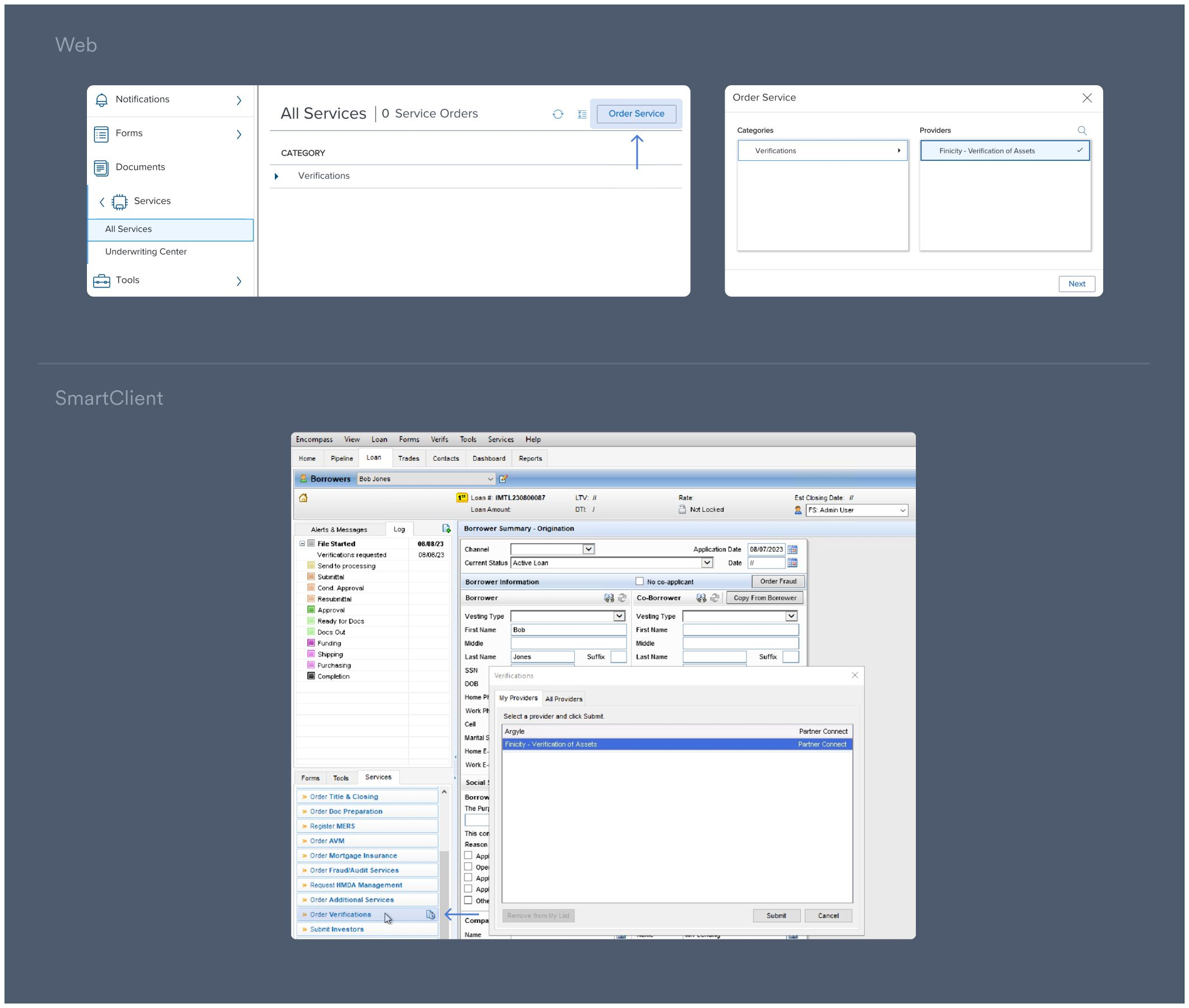
Select asset verification service
- Select a loan in Encompass®.
- Under Services:
- [Web] Select All Services and then Order Service. In the pop-up, click Verifications under Categories.
- [SmartClient] Select Order Verifications.
- In the pop-up, select Finicity - Verification of Assets under Providers. Then click Next/Submit.
Ordering initial verification reports
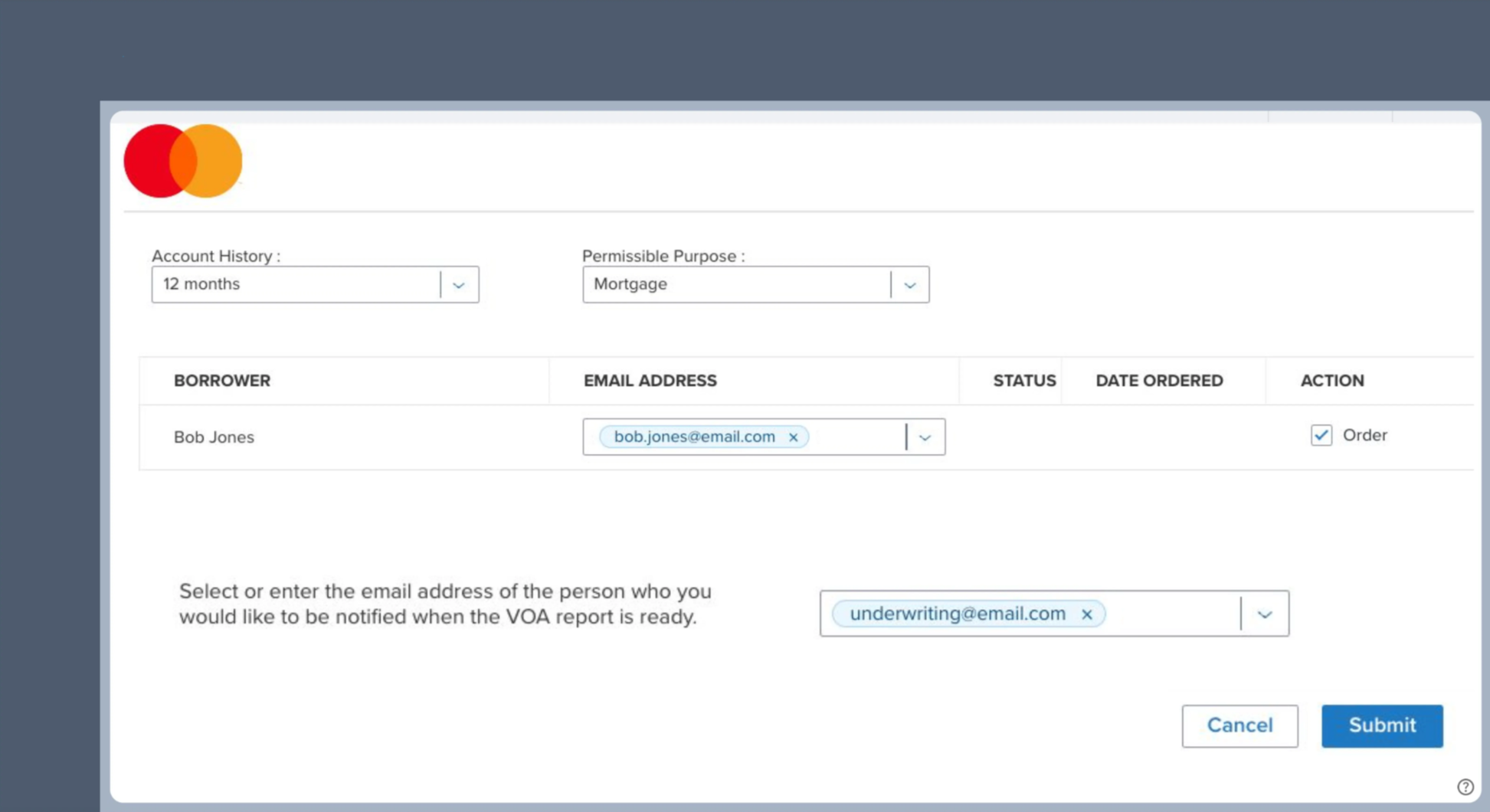
- Make a selection within the Account History and Permissible Purpose dropdowns.
- Enter the email address of the borrower and toggle the Order button ON.
-
Enter the email address(es) you want notified when an asset verification report is ready.
The initial report type is determined by the
Company Experience IDprovided during Admin Setup.- Verification of Assets (VOA) is the default initial report type.
- Reach out to your Argyle customer success manager if you prefer Verification of Assets & Income (VOAI) as the default initial report type.
-
Click Submit to order the report.
-
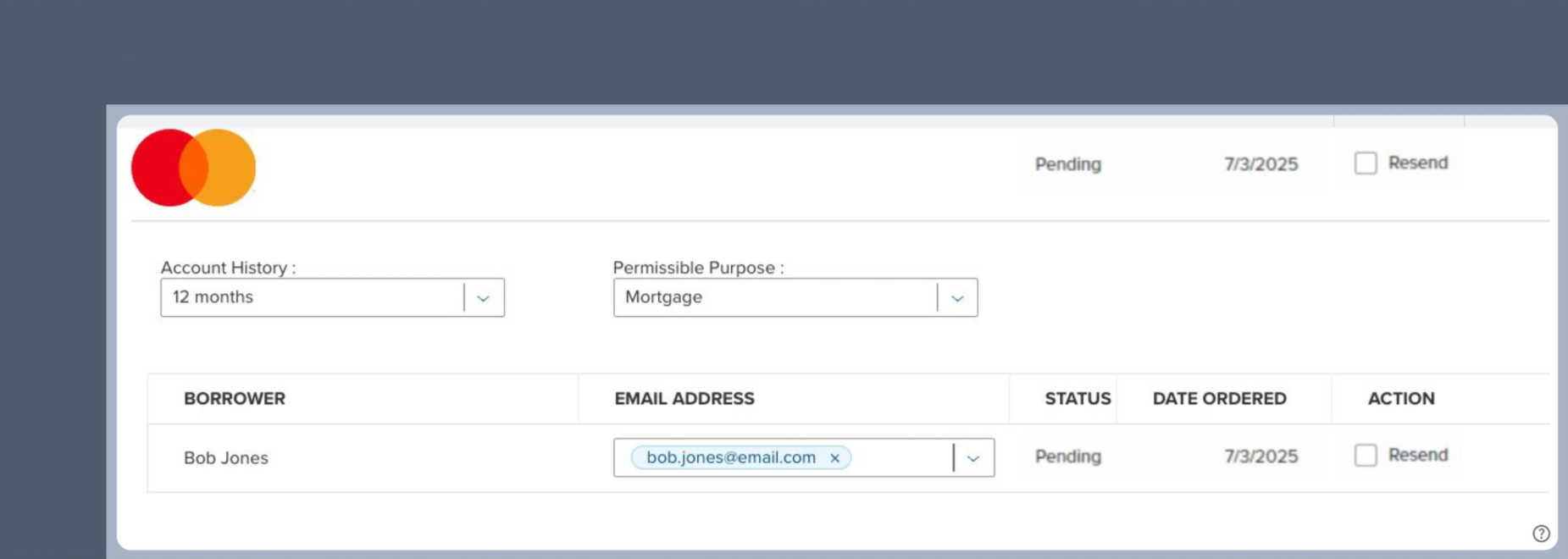
Submitted orders will initially appear with a Pending status.
- Once the order is submitted, borrowers are sent an email asking them to connect their financial accounts.
- You can select the Resend action to send another email to the borrower if needed.
- Verification reports will automatically be pushed to eFolder when the order is Completed.
Retrieving reports
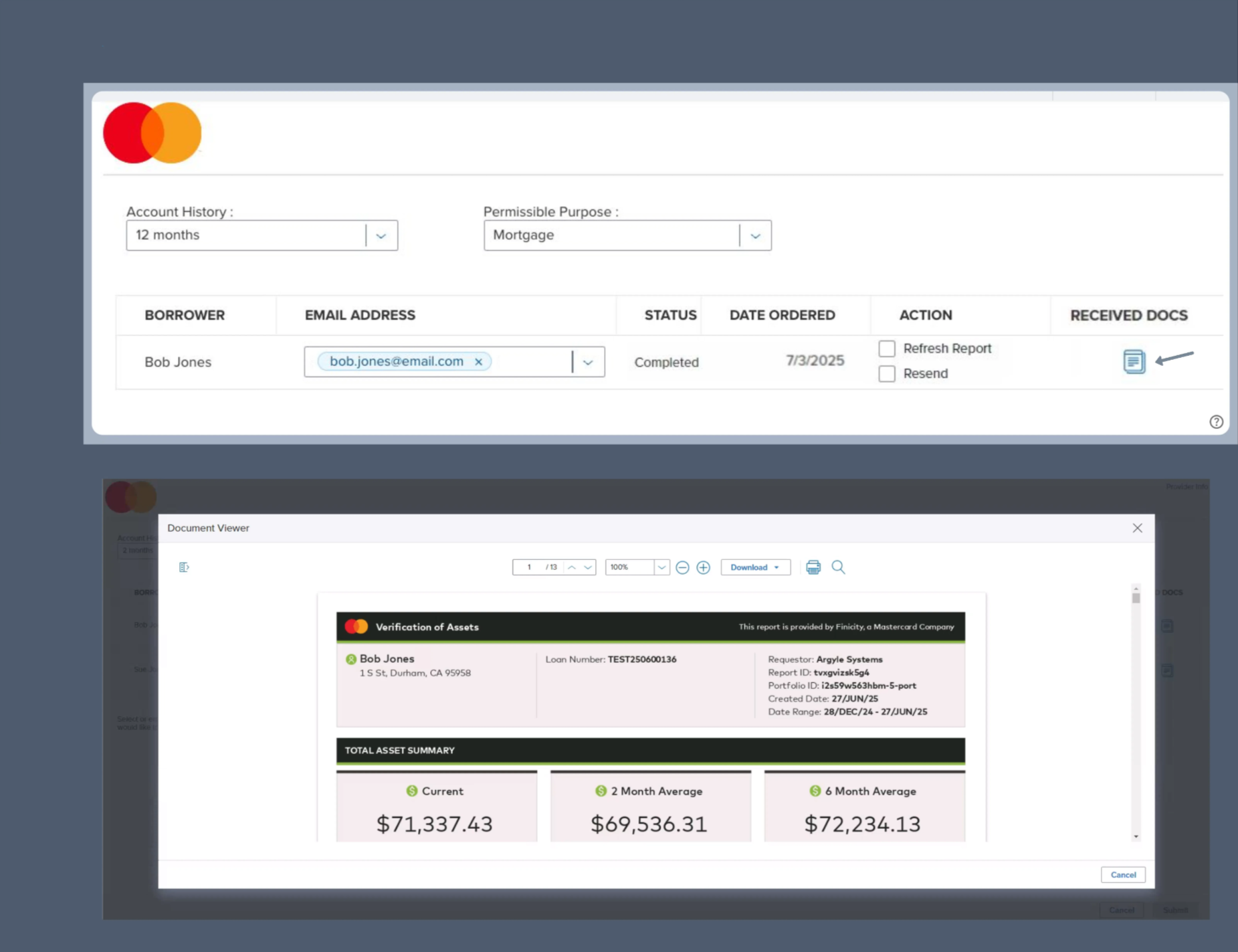
-
Click on
iconunder Received Docs after the order is Completed. -
View and download the report from the Document Viewer window.
Ordering additional/closing reports
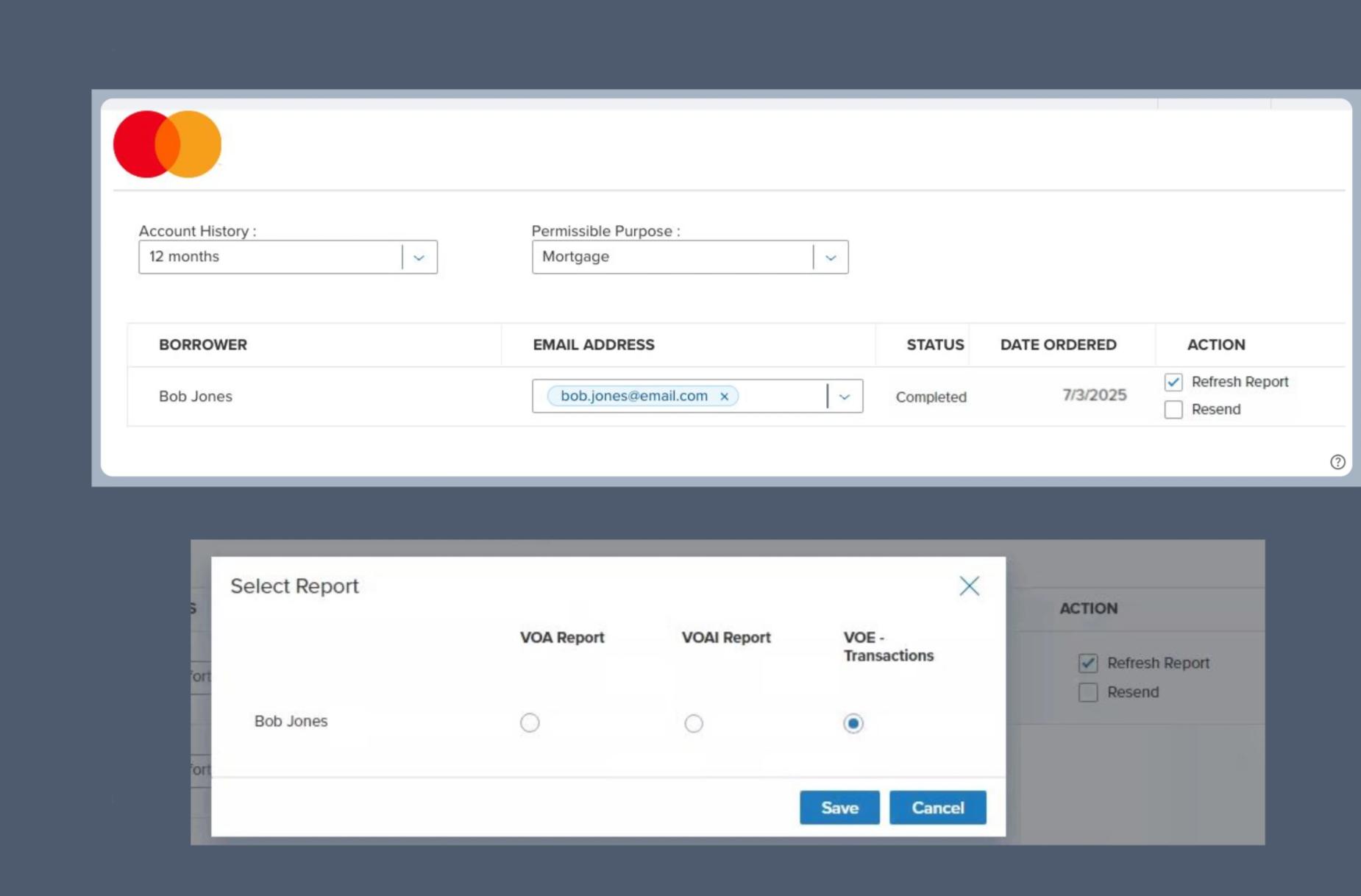
- Toggle the Refresh Report button ON after the order is Completed.
-
In the pop-up, select your preferred report type:
- Verification of Assets (VOA)
- Verification of Assets & Income (VOAI)
- Verification of Employment (VOE) — used for closing
Borrower experience
-
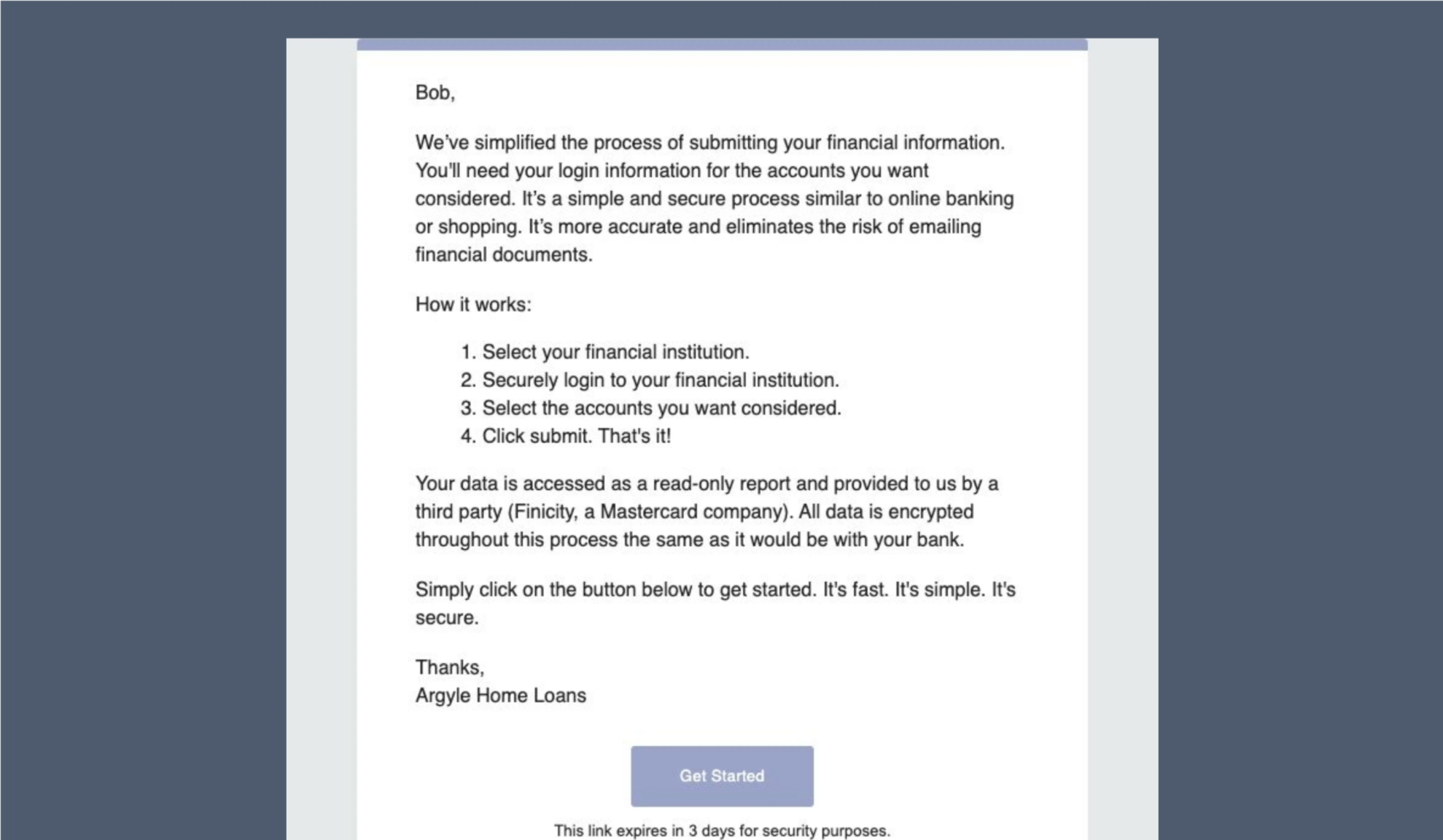
The borrower will receive an email asking them to securely connect their financial institutions after an initial verification report is ordered.
-
The borrower will then be guided through the process of logging in to their financial institutions to establish a data connection.
-
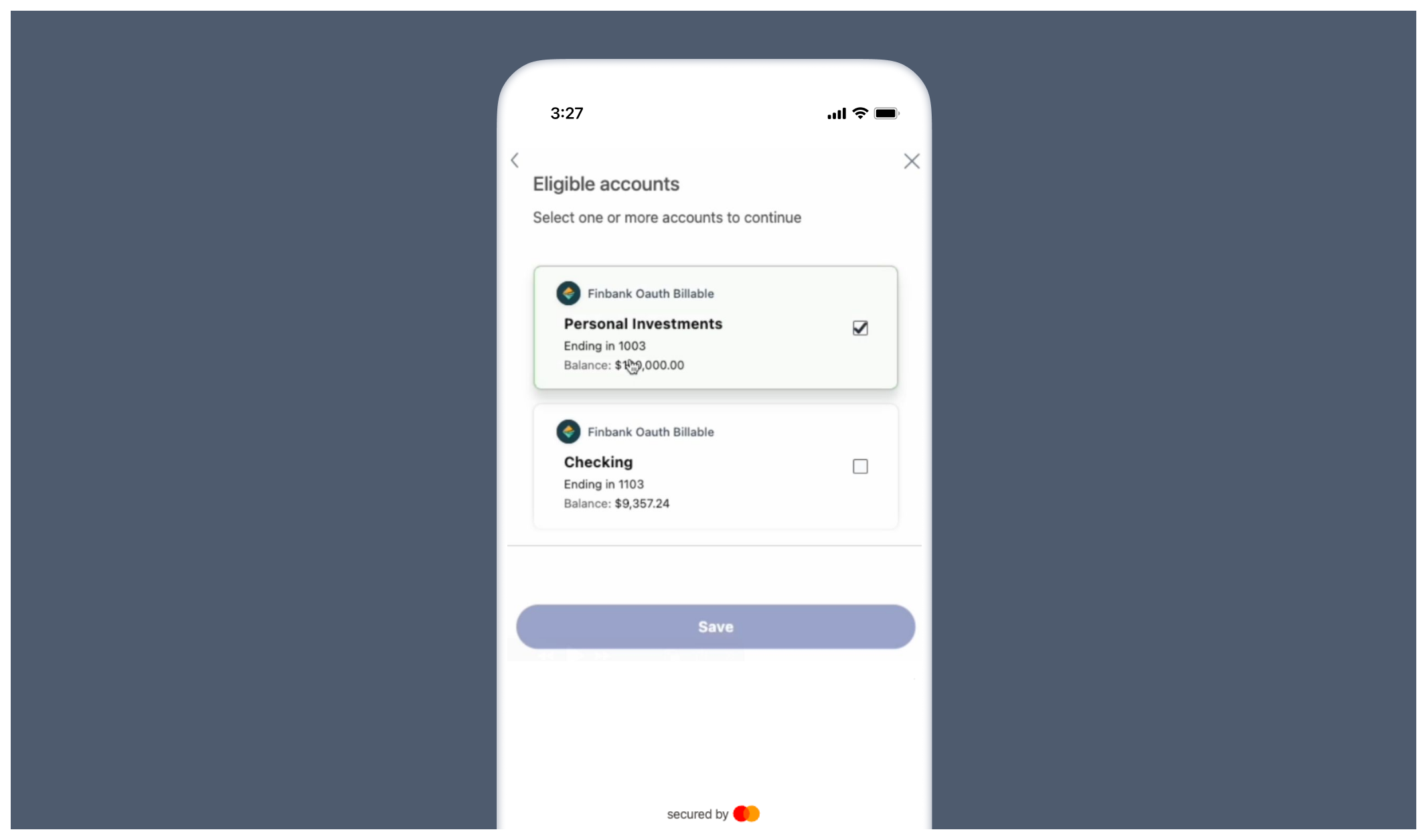
For each financial institution, the borrower will select which associated accounts to connect.
Test profiles
- To test borrower connections, use sample banking credentials to log into either the
FinBank BillableorFinBank Oauth Billablefinancial institutions. - For specific scenario testing, the following sample users are also available:
For further assistance or specific feature requests, please reach out to support@argyle.com or your Customer Success Manager.