

Create or re-use a user
If the person already has an Argyle user for the same customer, reuse that user ID across payroll, banking, and document workflows. Update the existing user if eitherfirst_name or last_name is missing; both are required for payroll verifications.
For a new user, send the following body to POST /partners/v2/users:
Your Argyle Customer Success Manager will provide a client ID for each customer. Include it when creating the user so their records are associated with the correct customer. The client identifies the organization, not the person sharing information.
Set
external_metadata.suppress_verification to true to prevent an automatic payroll verification when creating the user. Then explicitly order the verification you need.id and use it as user when ordering the verification below.
Order a payroll verification
voie— Verification of Income and Employment.voe— Verification of Employment.
POST /partners/v2/verifications, using the required type in report.type:
Government payroll
voie-government is a payroll report type for government benefits workflows. The workflow can include applicant self-certification and other program-specific steps. See Government Benefits.
User experience
Create an embedded or invite session after ordering the verification. The user opens Link, finds each relevant employer or payroll provider, and connects the corresponding account.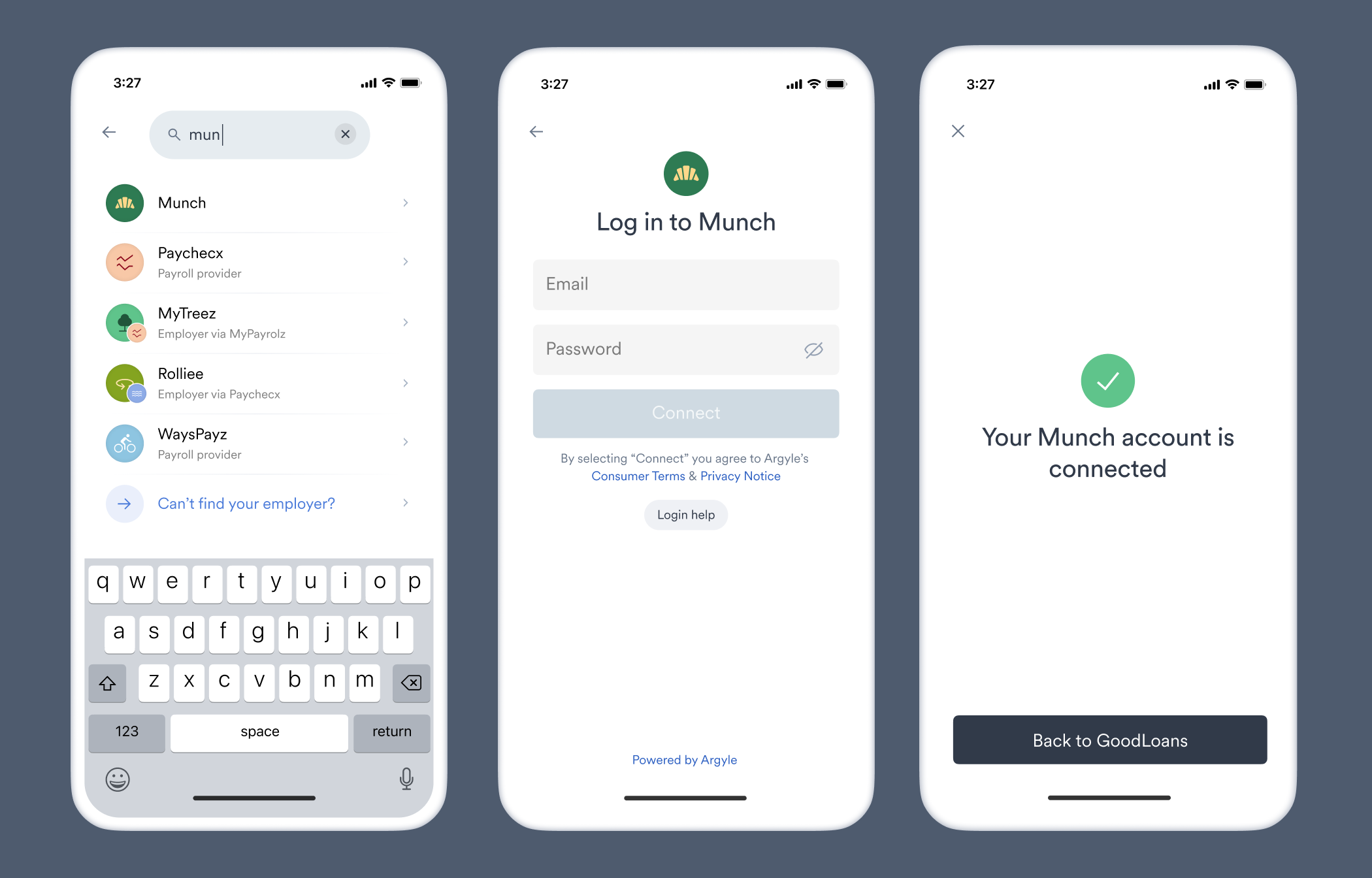
link with the Web SDK, Mobile SDKs, or Hosted Link.
Result
Wait for theverifications.updated webhook. When the verification reaches completed or completed_with_errors, retrieve the report from report.file_url or report.json_url.
- See Verification Statuses.
- Review the Payroll VOIE example.
- Use the payroll test profiles in Sandbox.