

Before you begin
- Follow the Quickstart for authentication and verification setup.
- The wholesale lender’s Argyle account must be configured for the Mortgage industry. Contact your Customer Success Manager if you need help with this setting.
- Associate users and verifications with the lender. Broker details customize the borrower experience; brokers do not need separate Argyle accounts or API keys.
Add broker details to the borrower
When you create a user, includeexternal_metadata.broker. For an existing borrower, update the user before creating the invite.
Your Argyle Customer Success Manager will provide a client ID for each customer. Include it when creating the user so their records are associated with the correct customer. The client identifies the organization, not the person sharing information.
Set
external_metadata.suppress_verification to true to prevent an automatic payroll verification when creating the user. Then explicitly order the verification you need.name is required. company_name, email, phone_number, and nmls are optional. Use E.164 international format for the phone number. Missing contact details are omitted from the borrower-facing contact card.
company_name supplies the [Broker_company] variable in custom wholesale templates.Order verifications and send an invite
- Order a verification for each required payroll or banking report. For wholesale loans, set
loan.divisiontowholesalewhen ordering each verification. - To receive progress emails, set
configuration.notified_recipientson each verification. Include the broker and any lender recipients who need updates. If this field is omitted, no verification progress emails are sent. - Create a session with
type: inviteand the borrower user ID. Includeconfiguration.email,configuration.phone_number, or both to send the invite by email or SMS. Omit both to share the returnedlinkyourself.
configuration.reply_to controls where replies to the borrower invite go. It is separate from configuration.notified_recipients on the verification, which controls progress notifications. Adding broker contact details does not subscribe the broker or lender to those notifications.
For document-based income verification, follow the Doc VOI workflow. Doc VOI orders do not use an invite session.
Choose the invite flow
For Mortgage accounts, broker details determine whether the invite uses a wholesale or retail flow. Omitconfiguration.flow_id to use the matching default, or provide a custom flow created for that experience.
Use separate custom flows for retail and wholesale. To customize wholesale messaging, ask your Customer Success Manager to enable wholesale flow creation, then create a Mortgage Wholesale email/SMS template. A custom flow is not required to use the default wholesale experience.
Borrower experience
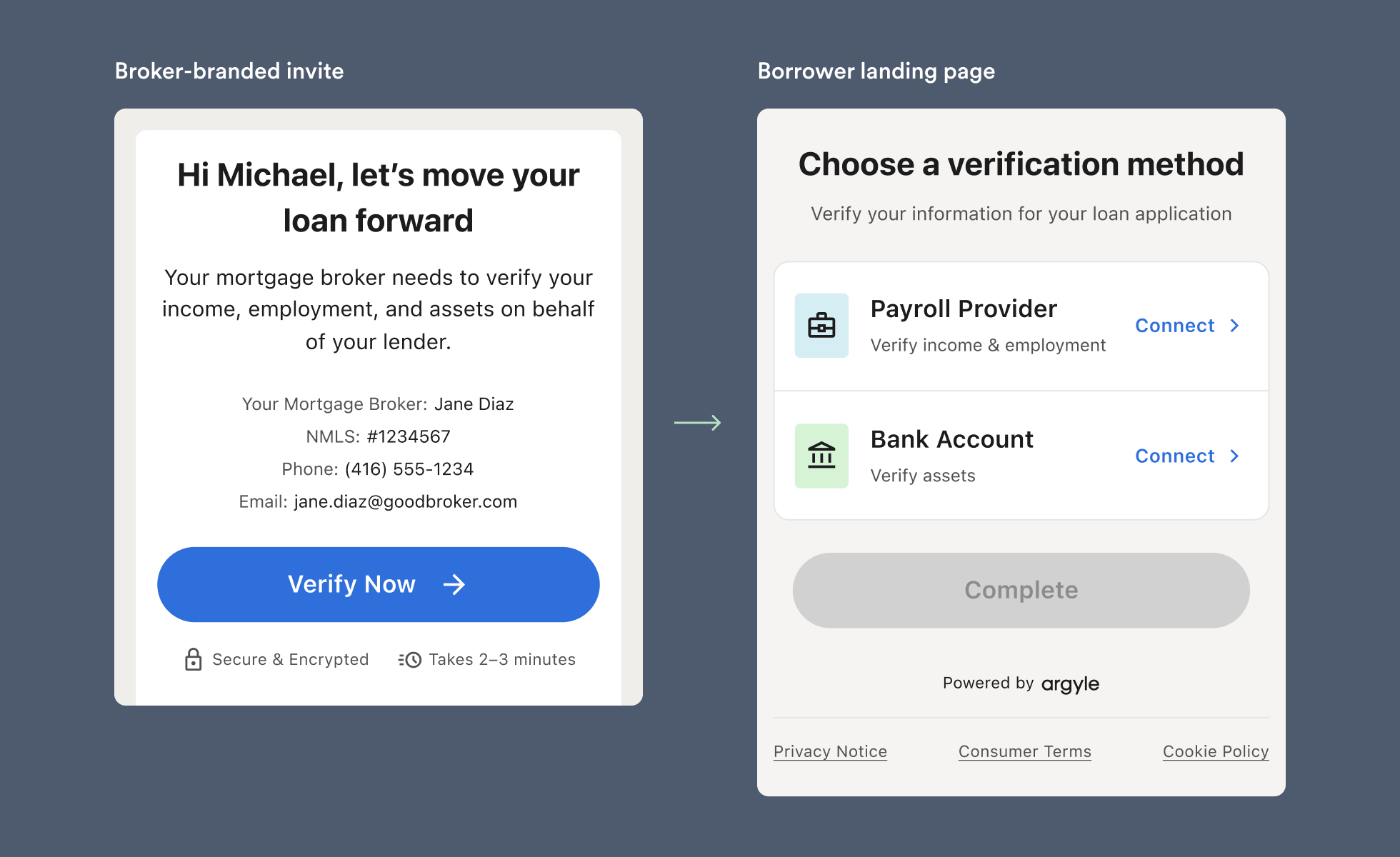
- The invite email, SMS, and landing page identify the broker. The default email sender name is
[Broker_name] via Argyle. - The email and landing page show the broker’s available contact details.
- The lender remains named in the email footer and consent and data-sharing screens. Argyle Link and the banking connection experience may also display lender branding.
- Subsequent invites for the same borrower retain the broker context, including when re-verification requires borrower action.
notifications@argyle.com.