> ## Documentation Index
> Fetch the complete documentation index at: https://docs.argyle.com/llms.txt
> Use this file to discover all available pages before exploring further.
# Document Processing
Uploading W-2s, 1099s, paystubs, proof of identity and address, and other documents through Link.
 ## Uploading documents
### User uploads within Link
Document uploads can be enabled and customized through the Flows section of Console.
1. Create or edit an existing Flow.
2. In the **Intro screen** section, enable the "Intro screen" and "Document upload" toggles.
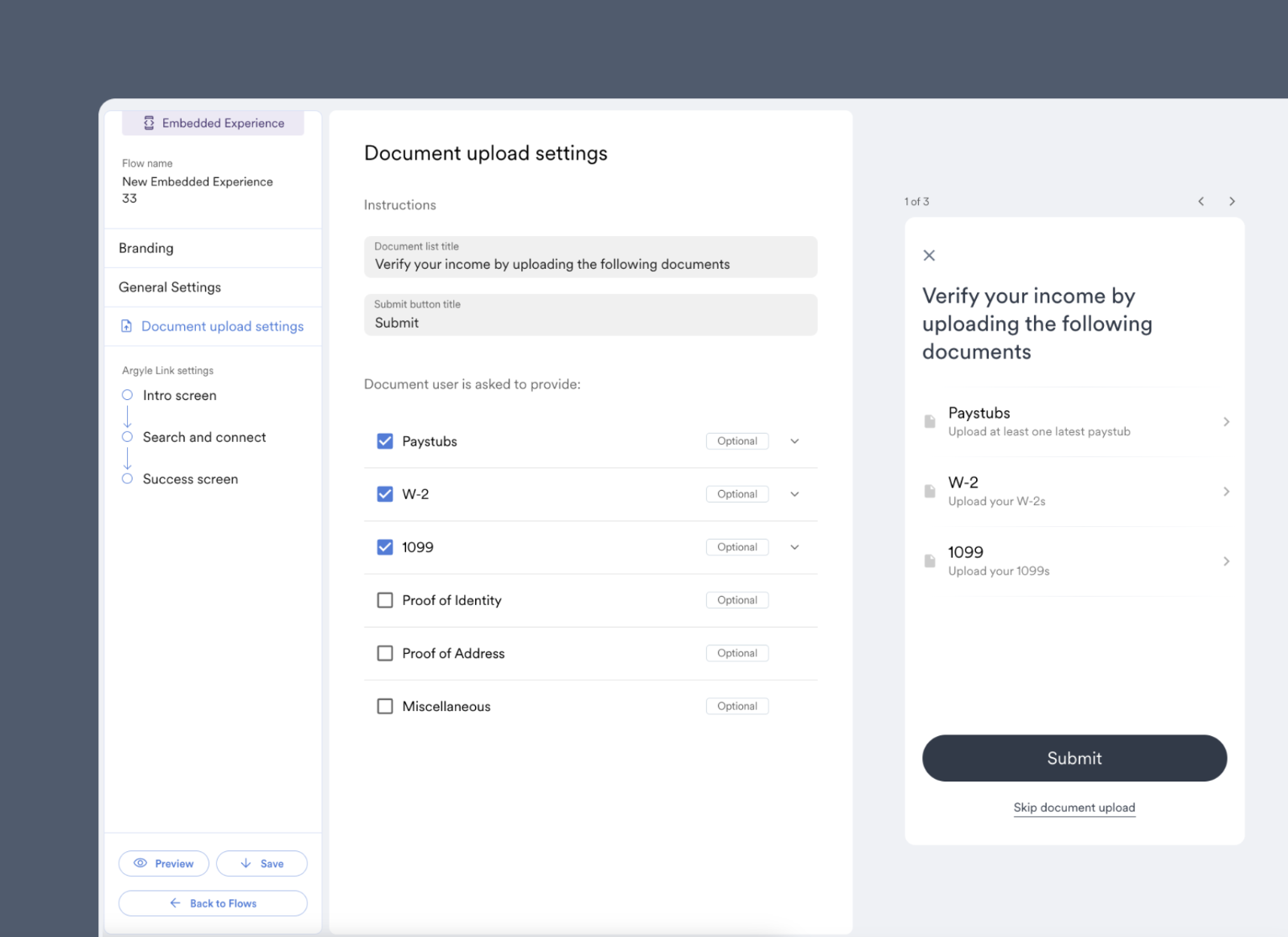
3. In the **Document upload settings** section:
* Customize the text of the document upload submission screen.
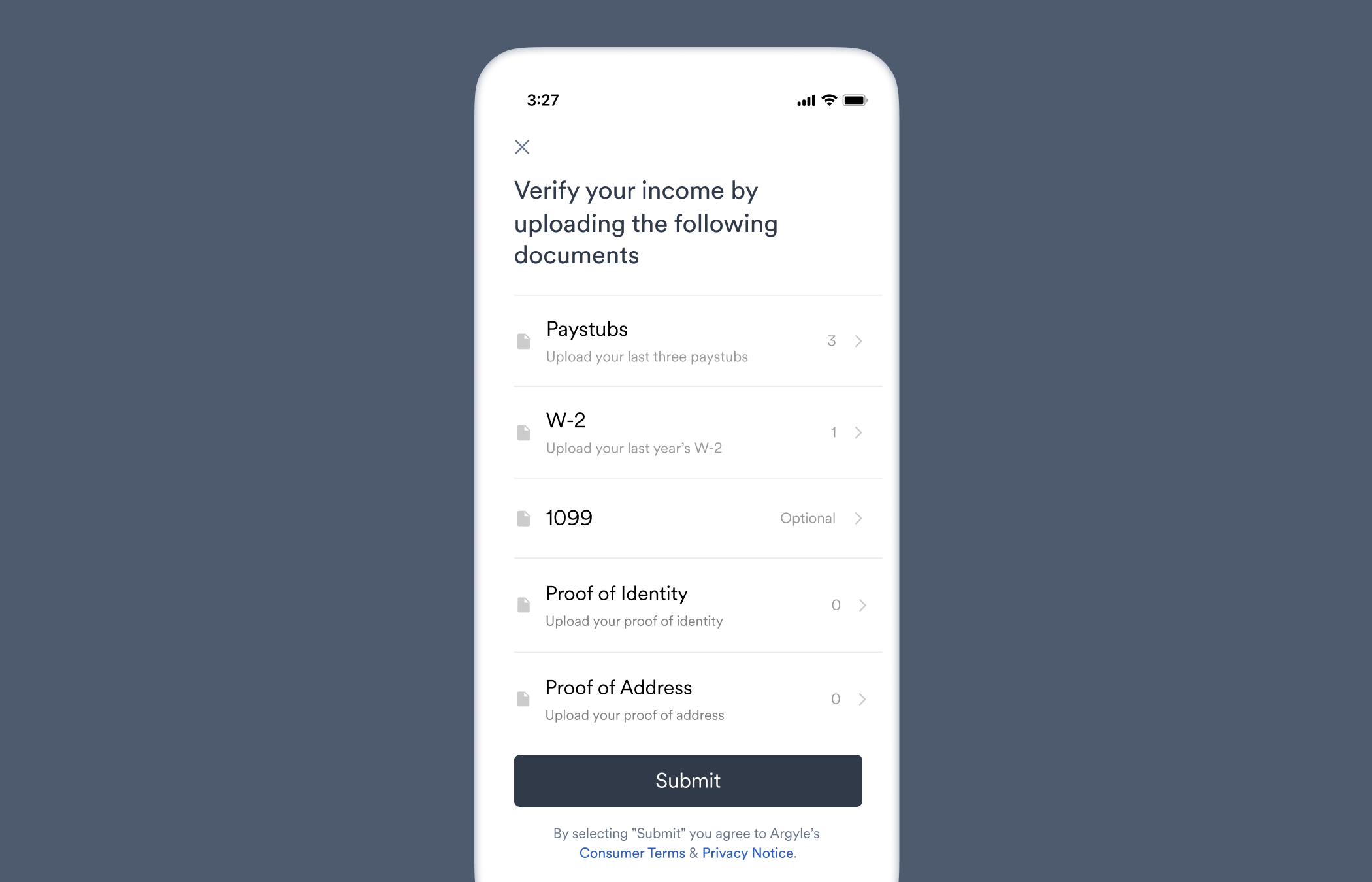
* Select the document upload categories you would like to display. Choose whether a selected category is optional or required. If required, specify how many documents are needed for the category.
1. Create or edit an existing Flow.
2. In the **Search and connect** section, scroll down to **Fallback experiences** and select the "Document upload" toggle for one or both fallback scenarios:
* **User finds no search results** (*not applicable to [Direct login](/workflows/account-connections#direct-login) flows*): Users are prompted to upload documents when they are unable to locate their employer or payroll provider through Link search.
* **User provides incorrect credentials**: Users are prompted to upload documents when a payroll connection attempt is unsuccessful.
3. In the **Document upload settings** section:
* Customize the text of the document upload submission screen.
* Select the document upload categories you would like to display. Choose whether a selected category is optional or required. If required, specify how many documents are needed for the category.
1. Create or edit an existing Flow.
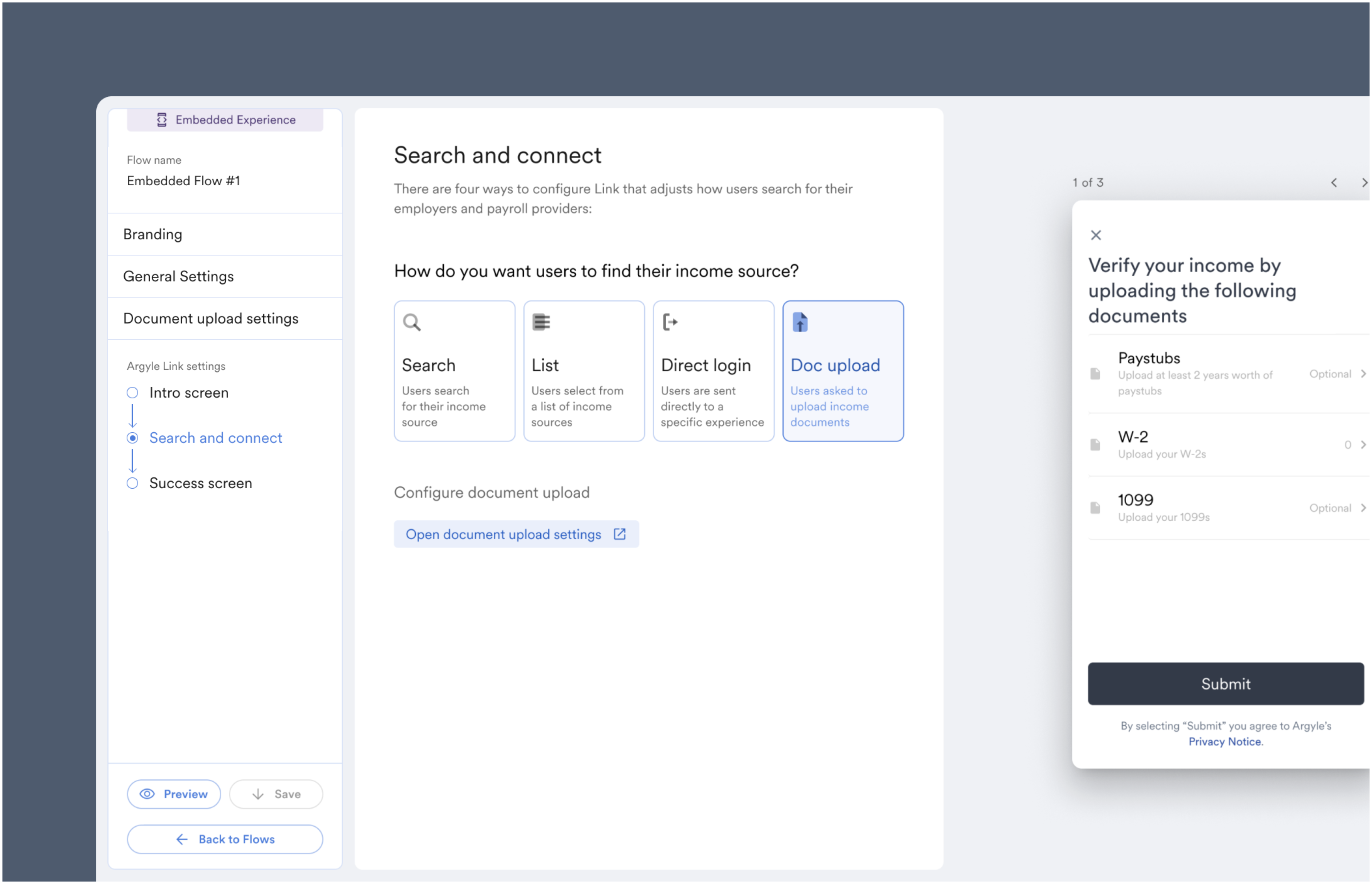
2. In the **Search and connect** section, select "Doc upload".
3. In the **Document upload settings** section:
* Customize the text of the document upload submission screen.
* Select the document upload categories you would like to display. Choose whether a selected category is optional or required. If required, specify how many documents are needed for the category.
When this account connection flow is enabled, Link users will be directly connected to the document upload screen, bypassing the payroll account connection process.
## Uploading documents
### User uploads within Link
Document uploads can be enabled and customized through the Flows section of Console.
1. Create or edit an existing Flow.
2. In the **Intro screen** section, enable the "Intro screen" and "Document upload" toggles.
3. In the **Document upload settings** section:
* Customize the text of the document upload submission screen.
* Select the document upload categories you would like to display. Choose whether a selected category is optional or required. If required, specify how many documents are needed for the category.
1. Create or edit an existing Flow.
2. In the **Search and connect** section, scroll down to **Fallback experiences** and select the "Document upload" toggle for one or both fallback scenarios:
* **User finds no search results** (*not applicable to [Direct login](/workflows/account-connections#direct-login) flows*): Users are prompted to upload documents when they are unable to locate their employer or payroll provider through Link search.
* **User provides incorrect credentials**: Users are prompted to upload documents when a payroll connection attempt is unsuccessful.
3. In the **Document upload settings** section:
* Customize the text of the document upload submission screen.
* Select the document upload categories you would like to display. Choose whether a selected category is optional or required. If required, specify how many documents are needed for the category.
1. Create or edit an existing Flow.
2. In the **Search and connect** section, select "Doc upload".
3. In the **Document upload settings** section:
* Customize the text of the document upload submission screen.
* Select the document upload categories you would like to display. Choose whether a selected category is optional or required. If required, specify how many documents are needed for the category.
When this account connection flow is enabled, Link users will be directly connected to the document upload screen, bypassing the payroll account connection process.
 1. Create or edit an existing Flow.
2. In the **Success screen** section, select "Allow users to upload documents after a successful connection".
3. In the **Document upload settings** section:
* Customize the text of the document upload submission screen.
* Select the document upload categories you would like to display. Choose whether a selected category is optional or required. If required, specify how many documents are needed for the category.
The following document uploaded categories are currently supported:
| Category | Description | OCR supported | Authenticity supported |
| ----------------- | --------------------------------------------------------------------------------------------- | ------------- | ---------------------- |
| Paystubs | Paystubs used as proof of income. | Yes | Yes |
| W-2s | Yearly wage, salary, and tax information. | Yes | Yes |
| 1099s | Income other than wages, salaries, and tips. | Yes | No |
| Proof of identity | Valid form of identity such as a driver's license or passport. | No | No |
| Proof of address | Residential address verification, such as a utility bill, bank statement, or lease agreement. | No | No |
| Miscellaneous | Re-nameable category for miscellaneous documents. | No | No |
If all document categories are marked as *Optional*, the option to "Skip document upload" will be presented to users:
1. Create or edit an existing Flow.
2. In the **Success screen** section, select "Allow users to upload documents after a successful connection".
3. In the **Document upload settings** section:
* Customize the text of the document upload submission screen.
* Select the document upload categories you would like to display. Choose whether a selected category is optional or required. If required, specify how many documents are needed for the category.
The following document uploaded categories are currently supported:
| Category | Description | OCR supported | Authenticity supported |
| ----------------- | --------------------------------------------------------------------------------------------- | ------------- | ---------------------- |
| Paystubs | Paystubs used as proof of income. | Yes | Yes |
| W-2s | Yearly wage, salary, and tax information. | Yes | Yes |
| 1099s | Income other than wages, salaries, and tips. | Yes | No |
| Proof of identity | Valid form of identity such as a driver's license or passport. | No | No |
| Proof of address | Residential address verification, such as a utility bill, bank statement, or lease agreement. | No | No |
| Miscellaneous | Re-nameable category for miscellaneous documents. | No | No |
If all document categories are marked as *Optional*, the option to "Skip document upload" will be presented to users:
 After enabling document uploads and saving your Flow in Console:
* **Shareable URLs** — Document uploads will be active when any user enters Link through your saved shareable URL.
* **Email/SMS Templates** — When [inviting new users](/console/flows/email-sms-templates#inviting-new-users), select the Flow from the **Template** dropdown.
* **Embedded Experiences** — Copy the Flow ID from Console and add the following line to your [Link initialization](/link/initialization/overview#optional-initialization-parameters):
```json theme={}
flowId: "" // (e.g. "V32M5YBC")
```
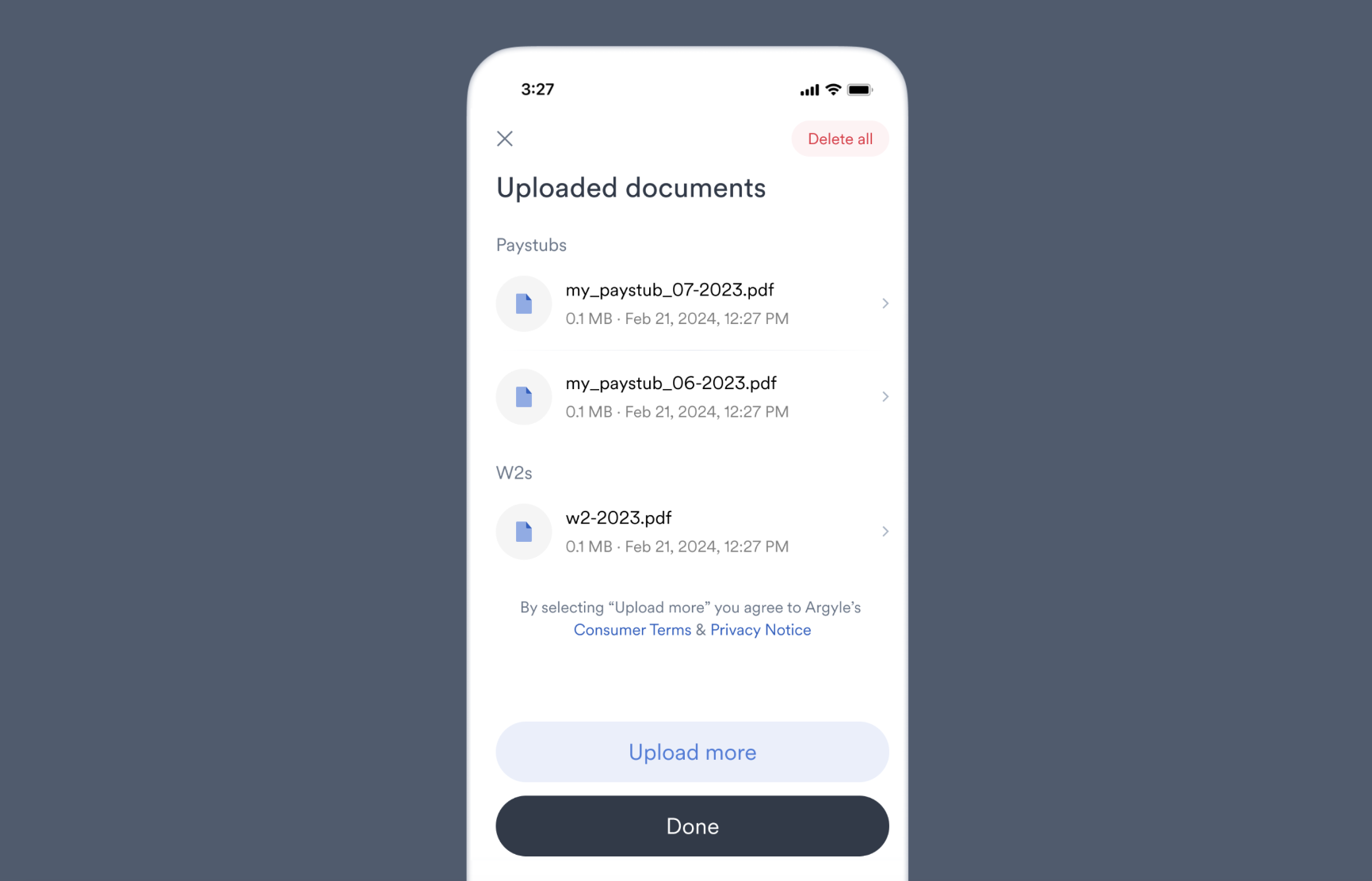
### Additional uploads (returning users)
When document uploads are enabled, users can [return to Link](/workflows/reconnecting-accounts#returning-users-to-link) and upload additional documents or delete previously uploaded documents. Any category limits (i.e. 3 max paystubs) you set when [enabling document uploads](/workflows/document-processing#enabling-document-uploads) will persist for returning users.
After enabling document uploads and saving your Flow in Console:
* **Shareable URLs** — Document uploads will be active when any user enters Link through your saved shareable URL.
* **Email/SMS Templates** — When [inviting new users](/console/flows/email-sms-templates#inviting-new-users), select the Flow from the **Template** dropdown.
* **Embedded Experiences** — Copy the Flow ID from Console and add the following line to your [Link initialization](/link/initialization/overview#optional-initialization-parameters):
```json theme={}
flowId: "" // (e.g. "V32M5YBC")
```
### Additional uploads (returning users)
When document uploads are enabled, users can [return to Link](/workflows/reconnecting-accounts#returning-users-to-link) and upload additional documents or delete previously uploaded documents. Any category limits (i.e. 3 max paystubs) you set when [enabling document uploads](/workflows/document-processing#enabling-document-uploads) will persist for returning users.
 ### Direct uploads via the API
If you already collect documents outside of Link, they can be uploaded [directly via the API](/api-reference/user-uploads#upload) by sending a `POST` request to the `/user-uploads` endpoint.
Uploading documents via the API can be used in combination with [document authenticity and OCR](/workflows/document-processing#document-authenticity-and-ocr). OCR and authenticity information can also be retrieved via the API — see our [OCR guide](/integrations/ocr/ocrolus#api) for more information.
## Retrieving uploaded documents
Uploaded documents can be retrieved via Argyle's API through the [`/user-uploads`](/api-reference/user-uploads) endpoint. Argyle also provides [webhooks](/api-reference/user-uploads-webhooks/added) for uploaded documents and the [`onDocumentsSubmitted`](/link/reference/callbacks#ondocumentssubmitted) callback.
Uploaded documents can also be retrieved within the Connections section of Console after selecting an individual user. Any uploaded documents will be available for download in an **Uploaded documents** tab.
### Direct uploads via the API
If you already collect documents outside of Link, they can be uploaded [directly via the API](/api-reference/user-uploads#upload) by sending a `POST` request to the `/user-uploads` endpoint.
Uploading documents via the API can be used in combination with [document authenticity and OCR](/workflows/document-processing#document-authenticity-and-ocr). OCR and authenticity information can also be retrieved via the API — see our [OCR guide](/integrations/ocr/ocrolus#api) for more information.
## Retrieving uploaded documents
Uploaded documents can be retrieved via Argyle's API through the [`/user-uploads`](/api-reference/user-uploads) endpoint. Argyle also provides [webhooks](/api-reference/user-uploads-webhooks/added) for uploaded documents and the [`onDocumentsSubmitted`](/link/reference/callbacks#ondocumentssubmitted) callback.
Uploaded documents can also be retrieved within the Connections section of Console after selecting an individual user. Any uploaded documents will be available for download in an **Uploaded documents** tab.
 ## Document authenticity and OCR
Argyle offers uploaded document processing through [Ocrolus](/integrations/ocr/ocrolus). The text within uploaded documents is scanned (OCR), and the authenticity of the document is evaluated. The results are made available to [view directly in Console](/integrations/ocr/ocrolus#console) or [retrieve via Argyle's API](/integrations/ocr/ocrolus#api).
## Document authenticity and OCR
Argyle offers uploaded document processing through [Ocrolus](/integrations/ocr/ocrolus). The text within uploaded documents is scanned (OCR), and the authenticity of the document is evaluated. The results are made available to [view directly in Console](/integrations/ocr/ocrolus#console) or [retrieve via Argyle's API](/integrations/ocr/ocrolus#api).
 ## Supported file types
| File format | Link support | Ocrolus OCR support |
| ------------------ | ---------------------------------------- | ------------------- |
| PDF | Web, iOS, Android, React Native, Flutter | Yes |
| JPG image uploads | Web, iOS, Android, React Native, Flutter | Yes |
| PNG image uploads | Web, iOS, Android, React Native, Flutter | Yes |
| HEIC image uploads | Web, iOS, Android, React Native, Flutter | Yes |
| Photo capture | Web, iOS, Android, React Native, Flutter | Yes |
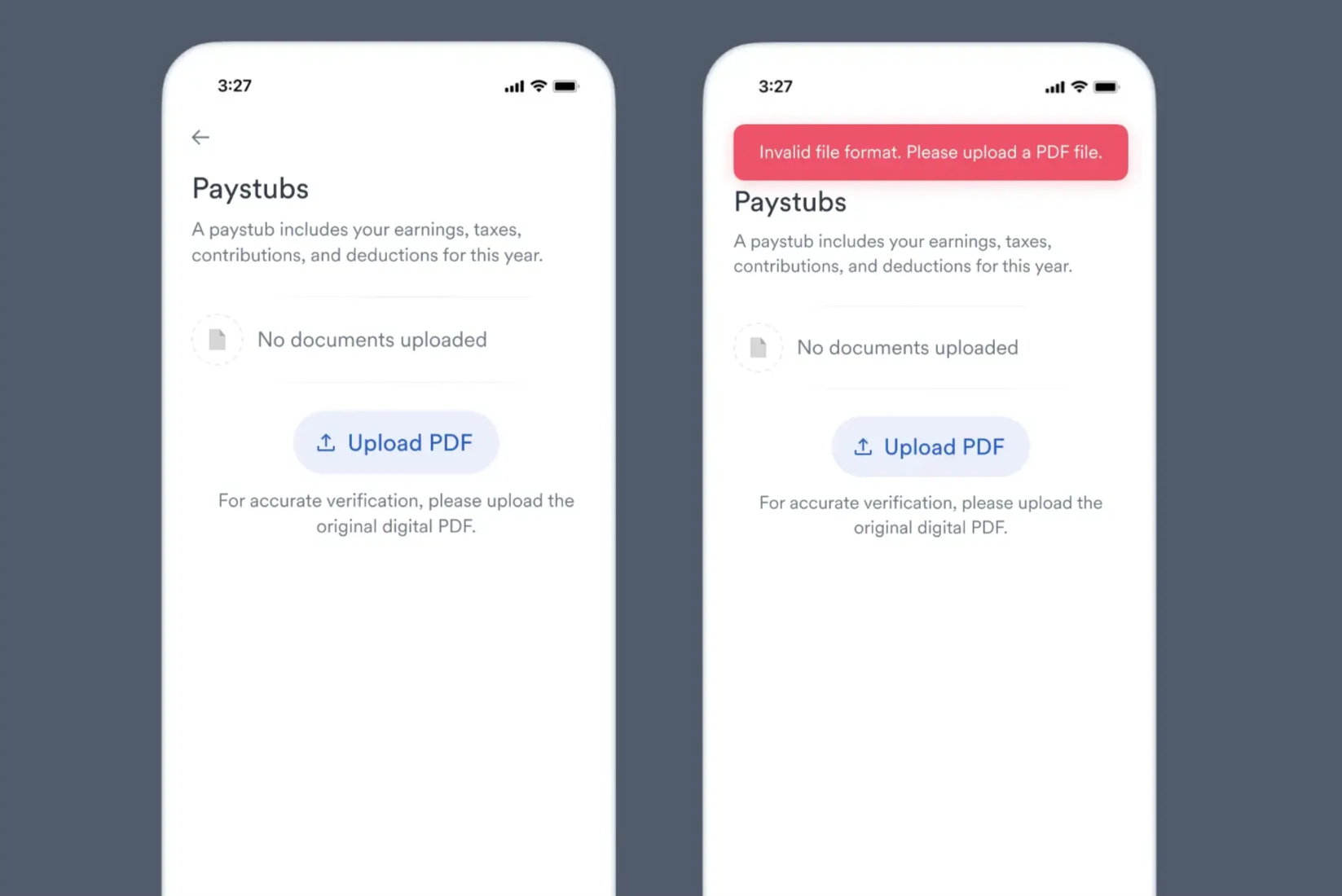
## Restricting to only PDFs
Document uploads can be restricted to only PDF file types by enabling the **Restrict to PDF only** toggle for each document type in the Flows section of Console.
## Supported file types
| File format | Link support | Ocrolus OCR support |
| ------------------ | ---------------------------------------- | ------------------- |
| PDF | Web, iOS, Android, React Native, Flutter | Yes |
| JPG image uploads | Web, iOS, Android, React Native, Flutter | Yes |
| PNG image uploads | Web, iOS, Android, React Native, Flutter | Yes |
| HEIC image uploads | Web, iOS, Android, React Native, Flutter | Yes |
| Photo capture | Web, iOS, Android, React Native, Flutter | Yes |
## Restricting to only PDFs
Document uploads can be restricted to only PDF file types by enabling the **Restrict to PDF only** toggle for each document type in the Flows section of Console.
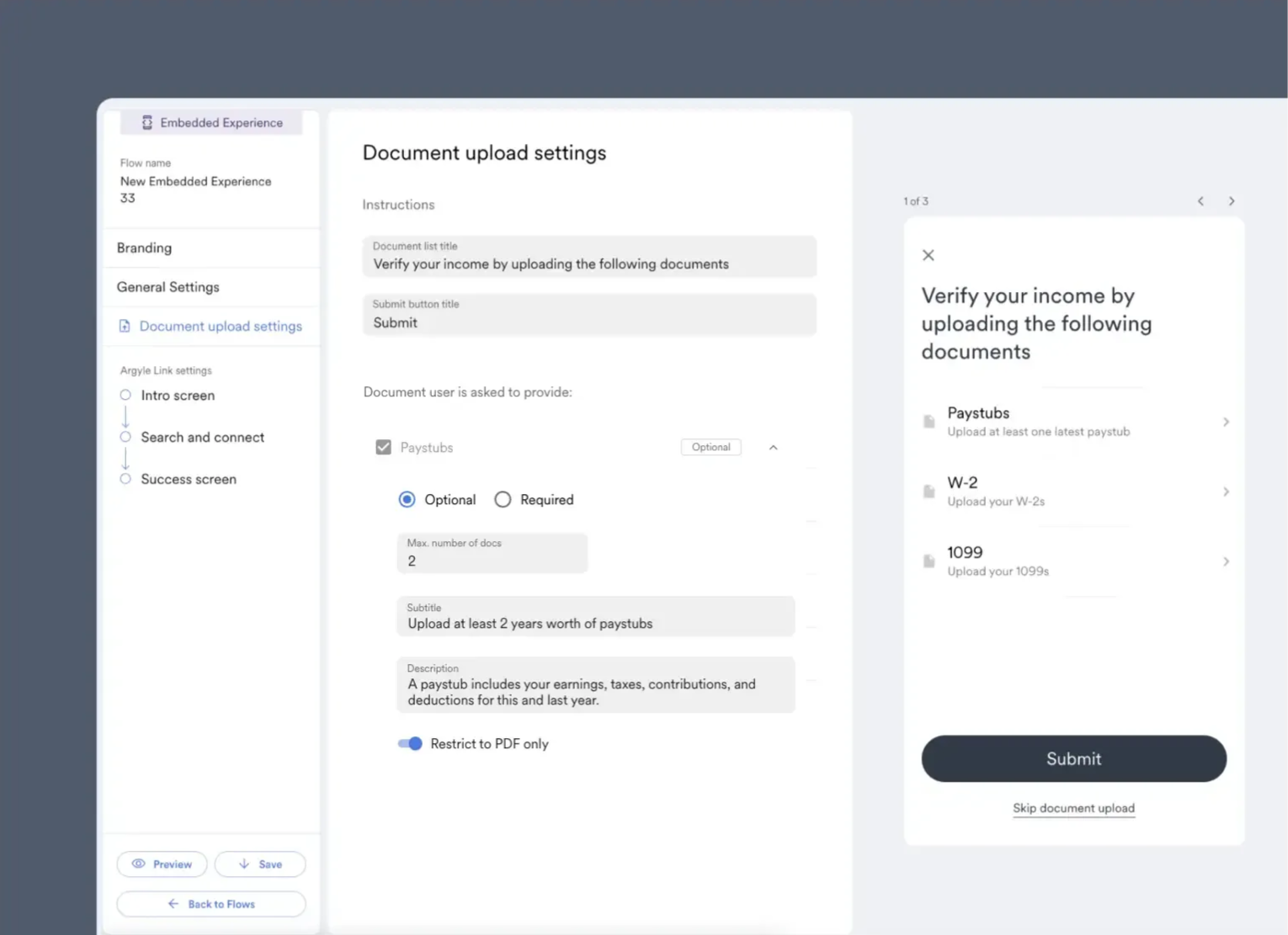 When a document type is restricted to PDF only, Link will adjust accordingly to guide users. Depending on the device used to upload documents, they will either be prevented from selecting non-PDF file types or shown an error if a non-PDF file type is uploaded.