> ## Documentation Index
> Fetch the complete documentation index at: https://docs.argyle.com/llms.txt
> Use this file to discover all available pages before exploring further.
# Account Connections
How users connect payroll accounts through Link.
## Search
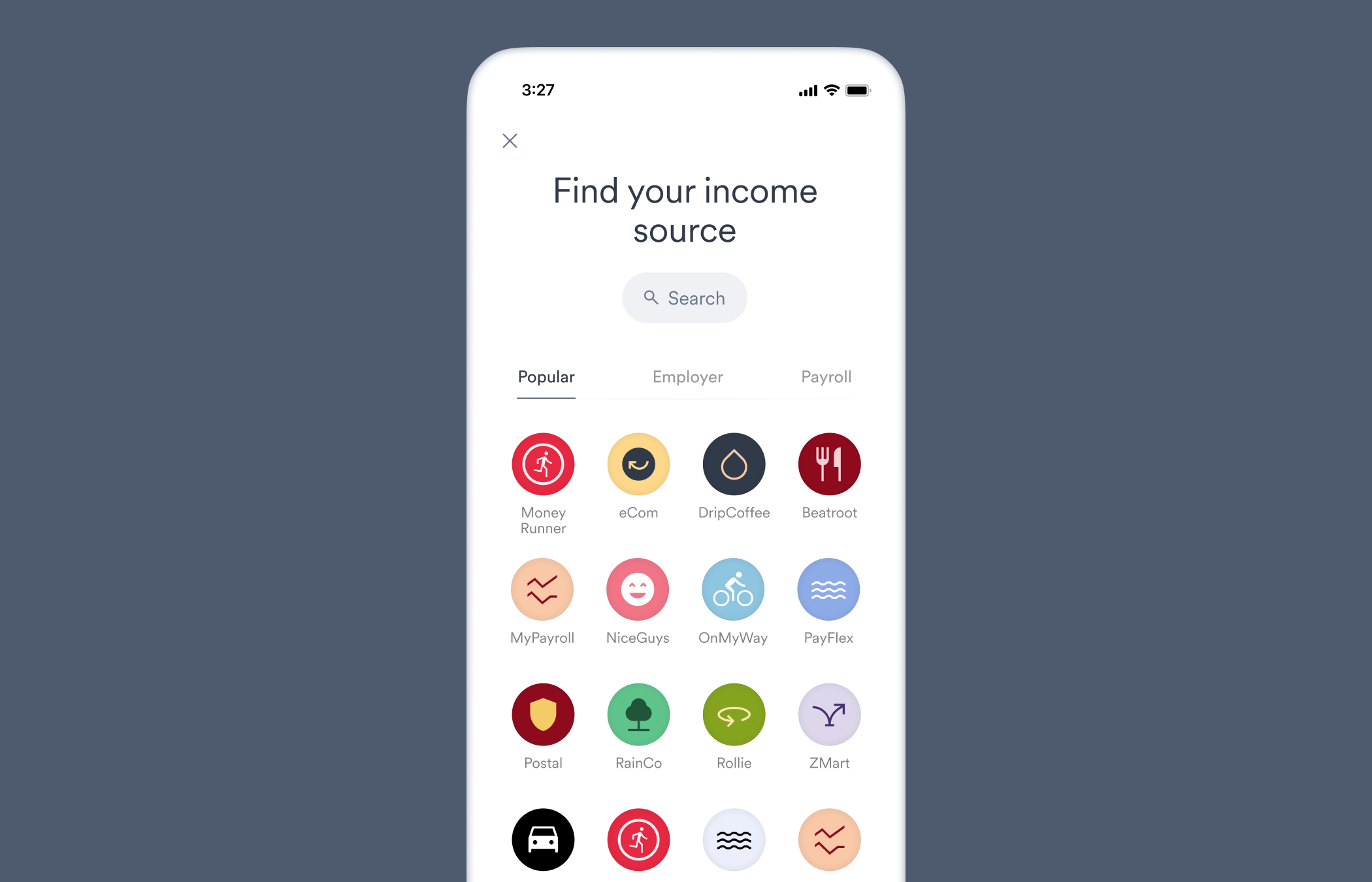
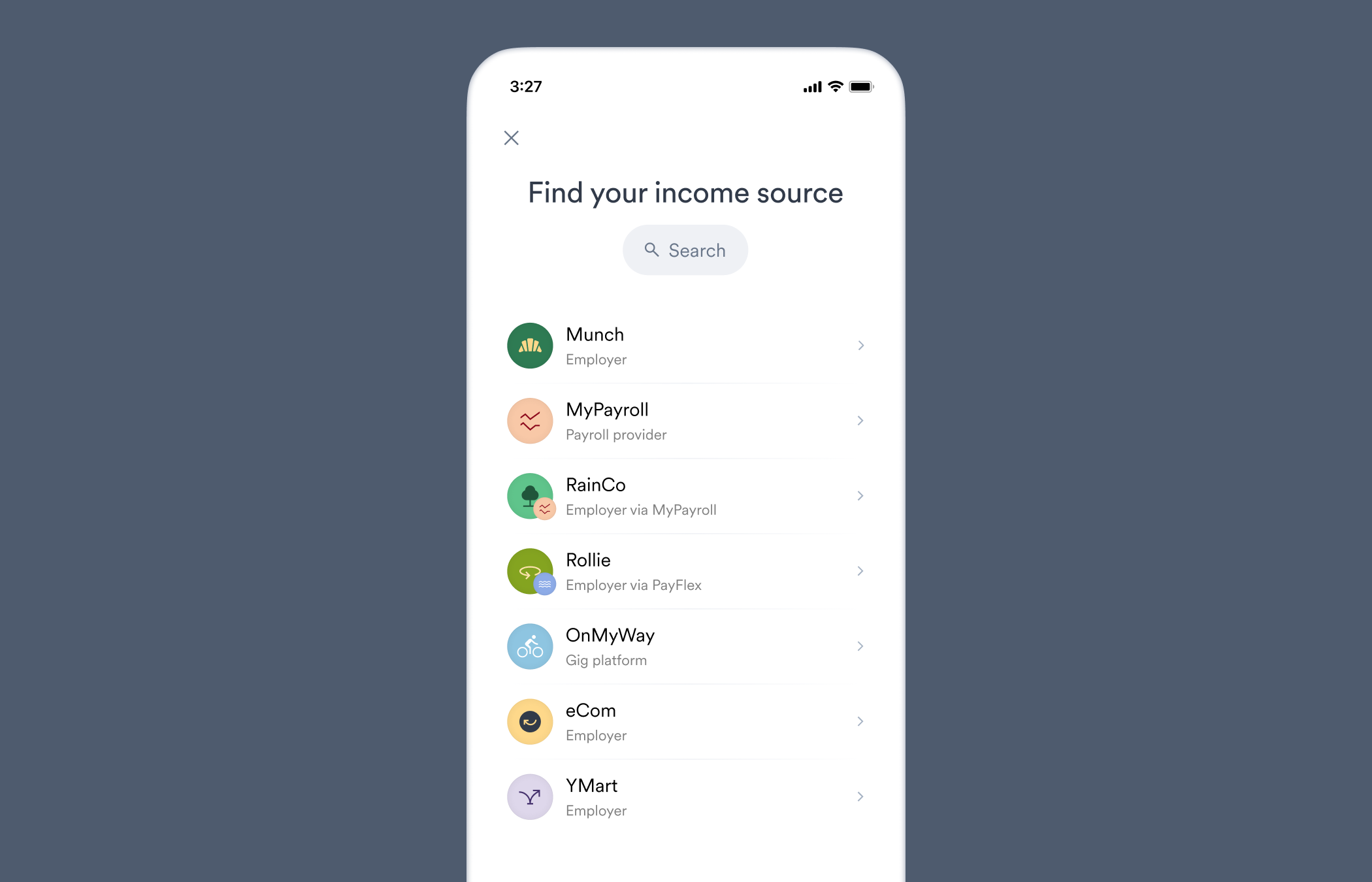
Search is the **default** user experience in Link.
The user searches from a general list of potential incomes sources. This includes employers, government entities, and payroll services.
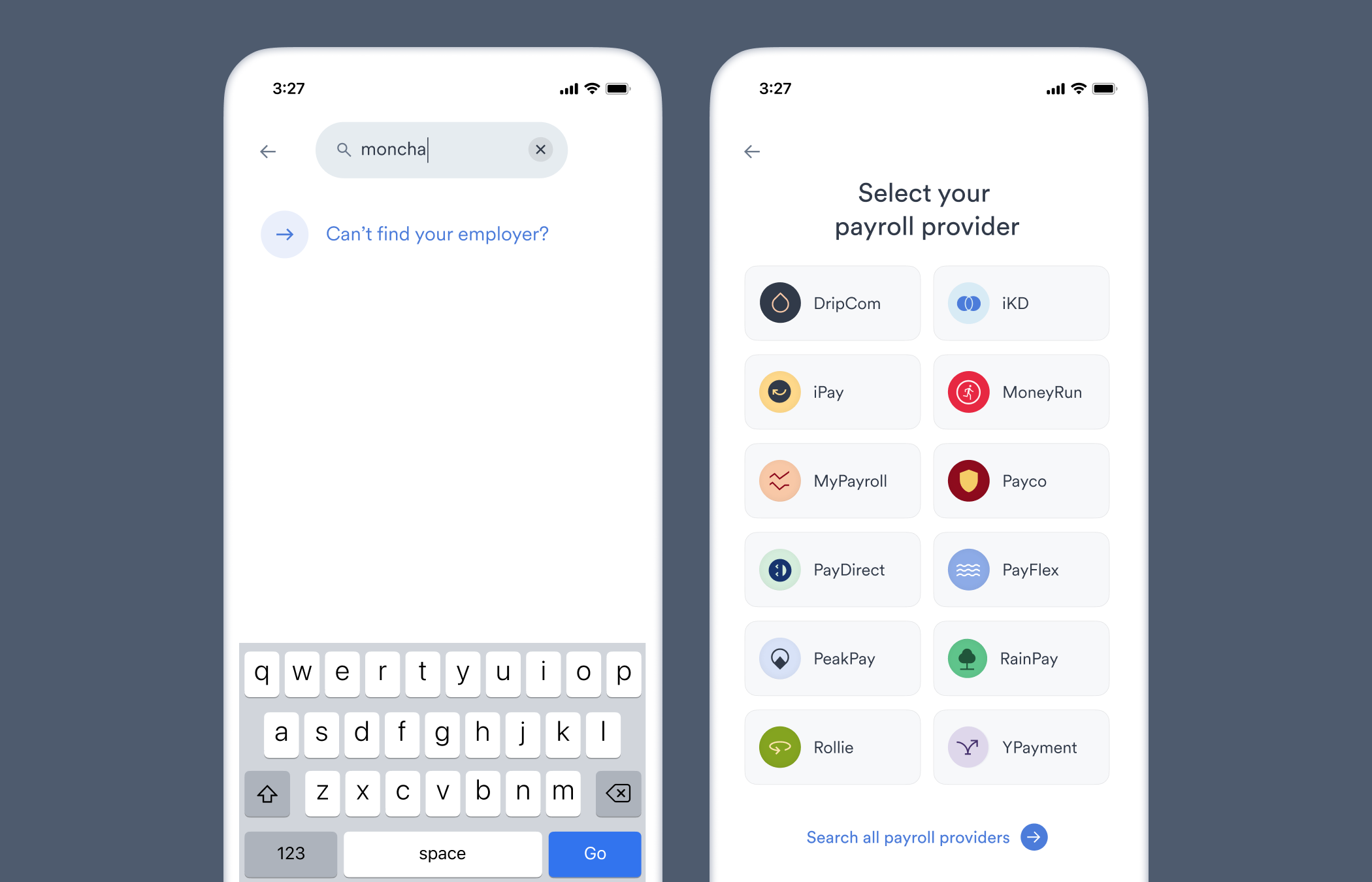
If the user cannot find their source of income from this general list, they will be prompted to search from a list of only payroll providers that service multiple employers.
These payroll providers are searchable in step 1, but we have found narrowing the search focus to payroll providers improves the connection success rate for users.
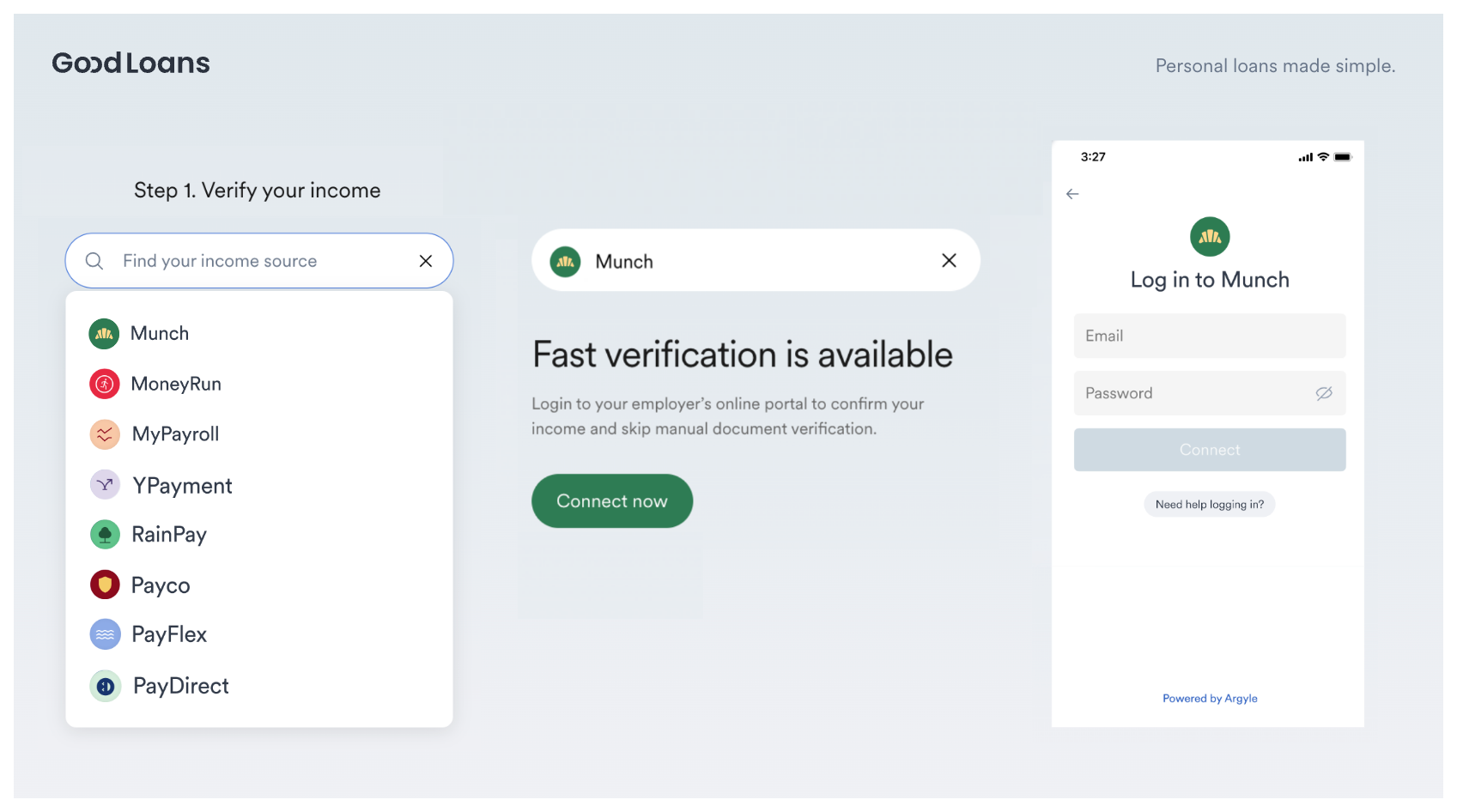
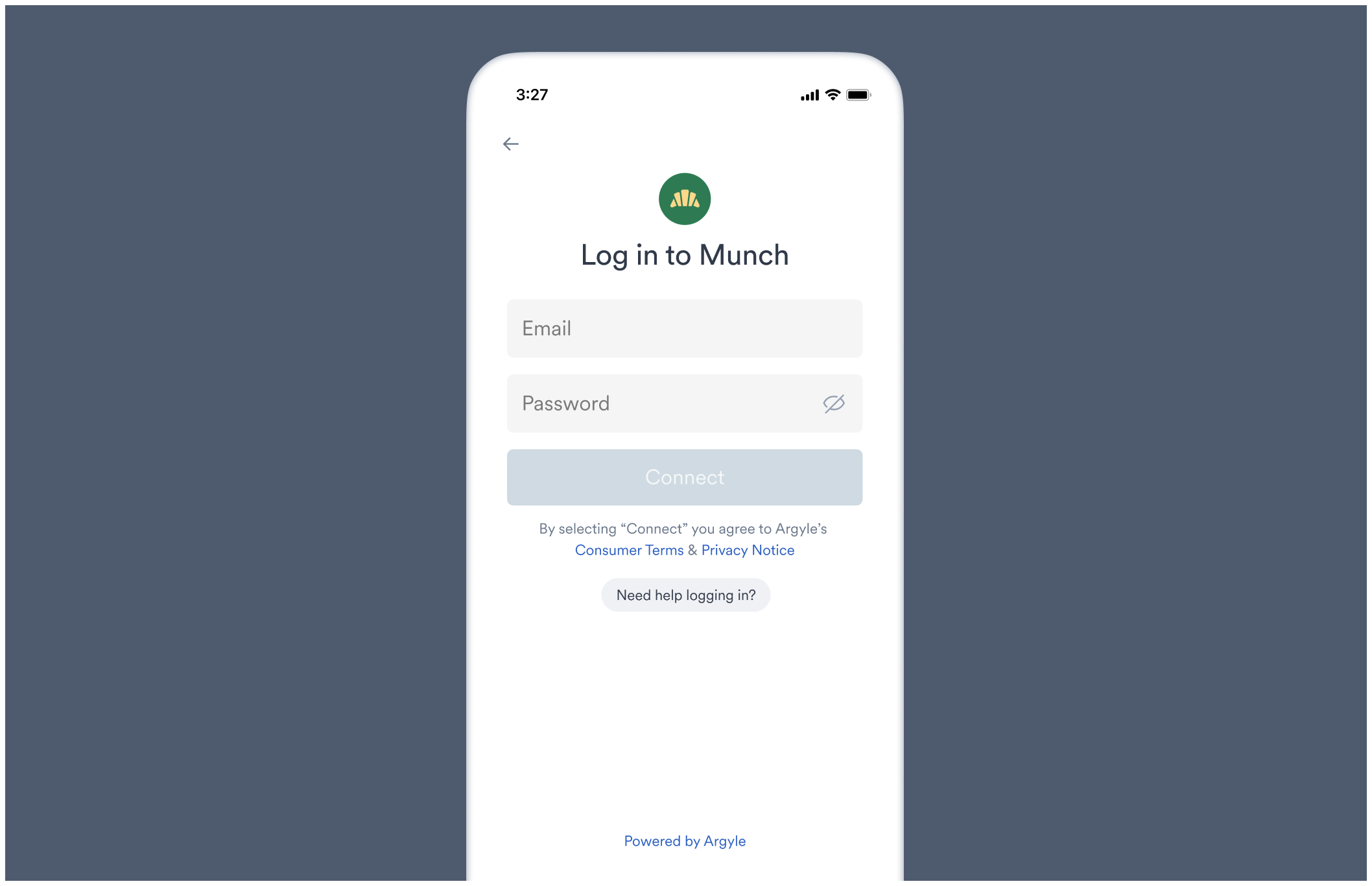
If the user successfully finds their source of income, they are taken to its respective login screen. From the login screen, the user can enter their login credentials to connect their account.
* If the user cannot remember their login credentials, the login screen provides a link to the platform's username/password reset process.
* Each login screen is tailored to match the input fields used by the underlying payroll system. For example, some systems require a username and password, others an email and password, while others may use SSO methods to login. You can preview the login screen for any employer or payroll system in Console using Flows.
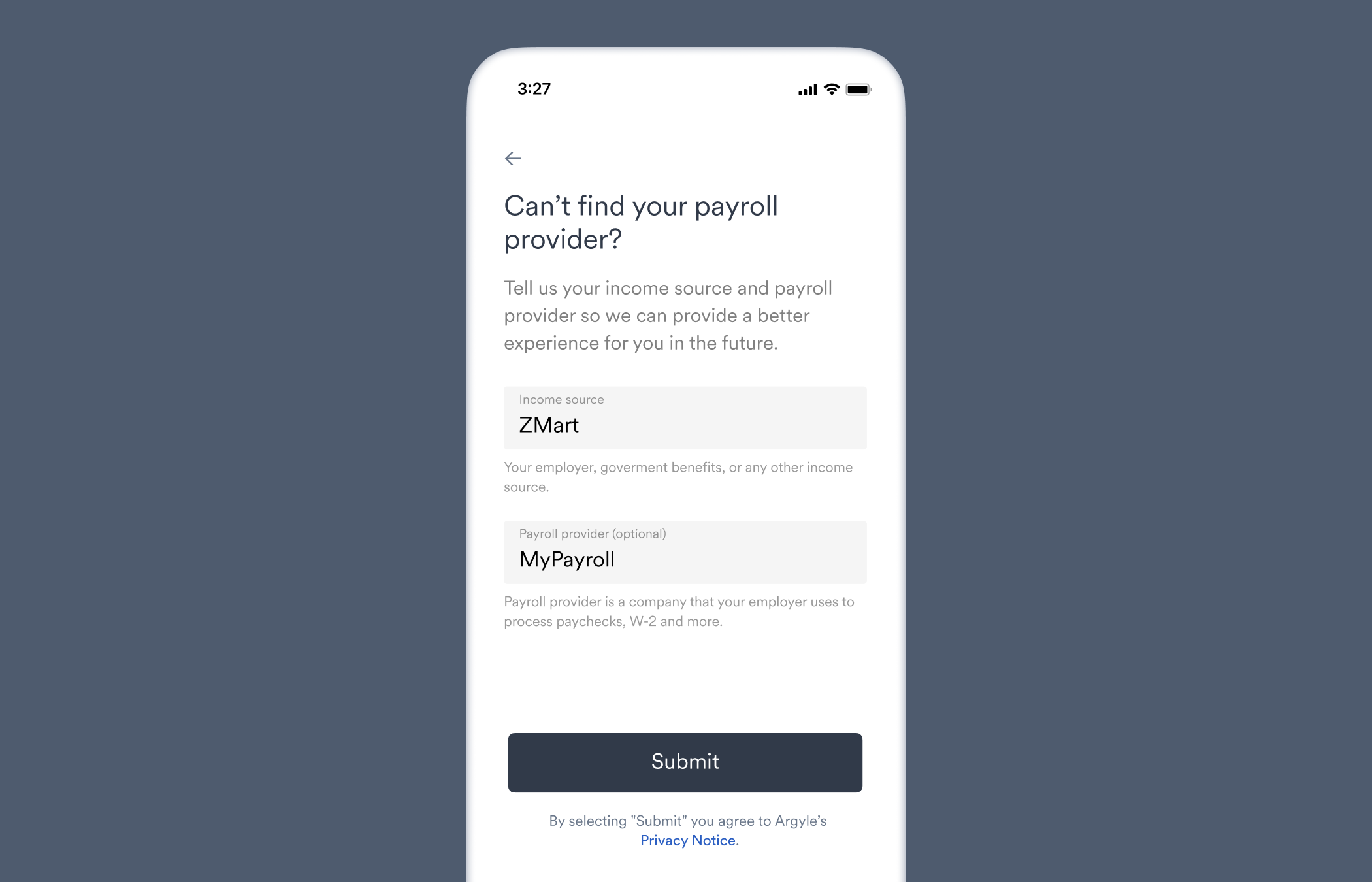
If the user cannot ultimately find their source of income, they are asked to submit a response form and list their employers or payroll providers.
### Common customizations
* Excluding specific Items or Item categories (employers, gig platforms, payroll providers, or government benefits).
* Adjusting the fallback experience when users cannot find their source of income.
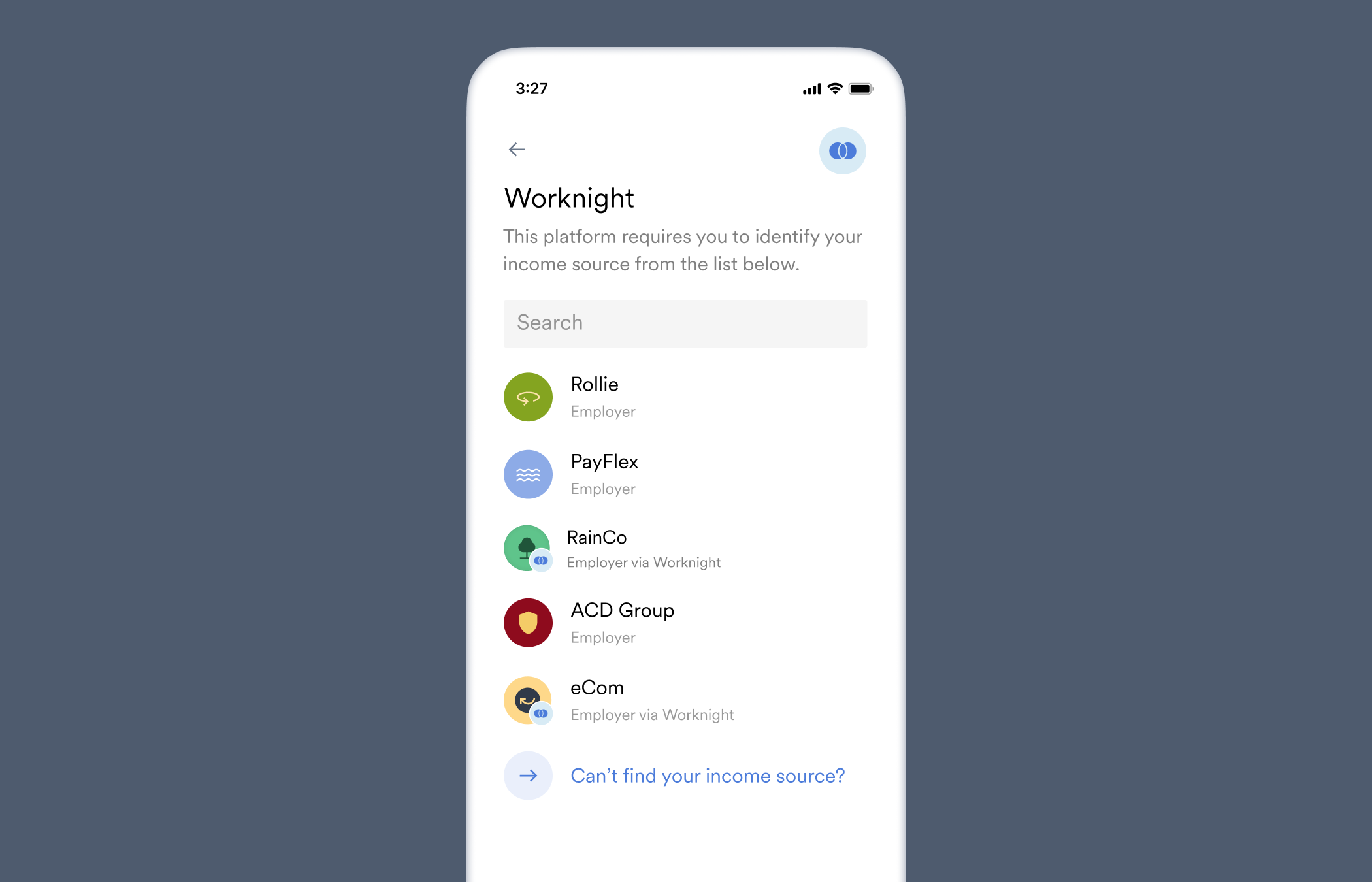
Certain Items are used to "group" other individual Items, and may or may not support payroll connections themselves. These Items will have a **Grouping** tag in Console's Coverage page.
Groupings can be:
* Payroll providers that support login credentials for multiple employers.
* Employers that utilize multiple payroll providers.
* Common employers such as franchises that allow individual locations or regions to independently choose third-party payroll systems for their employees.
When a user selects a grouping that *does not* directly support payroll connections, a dropdown menu of individual Items that *do* support payroll connections and are related to the particular grouping are shown.
## List
As an alternative to search, Link also supports custom lists:
1. Create a custom list using Flows in Console.
2. Apply saved email/SMS template Flows when [sending invites](/console/flows/email-sms-templates#sending-invites), or copy the ID of a saved [embedded experience](/console/flows/embedded-experiences) and add the following line to your embedded [Link initialization](/link/initialization):
```json theme={}
flowId: ""
```
Alternative:
1. Add an array of Item ID's directly within your Link initialization:
```json theme={}
items: ["", "", "..."]
```
## Direct login
Directly connect users to a specific Item in Link, bypassing search entirely.
* The direct login method has the *highest percentage of users that successfully connect a payroll account*.
* Recommended whenever the user's employer or payroll provider is already known.
### New connections
1. [Create a customized Flow](/console/flows/embedded-experiences) in Console with "Direct login" selected in the **Search and connect** section.
2. You customizations will:
* Automatically be applied to the [Shareable URL](/console/flows/shareable-urls) after saving the Shareable URL Flow.
* Be applied when [sending invites](/console/flows/email-sms-templates#sending-invites) if the saved Email/SMS Template Flow is selected from the dropdown.
* Be applied when [embedding Link](/console/flows/embedded-experiences) by copying the `ID` of a saved Embedded Experience Flow and including it within the optional `flowId` [initialization parameter](/link/initialization/overview#optional-initialization-parameters) in your Link initialization:
```json theme={}
flowId: ""
```
Alternative:
1. Add an `items` array to your embedded Link initialization with only one Item.
```json theme={}
items: [""]
```
2. (Optional) If you are embedding Link and want to allow users to return to Link's full search experience from the login screen:
* Create a "New Flow" in the Flows area of Console and select "Embedded Experience"
* In the **Search and connect** section, select "Search" and adjust the search experience for your users
* Next, in the same **Search and connect** section, select "Direct Login"
* Enable the "Allow users to access full Search experience" toggle
* Select one employer in the "Search to select income sources" selection box
The Item you input in the `items` array (see below) will override this employer when Link is initialized.
* Save the Flow and copy the Flow `ID` from the main Flows page
* Add both an `items` array with only one Item, and the copied `flowId` string to your embedded Link initialization:
```json theme={}
items: [""]
flowId: ""
```
### Existing connections
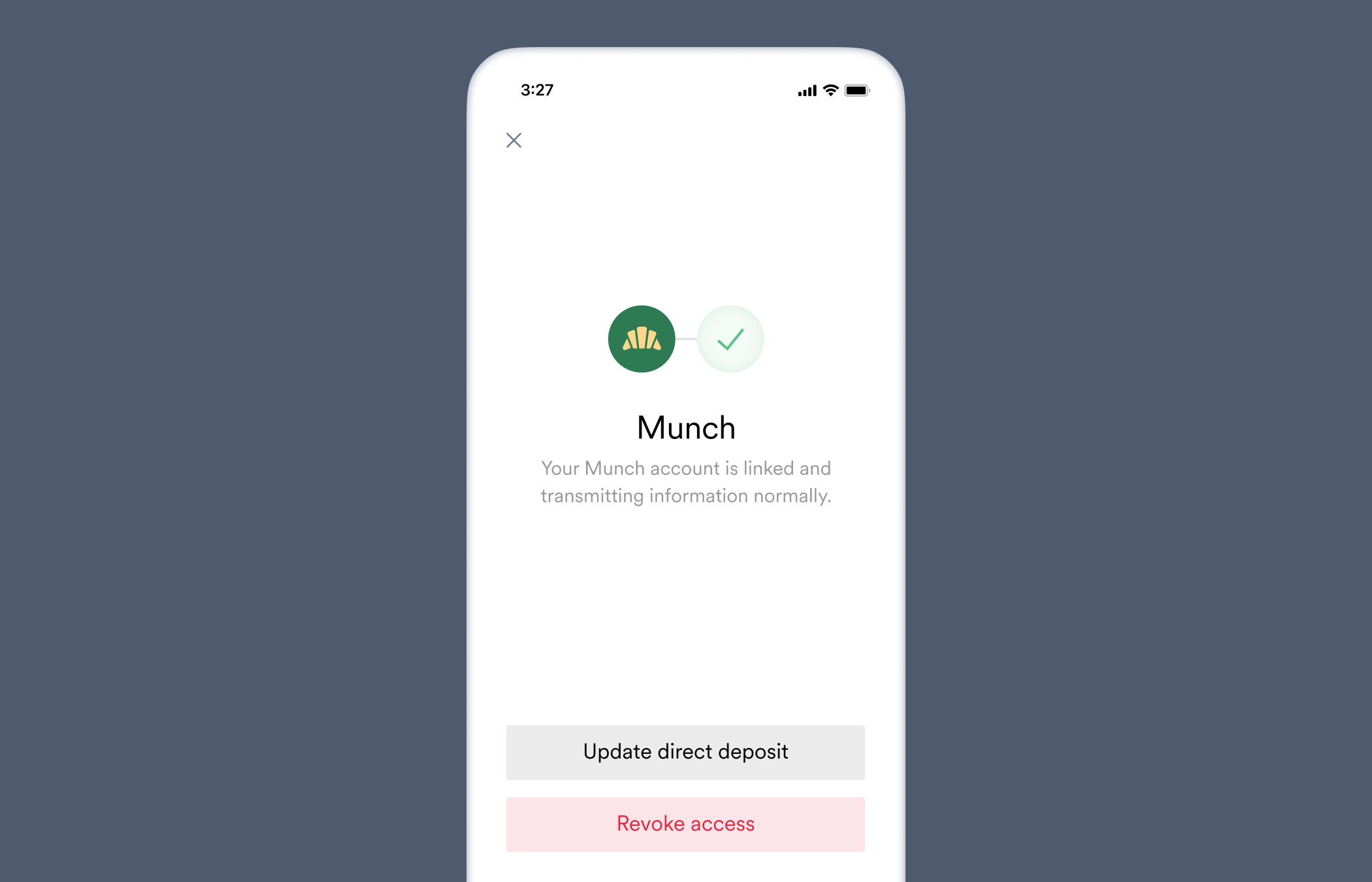
* If you originally invited the user through Console's [send invites](/console/flows/email-sms-templates#sending-invites) feature, follow the steps in our Email/SMS Flows Guide for [reconnecting existing users](/console/flows/email-sms-templates#reconnecting-existing-users).
* If you are embedding Link, use the optional `accountId` [initialization parameter](/link/initialization/overview#optional-initialization-parameters) and pass in the [ID of the account](/api-reference/accounts#object).
```json theme={}
accountId: ""
```
### Sample app
If you are [embedding Link](/link/initialization), check out our Employer Search sample app (Demo) (Github) ([Documentation](/overview/employer-search)) to see an example project that showcases the direct login method.
In the sample app, a simple employer search bar powered by Argyle's [employer-search endpoint](/api-reference/employer-search) lets users search for their employer. After making a selection, the user is sent directly to that Item's login screen in Link.
## Doc upload
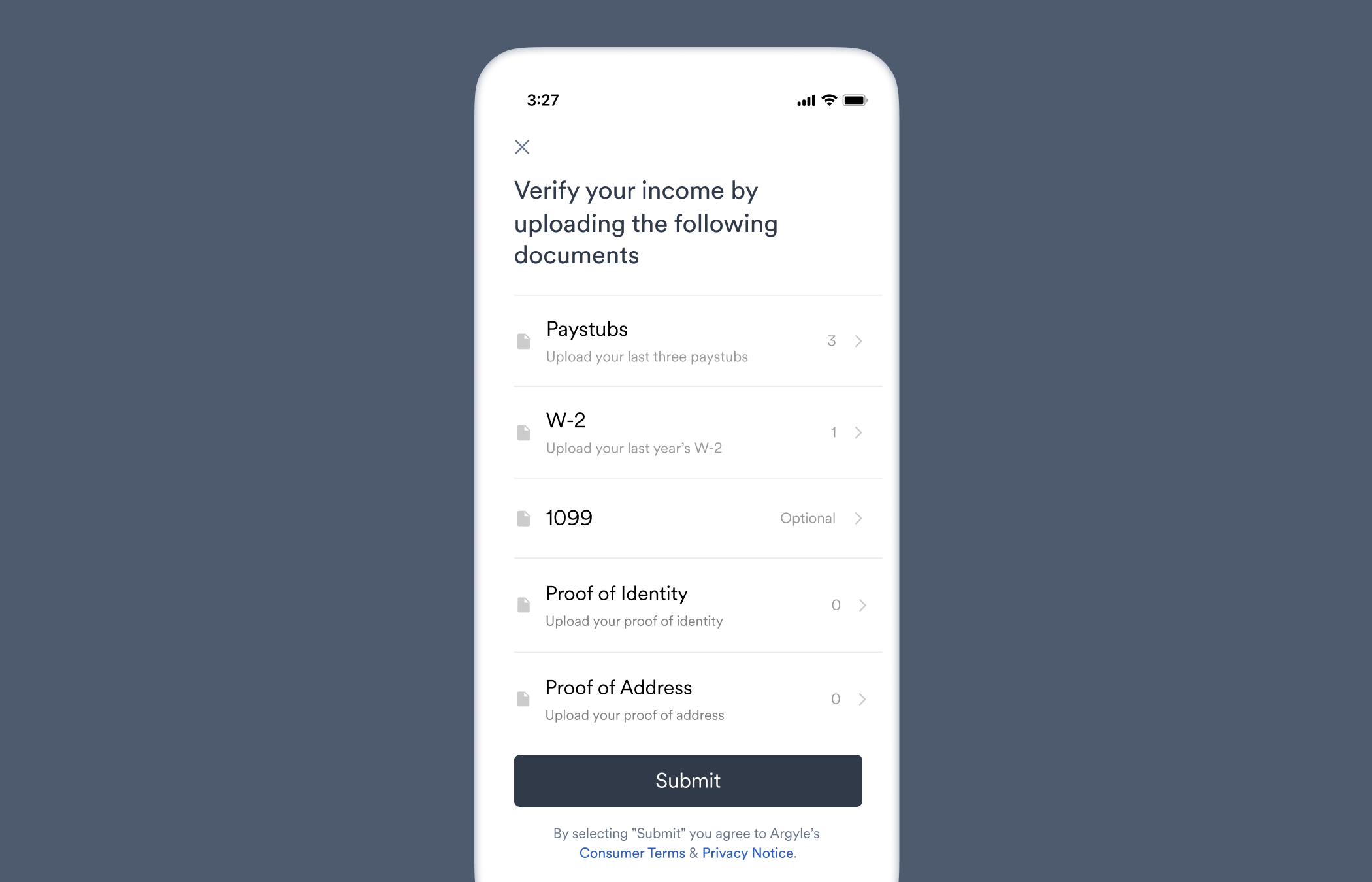
Directly connect users to the document upload screen in Link, bypassing the payroll account connection process. Visit our [Document Processing Guide](/workflows/document-processing) for more information.
## Completing MFA
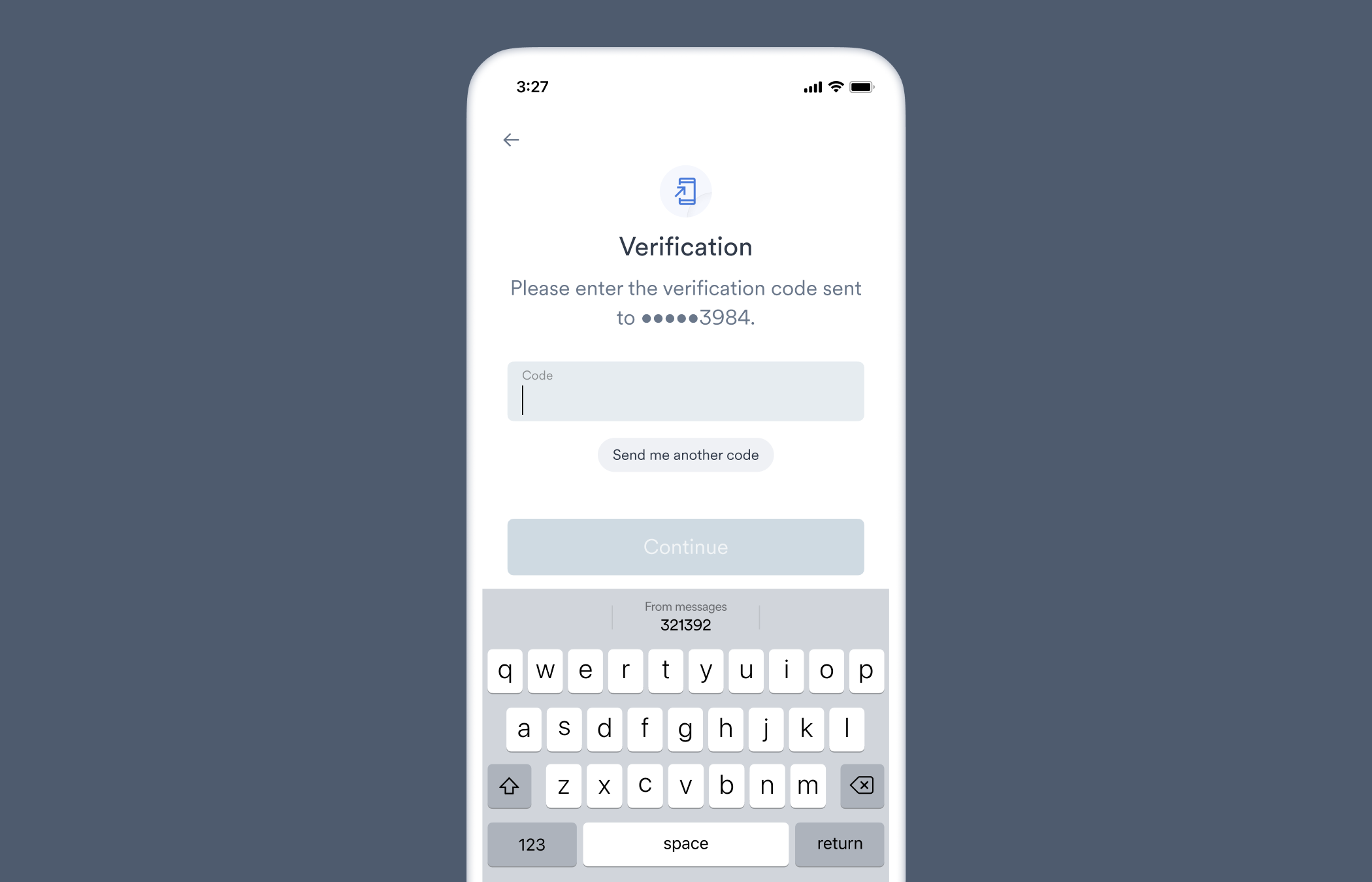
Most payroll systems require multi-factor authentication (MFA) when a user logs in or takes action such as updating their direct deposit settings.
* The MFA process can be completed directly within Link.
* Link is designed to be persistent, meaning users can exit Link to retrieve their authentication information, and return to Link seamlessly without their session or the MFA process being interrupted.
## Troubleshooting
### Connection pending
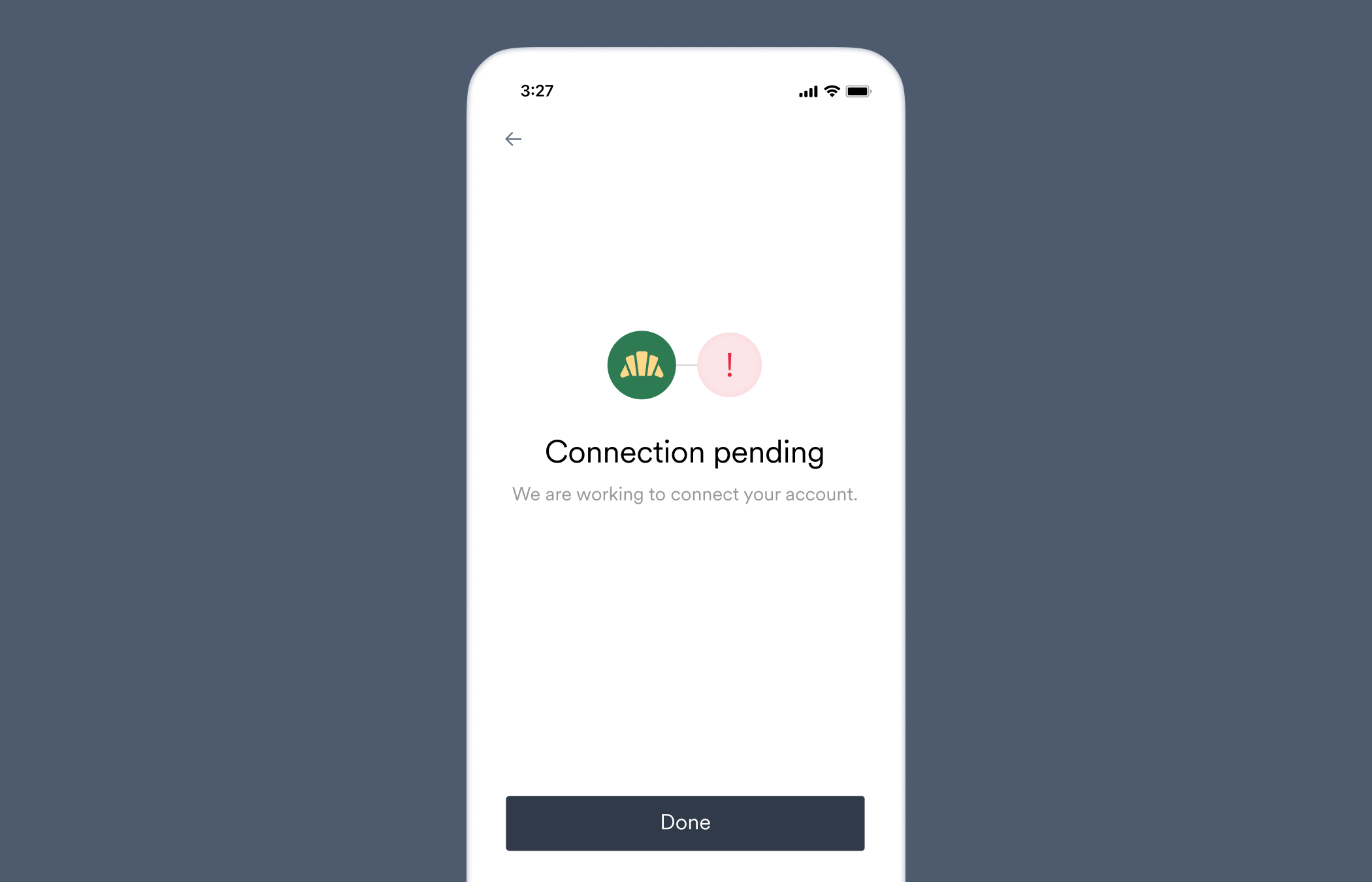
Link will display "Connection pending" if an account connection is experiencing significant delays.
* Users will be able to exit Link or return to the search screen to connect additional accounts.
* You can monitor the account's connection status [via the API](/api-reference/accounts#object-connection-status), through the Connections section of Console, or by subscribing to the [`accounts.updated`](/api-reference/accounts-webhooks/updated) webhook. The account will have an initial status of `connecting` (**API**) or "Attempted" (**Console**) until the connection successfully completes or an [account connection error](/api-reference/account-connection-errors) occurs.
### Expired user token
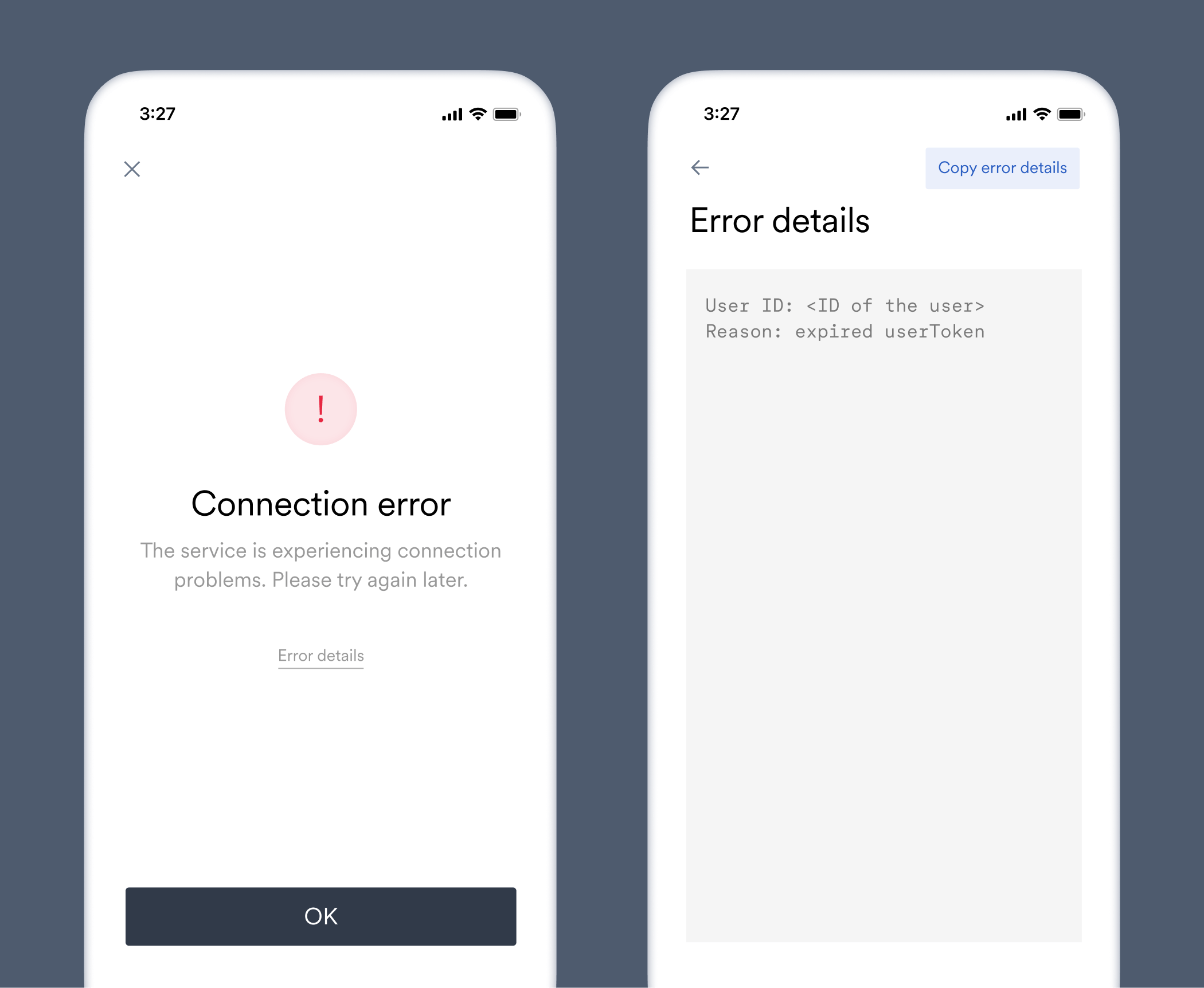
If a user delays completing the MFA process for too long, they may encounter the `expired_user_token` Link error. [Users tokens](/link/user-tokens) allow users to exit and return to Link without interruption, but to ensure security, user tokens expire after one hour.
To re-activate Link for the user, [create a new user token](/api-reference/user-tokens#create) and either:
* Re-initialize Link with the new user token.
* Pass the user token to the [`onTokenExpired`](/link/reference/callbacks#ontokenexpired) callback.
## Customizations
For more information on customizing the connection process in Link, visit our [Flows Guides](/console/flows/embedded-experiences).