> ## Documentation Index
> Fetch the complete documentation index at: https://docs.argyle.com/llms.txt
> Use this file to discover all available pages before exploring further.
# Sandbox Testing
> Retrieve sample data and simulate errors in the Sandbox environment.
## Connect sample users
To begin testing with sample data, connect sample users using the login credentials below through either:
* Flows in Console (*make sure Console's Sandbox mode toggle is enabled*) after selecting a demo or custom [Flow](/console/flows/embedded-experiences).
* Embedded Link, with the `sandbox` parameter set to `true` in your [Link initialization](/link/initialization).
| | Bob | Sarah | Joe\* |
| ------------------ | ----------------------------- | ----------------------------- | ----------------------------- |
| Email | test1@argyle.com | test2@argyle.com | test3@argyle.com |
| Username | test\_1 | test\_2 | test\_3 |
| Password | passgood | passgood | passgood |
| Verification code | 8081 | 8082 | 8083 |
| Phone number | (800) 900-0010 | (800) 900-0020 | (800) 900-0030 |
| Driver's license # | D1230010 | D1230020 | D1230030 |
\* *Joe returns multiple [employments](/api-reference/employments) when connected to specific Items.*
Sample users are deleted after 60 days.
## Retrieve sample data
#### Console
With the Sandbox mode toggle in Console enabled, navigate to the Connections section of Console and select an individual sample user to view sample data.
#### API
Authorize requests using your Sandbox API key and secret, which can be found or created in the Developers section of Console, and make requests using the Sandbox environment's `https://api-sandbox.argyle.com/v2` base URL.
## Simulate a data refresh
To simulate new data being added after an account's data is refreshed:
1. Send a POST request with an empty body to `https://api-sandbox.argyle.com/v2/accounts/{acc-id}/periodic-scan`
2. Replace the `{acc-id}` path variable with the [account ID](/api-reference/accounts#object) of an already-connected sample user.
If successful, the request returns an empty object and 1-5 new paystubs and gig events are added to the sample account.
Simulated data refreshes are often used for webhook testing.
## Update sample data
The same endpoint used for simulating data refreshes in Sandbox can also be used to update a user's [identity information](/api-reference/identities):
1. Send a POST request to `https://api-sandbox.argyle.com/v2/accounts/{acc-id}/periodic-scan`
2. Replace the `{acc-id}` path variable with the [account ID](/api-reference/accounts#object) of an already-connected sample user.
3. In the request body, include a JSON object with the updated identity values you want to be overwritten in the format shown in the example below:
* Most identities fields can be overwritten with the exception of `id`, `account`, `picture_url`, `employer`, `created_at`, `updated_at`, and `metadata`.
* Only possible values for **(enum)** identity fields are accepted.
```json theme={}
{
"data": {
"identities": {
"address": {
"city": "Sydney",
"line1": "P Sherman",
"line2": "42",
"state": "Wallaby Way",
"country": "Australia",
"postal_code": "0872"
},
"first_name": "Finding",
"last_name": "Nemo",
"full_name": "Finding Nemo",
"birth_date": "2003-05-30",
"email": "dory@email.com",
"phone_number": "+12127777777",
"employment_status": "terminated",
"employment_type": "part-time",
"job_title": "Explorer",
"ssn": "553-983-2311",
"marital_status": "Single",
"gender": "Female",
"original_hire_date": "2020-01-03",
"hire_date": "2021-04-13",
"termination_date": "2023-09-22",
"termination_reason": "Forgetfulness",
"base_pay": {
"amount": "92050",
"period": "annual",
"currency": "USD"
},
"pay_cycle": "monthly",
"platform_ids": {
"employee_id": "OB238HDW5",
"position_id": "6ELL4O7PM",
"platform_user_id": "JLH7B9V6O6YGN9O7"
}
}
}
}
```
Updating identities information is often used to test or explore how your system reacts to identity-related events such as a user's [`employment_status`](/api-reference/identities#object-employment_status) updating from `active` to `terminated`.
When a user's identities data changes, the `identities.updated` [webhook](/api-reference/identities-webhooks/updated) is sent.
## Simulate errors in Console
1. Navigate to Flows when Console is in Sandbox mode.
2. Select a demo Flow, and the option to "Simulate an error" will appear next to the sample user's test email.
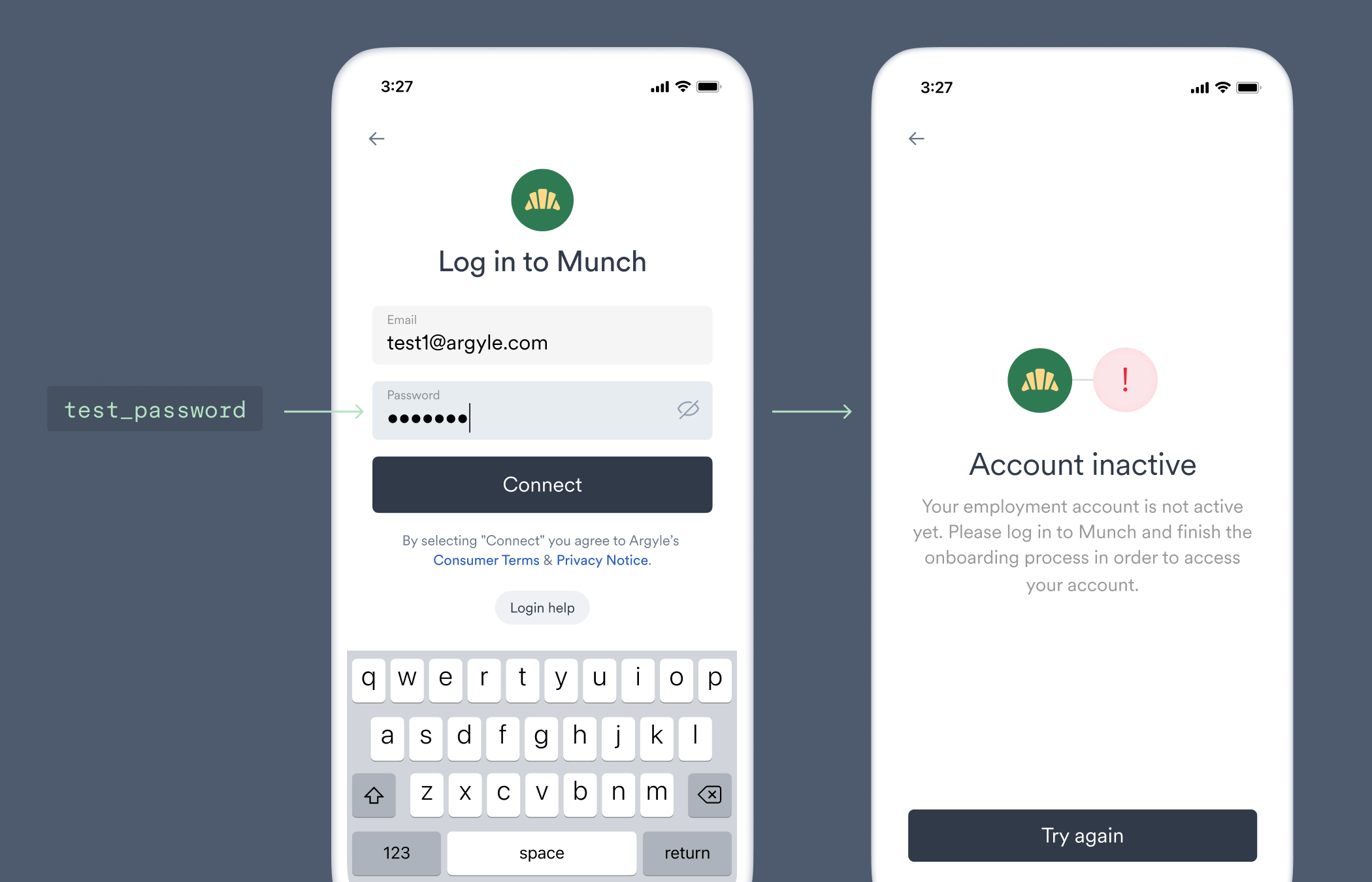
3. Choose an error, and "Click to copy" the special test password. Use this password when connecting a payroll account for the sample user to simulate the error.
## Simulate errors via the API
1. Send a POST request to `https://api-sandbox.argyle.com/v2/test-password/encode`, and include a JSON object in the request body specific to the error type:
* [Account connection errors](/api-reference/account-connection-errors) occur immediately after submitting sample user login credentials.
* The `invalid_mfa` error can be tested by entering an incorrect code, and `mfa_timeout` will occur after ten minutes.
* For the `auth_required` error, switch to the **Disconnection errors** tab.
```json theme={}
{
"failure": {
"fail_on": "connection",
"error": "" // Any account connection error.
}
}
```
* You must [simulate a data refresh](/overview/sandbox-testing#simulate-a-data-refresh) after you have connected a sample user with the `test_password` sent in the response in order to trigger the disconnection error.
```json theme={}
{
"failure": {
"fail_on": "rescan",
"error": "auth_required" // Only value accepted.
}
}
```
2. Once the POST request is sent, you will receive a `test_password` in the response:
```json theme={}
// *Example value
{
"test_password": "eyJmYWlsdXJlIjogeyJmYWlsX29uIjogImNvbm5lY3Rpb24iLCAiZXJyb3IiOiAiYWNjb3VudF9kaXNhYmxlZCJ9fQ=="
}
```
3. Use this `test_password` as the password login credential when connecting a sample user to trigger the error.