> ## Documentation Index
> Fetch the complete documentation index at: https://docs.argyle.com/llms.txt
> Use this file to discover all available pages before exploring further.

# Employment History

> Prompt users in Link to add additional employments until required employment history length is met.

## Overview

Employment History is a new payroll connection experience in Link:

* Users are asked to connect their payroll accounts until a threshold length of employment history has been met.
* The employment history threshold is configurable from 1 month up to 10 years and 11 months.
* After each connection Argyle checks to see if the employment history threshold has been met. If not, the user is prompted to connect additional accounts.

<Note>
  To enable the Employment History feature, reach out to your Argyle customer success manager.
</Note>

## Link connection experiences

<div className="argyle-divider" />

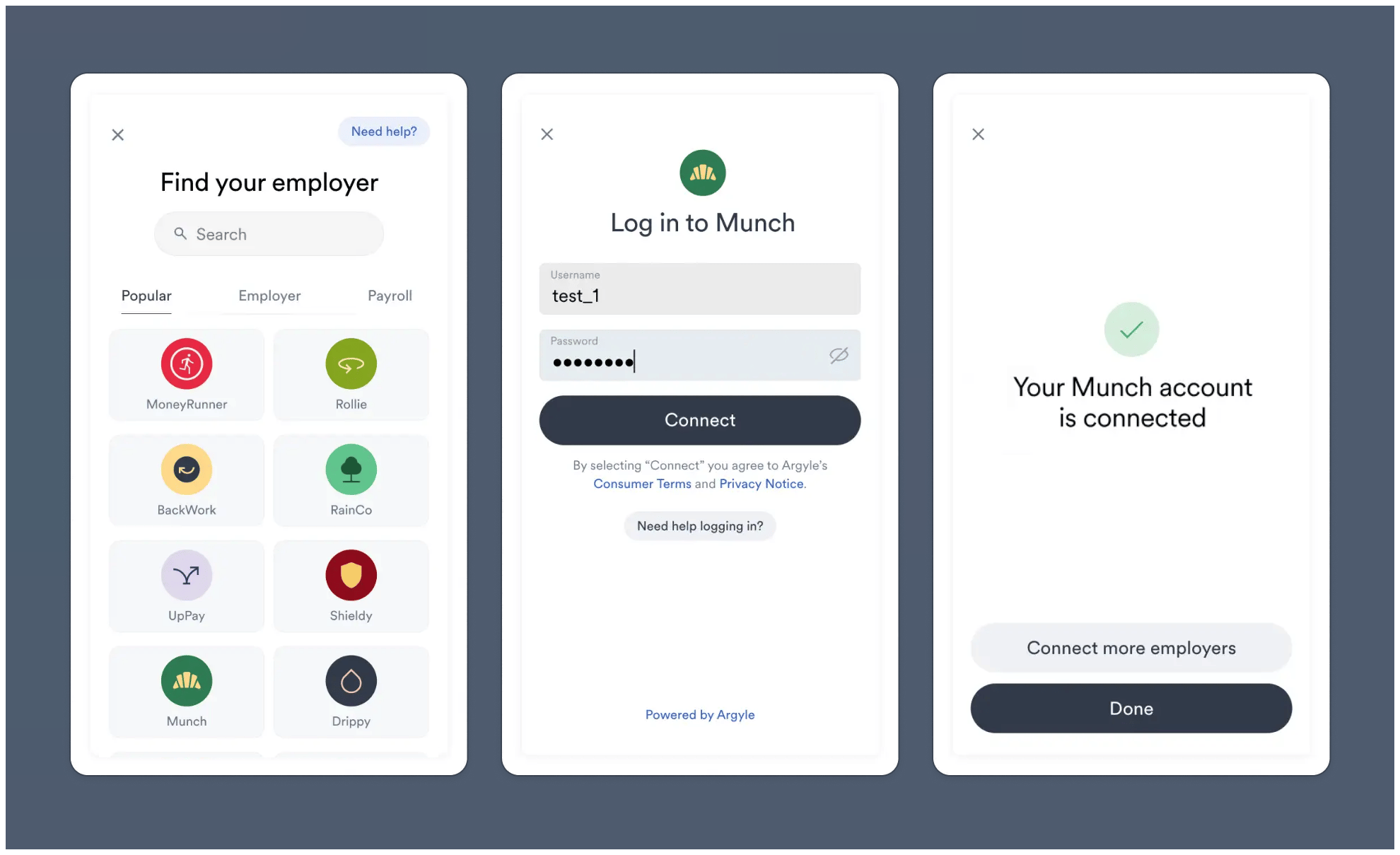
### No employment history check

Standard Link connection experience (Employment History feature is *not* enabled):

<img src="https://mintcdn.com/argyle/lpddaw6ggr_B1oHD/images/argyle-guides/overview/employment-history/1-employment-history.png?fit=max&auto=format&n=lpddaw6ggr_B1oHD&q=85&s=955130cff974faacb252df1afbd32d10" alt="Standard Argyle Link experience" width="1980" height="1209" data-path="images/argyle-guides/overview/employment-history/1-employment-history.png" />

### Employment history sufficient

Employment History feature is enabled and connected account meets minimum history threshold:
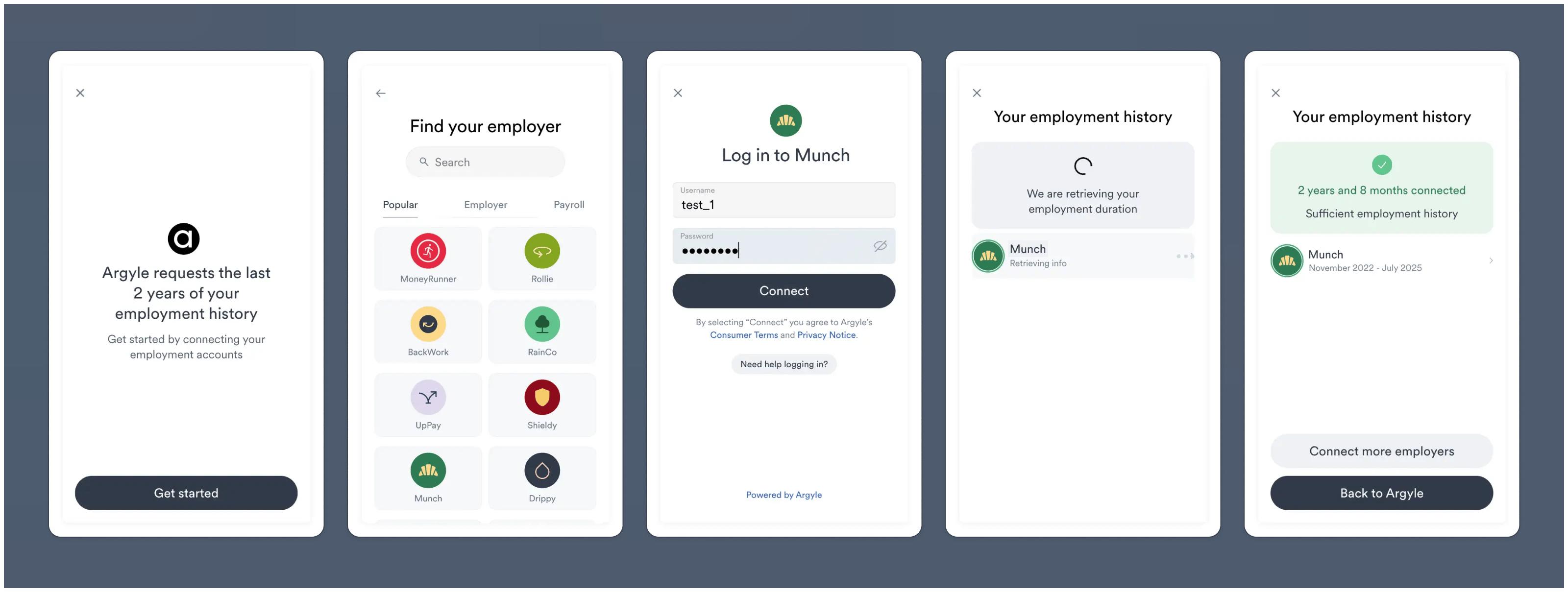
<img src="https://mintcdn.com/argyle/lpddaw6ggr_B1oHD/images/argyle-guides/overview/employment-history/2-employment-history.png?fit=max&auto=format&n=lpddaw6ggr_B1oHD&q=85&s=9bfdadf78785d148408aa7118830b10b" alt="Sufficent employment history message shown after account connection" width="3200" height="1209" data-path="images/argyle-guides/overview/employment-history/2-employment-history.png" />

### Employment history insufficient

Employment feature is enabled and connected account does *not* meet minimum history threshold:
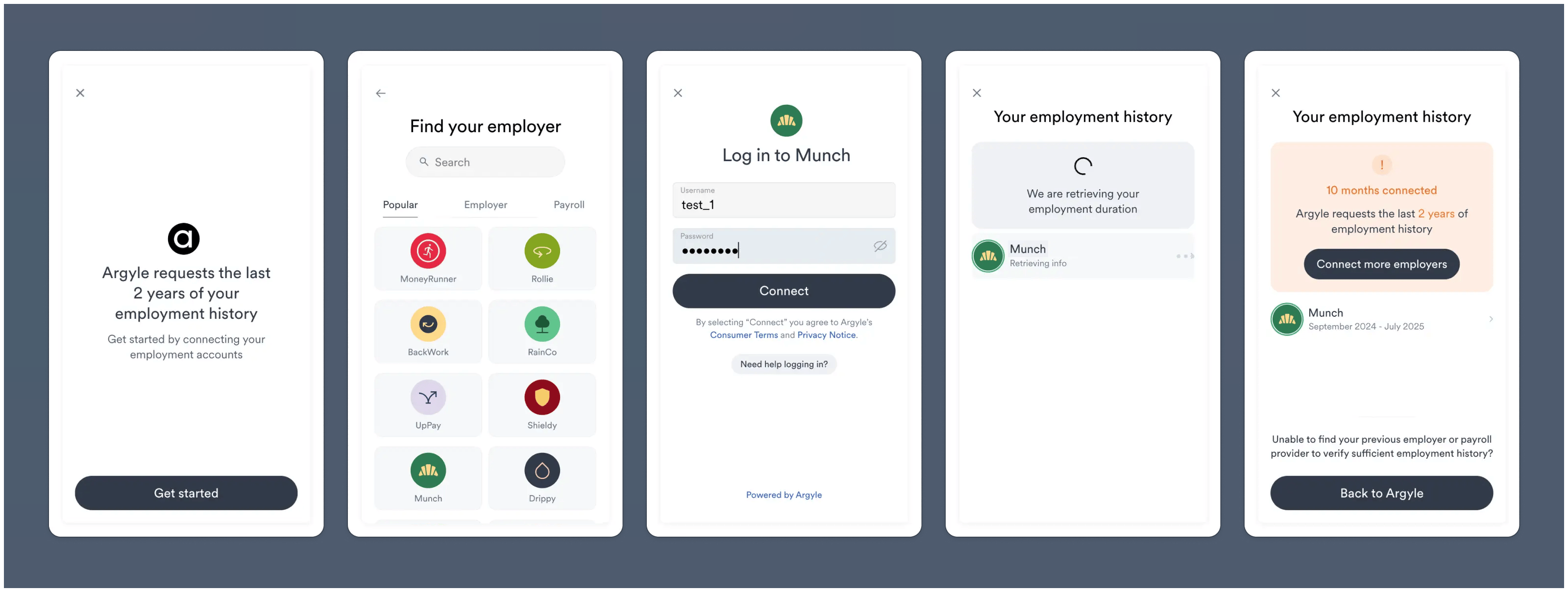
<img src="https://mintcdn.com/argyle/lpddaw6ggr_B1oHD/images/argyle-guides/overview/employment-history/3-employment-history.png?fit=max&auto=format&n=lpddaw6ggr_B1oHD&q=85&s=da6d92f79dcf8c2d5e239483f81c5fd2" alt="User is prompted to connect additional employers after insufficient employment history" width="3200" height="1209" data-path="images/argyle-guides/overview/employment-history/3-employment-history.png" />

## Console setup

1. Navigate to the <a href="https://console.argyle.com/flows" target="_blank">Link Flows</a> section of Console and create a **New Flow**.
<Note>
  The Employment History feature can be enabled for both all Flow types.
</Note>

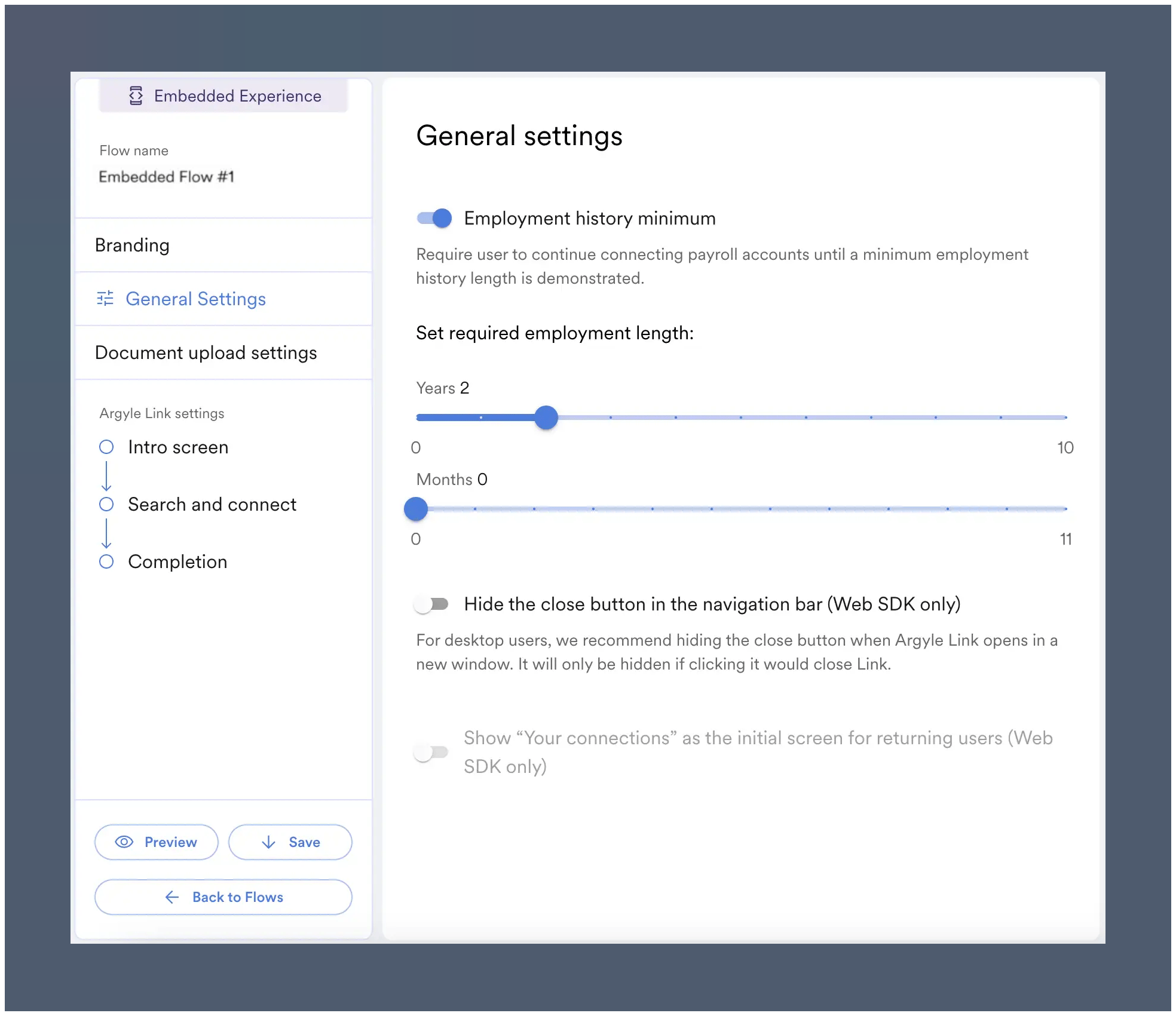
2. In **General Settings** tab, enable the `Employment history minimum` toggle.

3. Adjust the sliders to your desired minimum employment history length.

<img src="https://mintcdn.com/argyle/lpddaw6ggr_B1oHD/images/argyle-guides/overview/employment-history/4-employment-history.png?fit=max&auto=format&n=lpddaw6ggr_B1oHD&q=85&s=2b4e8d2315d70db643cc156086fb4054" alt="Employment History settings can be adjusted in Console" width="1968" height="1701" data-path="images/argyle-guides/overview/employment-history/4-employment-history.png" />

4. (Optional) When Employment History is enabled, a unique intro screen is enabled by default. This screen can be customized within the **Intro screen** side tab.
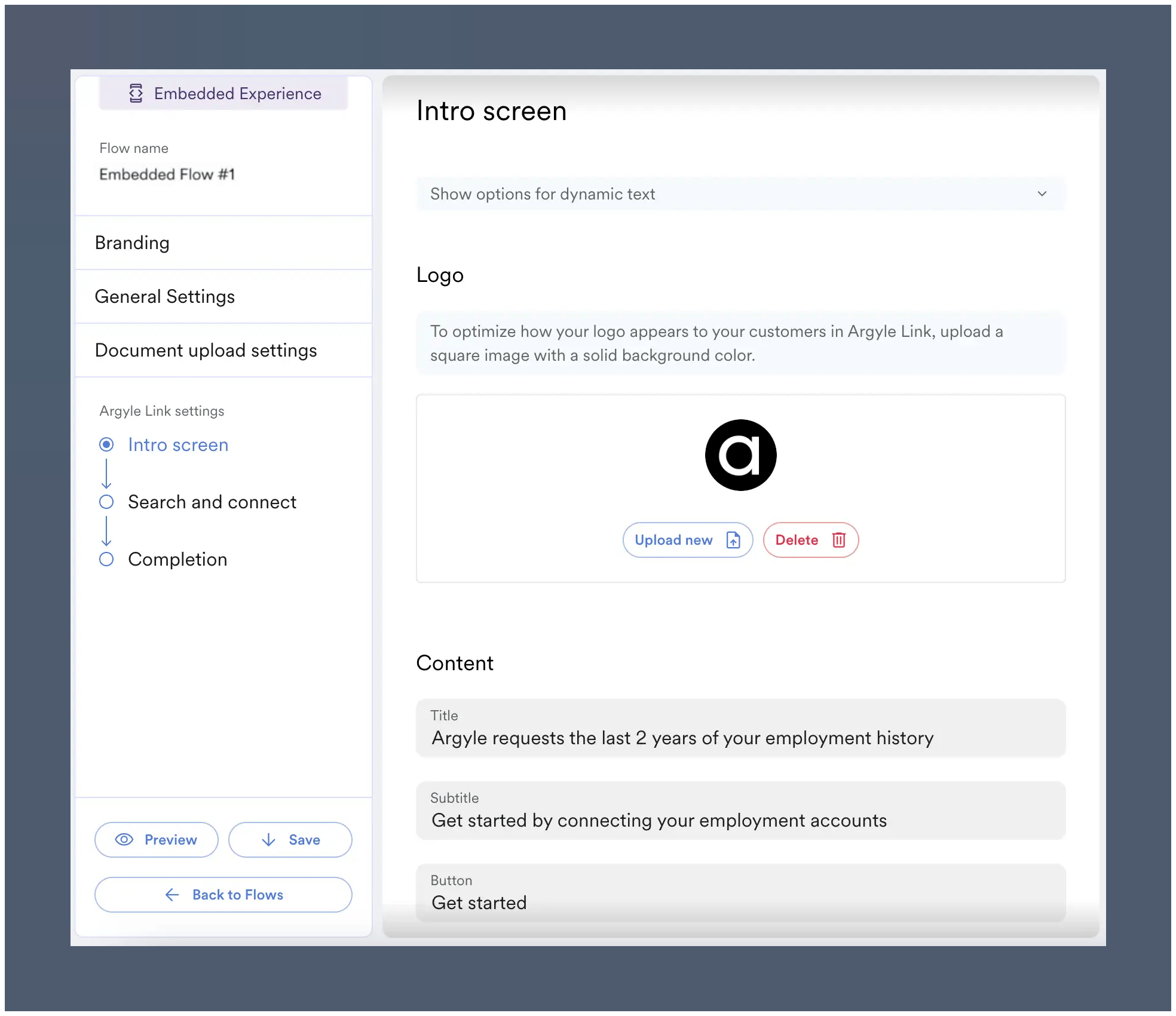
<img src="https://mintcdn.com/argyle/lpddaw6ggr_B1oHD/images/argyle-guides/overview/employment-history/5-employment-history.png?fit=max&auto=format&n=lpddaw6ggr_B1oHD&q=85&s=21a82ea201cf871d21b677a94cef32aa" alt="Employment History has a unique intro screen that can be adjusted." width="1968" height="1701" data-path="images/argyle-guides/overview/employment-history/5-employment-history.png" />

5. (Optional) The screen shown when *sufficient* employment history is reached can be customized from the **Completion** side tab.
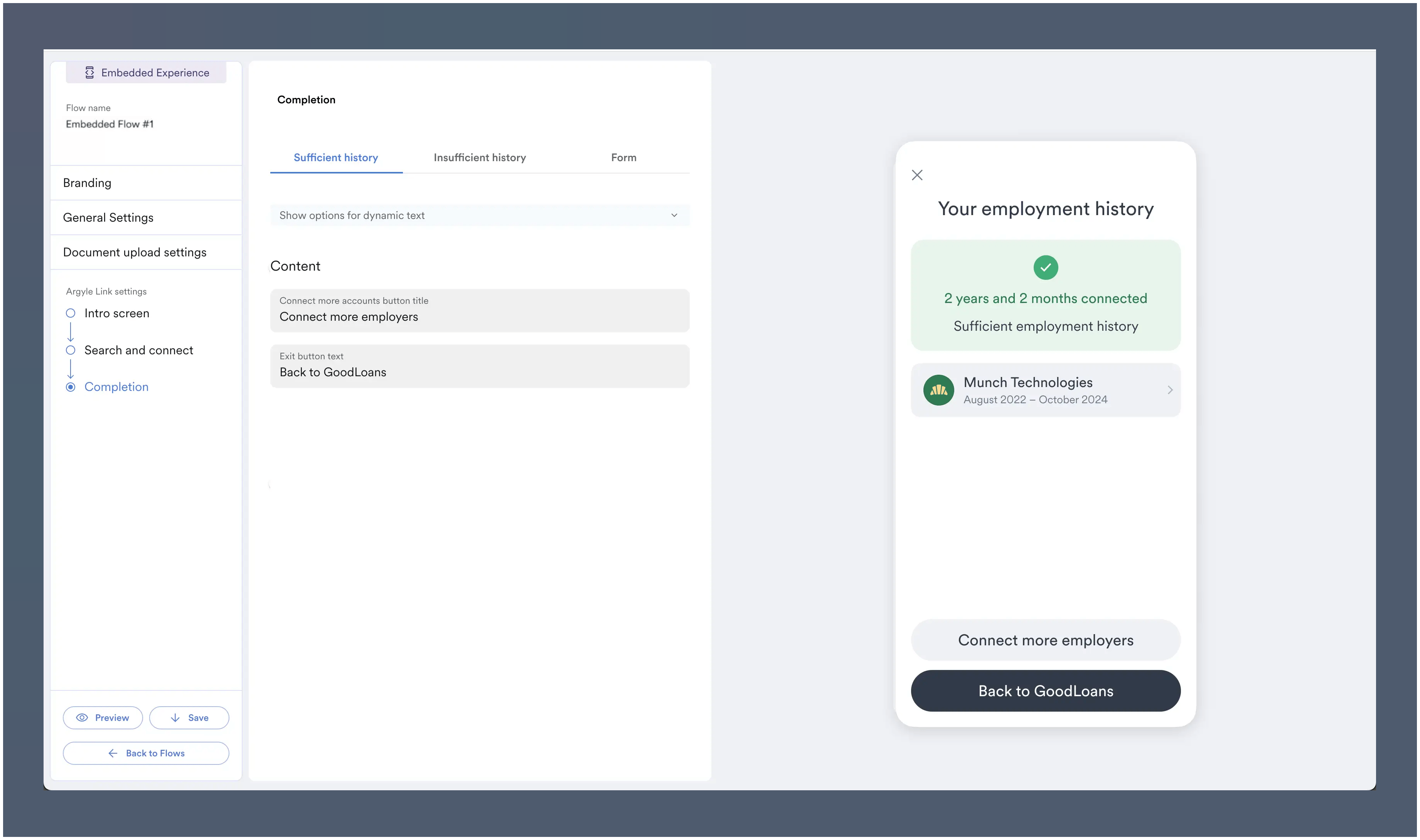
<img src="https://mintcdn.com/argyle/lpddaw6ggr_B1oHD/images/argyle-guides/overview/employment-history/6-employment-history.png?fit=max&auto=format&n=lpddaw6ggr_B1oHD&q=85&s=df98cda492e5ac1092998b5ec0b79d90" alt="The sufficient employment history screen's language can be adjusted." width="3683" height="2179" data-path="images/argyle-guides/overview/employment-history/6-employment-history.png" />

6. (Optional) The screen shown for *insufficent* employment history can also be adjusted from the same **Completion** side tab.
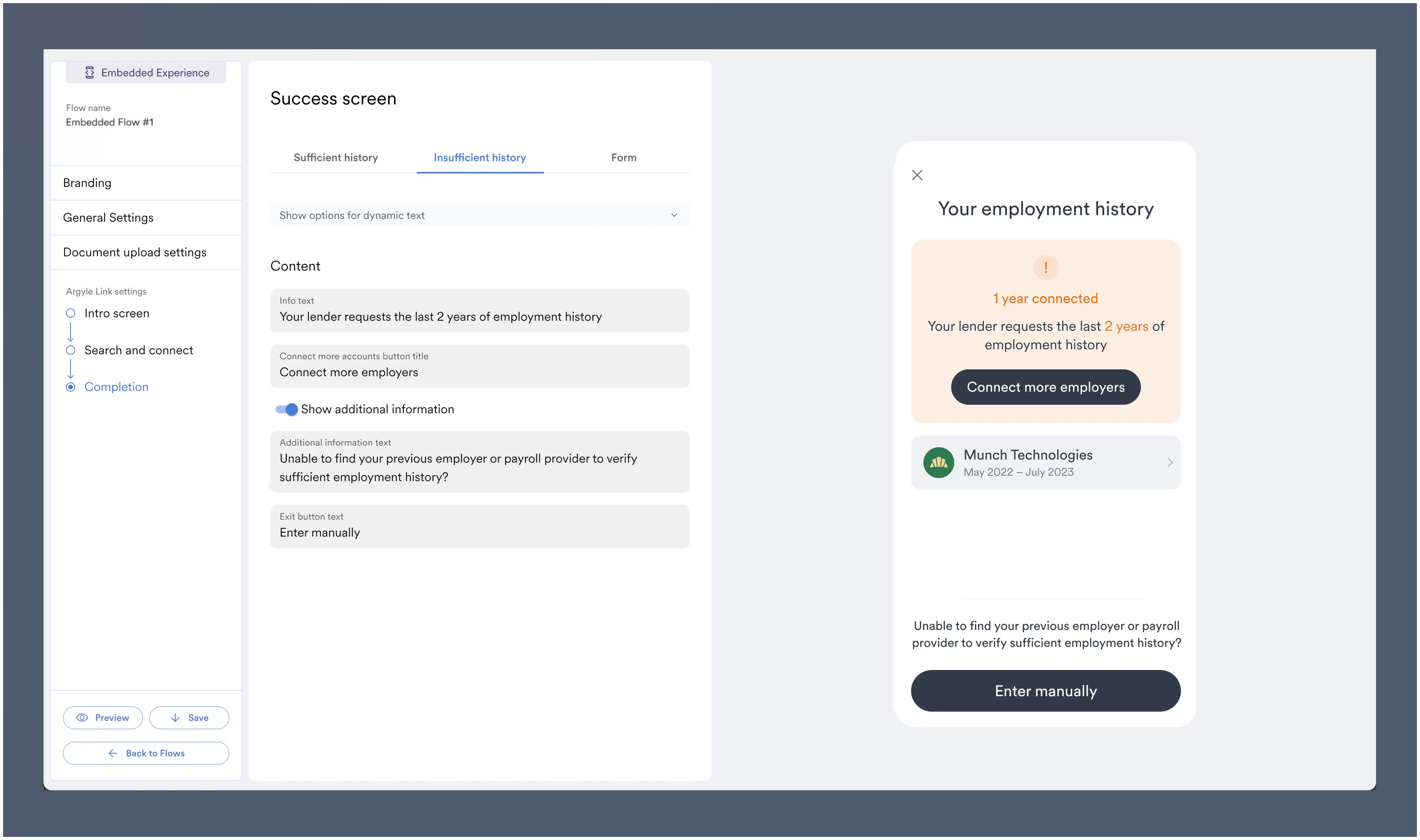
<img src="https://mintcdn.com/argyle/lpddaw6ggr_B1oHD/images/argyle-guides/overview/employment-history/7-employment-history.png?fit=max&auto=format&n=lpddaw6ggr_B1oHD&q=85&s=3631c56994a388f9eccc90af92445065" alt="The insufficient employment history screen's language can be adjusted." width="3683" height="2179" data-path="images/argyle-guides/overview/employment-history/7-employment-history.png" />

<Note>
  *Reach out to your Argyle Success Manager for any setup assistance.*
</Note>

## Embedded routing

For embedded implementations, the [`onClose`](/link/reference/callbacks#onclose) Link callback can be used to route users depending on whether the employment history threshold was met:

* When `onClose` returns `"userSubmissionComplete": true` this indicates the employment history threshold has been met. The user can be routed forward in your experience.
* When `onClose` returns `"userSubmissionComplete": false` this indicates the employment history threshold was *not* met. The user can be routed to a fallback experience.

## Limitations

<Note>
  * Deposit switching is not supported when combined with Flows that have Employment History enabled.
  * It can take up to \~30 seconds after each connection for employment history from the account to be evaluated.
</Note>

## Testing

In Argyle Sandbox:

1. Create a Flow with Employment History enabled.
2. Initiate a Link connection experience with the saved Flow.
3. To test sufficient employment history:

* Use `test_1` as the username
* Use  `passgood` as the password

4. To test insufficient employment history:

* Use `test_1` as the username
* Use the following password:
  ```json theme={}
  eyJzdGF0aWNfZGF0YV9zZXRfaWQiOiAiODRjZGVmMWQtNWQ4Ny00NGNmLWJmYTYtNzI2ZDIwODExODI0IiwgImluaXRpYWxfc2Nhbl9kZWxheV9pbl9zZWNvbmRzIjogN30K
  ```

5. To test slow data retrieval time (extended waiting period):

* Use `test_1` as the username
* Use the following password:
  ```json theme={}
  eyJzdGF0aWNfZGF0YV9zZXRfaWQiOiAiODdkZjg4MDctMDZmYy00OTUxLWFiYzYtMWVmNjI2ZDUyOWE5IiwgImluaXRpYWxfc2Nhbl9kZWxheV9pbl9zZWNvbmRzIjogMjB9
  ```
