> ## Documentation Index
> Fetch the complete documentation index at: https://docs.argyle.com/llms.txt
> Use this file to discover all available pages before exploring further.

# Reports

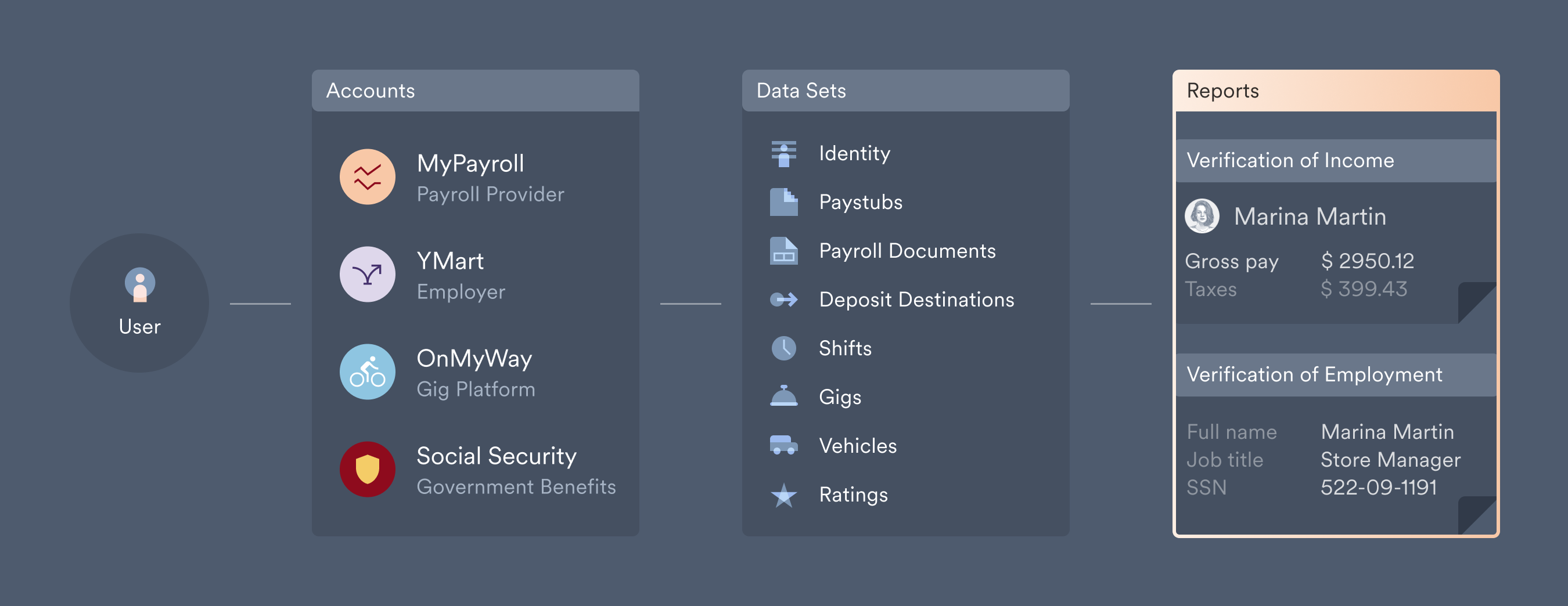
> Reports are PDF summaries of data retrieved from users' connected payroll accounts.

## Types of reports

<Frame>
  <img src="https://mintcdn.com/argyle/lpddaw6ggr_B1oHD/images/argyle-guides/overview/reports/3-reports.png?fit=max&auto=format&n=lpddaw6ggr_B1oHD&q=85&s=d8e3b4b0194a7e6cc9dab4419ecd4485" alt="Argyle offers verification of income and employment and verification of employment reports." width="2700" height="1044" data-path="images/argyle-guides/overview/reports/3-reports.png" />
</Frame>

### VOIE — Verification of Income & Employment

* Includes the user's employment history and yearly income totals.
* <a href="https://res.cloudinary.com/argyle-media/image/upload/v1749501632/docs-2025/voie_example_argyle.pdf" target="_blank">Example VOIE report</a> (PDF)

### VOE — Verification of Employment

* Includes only the user's employment history.
* Often used when re-verification of the user's income is not necessary.
* <a href="https://res.cloudinary.com/argyle-media/image/upload/v1746481161/docs-2025/voe_example.pdf" target="_blank">Example VOE report</a> (PDF)

<Note>
  **Day 1 Certainty®** and **AIM** eligibility services for Fannie Mae and Freddie Mac, respectively, are also available for Argyle VOIE and VOE reports. Visit our [Day 1 Certainty® and AIM guide](/integrations/d1c-aim/verifications) for more information.
</Note>

## Generating reports

<div className="argyle-divider" />

### Console

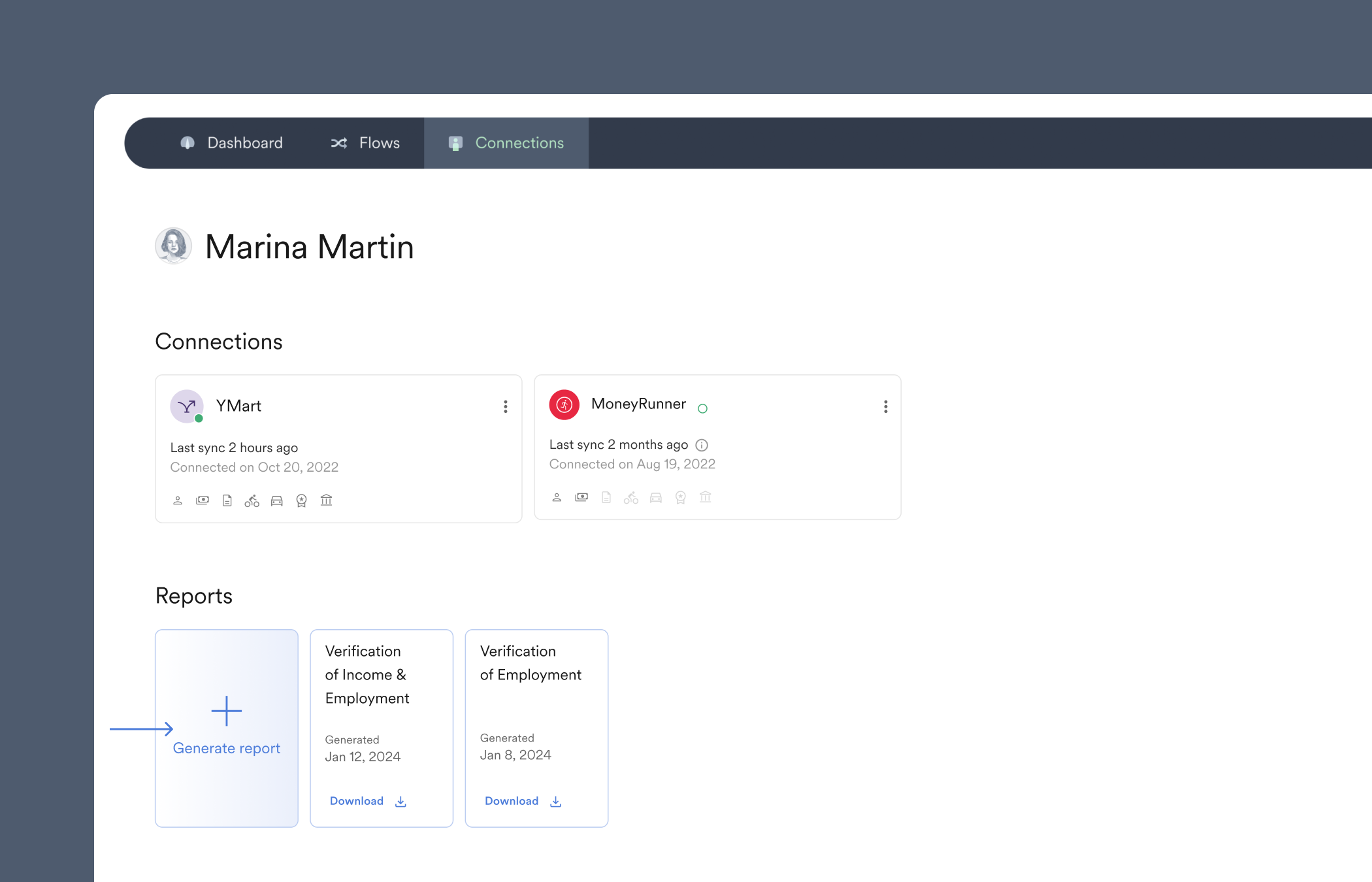
1. Navigate to the <a href="https://console.argyle.com/connections" target="_blank">Connections</a> section of Console and click on an individual user.
2. Select "Generate report" within the **Reports** area of the user's page once all data sets have fully synced.

<Note>
  Depending on the data retrieval speed limits of the underlying payroll platform, it can take from a few seconds up to several minutes after a new account connection before enough data has been synced to generate a complete report. Visit our [Data Delivery Guide](/overview/data-delivery) for more information on the timing of data retrieval.
</Note>

<Frame>
  <img src="https://mintcdn.com/argyle/lpddaw6ggr_B1oHD/images/argyle-guides/overview/reports/1-reports.png?fit=max&auto=format&n=lpddaw6ggr_B1oHD&q=85&s=746555e65f9f4099fdf594154c709b75" alt="Payroll data is made available through Argyle Console, the Argyle API, or Argyle PDF reports." width="2100" height="1350" data-path="images/argyle-guides/overview/reports/1-reports.png" />
</Frame>

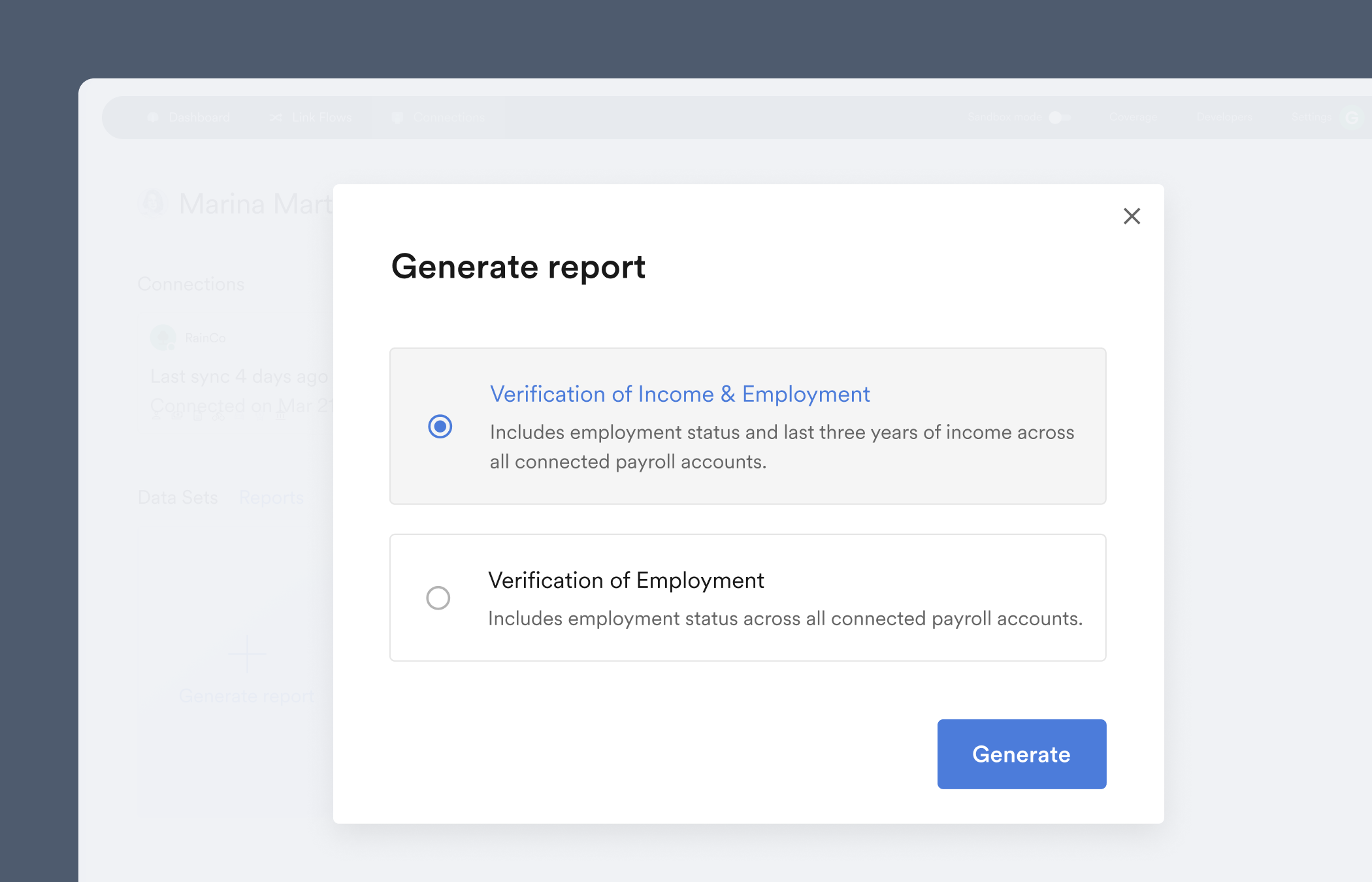
3. Select the type of report you want to generate when the pop-up window appears.
<Frame>
  <img src="https://mintcdn.com/argyle/lpddaw6ggr_B1oHD/images/argyle-guides/overview/reports/2-reports.png?fit=max&auto=format&n=lpddaw6ggr_B1oHD&q=85&s=d34aa1c9917451462bb1600912714f82" alt="Select a report type." width="2100" height="1350" data-path="images/argyle-guides/overview/reports/2-reports.png" />
</Frame>

### API

1. Send a **POST** request to the API's [`/v2/reports`](/api-reference/reports#generate) endpoint

* Specify the [report type](/api-reference/reports#generate-type) in the request path — e.g. **POST** `/v2/reports/voie`

2. Include the following JSON object in the request body:
   ```json theme={}
   {
       "user": "<ID of the user>"
   }
   ```

<Note>
  To ensure full data availability, we recommend subscribing to the [`reports.ready`](/api-reference/reports-webhooks/ready) webhook, which is sent when sufficient data has been retrieved to generate a verification report.
</Note>