> ## Documentation Index
> Fetch the complete documentation index at: https://docs.argyle.com/llms.txt
> Use this file to discover all available pages before exploring further.
# Implementation
> Integrating your deposit switching solution.
This guide provides a step-by-step process for first time implementations of Argyle's deposit switching solution.
After set-up, your users will be able to redirect their paychecks to your bank in just a few clicks:
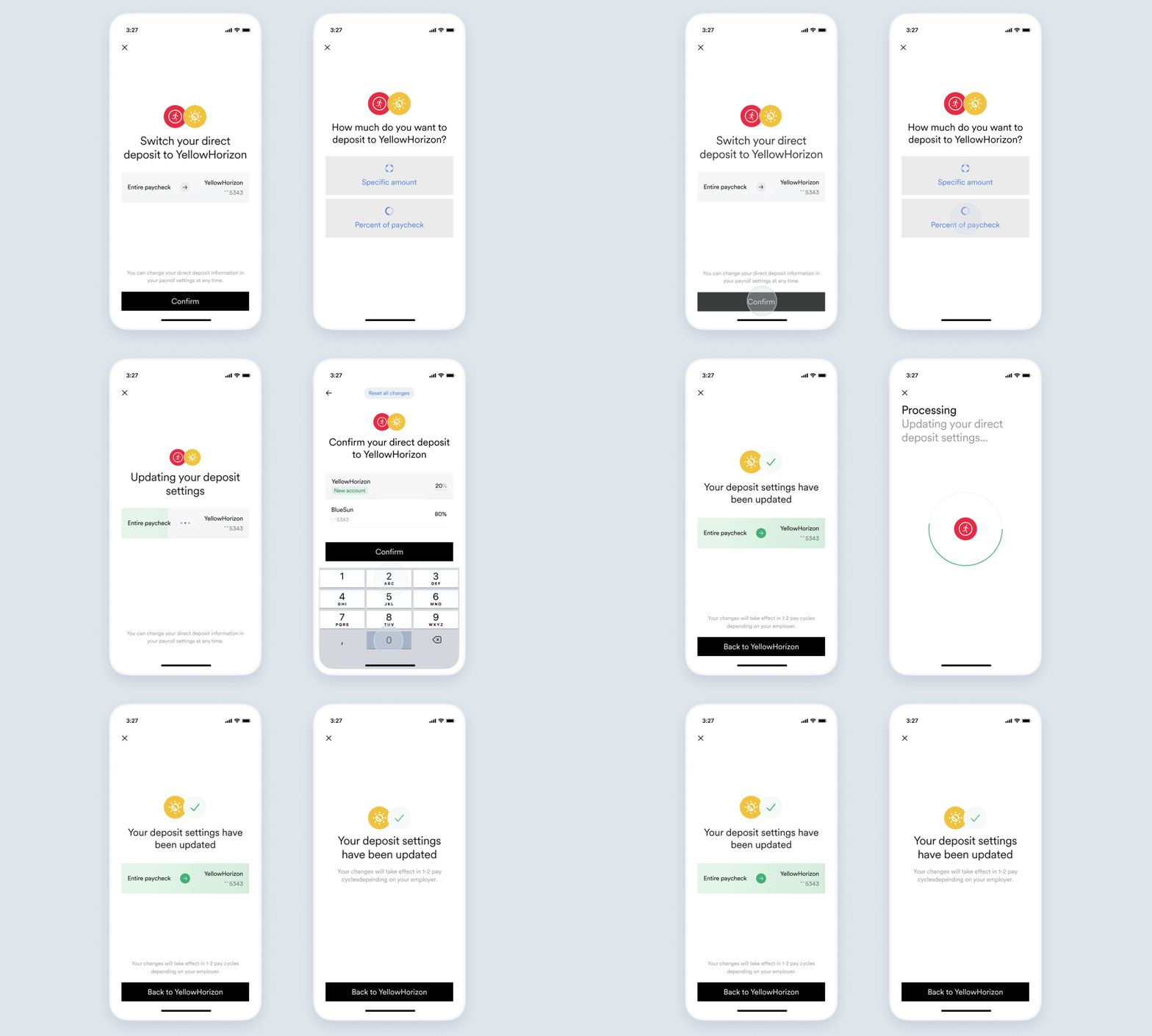
You can also visit our dedicated [Deposit Switching Guide](/legacy/guides/argyle-link/flows/direct-deposit-switching) for more examples and additional use cases, such as adding a debit card to a user's gig platform so they can cash out to your card.
## How deposit switching works
Deposit switching happens through Argyle Link:
* Your users search for their employer or payroll provider and provide their login credentials
* After each successful payroll connection, the user is presented with the deposit switching flow you set in your configuration
You can [embed](/legacy/guides/argyle-link/embed/web) Argyle Link in your website or application, or use Argyle Console to [invite users](/legacy/guides/argyle-console/faq#how-to-invite-new-users) to an instance of Argyle Link hosted by Argyle.
## Add your company logo
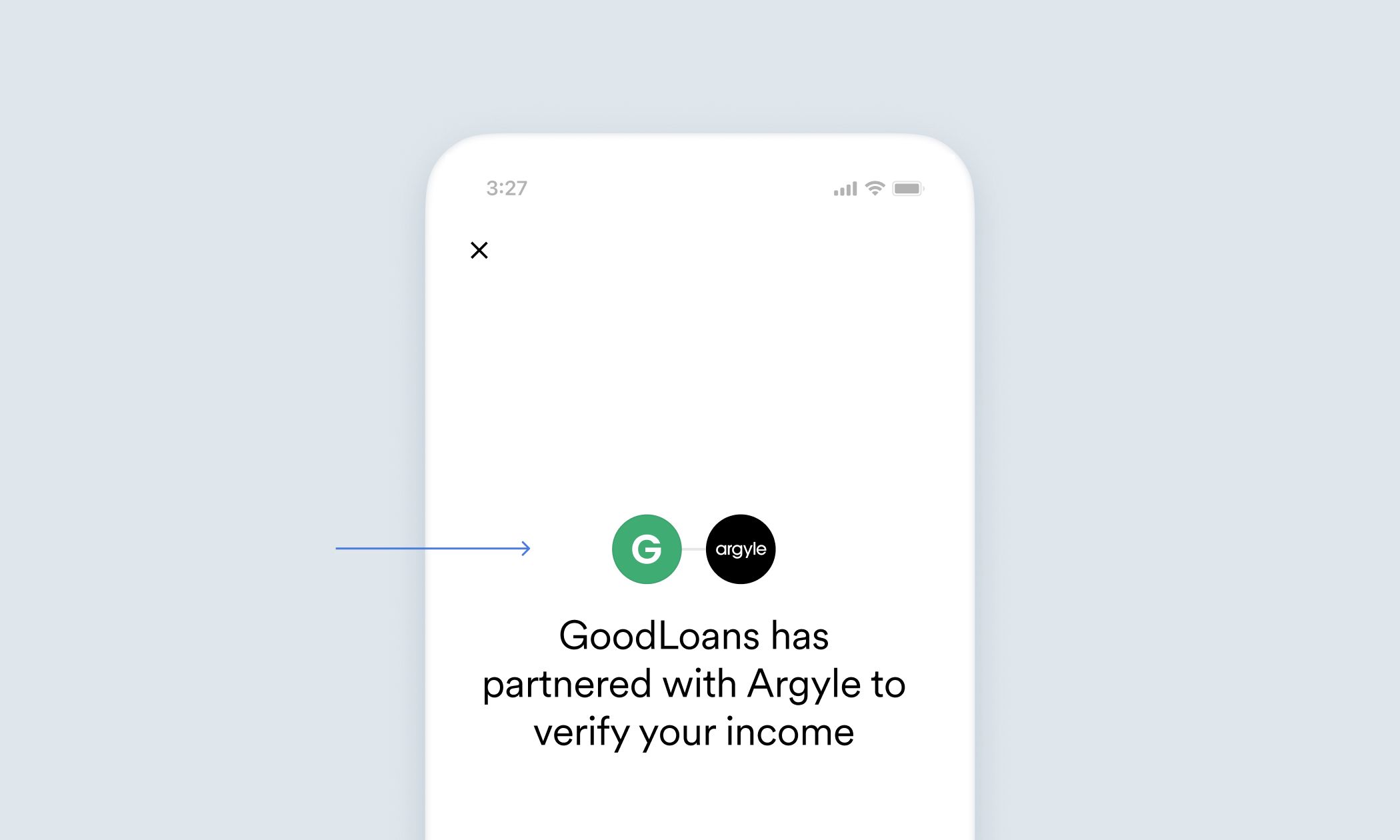
After initial [sign-up](https://console.argyle.com/sign-up), access Argyle Console and navigate to [Settings](https://console.argyle.com/settings/company) in the top nav bar. Upload your company name and logo from the Company details tab.
## Configure the deposit switch
If you are sending invitations to new users through Argyle Console, visit our [guide](/legacy/guides/argyle-console/faq#how-to-set-up-deposit-switching) to setting up deposit switching in Console.
If you are embedding Argyle Link, follow the steps in the section below.
### Embedded configurations
To enable the deposit switching flow if you are embedding Argyle Link, you will need to provide a deposit switching configuration in your Argyle Link initialization code.
This deposit switching configuration contains the bank account details where you want the user's paycheck to be sent, and the allocation settings that determine how much of that paycheck you want to receive.
Below is an example configuration that transfers the entirety of the user's paycheck to the provided bank account. A full list of example configurations, including how to receive exact amounts or percentages of a user's pay, can be found in our dedicated [Deposit Switching Guide](/legacy/guides/argyle-link/flows/direct-deposit-switching).
```json theme={}
// Receive 100% of paycheck
{
"bank_account": {
"bank_name": "YellowHorizon",
"routing_number": "084101234",
"account_number": "9483746361234",
"account_type": "checking"
},
"entire_allocation": true,
"allow_editing": false
}
```
In order to protect sensitive bank account details, this deposit switch configuration needs to be encrypted before including it in your Argyle Link initialization.
To encrypt the configuration, make a POST request to our [API encryption endpoint](/legacy/api-reference/dds-configurations#encrypt). Include the unencrypted configuration above in the request body.
You should received an encrypted configuration in the response that looks similar to:
```json theme={}
{
"encrypted_config": "CiQAB/5lecrbJVrkdodwk4sgqacFNCiaH638IgDAHa8/peRjEEoShwIA8Gmka0Ea+JAa75M5HxfTckMklvPVvRxPYV3ND+YisxMhcHk6Fig0bwUUJiotuw/L5YkbHysTMPU6PSvXnHs19lNDZfVO6qpo44U6eMRdqO65HC864QEEi5n/u7QQT3DcG43RiVoRCnDiBlcdGIOPxth+gX6JgygigFHLEFhfOKWaQdyOmHDuf9cZNxp3M26IBEEtgmznl4oSm1qFt6ZzMcvdvKd2nOMS5co3Nc4f6F67GlnCRHEjzszBUnkgpsj60KFKggQ0e/CRQWi5pM/wa7UCb80LAKKm8Tl07kDJVFZcb9rsGwcfPY8ZCxcD0MtV/Q+yflCbaLL4RYcKXCBZXv0yOJEhxw=="
}
```
This encrypted configuration will be used in your Link initialization.
## Initialize a deposit switch
If are sending invitations through Argyle Console, the deposit switching flow will automatically be enabled in Argyle Link if you completed the deposit switching setup process.
If you are embedding Argyle Link, below are the basic initializations for Web, iOS, Android, and React Native. Visit our [embedding Link guides](/legacy/api-reference/configuration-parameters) for how to include optional parameters such as [callbacks](/legacy/api-reference/callbacks) or search limits in your initialization.
Embedded Argyle Link initializations for deposit switching:
```html theme={}
```
```swift theme={}
class ViewController: UIViewController {
let DEPOSIT_CONFIG = "ENCRYPTED_CONFIGURATION" // Your encrypted deposit switching configuration
override func viewDidLoad() {
_ = Argyle.shared
.loginWith (
linkKey: "YOUR_LINK_KEY", // Found in Argyle Console
apiHost: "https://api-sandbox.argyle.com/v1", // Sandbox testing environment
userToken: "USER_TOKEN" // Used to authenticate users
)
.payDistributionUpdateFlow(true) // Enables deposit switching flow
.payDistributionConfig(DEPOSIT_CONFIG)
.resultListener(self)
}
@IBAction func startArgyleFlow(_ sender: Any) {
let argyle = Argyle.shared.controller
argyle.modalPresentationStyle = .fullScreen
self.present(argyle, animated: true, completion: nil)
}
}
```
```kotlin theme={}
val DEPOSIT_CONFIG = "ENCRYPTED_CONFIGURATION" // Your encrypted deposit switching configuration
val config = ArgyleConfig.Builder()
.loginWith (
"YOUR_LINK_KEY", // Found in Argyle Console
"https://api-sandbox.argyle.com/v1", // Sandbox testing environment
"USER_TOKEN" // Used to authenticate users
)
.payDistributionUpdateFlow(true) // Enables deposit switching flow
.payDistributionConfig(DEPOSIT_CONFIG)
.build()
Argyle.instance.init(config)
Argyle.instance.startSDK(this)
```
```js theme={}
import ArgyleSdk from '@argyleio/argyle-plugin-react-native';
const DEPOSIT_CONFIG = 'ENCRYPTED_CONFIGURATION'; // Your encrypted deposit switching configuration
ArgyleSdk.loginWith(
'YOUR_LINK_KEY', // Found in Argyle Console
'https://api-sandbox.argyle.com/v1', // Sandbox testing environment
'USER_TOKEN' // Used to authenticate users
);
ArgyleSdk.payDistributionUpdateFlow(true);
ArgyleSdk.payDistributionConfig(DEPOSIT_CONFIG);
// After configuring the SDK, call ArgyleSdk.start() when the UI is needed
ArgyleSdk.start();
```
**Link Keys** — Link keys connect your embedded instance of Argyle Link to your Argyle account. Your Sandbox and Production link keys can be found in the [Link key section](https://console.argyle.com/link-key) of Argyle Console. Make sure the type of link key in your configuration matches the environment.
**Environment** — Argyle Link can run in two types of environments: Sandbox mode (for testing) or Production mode (for real payroll account connections and deposit switches).
* Sandbox configurations use `https://api-sandbox.argyle.com/v1`
* Production configurations use `https://api.argyle.com/v1`
**User tokens** — Argyle utilizes user tokens to authenticate users (your applicants).
1. Create a new user using the [users API endpoint](/legacy/api-reference/users#create)
2. The response payload will include a `token` and `id`
3. Save the `id` for quickly creating user tokens for this user in the future
4. Initialize Argyle Link using the `token` as the user token in your configuration
1. Create a new user token using the [user-tokens API endpoint](/legacy/api-reference/users#create-token)
2. The response payload will include an `access` and `refresh`
token
3. Initialize Argyle Link using *only* the `access` token as the user token in your configuration
**Pay Distribution Update Flow** — Enables the deposit switching flow in Argyle Link.
**Pay Distribution Config** — Where you pass your encrypted deposit switching configuration. For our 100% of paycheck example, you would include the following:
```json theme={}
// 100% of paycheck example
payDistributionConfig: "CiQAB/5lecrbJVrkdodwk4sgqacFNCiaH638IgDAHa8/peRjEEoShwIA8Gmka0Ea+JAa75M5HxfTckMklvPVvRxPYV3ND+YisxMhcHk6Fig0bwUUJiotuw/L5YkbHysTMPU6PSvXnHs19lNDZfVO6qpo44U6eMRdqO65HC864QEEi5n/u7QQT3DcG43RiVoRCnDiBlcdGIOPxth+gX6JgygigFHLEFhfOKWaQdyOmHDuf9cZNxp3M26IBEEtgmznl4oSm1qFt6ZzMcvdvKd2nOMS5co3Nc4f6F67GlnCRHEjzszBUnkgpsj60KFKggQ0e/CRQWi5pM/wa7UCb80LAKKm8Tl07kDJVFZcb9rsGwcfPY8ZCxcD0MtV/Q+yflCbaLL4RYcKXCBZXv0yOJEhxw=="
```
## Set up notifications
Argyle uses webhooks to notify you when different events occur, such as a new payroll account connection or if a deposit switch is successful.
You can subscribe to webooks from the [webhooks page](https://console.argyle.com/webhooks) in Console, or [using the API](/legacy/api-reference/webhooks-overview#subscribing-to-webhooks).
We recommend subscribing to the following webhooks that are relevant to deposit switching to get started:
* `accounts.connected` notifies you when a payroll account connection attempt is successful.
* `accounts.failed` lets you know if a connection attempt failed, and provides error details for the event.
* `accounts.pay_distribution_updated` notifies you when a deposit switch successfully completes.
* `accounts.pay_distribution_failed` notifies you when a deposit switch attempt is unsuccessful.
Visit our [Webhooks Reference](/legacy/api-reference/webhooks-overview) for a full list of available webhooks.
## Connect test accounts
If you are testing an embedded instance of Argyle Link that uses the Sandbox environment, you can connect sample users using the test login credentials below:
| | Bob | Sarah | Joe |
| ------------------ | ----------------------------- | ----------------------------- | ----------------------------- |
| Email | test1@argyle.com | test2@argyle.com | test3@argyle.com |
| Username | test\_1 | test\_2 | test\_3 |
| Password | passgood | passgood | passgood |
| Verification code | 8081 | 8082 | 8083 |
| Phone number | (800) 900-0010 | (800) 900-0020 | (800) 900-0030 |
| Driver's license # | D1230010 | D1230020 | D1230030 |
If a login field does not match one of the fields above, the closest field can be used. For example, a username value can be used for a "UserID" login field.
You can also test deposit switching in Console by using [Flows](https://console.argyle.com/flows). Enable the "Simulate a direct deposit update" toggle in the sidebar and choose your desired scenario from the dropdown menu.
## Going live
When you are ready to transition from Sandbox testing to Production mode, make the following adjustments:
* If you are using Argyle Console's invite feature for making deposit switches, simply [flip the toggle switch](/legacy/guides/argyle-console/faq#sandbox-and-production-modes) in the upper left to enter Production mode.
* If you are embedding Argyle Link:
1. Adjust your Argyle Link configuration to use `https://api.argyle.com/v1` instead of `https://api-sandbox.argyle.com/v1`
2. Swap the Sandbox link key to the Production link key in your Argyle Link initialization code
3. Make API requests to `https://api.argyle.com/v1` instead of `https://api-sandbox.argyle.com/v1`
After a user confirms a deposit switch in Argyle Link, the update process typically takes fifteen to thirty seconds on most payroll systems, and up to two minutes on the slowest payroll systems.