> ## Documentation Index
> Fetch the complete documentation index at: https://docs.argyle.com/llms.txt
> Use this file to discover all available pages before exploring further.
# Connect Sample Payroll Accounts
> Learn how to connect sample payroll accounts in Console or programmatically.
You can connect sample payroll accounts using a sandbox version of Argyle Link, the embeddable UI component where your users connect their payroll accounts.
There are two ways to use the sandbox version of Argyle Link to connect sample payroll accounts:
* Use [Flows](https://console.argyle.com/flows) in Argyle Console, no coding required.
* Embed a sandbox version of Link directly into your application.
## Connect sample accounts in Argyle Console
To connect sample accounts in Console, follow these steps:
1. Enable sandbox mode using the toggle at the top of Console's left-hand side panel:
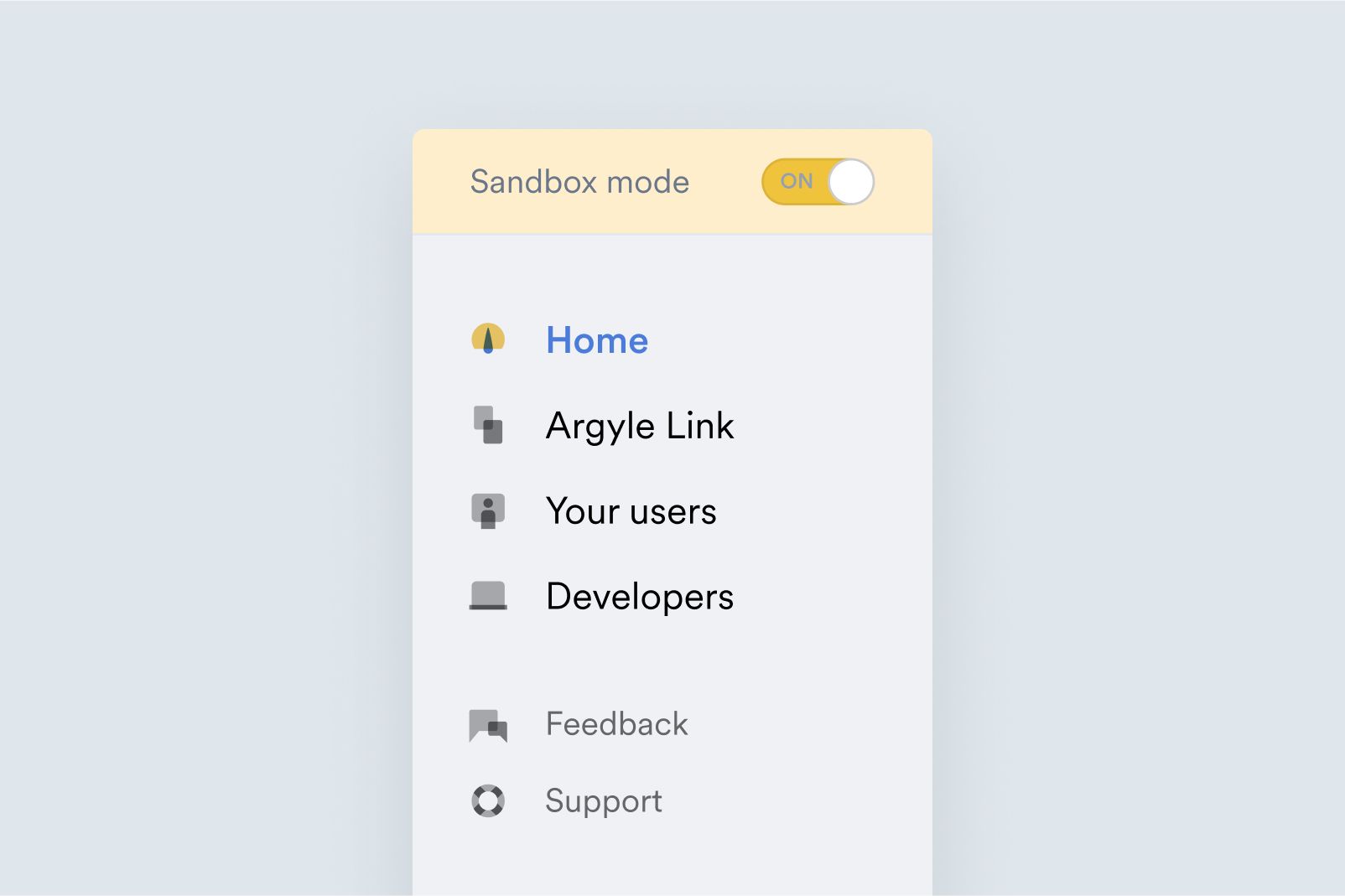
2. Select [Flows](https://console.argyle.com/flows) in the top navigation panel.
3. Select **Continue** on the first screen of Argyle Link, then search for and select an employer or payroll provider.
4. Log in using the [credentials for sample accounts](/legacy/guides/getting-started/sandbox-mode/connect-sample-payroll-accounts#credentials-for-sample-accounts).
## Embed Link in your app
To embed a sandbox instance of Argyle Link into your web application, include `argyle.web.js` on your webpage and initialize it by providing a list of configuration options. You can then invoke the Argyle Link UI element at any time within your application.
See our Embedding Link guides to learn how to embed Link in your [Web](/legacy/guides/argyle-link/embed/web), [Android](/legacy/guides/argyle-link/embed/android), [iOS](/legacy/guides/argyle-link/embed/ios), or [React Native](/legacy/guides/argyle-link/embed/react-native) production applications.
### Prerequisites
Before embedding Argyle Link, make sure you have your sandbox API keys at hand, [available in Console](https://console.argyle.com/api-keys).
### Integration examples
Argyle provides integration examples for Web, Swift (iOS), Kotlin (Android), and React Native for the sandbox. To run the examples on your machine:
1. Copy the snippet you need then paste it into an empty `index.html` file.
2. Replace the `YOUR_LINK_KEY` placeholder with your own Link key, which can be found in the [API keys section](https://console.argyle.com/api-keys) of Console.
3. Open the `index.html` in a web browser. Argyle Link will open a modal window where you can select a payroll provider and connect payroll accounts.
The `apiHost` configuration parameter in the example code points to `https://api-sandbox.argyle.com/v1`. This ensures that the plugin starts in a sandbox environment. When integrating with the production API, set the `apiHost` to `https://api.argyle.com/v1`.
```html theme={}
```
```swift theme={}
_ = Argyle.shared
.loginWith(linkKey: "YOUR_LINK_KEY", apiHost: "https://api-sandbox.argyle.com/v1")
.resultListener(self)
let argyle = Argyle.shared.controller
argyle.modalPresentationStyle = .fullScreen
self.present(argyle, animated: true, completion: nil)
```
```kotlin theme={}
val config = ArgyleConfig.Builder()
.loginWith("YOUR_LINK_KEY", "https://api-sandbox.argyle.com/v1", "")
.build()
Argyle.instance.init(config)
Argyle.instance.startSDK(this)
```
```js theme={}
import ArgyleSdk from '@argyleio/argyle-plugin-react-native'
// Configure the SDK before hand, once. only call ArgyleSdk.start() when the UI is needed
ArgyleSdk.loginWith("YOUR_LINK_KEY", "https://api-sandbox.argyle.com/v1", "")
// Launch the SDK
ArgyleSdk.start()
```
## Credentials for sample accounts
When you run Argyle Link in the sandbox environment, you can only connect payroll accounts with the provided sandbox credentials. These credentials work for all Link items. Argyle provides three sets of test credentials:
| | Bob | Sarah | Joe |
| ------------------ | ----------------------------- | ----------------------------- | ----------------------------- |
| Email | test1@argyle.com | test2@argyle.com | test3@argyle.com |
| Username | test\_1 | test\_2 | test\_3 |
| Password | passgood | passgood | passgood |
| Verification code | 8081 | 8082 | 8083 |
| Phone number | (800) 900-0010 | (800) 900-0020 | (800) 900-0030 |
| Driver's license # | D1230010 | D1230020 | D1230030 |
When logging in as a test user, be sure to enter the appropriate credentials. For example, Walmart requires a *username* and password, while Uber requires an *email* and password. For Link items that require SSN numbers, the sandbox environment accepts any 4-digit numerical value.
Select a Link item and connect it using the test credentials. This creates employment data for that test user that you can retrieve.
Note that inactive sandbox accounts are automatically deleted 60 days after creation.