> ## Documentation Index
> Fetch the complete documentation index at: https://docs.argyle.com/llms.txt
> Use this file to discover all available pages before exploring further.
# Document processing
> Learn how documents are processed from connected payroll accounts and through document upload.
Argyle can process documents from two sources:
* **Payroll documents**: After a user connects a payroll account, Argyle scans and retrieves all documents in the user's account, including paystubs, W-2s, and 1099s. Key income and employment data is extracted and made available as part of Argyle's normalized [data structure](/legacy/api-reference/data-structure). The raw documents themselves and corresponding machine-readable text are also made available via Console and Argyle's API.
* **Uploaded documents**: Users can upload employment documents as **PDF** or **image files** directly with Argyle Link. This can serve as an alternative way to verify income and employment when a user cannot find or fails to connect their payroll account. Optionally, a third party optical character recognition (OCR) provider can be used to scan these uploaded documents, and the OCR data can be integrated with Argyle.
## Payroll documents
Payroll documents are retrieved and processed by Argyle after a user connects a payroll account. The data from each document is extracted and standardized, and then made available via Console or Argyle's API. The raw documents themselves can also be viewed and downloaded, along with the raw data from key employment documents including paystubs, W-2's, and 1099s.
### Retrieve payroll documents
Both Console and the API can be used to retrieve the payroll data and download the original employment documents.
* In Console, click on an individual user on the [Connections](https://console.argyle.com/connections) page, then use the **Documents** tab to see and download documents. Employment documents for users are organized by each of their employers. Clicking the `JSON` button will toggle the view so the same data returned by the API can be examined.
* In the API:
* Use the [`/payouts`](/legacy/api-reference/payouts) endpoint to retrieve paystub information
* Use the [`/documents`](/legacy/api-reference/documents) endpoint to retrieve W-2 and 1099 information
Use [documents webhooks](/legacy/api-reference/documents-webhooks) to stay notified when new documents are added, updated, or removed from a payroll account, or when all data contained in a document has been processed and made available.
Periodic scanning of connected accounts is also recommended to ensure all data from changes to documents has fully synced with any information you have saved. See [continuous data access](/legacy/api-reference/data-retrieval#continuous-data-access) in our data retrieval guide to learn more.
## Uploaded documents
Users can upload employment documents directly with Argyle Link. This can serve as an alternative way to verify income and employment when a user cannot find or fails to connect their payroll account.
### File types supported
**Document upload support for W-2s, 1099s, and paystubs:**
| File format | Link support | Third party OCR support |
| ----------------- | -------------------------------------------------------- | ----------------------- |
| PDF | Web, iOS, Android, React Native | Yes |
| JPG image upload | Web, iOS, Android, React Native | Yes |
| PNG image upload | Web, iOS, Android, React Native | Yes |
| HEIC image upload | Web, iOS, Android, React Native | Yes |
| Photo capture | Web (iOS, Android, and React Native support coming soon) | Yes |
Users can choose to upload documents from their photo library or file system, or use photo capture for web integrations.
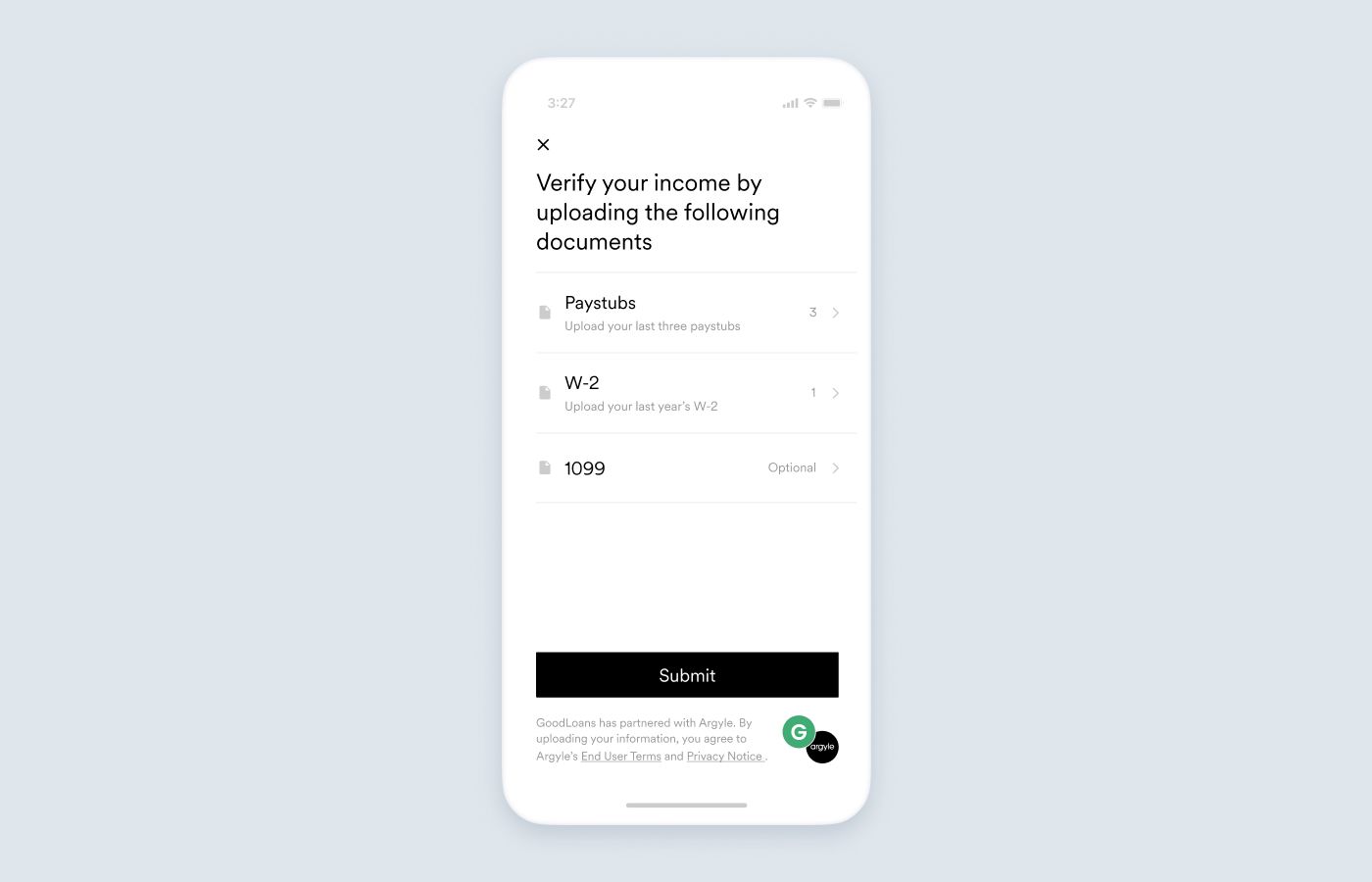
### Enable document upload
Enable document upload in your [Link Flow](https://console.argyle.com/flows) in Console. You can choose from three ways for users to upload documents:
1. Ask users to upload documents if they are **unable to find their income source**.
2. Ask users to upload documents if they **provide invalid credentials** when connecting a payroll account.
3. Ask users to **upload documents immediately** when Link is opened, bypassing the process for connecting a payroll account.
You can also configure the document types you allow or require users to upload. Available document types are paystubs, W-2s, and 1099s.
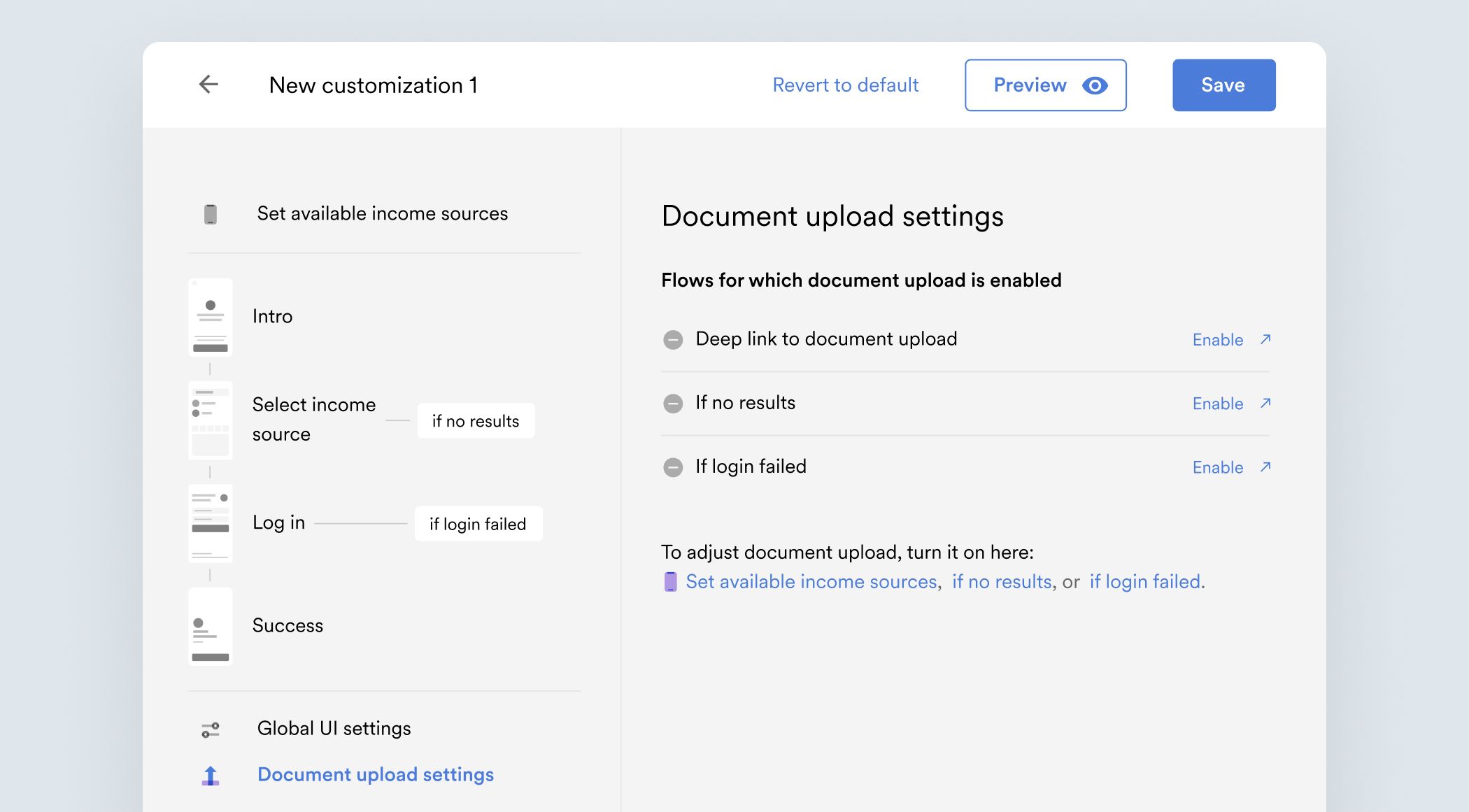
#### Cannot find income source
To enable document upload for users who cannot find their employer or payroll provider, select **"If no results"** experience after clicking **Document upload settings** in Link Customizer.
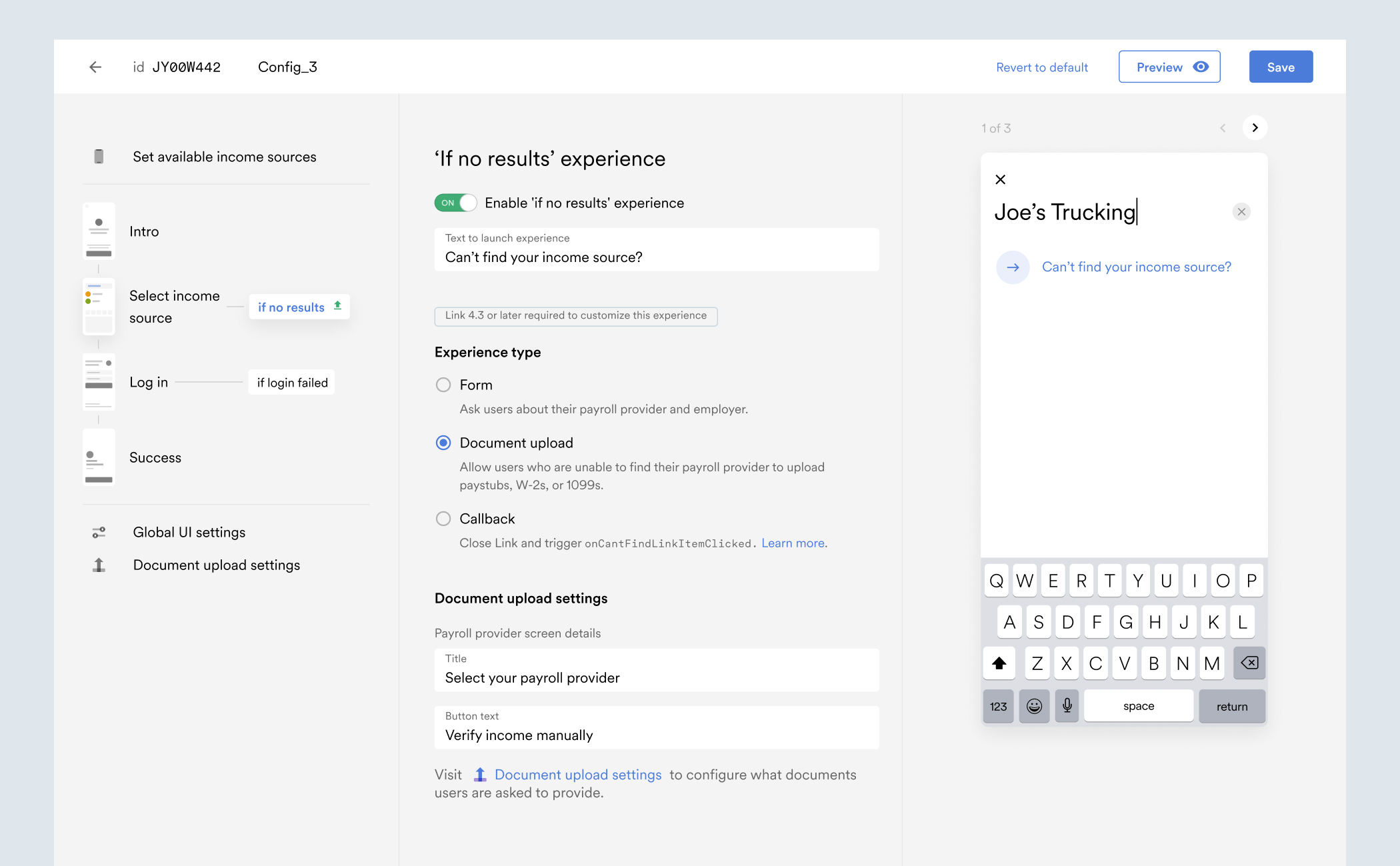
#### Failed to connect payroll account
To enable document upload after a user fails to connect their employer or payroll provider, select **"If login failed"** experience after clicking **Document upload settings** in Link Customizer.
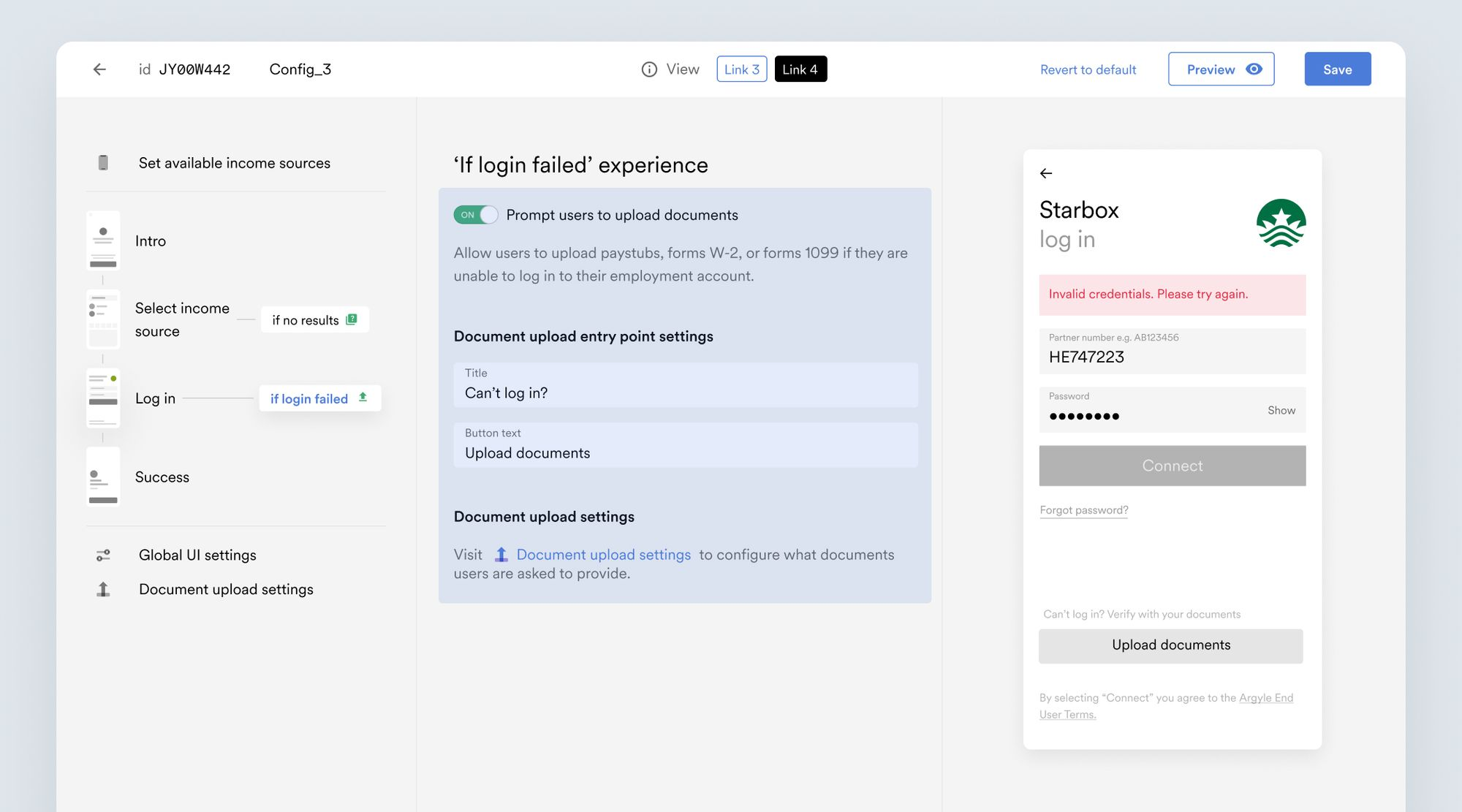
#### Document upload only
You can directly connect users to the document upload screen using [deep linking](/legacy/guides/argyle-link/flows/deep-linking), bypassing the process for connecting employer or payroll platforms.
See our deep linking guide to configure this option [in Console](/legacy/guides/argyle-link/flows/deep-linking#configure-deep-link-in-console) or [programmatically](/legacy/guides/argyle-link/flows/deep-linking#configure-deep-link-programmatically).

### Implement document upload
After your customizations are prepared in Flows, click **Save** to create a `customizationId` with your chosen settings and document upload enabled.
Include the `customizationId` when initializing Argyle Link in your application or [inviting new users](/legacy/guides/argyle-console/faq#how-to-invite-new-users) through Console to connect via email or SMS.
Consult our [integration guides](/legacy/guides/argyle-link/embed/web) for more information on how to embed and initialize Argyle Link in your application.
Users will go through the below document upload process in Argyle Link:
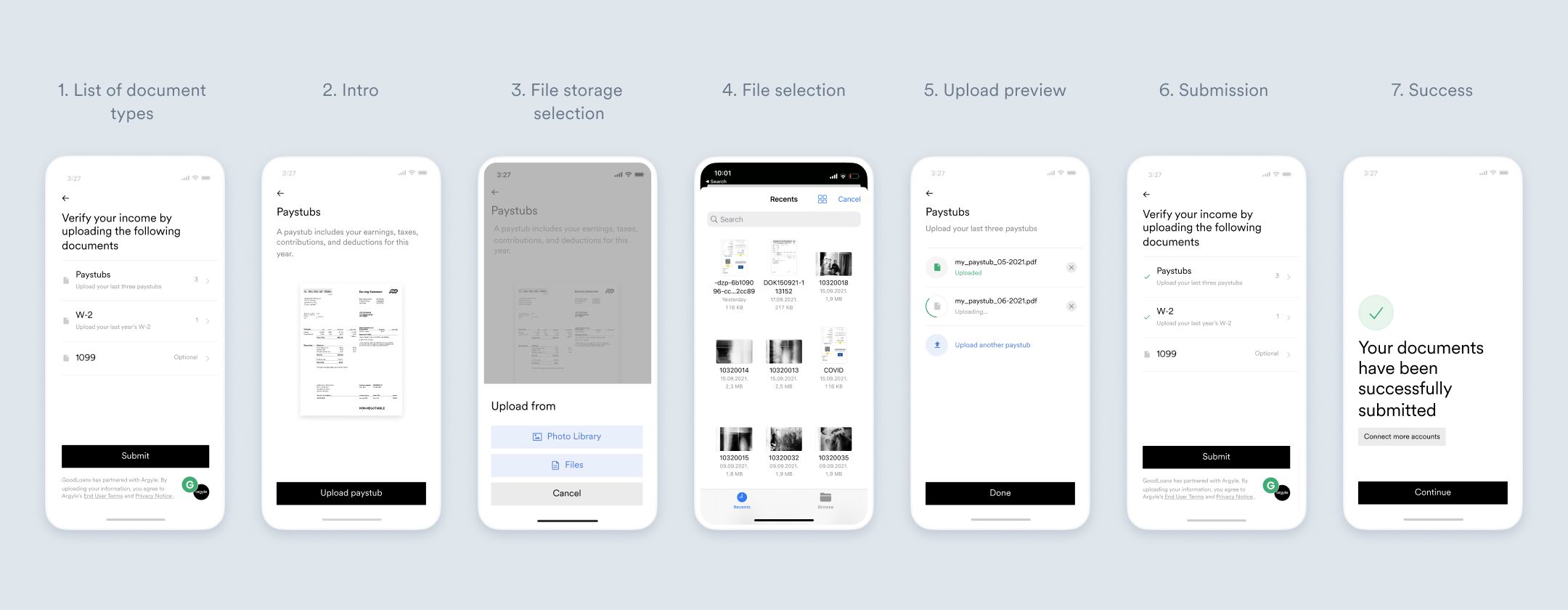
Document uploading via Argyle Link is supported for all web integrations and SDKs starting from these versions:
* Android 4.2
* iOS 4.2
* React Native 4.2
### Retrieve uploaded documents
Both Console and the API can be used to retrieve directly uploaded documents. If a third party OCR process has been used to obtain the documents' data, that will also be accessible.
* In Console, click on an individual user in the **Your users** tab, then use the **Uploaded documents** tab to see and download uploaded documents. Employment documents for users are organized by each of their employers. An `OCR` tag will appear next to the document name if OCR data is available from a third party provider. Clicking the `JSON` button will toggle the view so the same data returned by the API can be examined.
* In the API, use the [`/forms`](/legacy/api-reference/forms) endpoint to retrieve user-uploaded document information. Third party OCR data will be provided in the `ocr_data` object within `metadata`. Refer to your third party's documentation for their data field descriptions.
```json theme={}
{
"id": "3fa85f64-5717-4562-b3fc-2c963f66afa6",
"status": "SUBMITTED",
"data": {
"employer_name": "Jim's Hardware",
"payroll_platform": "MyADP",
"paystubs": [
{
"file_id": "017c8488-1854-7e7b-30e3-a5dffb532534",
"metadata": {
"ocr_data": {
"book_uuid": "89743732-85a5-4ae5-91e0-a2c451ccda58",
"uploaded_image_bucket_uuid": null,
"doc_uuid": "1ad00e85-06c2-4a71-9365-066b0cb80c45",
"doc_page_numbers": [
1
],
"uuid": "70a706b5-070e-41e5-98bb-323fc3617c06",
"employer": {
"name": "SAMPLE COMPANY NAME",
"address": {
"line1": null,
"line2": null,
"city": null,
"state_code": null,
"postal_code": null
}
},
"employee": {
"name": "EMPLOYEE NAME",
"address": {
"line1": null,
"line2": null,
"city": null,
"state_code": null,
"postal_code": null
},
"marital_status": "NOT LISTED",
"taxpayer_id": {
"id_type": "SSN",
"last_4_digits": "1234"
}
},
"employment_details": {
"hire_date": null,
"annual_salary": {
"amount": null,
"currency": null
},
"pay_basis": null,
"hourly_rate": {
"amount": null,
"currency": null
}
},
"paystub_details": {
"pay_period_start_date": "2018-02-07",
"pay_period_end_date": "2018-02-13",
"pay_date": "2018-02-14",
"paystub_provider": null,
"pay_frequency": "WEEKLY",
"pay_frequency_captured": "NOT LISTED"
},
"net_pay": {
"distribution_details": [],
"totals": {
"description": "NET PAY",
"canonical_description": null,
"current_pay": {
"amount": "590.70",
"currency": "USD"
},
"ytd_pay": {
"amount": "4134.90",
"currency": "USD"
}
}
},
"earnings": {
"subtotals": [
{
"description": "GROSS EARNING",
"canonical_description": null,
"current_pay": {
"amount": "800.00",
"currency": "USD"
},
"ytd_pay": {
"amount": null,
"currency": null
},
"current_hours": "40.00",
"current_rate": "20.00"
}
],
"totals": [
{
"description": "INCOME",
"canonical_description": null,
"current_pay": {
"amount": "800.00",
"currency": "USD"
},
"ytd_pay": {
"amount": "5600.00",
"currency": "USD"
},
"current_hours": null
}
]
},
"deductions": {
"subtotals": [
{
"description": "STATE TAX",
"canonical_description": "STATE TAX",
"current_pay": {
"amount": "40.00",
"currency": "USD"
},
"ytd_pay": {
"amount": "280.00",
"currency": "USD"
}
},
{
"description": "FEDERAL TAX",
"canonical_description": "FEDERAL WITHHOLDINGS",
"current_pay": {
"amount": "108.10",
"currency": "USD"
},
"ytd_pay": {
"amount": "756.70",
"currency": "USD"
}
},
{
"description": "FICA SOCIAL SECURITY",
"canonical_description": "SOCIAL SECURITY EMPLOYEE TAX",
"current_pay": {
"amount": "49.60",
"currency": "USD"
},
"ytd_pay": {
"amount": "347.20",
"currency": "USD"
}
},
{
"description": "FICA-MEDICARE",
"canonical_description": "EMPLOYEE MEDICARE",
"current_pay": {
"amount": "11.60",
"currency": "USD"
},
"ytd_pay": {
"amount": "81.20",
"currency": "USD"
}
}
],
"totals": [
{
"description": "DEDUCTIONS",
"canonical_description": null,
"current_pay": {
"amount": "209.30",
"currency": "USD"
},
"ytd_pay": {
"amount": "1465.10",
"currency": "USD"
}
}
]
},
"status": "COMPLETED",
"rejection_reason": null
}
}
}
]
}
}
```
Use [forms webhooks](/legacy/api-reference/forms-webhooks) to be notified when a user submits or removes an uploaded document or third party OCR has completed.
Use the `onDocumentsSubmitted` [callback](/legacy/api-reference/callbacks) to trigger additional actions when a document has been uploaded.
### Third party OCR
Users can manually upload documents through Argyle Link. These uploaded documents will be available to view and download in Console or via the API. Optionally, third party OCR processing can be used for uploaded documents, and the resulting data can be integrated with Argyle.
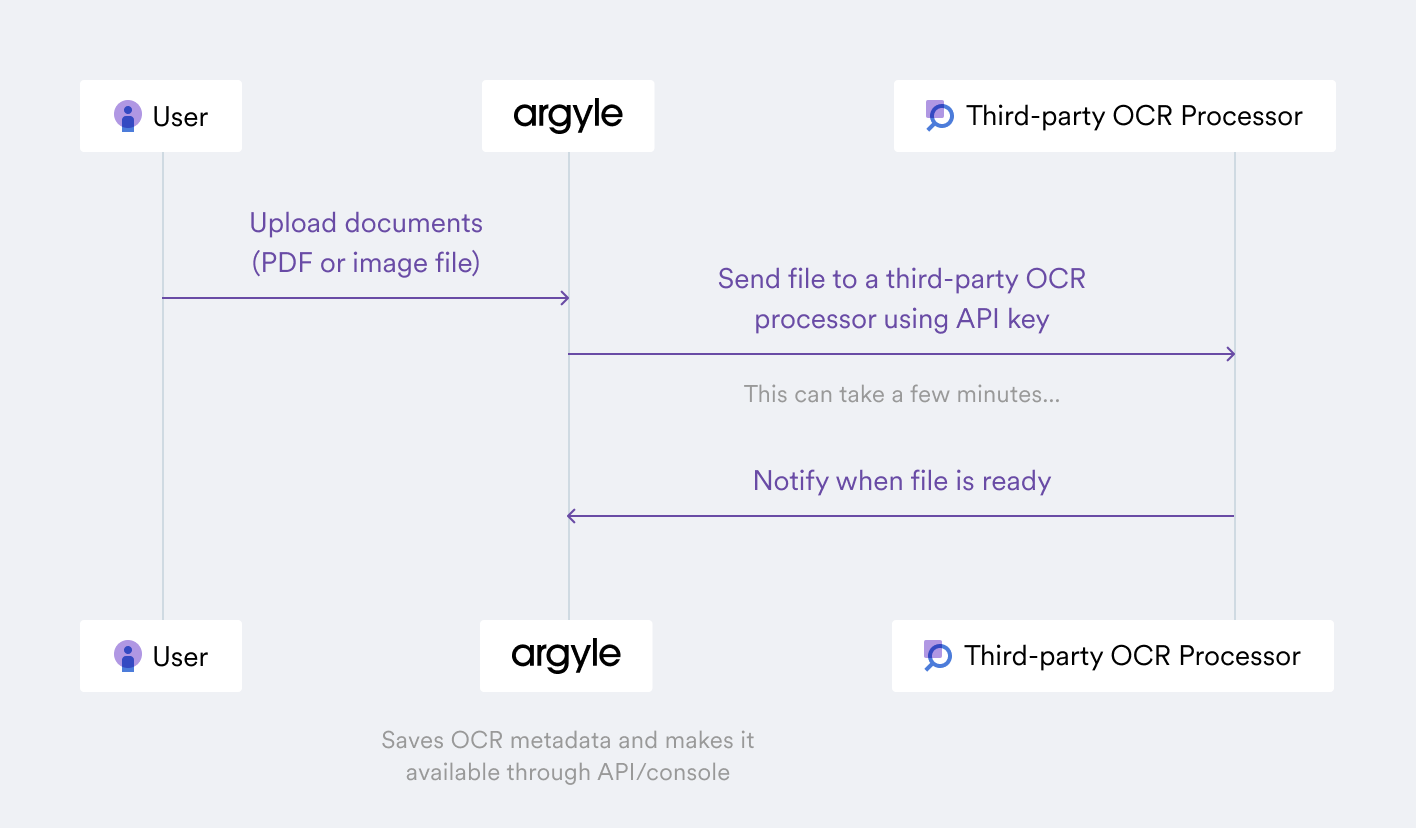
Argyle recommends creating dedicated API keys to solely be used with Argyle when integrating a third party OCR provider for directly uploaded documents. Follow your provider's instructions for generating a dedicated API key and secret.
Argyle stores encrypted API credentials with [Google KMS](https://cloud.google.com/security-key-management). Read more about how Argyle handles security and compliance [here](https://argyle.com/legal/security/).
To enable third party OCR for uploaded documents, visit the [Integrations](https://console.argyle.com/integrations) tab under **Developers** in Argyle Console, or reach out to your Customer Success Manager, Account Executive, or [support@argyle.com](mailto:support@argyle.com).
#### Ocrolus OCR integrations
To enable Ocrolus as a third party OCR service for uploaded paystubs, W-2s, and 1099s, securely submit your Ocrolus `ID` and `Secret` through Argyle Console by visiting the Integrations page within the **Developers** tab.
*Ocrolus OCR can also be purchased through Argyle directly* — reach out to our customer success teams for assistance.
Ocrolus returns OCR data in a `response` field alongside an HTTP status code and Ocrolus status code. Argyle returns only OCR data from the `response` field when you [retrieve the uploaded documents](/legacy/guides/argyle-link/flows/document-processing#retrieve-uploaded-documents), and not the status codes.
The `response` field will retain the format used by Ocrolus. Please refer to Ocrolus's documentation for further information on how this `response` field is formatted.
#### Processing errors — third party OCR
If an `error` occurs during OCR processing for a user-uploaded document, the relevant `error` will be shown within the `ocr_data` object in the document's `metadata`.
* `type_mismatch` - The document type the user selected while uploading does not match the uploaded document type. Example: the user selected **W-2**, but uploaded a **1099** document instead.
* `unrecognized_document_type` - The user uploaded a document type that cannot be recognized as any of the currently supported document types (**W-2**, **1099**, or **paystub**). For example, a **1095** form would be considered unrecognized.
* `unsupported_document_subtype` - The user uploaded a specific, currently unsupported subtype of a document type that is otherwise supported. For example, while the most common **1099** documents are supported, **1099-DIV** document subtype is not currently supported.
#### Authentication errors — third party OCR
If your third party account authentication fails (for example, due to an invalid API key) and document processing cannot start, Argyle will reach out to you. Once the issue is resolved, the pending documents can be reprocessed.
#### Next steps
For more details, reach out to your Customer Success Manager, Account Executive, or the Support team.