> ## Documentation Index
> Fetch the complete documentation index at: https://docs.argyle.com/llms.txt
> Use this file to discover all available pages before exploring further.
# Customize
> Customize the Argyle Link user experience.
In Argyle Link, you have the flexibility to tailor and brand user interface elements to fit your specific use case. Using [Flows](https://console.argyle.com/flows) in Console, you can tune everything from your company logo, to the button text, to which employers and payroll providers are available for users to connect. You can even set up manual verification flows, like the [document upload](/legacy/guides/argyle-link/flows/document-processing#uploaded-documents) experience, for users that are unable to connect their payroll account.
Keep reading to learn the specifics about all customizable Link features.
## Start customizing
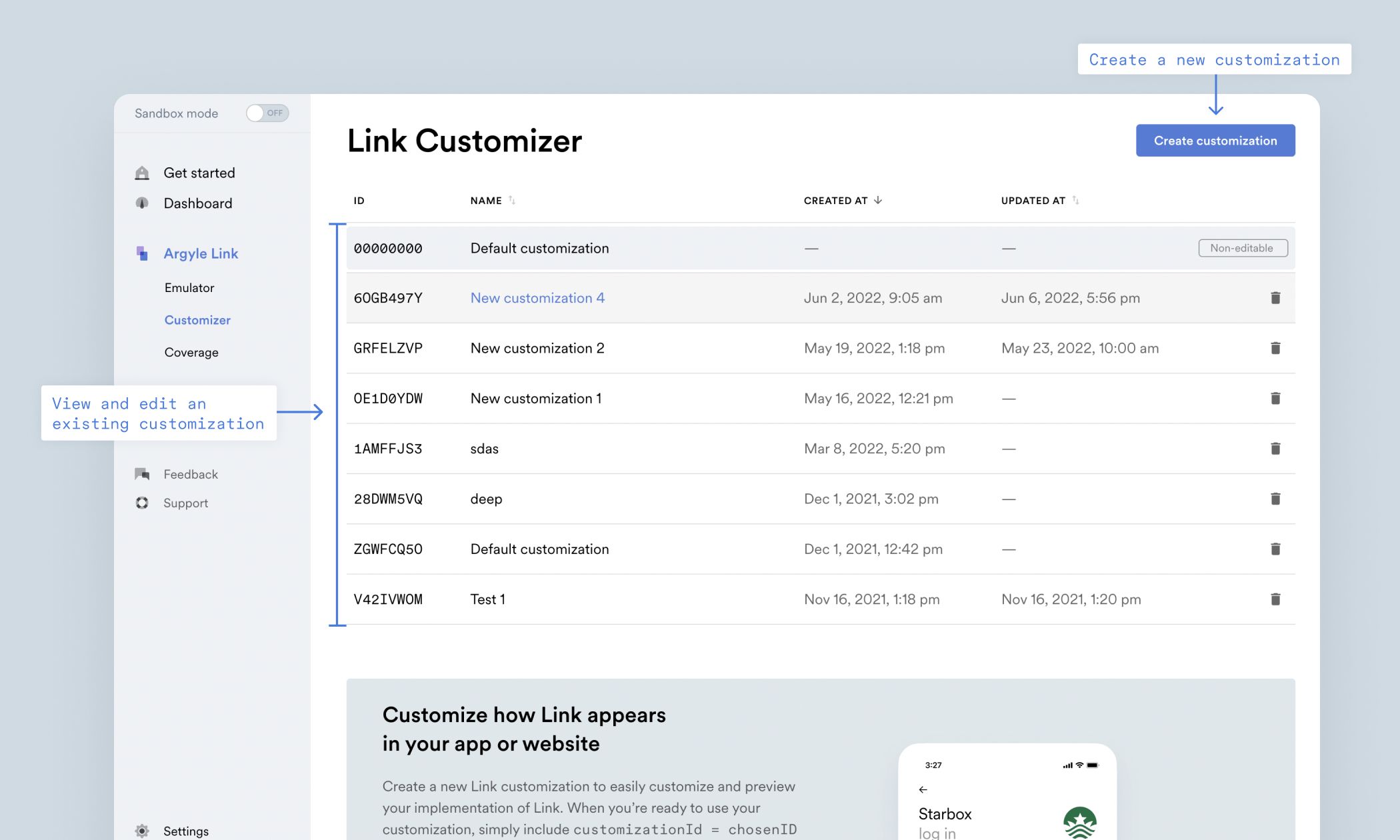
To start customizing Link, open [Flows](https://console.argyle.com/flows) then select an existing customization or create a new one. Name your customization to differentiate between your customization use cases.
### Set available income sources
On this screen, you can customize these features under the **Search**, **List**, and **Deep link** sections:
| Parameter | Description |
| --------------------------------------------------------------- | ------------------------------------------------------------------------------------------------------------------------------------------------------------------------------------------------------------------------------------------------------------------------------------------------------------------------------------ |
| Available categories of Link items (Search browsing experience) | Excludes one or more categories (and their respective Link items) from the Search screen. |
| Exclude specific Link items (Search browsing experience) | Use this parameter to limit the number of Link items that your users can connect. Provide an array of [Link item](/legacy/api-reference/link-items#link-items-object) IDs you want Argyle Link to exclude in the **Search screen**. |
| Search and choose from over 20,000 Link items | Use this parameter to limit the number of Link items that your users can connect. Provide an array of [Link item](/legacy/api-reference/link-items#link-items-object) IDs you want Argyle Link to display on the **Search screen**. The order in which you list the IDs will define the order in which they are displayed in the UI. |
| Only show Link items that support direct deposit switching | When toggled on, only Link items that support direct deposit switching will be shown. For more information on changing direct deposit settings, please refer to our [direct deposit switching guide](/legacy/guides/argyle-link/flows/direct-deposit-switching). |
#### Search
Customize your Link search settings to help your users find relevant Link items faster. Here you can view the Link items that your users can search.
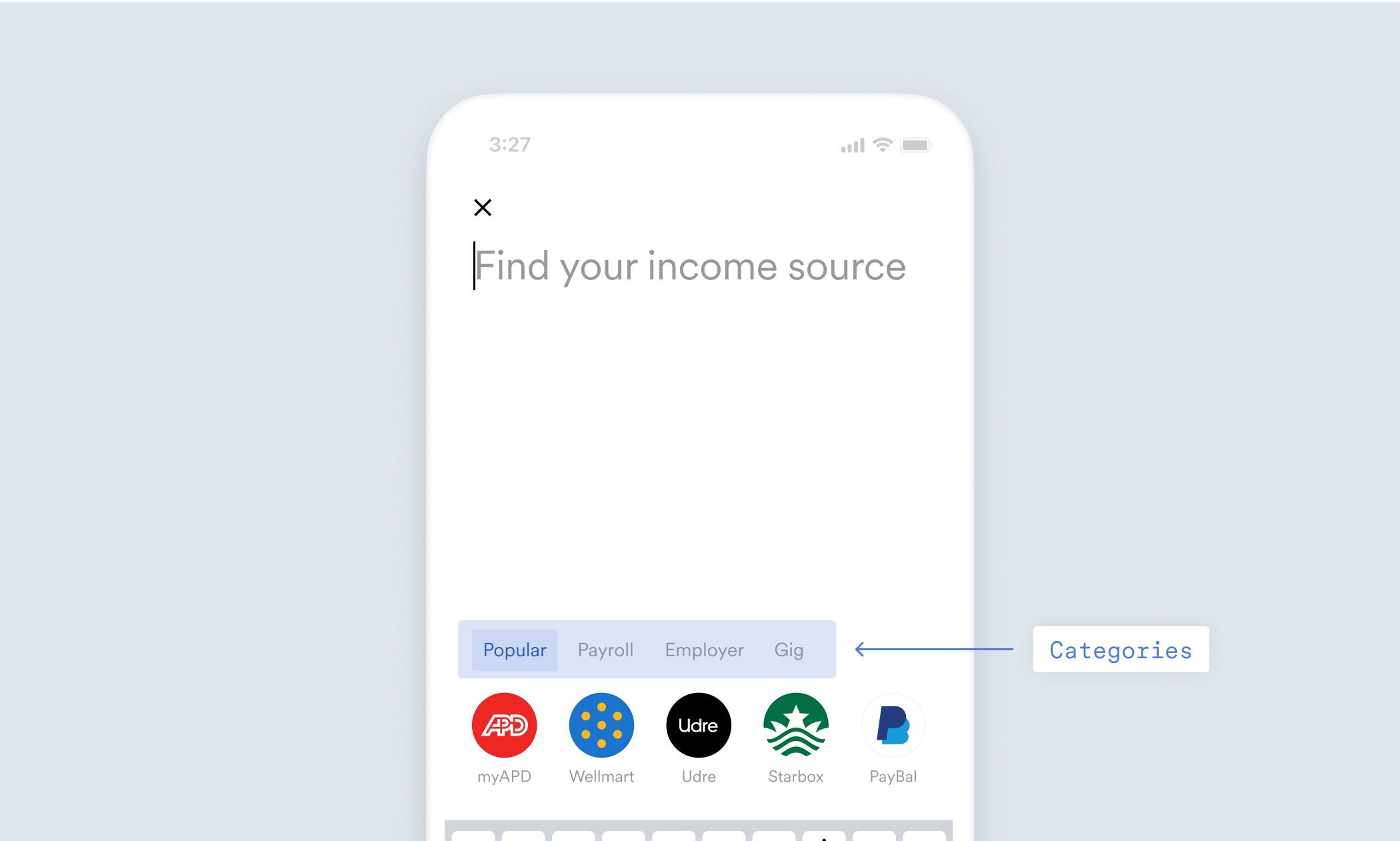
Under **Available categories of Link items**, tick the boxes of the categories you wish to display. You can display **Employers**, **Gig platforms**, and/or **Payroll providers**.
You also have the option to exclude specific Link items that you do not wish to make available, or to surface only those Link items that support [direct deposit switching](/legacy/guides/argyle-link/flows/direct-deposit-switching).
#### List
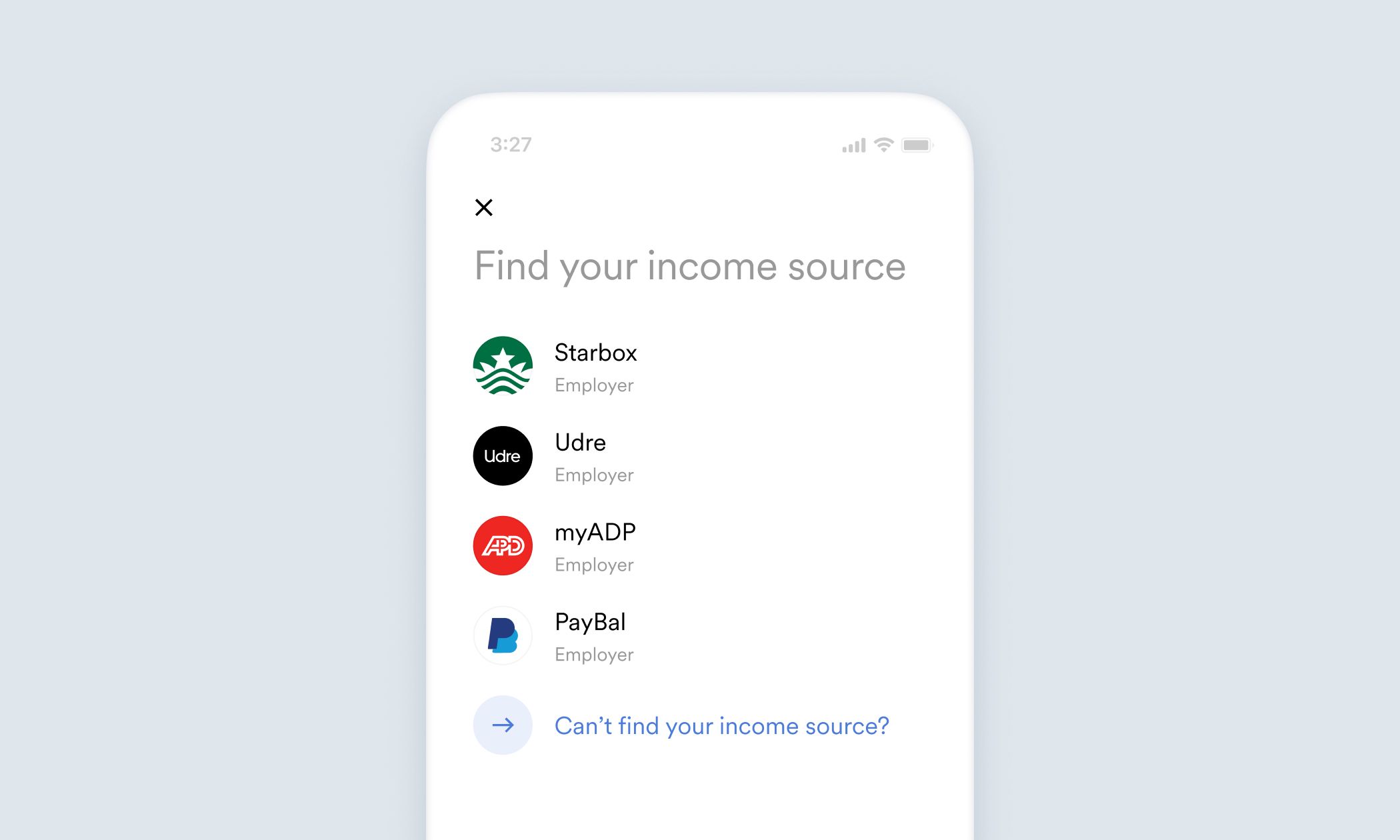
Specify the Link items you want to make available to your users. Your users see only the Link items that you have selected.
#### Deep link
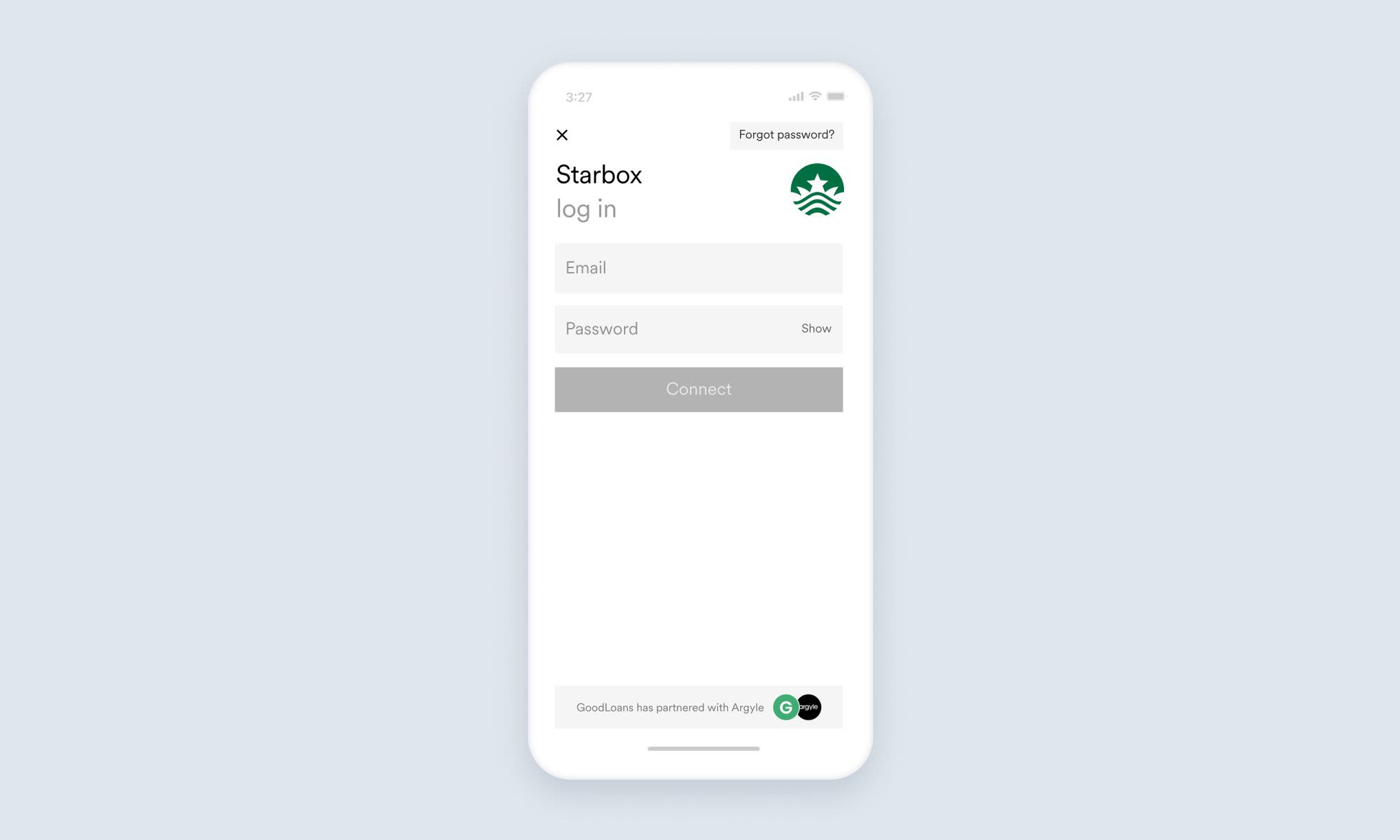
In some cases, you may want to [deep link](/legacy/guides/argyle-link/flows/deep-linking) your users to connect them to one specific Link item. When your users open Argyle Link, they are prompted to log in to the deep linked Link item.
You can also choose to deep link your users to the [document upload](/legacy/guides/argyle-link/flows/document-processing#uploaded-documents) experience. This user flow allows users to upload W-2 forms, 1099 forms, and paystubs. Include a `customizationId` in your Link initialization to see this option. To make this option available for [returning users](/legacy/guides/argyle-link/flows/returning-users), you must also include a `userToken` in your Link initialization.
### Intro screen
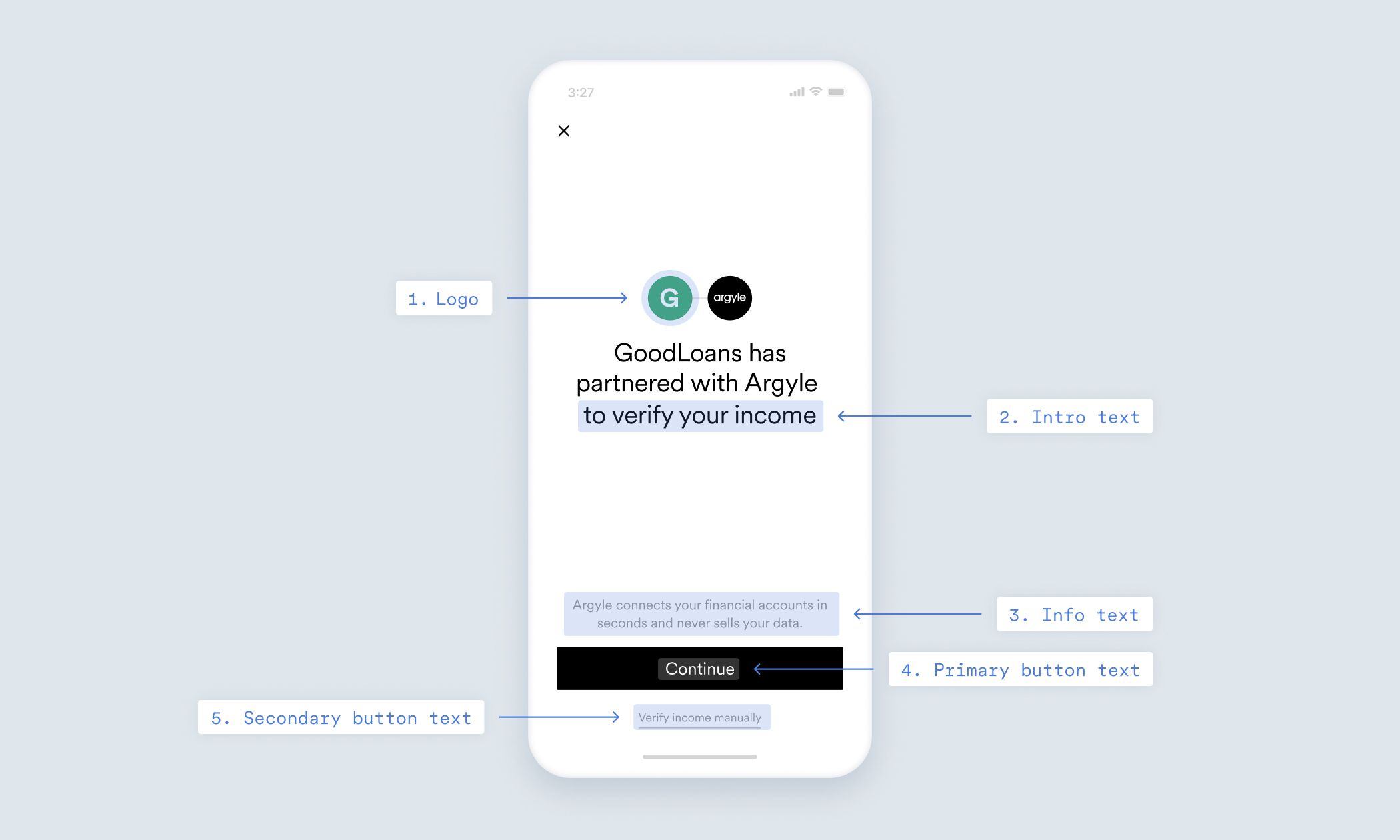
In your Argyle Link implementation, the **Intro screen** provides context for your users on the service they are using.
The **Intro screen** is enabled by default. Customize this screen to match the style of your own application and suit your business needs.
Select **Intro** from the Customizer sidebar to design your **Intro screen**. From here you can customize:
| Parameter | Description |
| --------------------- | ------------------------------------------------------------------------------------------------------------------------------------------------------------------------------------------------------------------ |
| Your logo | Your company logo. |
| Intro text | The text you display on the **Intro screen**. |
| Show info text | Option to show info text on the **Intro screen**. |
| Info text | Subtitle text on the Intro screen. |
| Primary button text | The title of the primary button on the **Intro screen**. |
| Show secondary button | Option to show a secondary button on the **Intro screen**. If you decide to enable the secondary button, you must configure the `onExitIntroClicked` [callback](/legacy/api-reference/callbacks) programmatically. |
| Secondary button text | The title of the secondary button on the **Intro screen**. |
### Select income source screen
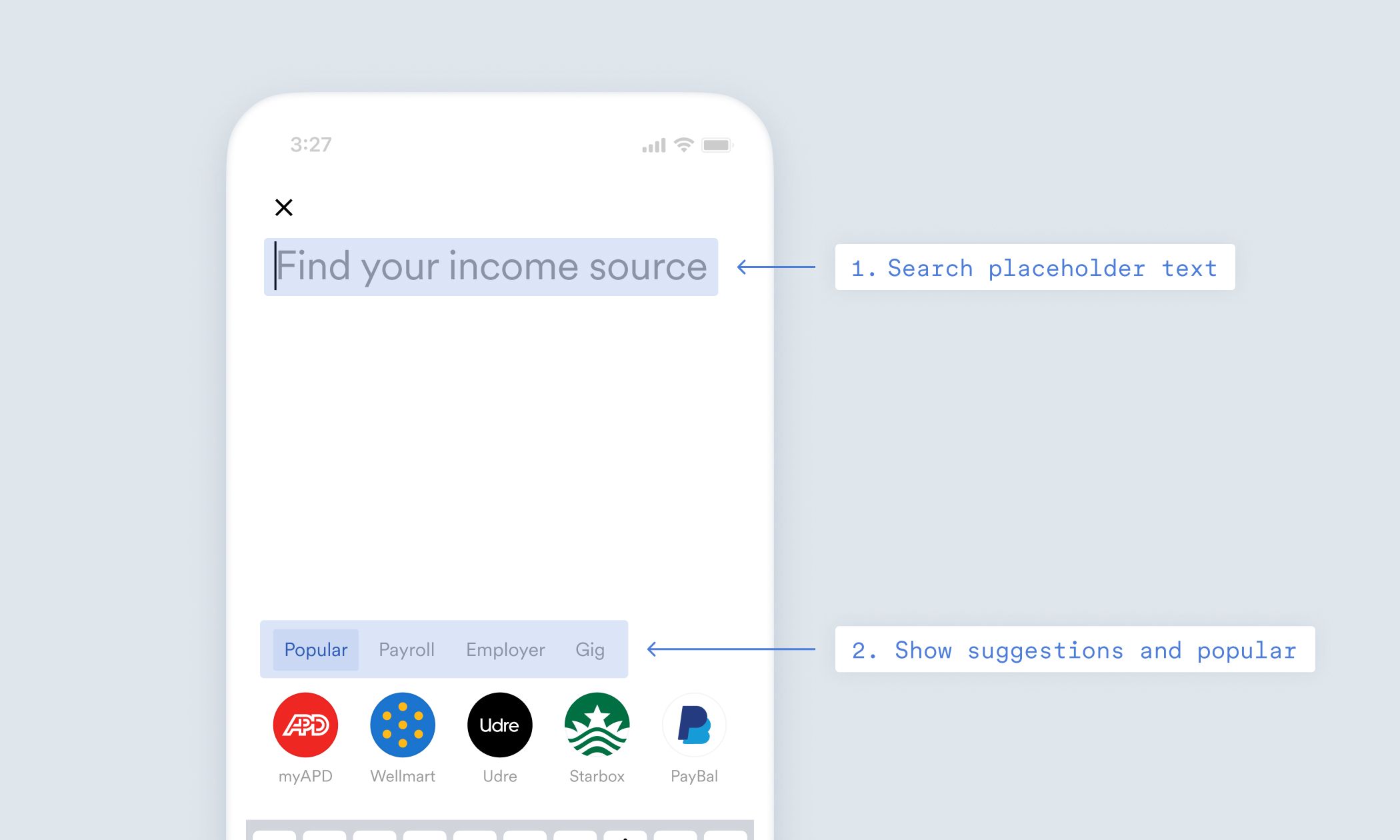
You can customize your users' search experience to help guide them to the correct Link items. From this screen you can customize:
| Parameter | Description |
| ----------------------------- | ------------------------------------------------------------------------------------------------------------------------------------------------ |
| Search placeholder text | Placeholder text in the search bar. |
| Show categories / suggestions | Show/hide Link item suggestions provided by Argyle. |
| Show Popular | Option to promote Link items to your users. |
| Popular Link Items | The Link items you want to promote. |
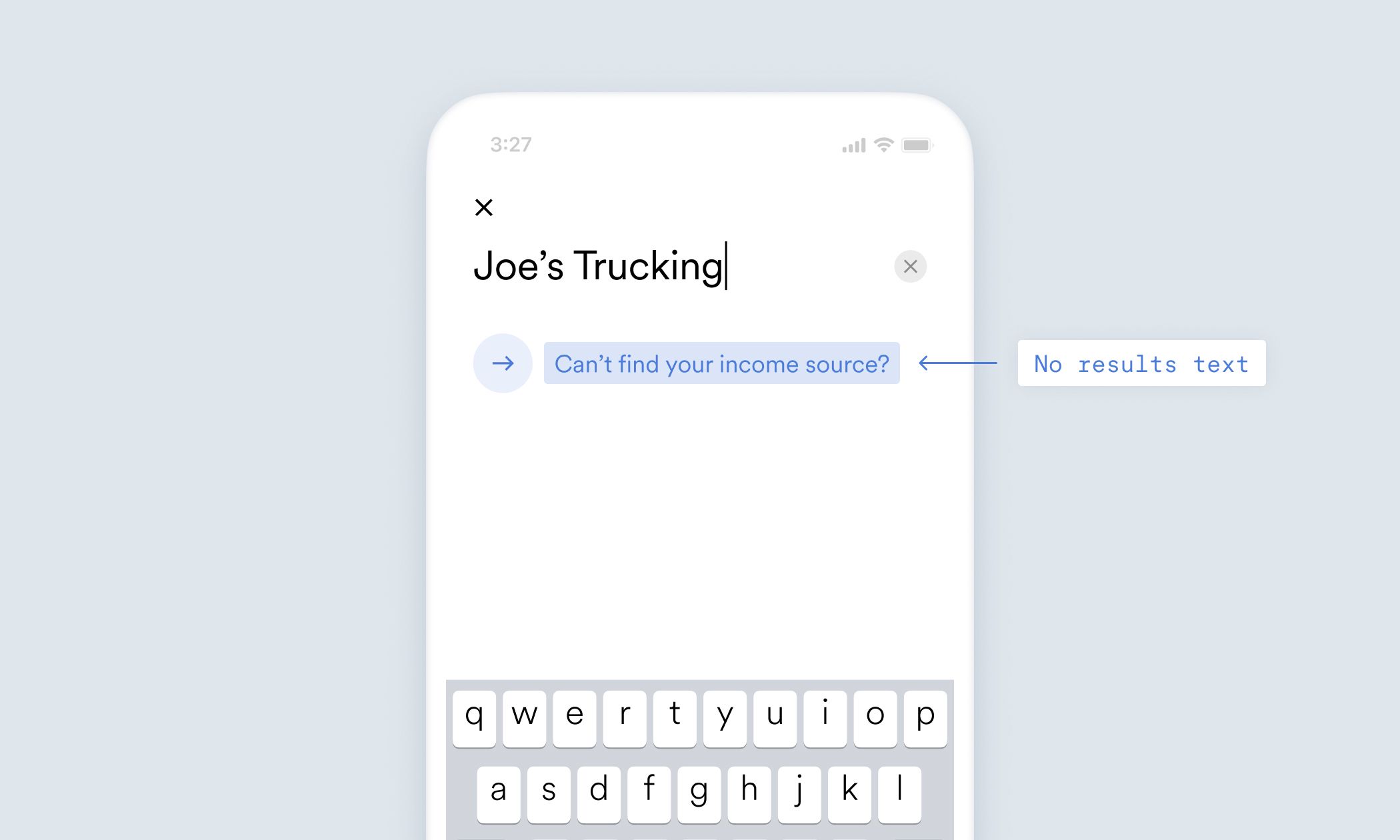
| No results text | The title for the **Can't find your income source?** button when no Link item is available. This button is shown by default but can be disabled. |
### "If no results" experience
This experience provides alternative flows for your users if they cannot find their income source or payroll provider.
1. If the user cannot find their income source on Link's **Search screen**, they can select the **Can't find your income source?** button and search among the [payroll providers covered by Argyle](https://console.argyle.com/coverage) to access their accounts.
2. If the user cannot find their payroll provider, you can direct them to the **Form** or **Document upload** experiences.
If you only enable "Gig" Link items in the [set available income sources](/legacy/guides/argyle-link/customize#set-available-income-sources) screen, the **Can't find your income source?** button excludes this payroll provider search option from the flow and directs users to the **Form** or the **Document upload** experiences.
On this screen you can select and customize the experience that fits your application:
| Parameter | Description |
| --------------- | ------------------------------------------------------------------------------------------------------------------------------------------------------------------------------------------------------------------------------------------------------------------------------------------------------------------------------------------------------------------------------------------------------------------------------------- |
| Form | Select this experience to enable the income source form for users who cannot find their payroll provider. Consult [Link fallback flows](/legacy/guides/argyle-link/flows/fallbacks) for more information. |
| Document upload | Select this experience to enable the document upload flow for users who cannot find their payroll provider. In this flow, users can upload PDF or image files of **W-2s**, **1099s**, and **paystubs** for income verification. Consult [document uploading](/legacy/guides/argyle-link/flows/document-processing#uploaded-documents) for more information. |
| Callback | Select this experience to close Link and direct users to a specific part of your application or website. The callback triggers after the user selects the **Can't find your income source?** button in Link. To enable this user flow, you must also define the `onCantFindLinkItemClicked` [callback](/legacy/api-reference/callbacks) in your implementation. Consult our Link reference for technical details about this callback. |
### Login screen
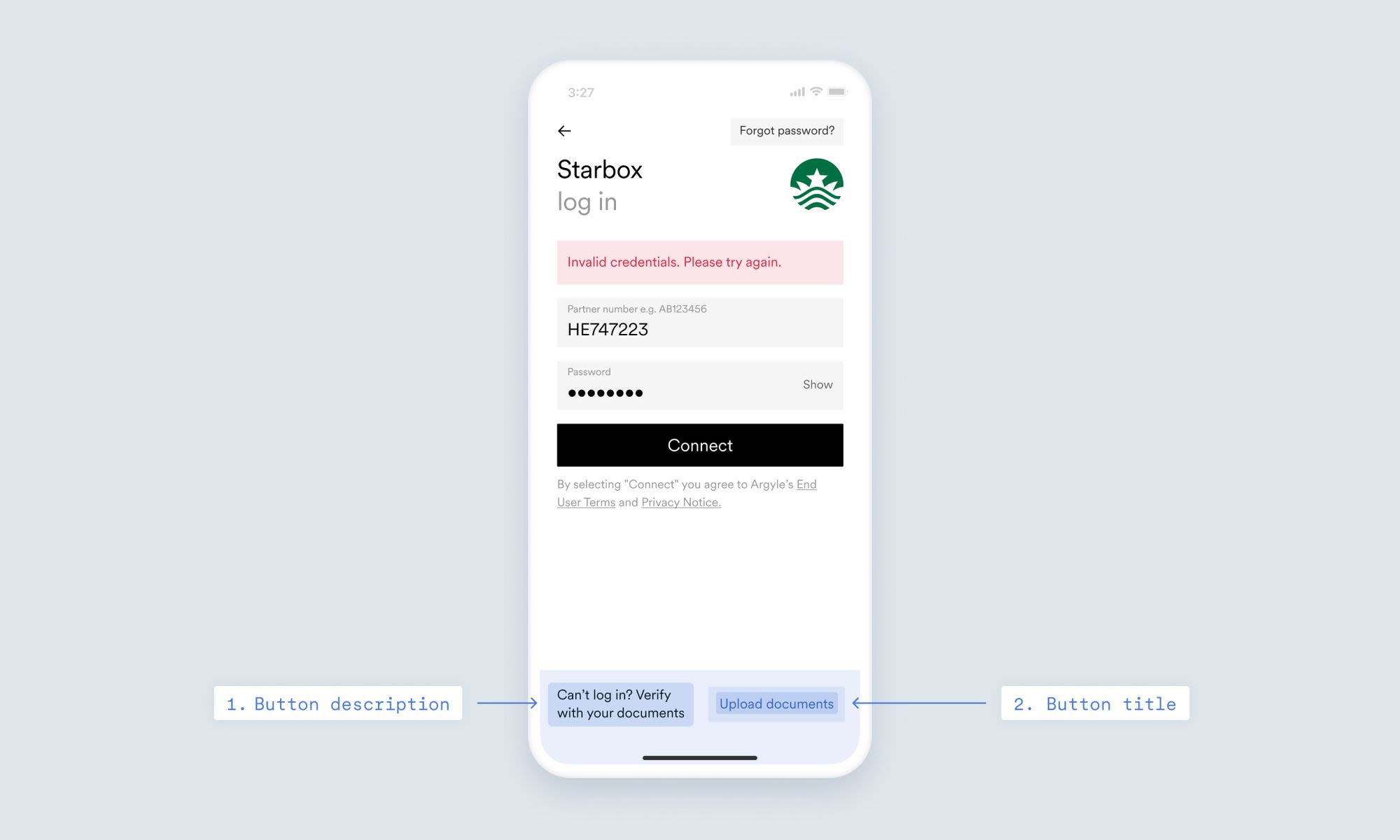
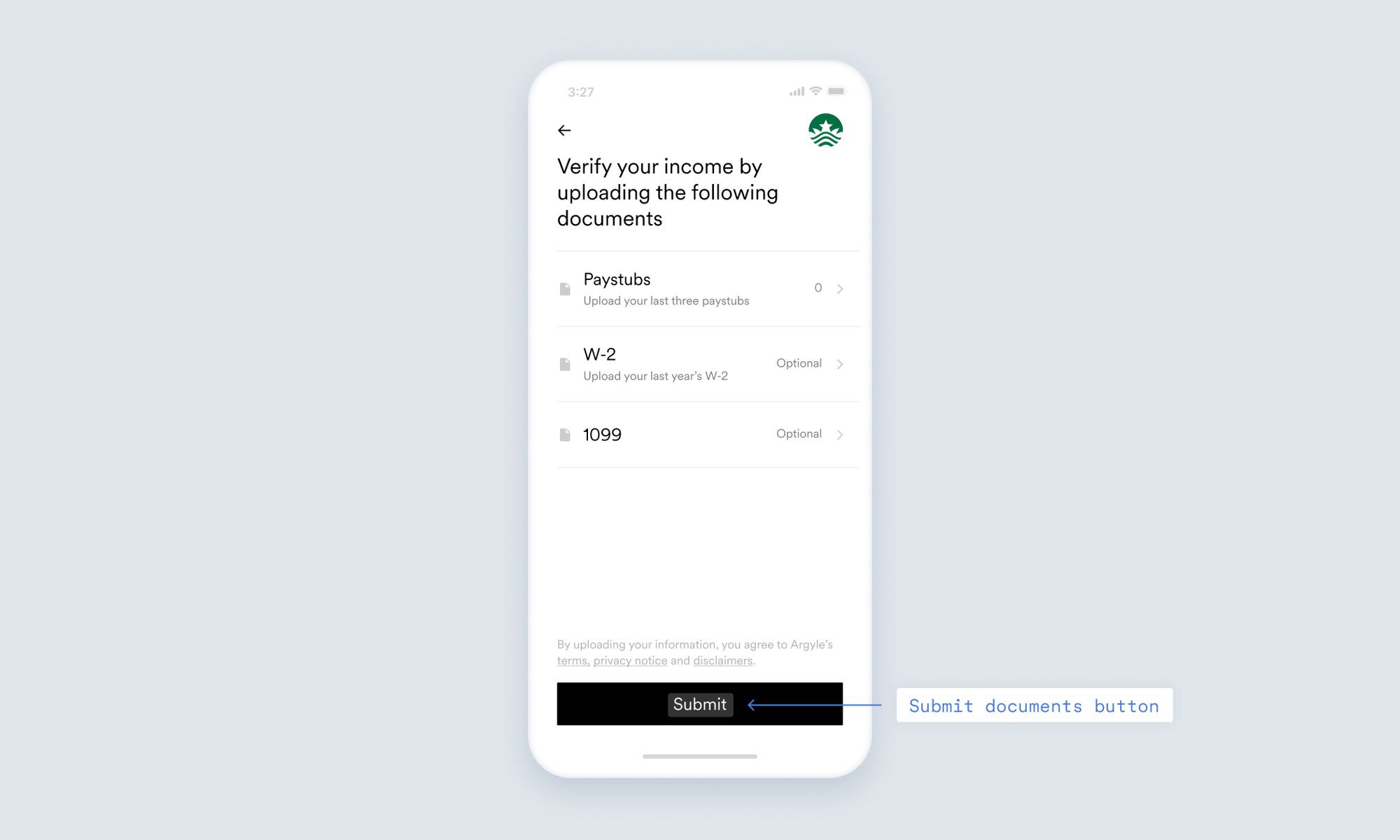
On the **Login screen**, you can elect to enable the manual verification flow for users who are not able to log in to their payroll account.
See the table to understand which features of this flow can be customized:
| Parameter | Description |
| ----------------------------------------------------------------------------------------------------- | ---------------------------------------------------------------------------------------------------------------------------------------------------------------------------------------------- |
| Allow [deep linked](/legacy/guides/argyle-link/flows/deep-linking) users to navigate to Search screen | Option to allow deep linked users to navigate to the **Search screen**. |
| Document upload if login failed | Option to allow users to upload documentation if they are unable to log in. Select **if login failed** to enable Document upload to allow users to upload paystubs, W-2 forms, and 1099 forms. |
| Submit button title | Title of the submit button for uploaded documents. |
| Submit button description | Description of the submit button. |
### Success screen
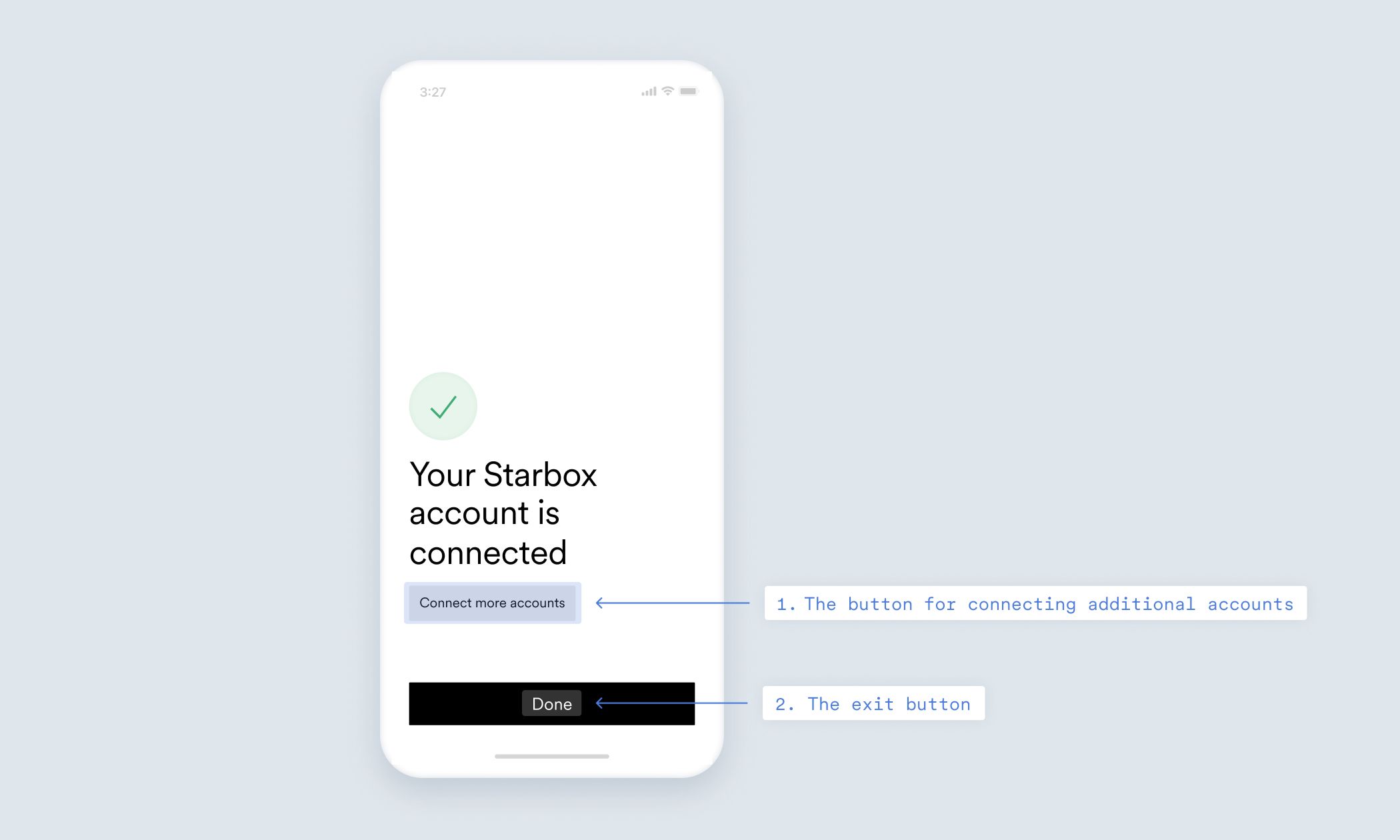
When users successfully connect their account, they see a **Success screen**. Here you can customize:
| Parameter | Description |
| ------------------------------------------ | --------------------------------------------------------------------------------------------- |
| Allow users to connect additional accounts | If set to false, hides the **Return to search** button in the **Success screen**. |
| Connect more accounts button title | The title for the \*\*Return to search \*\*button in the **Success screen**. |
| Exit button title | A value to override the default title of the **Done** button shown in the **Success screen**. |
### Global UI settings
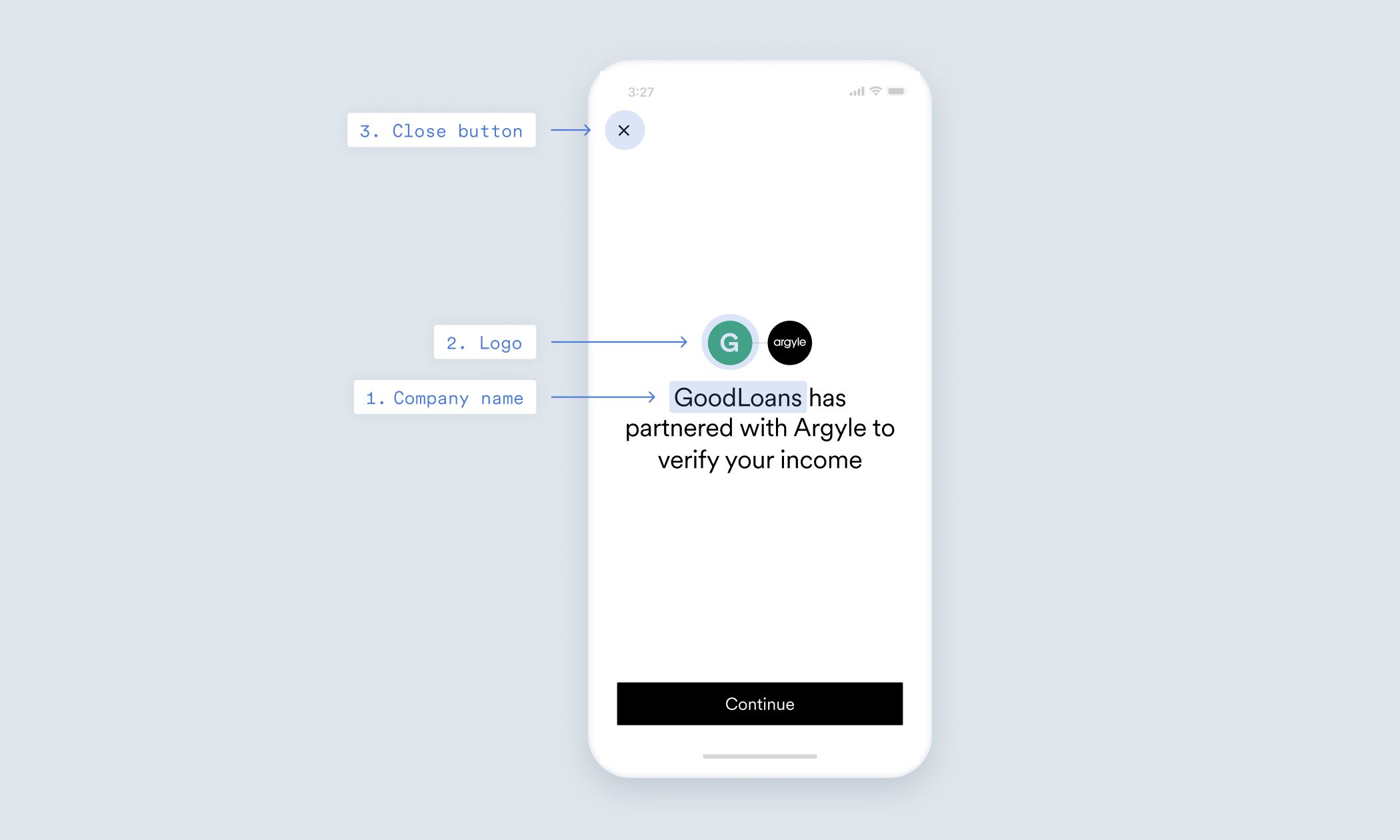
Global UI settings are settings that apply on multiple screens throughout Link. Navigate to the **Global UI settings** to customize:
| Parameter | Description |
| ---------------------- | --------------------------------------------------------------------------------------------------------------------------------------------------------------------------------------------------- |
| Company name | Your company or app name to display in the UI of Argyle Link (for example, "your account is now successfully connected to Company Name"). |
| Your company logo | Your company logo. |
| Show close button | Toggles the visibility of the **Close** button. This flag works only on the web implementation of Argyle Link (and not on the mobile SDKs). |
| Close on outside click | Toggles the closing of Link when a user clicks outside the bounds of the UI element provided by Argyle. This flag works only on the web implementation of Argyle Link (and not on the mobile SDKs). |
### Document upload settings
Visit the **Document upload settings** to configure document upload options for your users. Customize these features:
| Parameter | Description |
| -------------------------------------- | -------------------------------------------------------------------------------------------------------------------------- |
| Deep link to document upload | Option to upload income verification documents without the user logging in to their employer or payroll provider accounts. |
| If no results | Option to upload income verification documents if the user cannot find their employer or payroll provider. |
| If login failed | Option to upload income verification documents if the user is unable to log in. |
| Document list title | Title for the user's list of uploaded documents. |
| Submit button title | Title of the submit button for uploaded documents. |
| Documents the user is asked to provide | The documents the user is asked to provide. This can be: **paystubs**, **W-2** forms, or **1099** forms. |
To learn more about the document upload flow, consult our [document uploading](/legacy/guides/argyle-link/flows/document-processing#uploaded-documents) documentation.
### Preview your customization
Click the **Preview** button in the top right corner of the screen to see a preview of your customization with all changes applied.
Click **Exit Preview Mode** to return to the Customization settings screens.
### Customizations in Emulator
To test the functionality of your customization before applying changes in your Link instance, navigate to [Flows](https://console.argyle.com/flows). Select a customization to view the changes you have made.
### Applying customizations
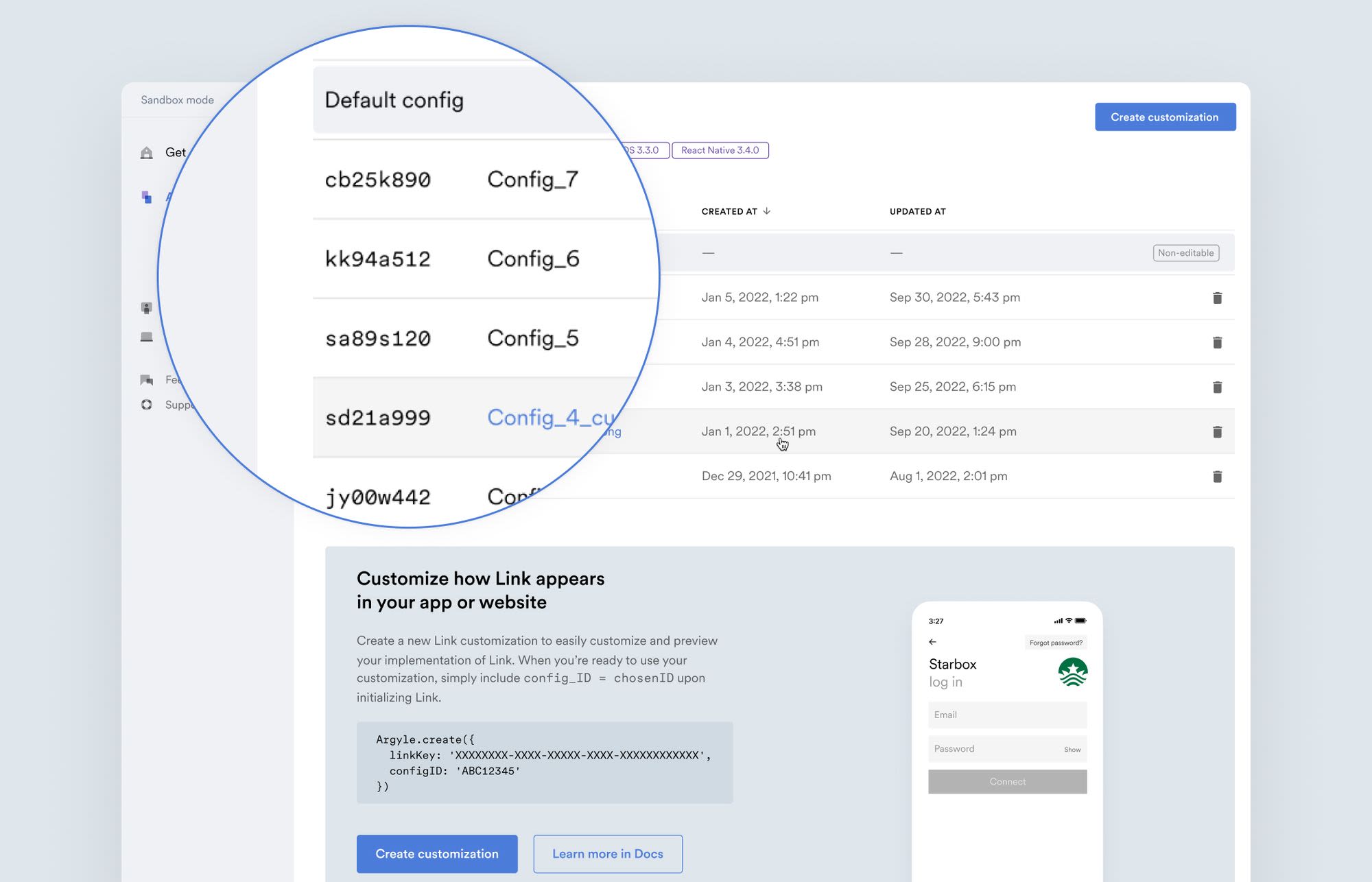
Once you have created your customization, copy the Customization ID from the main Flows screen and insert it into your Link configuration file to apply changes in your software.
### Example customization
```html theme={}
```
```swift theme={}
_ = Argyle.shared
.loginWith(
linkKey: "YOUR_LINK_KEY", // insert your Link key here. It can be found in the Argyle Console.
apiHost: "https://api-sandbox.argyle.com/v1") // sandbox environment is used in this example. Change to production environment before launching.)
.customizationId("YOUR_CUSTOMIZATION_ID")
.resultListener(self)
let argyle = Argyle.shared.updateToken(token).controller
argyle.modalPresentationStyle = .fullScreen
self.present(argyle, animated: true, completion: nil)
```
```kotlin theme={}
val config = ArgyleConfig.Builder()
.loginWith(
"YOUR_LINK_KEY", // insert your Link key here. It can be found in the Argyle Console.
"https://api-sandbox.argyle.com/v1", // sandbox environment is used in this example. Change to production environment before launching.
"USER_TOKEN") // insert the user token here
.customizationId("YOUR_CUSTOMIZATION_ID")
.setCallbackListener(object : Argyle.ArgyleResultListener {
// callbacks
})
.build()
Argyle.instance.init(config)
Argyle.instance.startSDK(this)
```
```js theme={}
ArgyleSdk.loginWith(
"YOUR_LINK_KEY", // insert your Link key here. It can be found in the Argyle Console.
"https://api-sandbox.argyle.com/v1", // sandbox environment is used in this example. Change to production environment before launching.
"USER_TOKEN") // insert the old or new user token here
ArgyleSdk.customizationId("YOUR_CUSTOMIZATION_ID")
ArgyleSdk.start()
```
## Customize deep linking and direct deposit switching settings
Some parameters cannot be customized via Flows. Learn how to customize these features in your Argyle Link instance programmatically by editing the Link configuration file. This section demonstrates how each of these parameters appears on Link.
For a list of all parameters and their usage, refer to our [Link configuration parameters](/legacy/api-reference/configuration-parameters) reference.
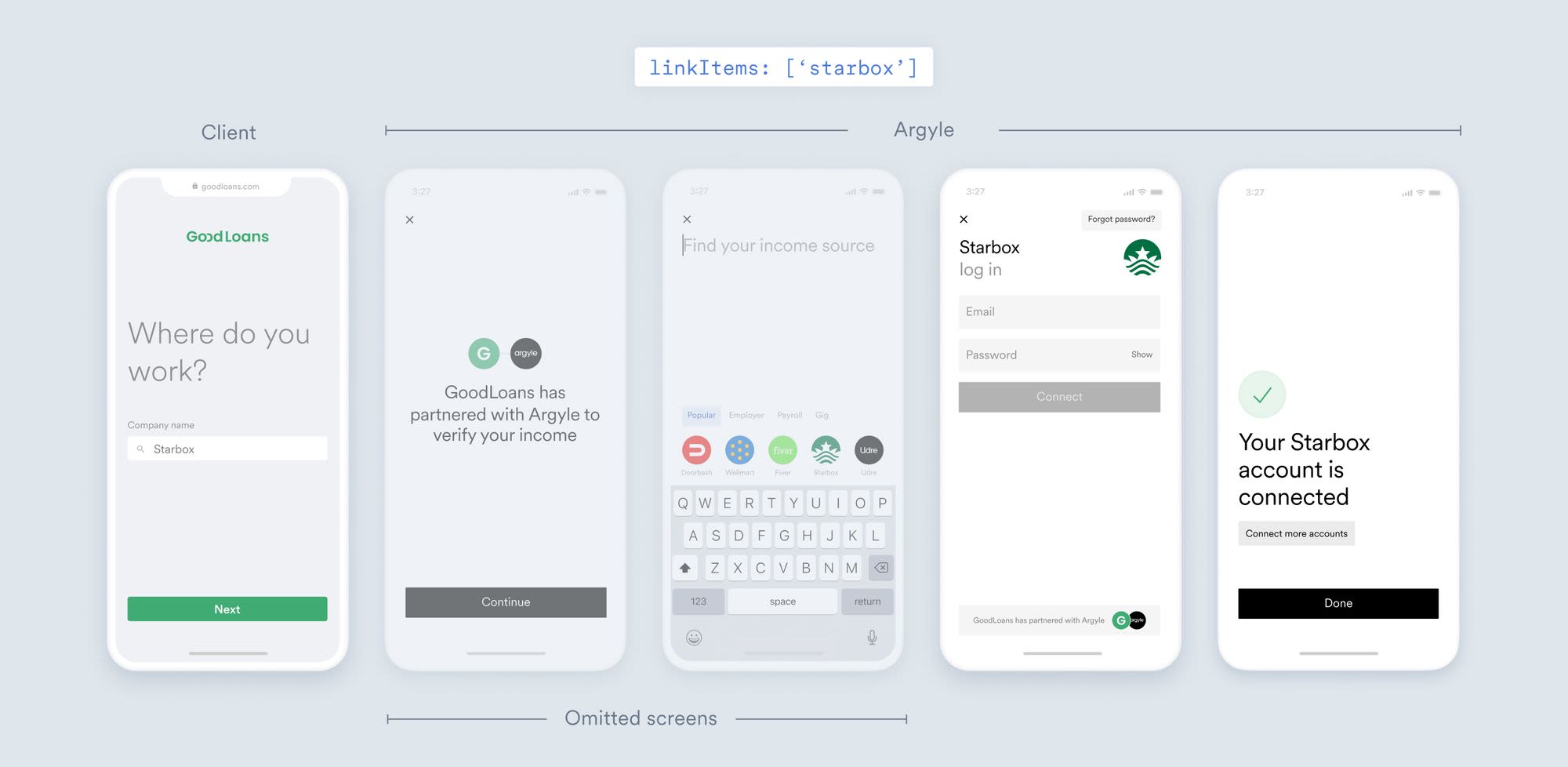
### Deep link users to the login screen
If you pass only one value in the `linkItems` parameter, then the **Search screen** will be omitted and the user will land directly on the **Login screen**.
### Enable direct deposit switching flow
You can enable the direct deposit switching flow to initiate right after an account is linked by including `payDistributionUpdateFlow` and `payDistributionConfig` in your Argyle Link initialization.
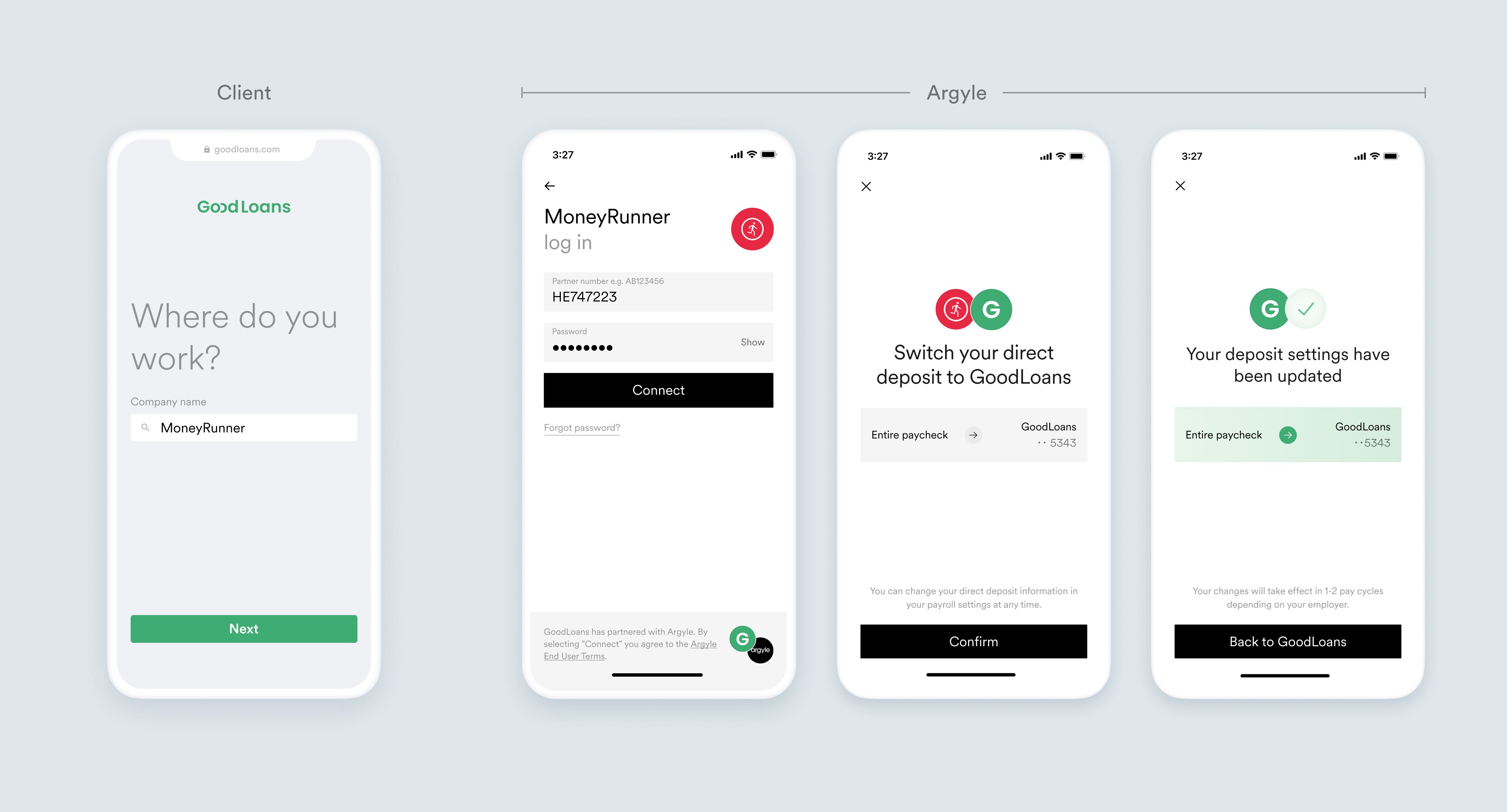
Refer to our [direct deposit switching guide](/legacy/guides/argyle-link/flows/direct-deposit-switching) for more information.
### Display only Link items that allow direct deposit switching
In Argyle Console:
1. Create a new customization using [Flows](https://console.argyle.com/flows).
2. Enable the setting **“Only show Link items that support direct deposit switching”**.
3. Save and [apply your customization](/legacy/guides/argyle-link/customize#applying-customizations) by including the following line in your Argyle Link initialization:
```json theme={}
customizationId: ""
```