> ## Documentation Index
> Fetch the complete documentation index at: https://docs.argyle.com/llms.txt
> Use this file to discover all available pages before exploring further.
# Encompass TPO Connect
> Set up wholesale verification ordering and broker-branded borrower invites in Encompass TPO Connect.
Wholesale lenders can make Argyle available to their brokers in Encompass® TPO Connect. Brokers can order payroll, asset, and document-based income verifications from the lender's portal, with broker-branded invites when borrower action is needed.
Orders use the wholesale lender's Argyle account, credentials, product permissions, and billing. Brokers access the service through the lender's TPO Connect portal.
## Lender admin setup
Before starting, contact your Argyle Customer Success Manager to confirm TPO Connect availability and product access. You will need a TPO Connect administrator account and the lender's Argyle API key ID and secret for the correct environment.
### Add Argyle for manual ordering
1. Sign in to **TPO Connect Administration** and confirm that the correct site is selected.
2. Open **Services Management**, then select **Add Service**.
3. Filter **Service Type** to **Verifications**, search for **Argyle**, and select **Manual**.
4. Enter a **Service Setup Name**. Under **Authorized Users**, choose **All Organizations** or the broker organizations and personas that should have access. Click **Save**.
5. Open the saved service. Under **Company Credentials**, select **Add**, enter the lender's Argyle API key ID and secret, and save.
6. Return to the service list and turn the **ACTIVE** toggle **ON** for the Manual ordering option.
Saving the service does not activate it. The **ACTIVE** toggle must be on before authorized brokers can use it.
Confirm that the [Encompass integration is enabled in Argyle Console](/integrations/pos-los/encompass/setup-guide#enable-encompass-in-argyle-console). Review [Doc Mapping](/integrations/pos-los/encompass/setup-guide#document-mapping-optional) to choose where reports and documents are delivered in the lender's eFolder.
### Configure the borrower experience
Broker details are populated from the TPO order context. You do not need to create an Argyle account or an individual flow for each broker.
The default wholesale flow displays the broker's name and contact details. For custom messaging, create a [Mortgage Wholesale template](/console/flows/email-sms-templates#wholesale-mortgage-templates) and configure the flow in the Encompass integration settings in Console. If you assign flows by OrgID, use a wholesale flow for broker-originated loans.
See [flow selection](/verifications/wholesale-mortgage#choose-the-invite-flow) for how retail and wholesale flows are resolved.
## Broker ordering
1. Sign in to your wholesale lender's TPO Connect portal and open the loan.
2. Confirm the borrower details in **Borrower Information**, including **Section 1A**, and the employment details required for the verification type.
3. Select **Service Orders** in the left navigation, then **Order Service**.
4. Choose **Verifications**, select **Argyle**, and click **Next**.
5. In Argyle, select the borrowers and verification methods. Review the borrower contact details for payroll and banking orders, or select **Add Documents** for Doc VOI.
6. Use **Notifications** to add team members who should receive order updates, then submit the order.
Once Argyle opens, follow the [3-in-1 Verification Suite workflow](/integrations/pos-los/encompass/verifications#ordering-verifications) to track orders, view results, and request manual re-verifications. Reports and documents are delivered to the lender's Encompass loan file according to its document-mapping settings.
## Borrower experience
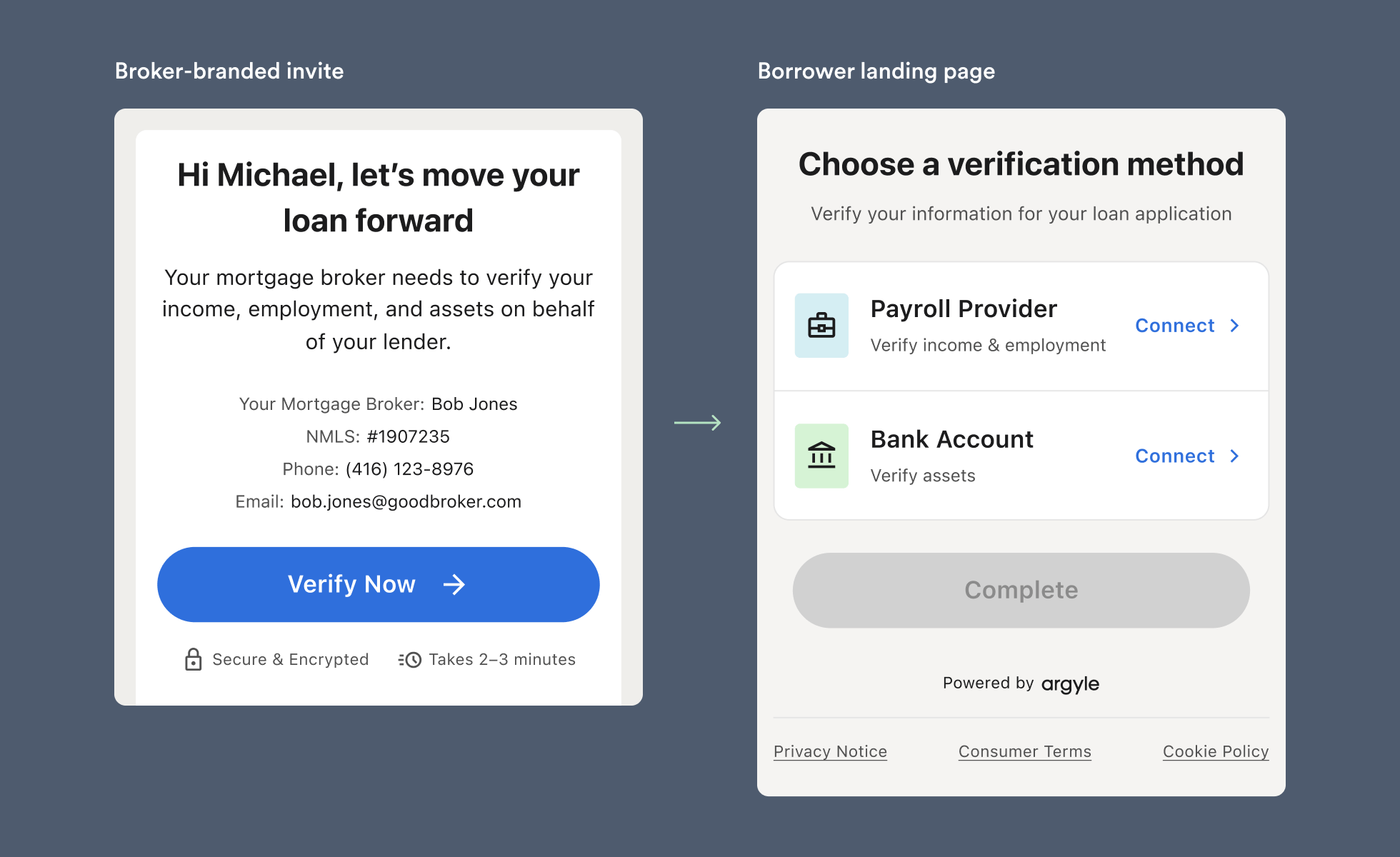 For payroll and banking orders, borrowers receive an email, SMS, or both, identifying their broker. The email and landing page show the broker's available contact details. Borrowers use one landing page to complete the requested payroll and bank connections.
The lender remains named in the email footer and consent and data-sharing screens. Argyle Link and the banking connection experience may also display lender branding. Broker branding is retained when a later order requires the borrower to reconnect.
Doc VOI uses the documents submitted with the order and does not send the borrower an invitation.
## Notifications
| Order | Default notification recipient | Additional recipients |
| ----------------------------------------------------------------- | -------------------------------------------------------------------- | ------------------------------------------------------------ |
| Manual initial order or re-verification requiring borrower action | The person placing the order; the TPO user for a broker-placed order | Add broker or lender team members through **Notifications**. |
| Initial automated service order | The first loan officer on the loan file | The manual team-member CC selection is not available. |
| Instant manual re-verification | No notification email | No borrower action is required. |
The wholesale lender is not automatically copied on a broker's manual order. Add the lender's recipients in **Notifications** when they need email updates.
## Automated ordering
Automated Service Ordering (ASO) supports initial verification orders on broker-originated loans. Argyle uses Encompass field `2626` at the loan level to identify whether the loan is retail or wholesale. For wholesale loans, ASO uses the broker details associated with the loan. The lender’s configured workflow rules and loan readiness conditions determine when the order is placed.
Use the lender's [Automated Ordering setup](/integrations/pos-los/encompass/setup-guide#automated-ordering) for templates and workflow rules. Enabling **Manual** ordering in TPO Connect does not configure ASO.
Create separate templates for payroll and banking orders. When both are triggered within a short window, the borrower receives one combined invite. Automated re-verification is not supported; use the [manual closing verification workflow](/integrations/pos-los/encompass/verifications#order-closing-verifications).
For payroll and banking orders, borrowers receive an email, SMS, or both, identifying their broker. The email and landing page show the broker's available contact details. Borrowers use one landing page to complete the requested payroll and bank connections.
The lender remains named in the email footer and consent and data-sharing screens. Argyle Link and the banking connection experience may also display lender branding. Broker branding is retained when a later order requires the borrower to reconnect.
Doc VOI uses the documents submitted with the order and does not send the borrower an invitation.
## Notifications
| Order | Default notification recipient | Additional recipients |
| ----------------------------------------------------------------- | -------------------------------------------------------------------- | ------------------------------------------------------------ |
| Manual initial order or re-verification requiring borrower action | The person placing the order; the TPO user for a broker-placed order | Add broker or lender team members through **Notifications**. |
| Initial automated service order | The first loan officer on the loan file | The manual team-member CC selection is not available. |
| Instant manual re-verification | No notification email | No borrower action is required. |
The wholesale lender is not automatically copied on a broker's manual order. Add the lender's recipients in **Notifications** when they need email updates.
## Automated ordering
Automated Service Ordering (ASO) supports initial verification orders on broker-originated loans. Argyle uses Encompass field `2626` at the loan level to identify whether the loan is retail or wholesale. For wholesale loans, ASO uses the broker details associated with the loan. The lender’s configured workflow rules and loan readiness conditions determine when the order is placed.
Use the lender's [Automated Ordering setup](/integrations/pos-los/encompass/setup-guide#automated-ordering) for templates and workflow rules. Enabling **Manual** ordering in TPO Connect does not configure ASO.
Create separate templates for payroll and banking orders. When both are triggered within a short window, the borrower receives one combined invite. Automated re-verification is not supported; use the [manual closing verification workflow](/integrations/pos-los/encompass/verifications#order-closing-verifications).