> ## Documentation Index
> Fetch the complete documentation index at: https://docs.argyle.com/llms.txt
> Use this file to discover all available pages before exploring further.
# Payroll Verifications
> Verify income and employment within the Encompass® by ICE Mortgage Technology® platform.
## Overview
Verify income and employment inside the Encompass® by ICE Mortgage Technology® platform using Argyle's direct connections to U.S. employee payroll accounts.
* Generate **Verification of Income** and **Verification of Employment** reports.
* Access and view **W-2's** and **paystubs** from connected payroll accounts.
 ## How it works
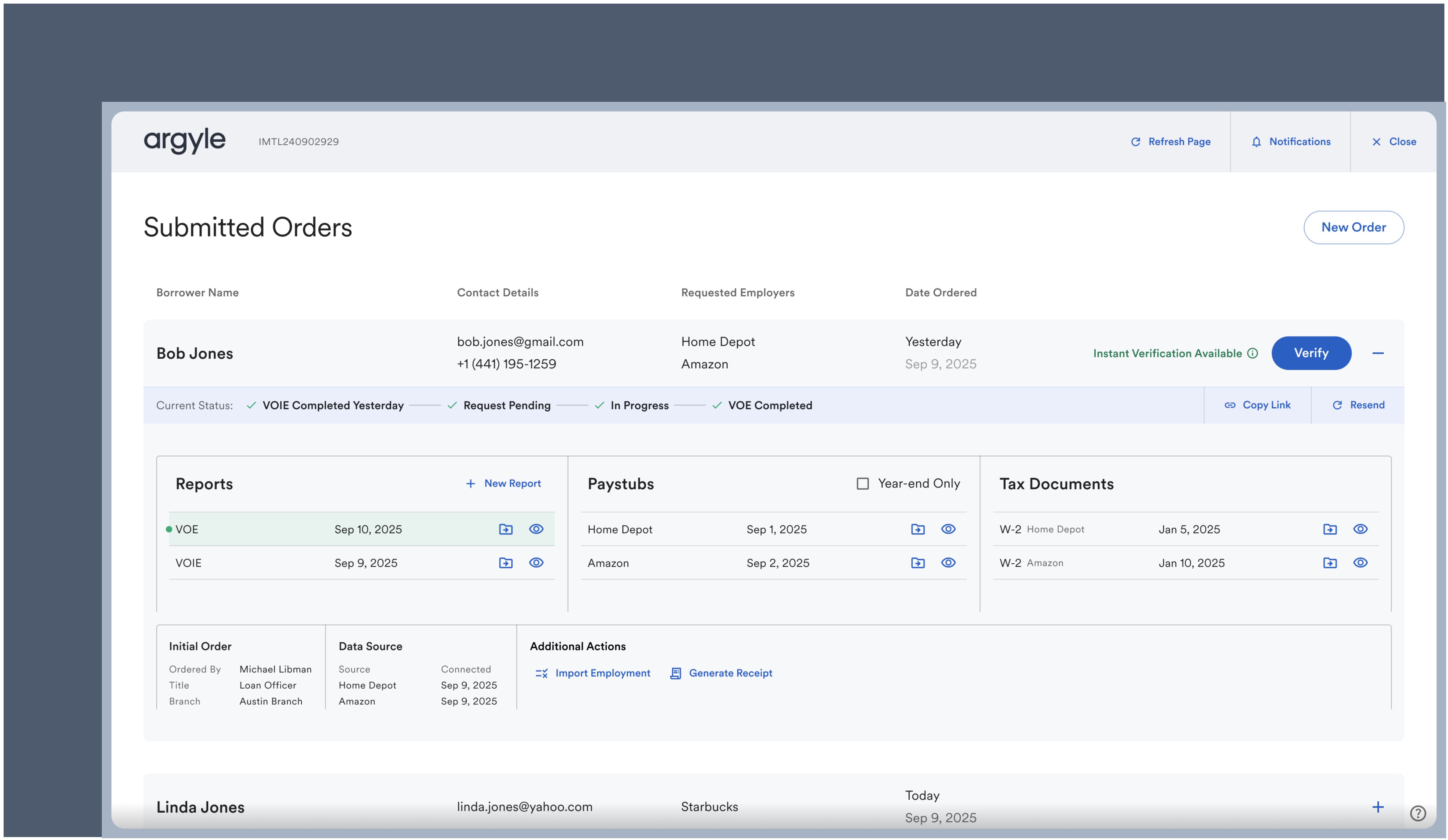
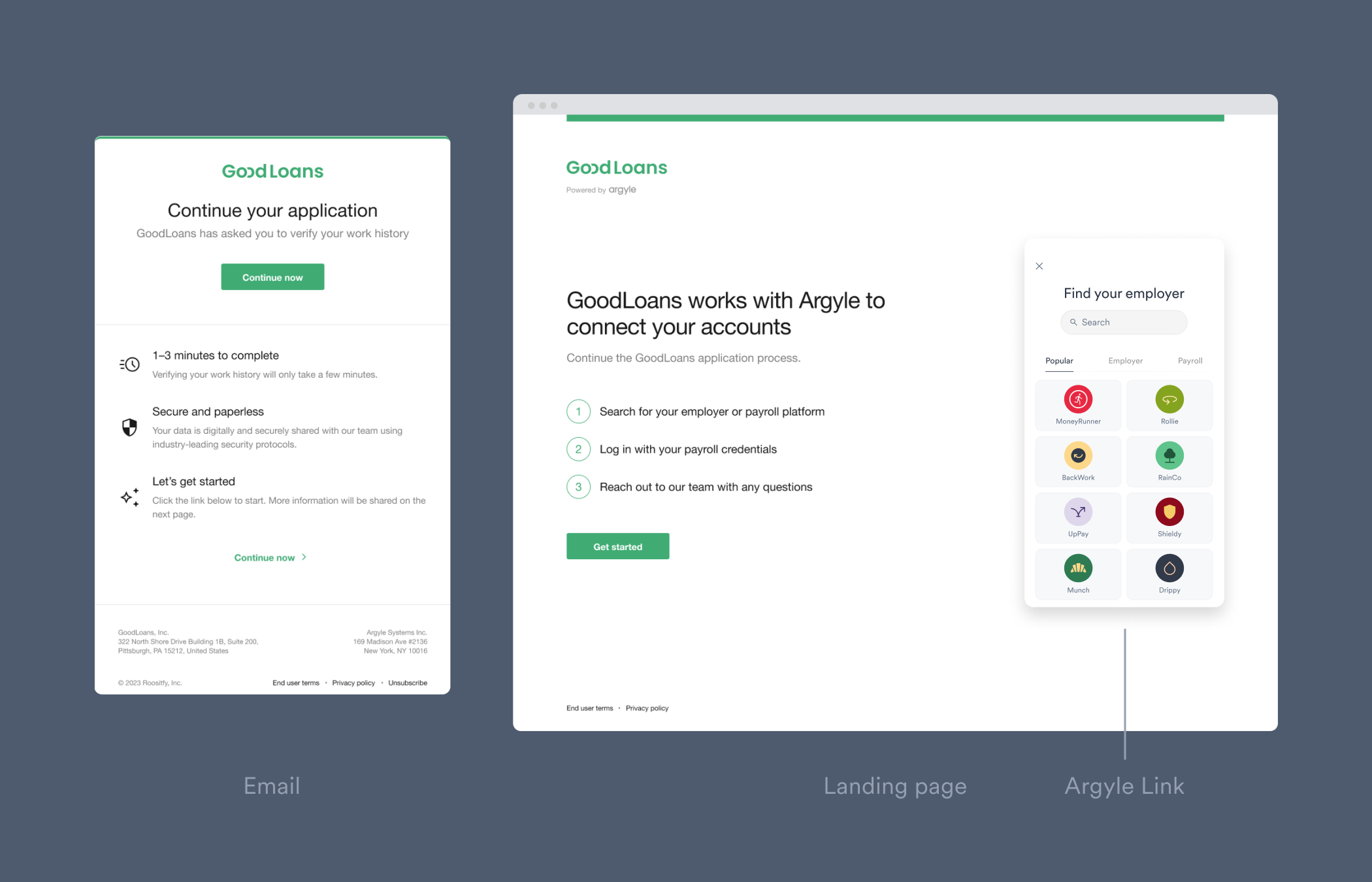
1. Borrowers are invited to securely share their income and employment information by connecting their payroll accounts through Argyle.
2. Argyle provides verification reports, paystubs, and W-2 tax documents in the Encompass® eFolder.
3. Connected accounts are monitored for new payroll documents, and additional verification reports can be continuously generated throughout the mortgage loan origination process.
## Ordering verifications
### Select Argyle's verification service
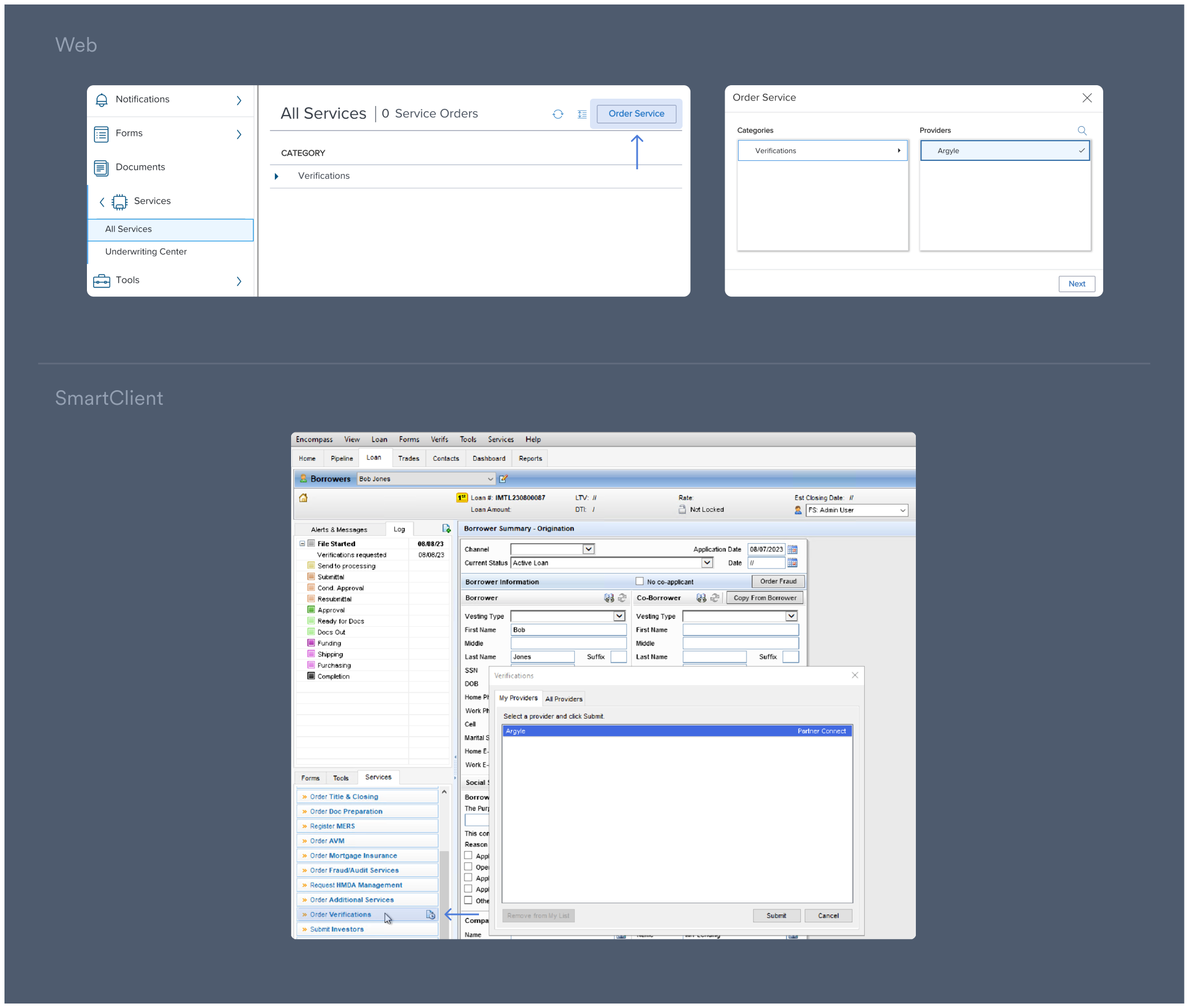
1. Select a loan in Encompass®.
2. Under **Services**:
* \[Web] Select **All Services** and then **Order Service**. In the pop-up, click
**Verifications** under Categories.
* \[SmartClient] Select **Order Verifications**.
3. In the pop-up, select **Argyle** under Providers.
Then click **Next/Submit**.
## How it works
1. Borrowers are invited to securely share their income and employment information by connecting their payroll accounts through Argyle.
2. Argyle provides verification reports, paystubs, and W-2 tax documents in the Encompass® eFolder.
3. Connected accounts are monitored for new payroll documents, and additional verification reports can be continuously generated throughout the mortgage loan origination process.
## Ordering verifications
### Select Argyle's verification service
1. Select a loan in Encompass®.
2. Under **Services**:
* \[Web] Select **All Services** and then **Order Service**. In the pop-up, click
**Verifications** under Categories.
* \[SmartClient] Select **Order Verifications**.
3. In the pop-up, select **Argyle** under Providers.
Then click **Next/Submit**.
 ### Configure notifications (optional)
1. Select which team members should receive updates on verification orders by selecting **Notifications** in the upper-right of the Argyle window (see image below).
2. Add or remove team members from notifications at any stage of the ordering process.
Suggested team members are populated from contacts attached to the loan file. Standalone emails can also be entered.
### Select borrower(s) and submit order
1. Select your desired borrowers.
### Configure notifications (optional)
1. Select which team members should receive updates on verification orders by selecting **Notifications** in the upper-right of the Argyle window (see image below).
2. Add or remove team members from notifications at any stage of the ordering process.
Suggested team members are populated from contacts attached to the loan file. Standalone emails can also be entered.
### Select borrower(s) and submit order
1. Select your desired borrowers.
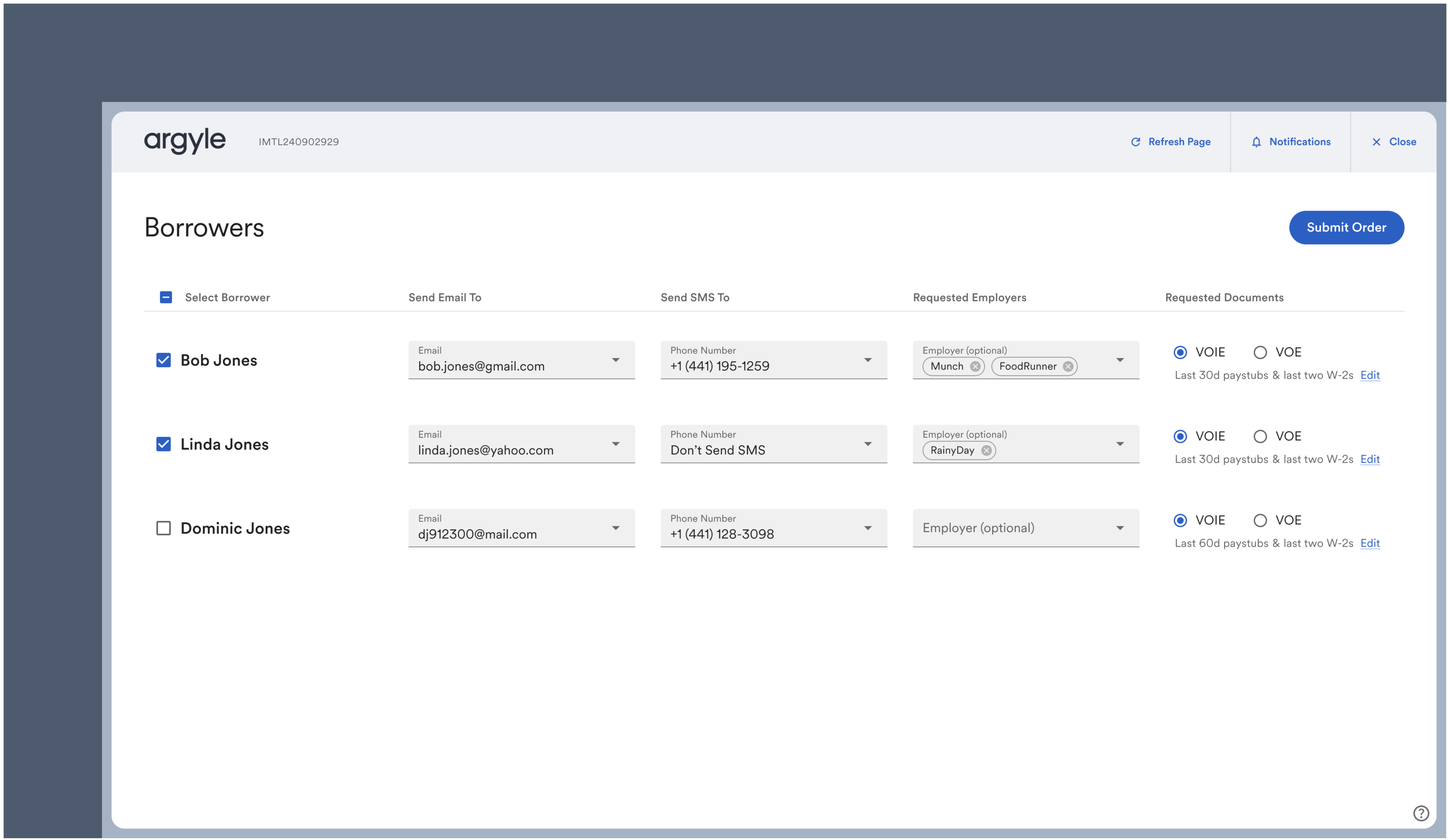 2. Review the borrowers contact details.
Sending invitations via both **Email and SMS** is recommended and generally provides the best overall response
rate.
3. If known, search and select the borrowers employer(s). Manually review any pre-filled employers.
Argyle will automatically attempt to find matches based on employers found in the Encompass® loan file.
4. Select a verification report.
* VOIE is Argyle's verification of income and employment report.
* VOE is Argyle's verification of employment report (typically used only for [closing verifications](/integrations/pos-los/encompass/legacy-guide/payroll-verifications#ordering-closing-employment-verifications)).
Additional verification reports can be requested as needed.
Verification reports will automatically be pushed to eFolder when the order is completed.
* If a VOIE report is ordered, the last 30 days of paystubs and two most recent W-2 tax documents will also automatically be pushed to eFolder. Any additional payroll documents that are retrieved will be available for manual review, and can be pushed to eFolder as needed.
5. Click **Submit Order**. Submitted orders will appear with a **Pending** status.
2. Review the borrowers contact details.
Sending invitations via both **Email and SMS** is recommended and generally provides the best overall response
rate.
3. If known, search and select the borrowers employer(s). Manually review any pre-filled employers.
Argyle will automatically attempt to find matches based on employers found in the Encompass® loan file.
4. Select a verification report.
* VOIE is Argyle's verification of income and employment report.
* VOE is Argyle's verification of employment report (typically used only for [closing verifications](/integrations/pos-los/encompass/legacy-guide/payroll-verifications#ordering-closing-employment-verifications)).
Additional verification reports can be requested as needed.
Verification reports will automatically be pushed to eFolder when the order is completed.
* If a VOIE report is ordered, the last 30 days of paystubs and two most recent W-2 tax documents will also automatically be pushed to eFolder. Any additional payroll documents that are retrieved will be available for manual review, and can be pushed to eFolder as needed.
5. Click **Submit Order**. Submitted orders will appear with a **Pending** status.
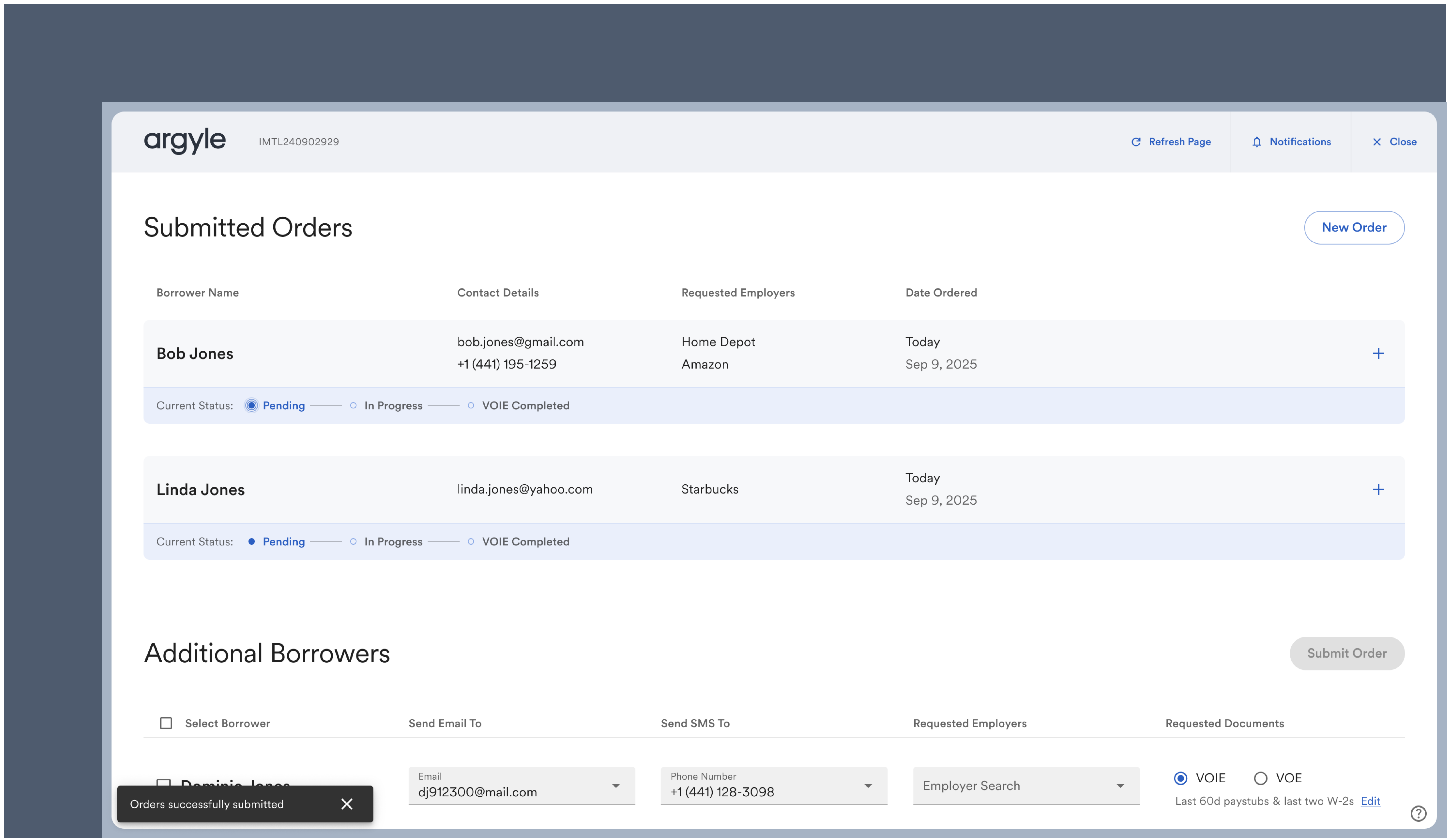 6. Once the order is submitted, borrowers are sent an email and/or text invitation asking them to connect via Argyle.
 ### Resending invitations
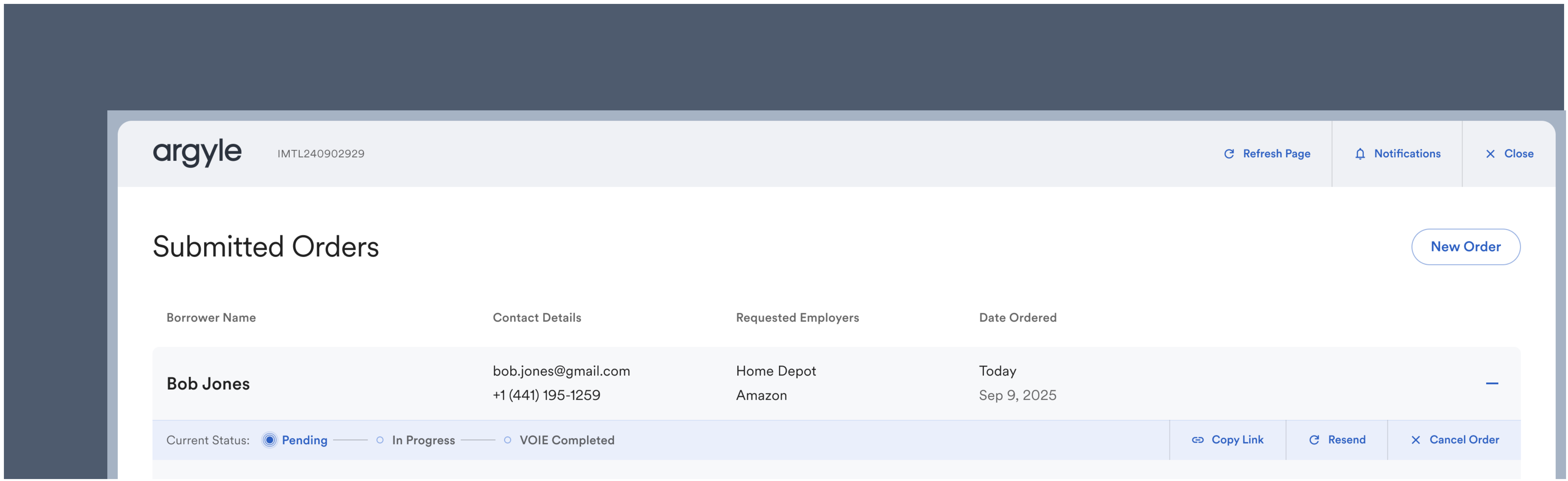
Resending invitations is typically used when a borrower needs to reconnect their account(s) for a [closing verification](/integrations/pos-los/encompass/legacy-guide/payroll-verifications#borrower-action-required) or to resolve an [action required](/integrations/pos-los/encompass/legacy-guide/payroll-verifications#action-required) order status.
1. Click **Resend** to resend an email and/or SMS connection invitation to the borrower.
2. Select **Copy Link** to generate a unique URL that can be shared directly with the borrower. This URL will also direct the borrower to Argyle's connection experience.
### Resending invitations
Resending invitations is typically used when a borrower needs to reconnect their account(s) for a [closing verification](/integrations/pos-los/encompass/legacy-guide/payroll-verifications#borrower-action-required) or to resolve an [action required](/integrations/pos-los/encompass/legacy-guide/payroll-verifications#action-required) order status.
1. Click **Resend** to resend an email and/or SMS connection invitation to the borrower.
2. Select **Copy Link** to generate a unique URL that can be shared directly with the borrower. This URL will also direct the borrower to Argyle's connection experience.
 ## Ordering closing employment verifications
This section assumes a [VOIE report was initially ordered and completed](/integrations/pos-los/encompass/legacy-guide/payroll-verifications#ordering-verifications), and a VOE report is being ordered at loan closing to verify employment only. When a VOE report is ordered, no new paystubs or W2s are retrieved.
### Instant ordering
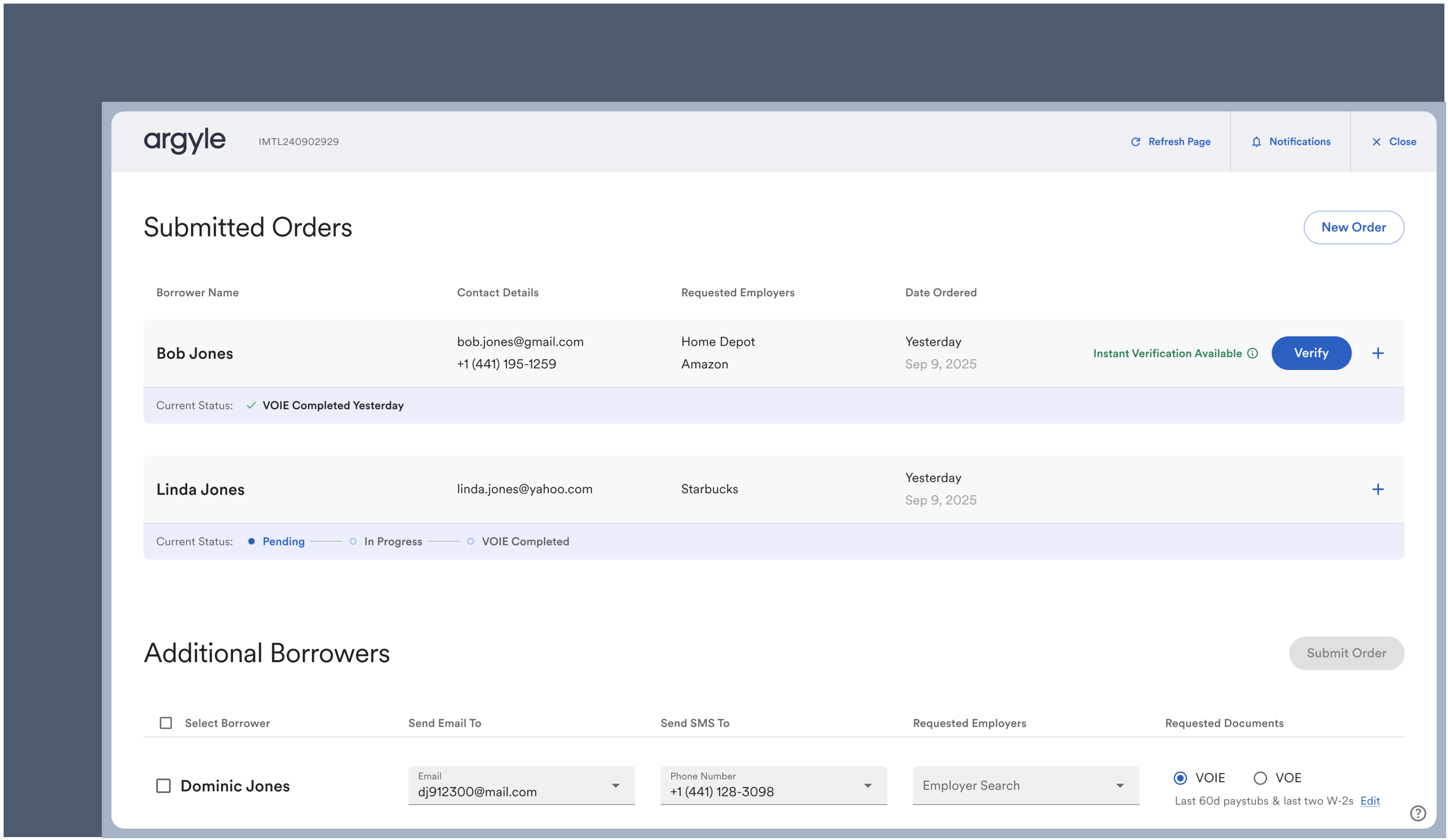
When **Instant Verification Available** is shown in green, an up-to-date report can be ordered that does not require additional borrower action by selecting **Verify**.
## Ordering closing employment verifications
This section assumes a [VOIE report was initially ordered and completed](/integrations/pos-los/encompass/legacy-guide/payroll-verifications#ordering-verifications), and a VOE report is being ordered at loan closing to verify employment only. When a VOE report is ordered, no new paystubs or W2s are retrieved.
### Instant ordering
When **Instant Verification Available** is shown in green, an up-to-date report can be ordered that does not require additional borrower action by selecting **Verify**.
 ### Borrower action required
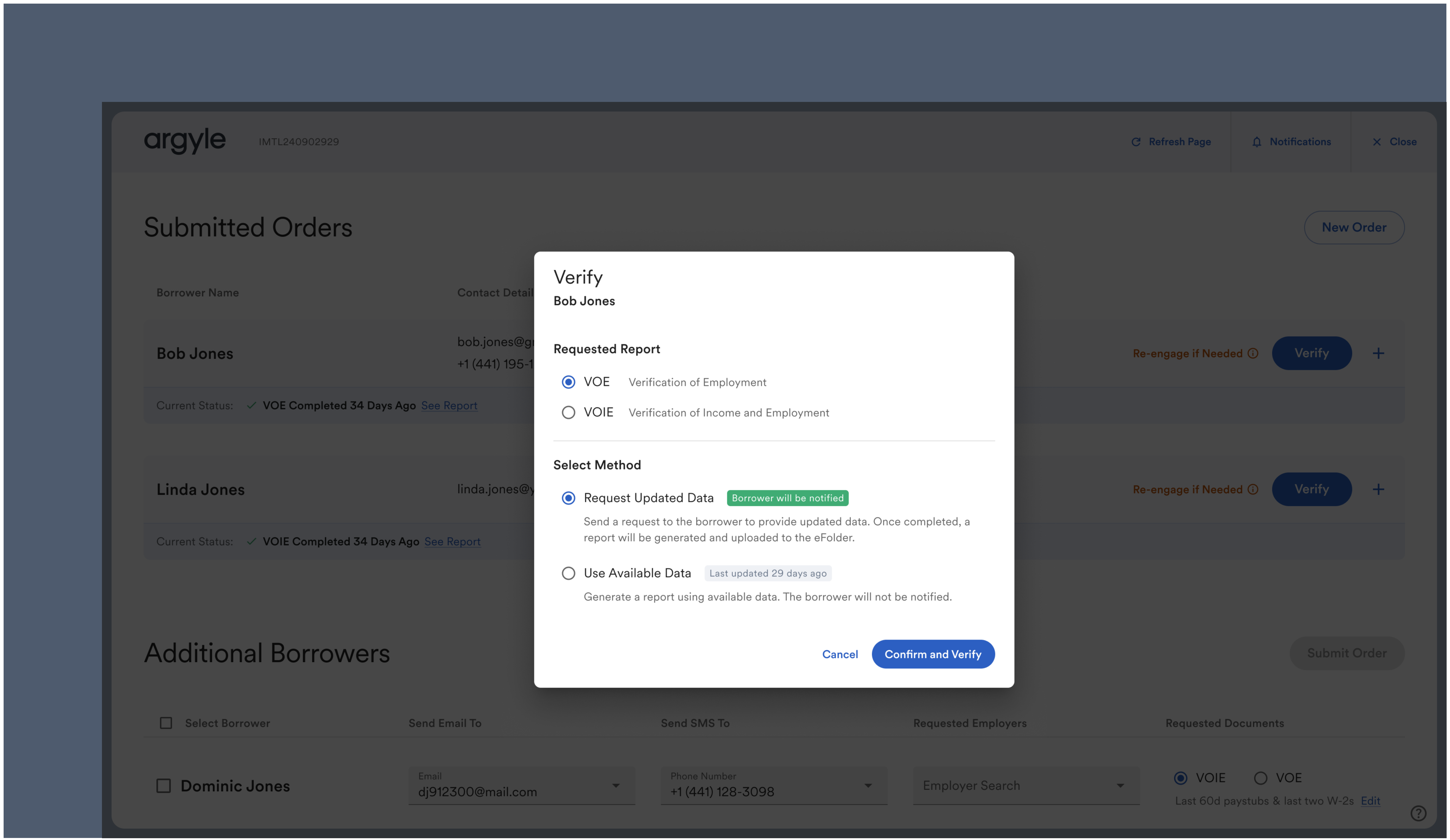
When **Re-engage if Needed** is shown in orange, there are two verification options.
### Borrower action required
When **Re-engage if Needed** is shown in orange, there are two verification options.
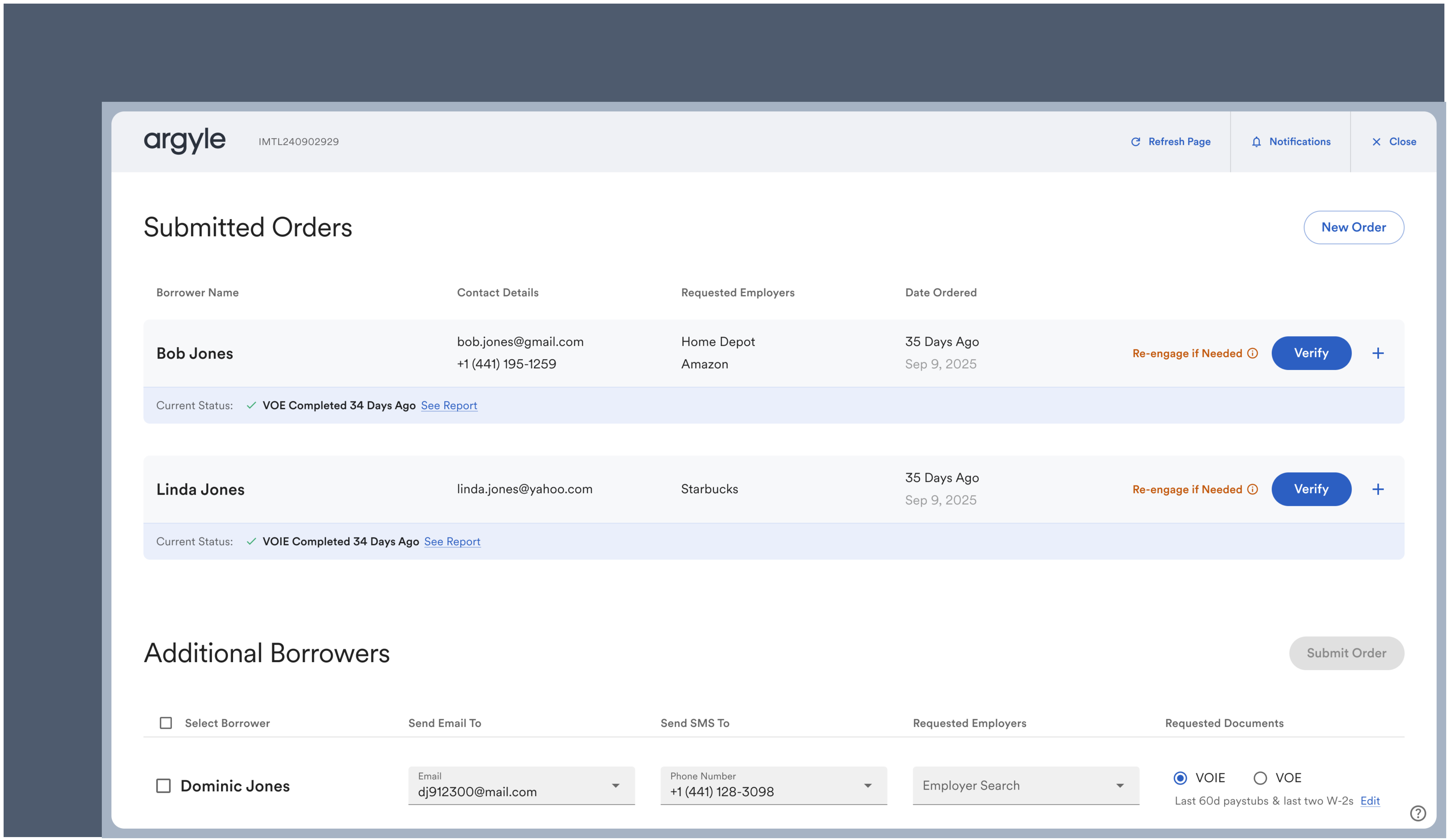 1. **Request Updated Data** will resend a connection invitation to the borrower.
A new verification report will not be generated until the borrower has reconnected at least one payroll account.
2. **Use Available Data** will generate a report immediately with the most available data, and does not require additional borrower action.
According to the GSE's, reports based on data **last updated** 35 days ago or less are sufficient for rep & warrant consideration.
1. **Request Updated Data** will resend a connection invitation to the borrower.
A new verification report will not be generated until the borrower has reconnected at least one payroll account.
2. **Use Available Data** will generate a report immediately with the most available data, and does not require additional borrower action.
According to the GSE's, reports based on data **last updated** 35 days ago or less are sufficient for rep & warrant consideration.
 ## Completed orders
### Viewing reports and documents
1. Select an individual borrower once their order reaches **Completed** status.
## Completed orders
### Viewing reports and documents
1. Select an individual borrower once their order reaches **Completed** status.
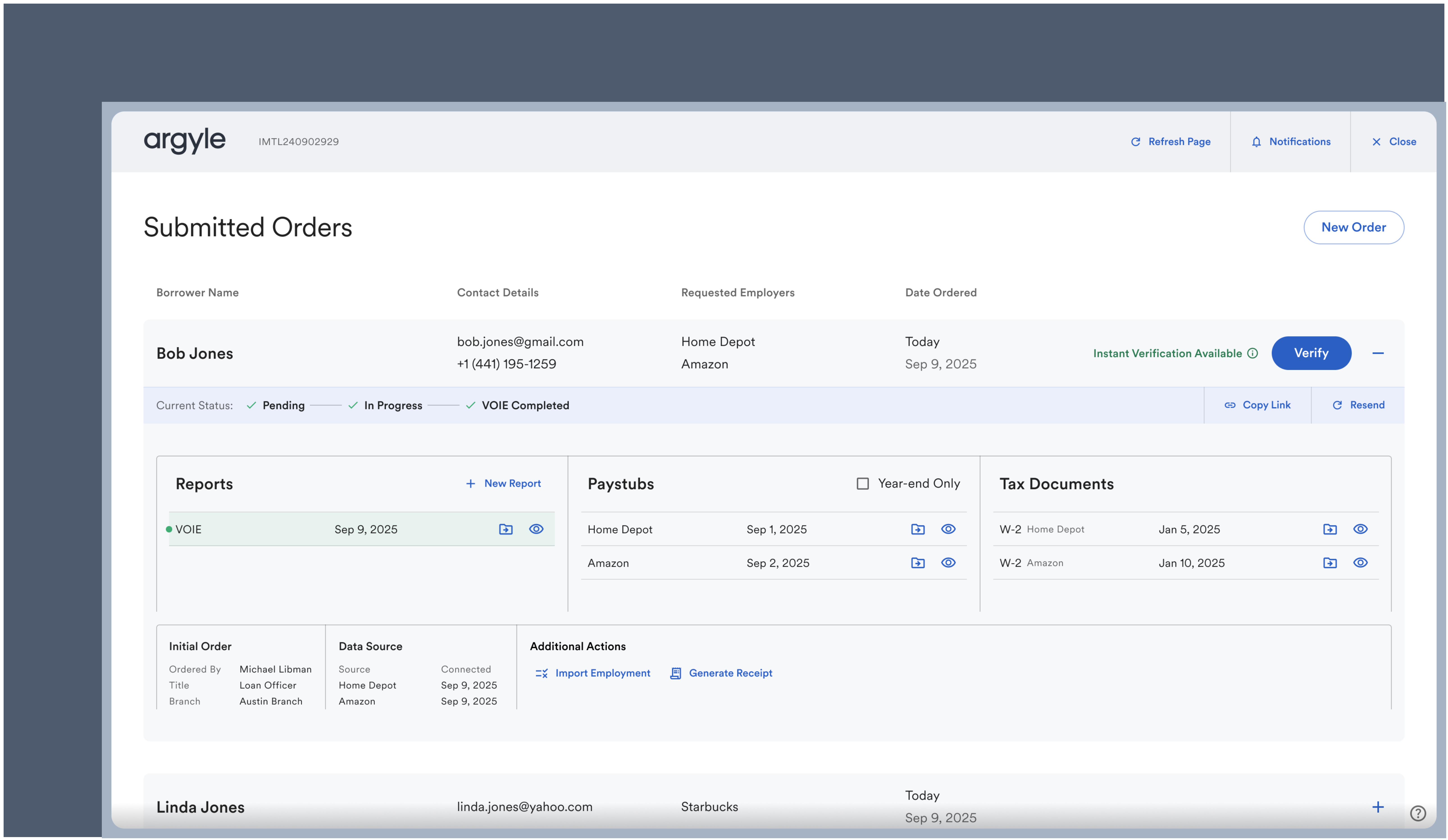 2. The initially ordered verification report will automatically be **pushed to eFolder** and available to view.
If a VOIE report was ordered, the last 30 days of paystubs and two most recent W-2 tax documents will also automatically be pushed to eFolder. Any additional payroll documents that are retrieved will be available for manual review, and can be pushed to eFolder as needed.
Reports and documents can also be viewed in the Connections section of Console. Each borrower will have an [external identifier](/overview/data-structure/users#external-identifiers) that matches their Loan # on Encompass®.
3. Additional verification reports can be ordered by selecting **Verify**. They will be available to **Preview** and can be pushed to eFolder as needed.
### Day 1 Certainty® and AIM
Argyle's Encompass® integration will automatically populate the necessary report identifiers required by GSEs within the Encompass® loan file — if multiple Argyle verification reports have been generated, the report identifier from the most recent report will be used.
Reach out to your Customer Success Manager to enable Argyle's Day 1 Certainty® and AIM functionality.
2. The initially ordered verification report will automatically be **pushed to eFolder** and available to view.
If a VOIE report was ordered, the last 30 days of paystubs and two most recent W-2 tax documents will also automatically be pushed to eFolder. Any additional payroll documents that are retrieved will be available for manual review, and can be pushed to eFolder as needed.
Reports and documents can also be viewed in the Connections section of Console. Each borrower will have an [external identifier](/overview/data-structure/users#external-identifiers) that matches their Loan # on Encompass®.
3. Additional verification reports can be ordered by selecting **Verify**. They will be available to **Preview** and can be pushed to eFolder as needed.
### Day 1 Certainty® and AIM
Argyle's Encompass® integration will automatically populate the necessary report identifiers required by GSEs within the Encompass® loan file — if multiple Argyle verification reports have been generated, the report identifier from the most recent report will be used.
Reach out to your Customer Success Manager to enable Argyle's Day 1 Certainty® and AIM functionality.
*Argyle's income and employment verification reports provide lenders an automated way to achieve Day 1 Certainty® through Fannie Mae's Desktop Underwriter® (DU®) validation service and assessment of borrower income and employment through Freddie Mac's asset and income modeler (AIM).*
### Resolving employer name mismatches
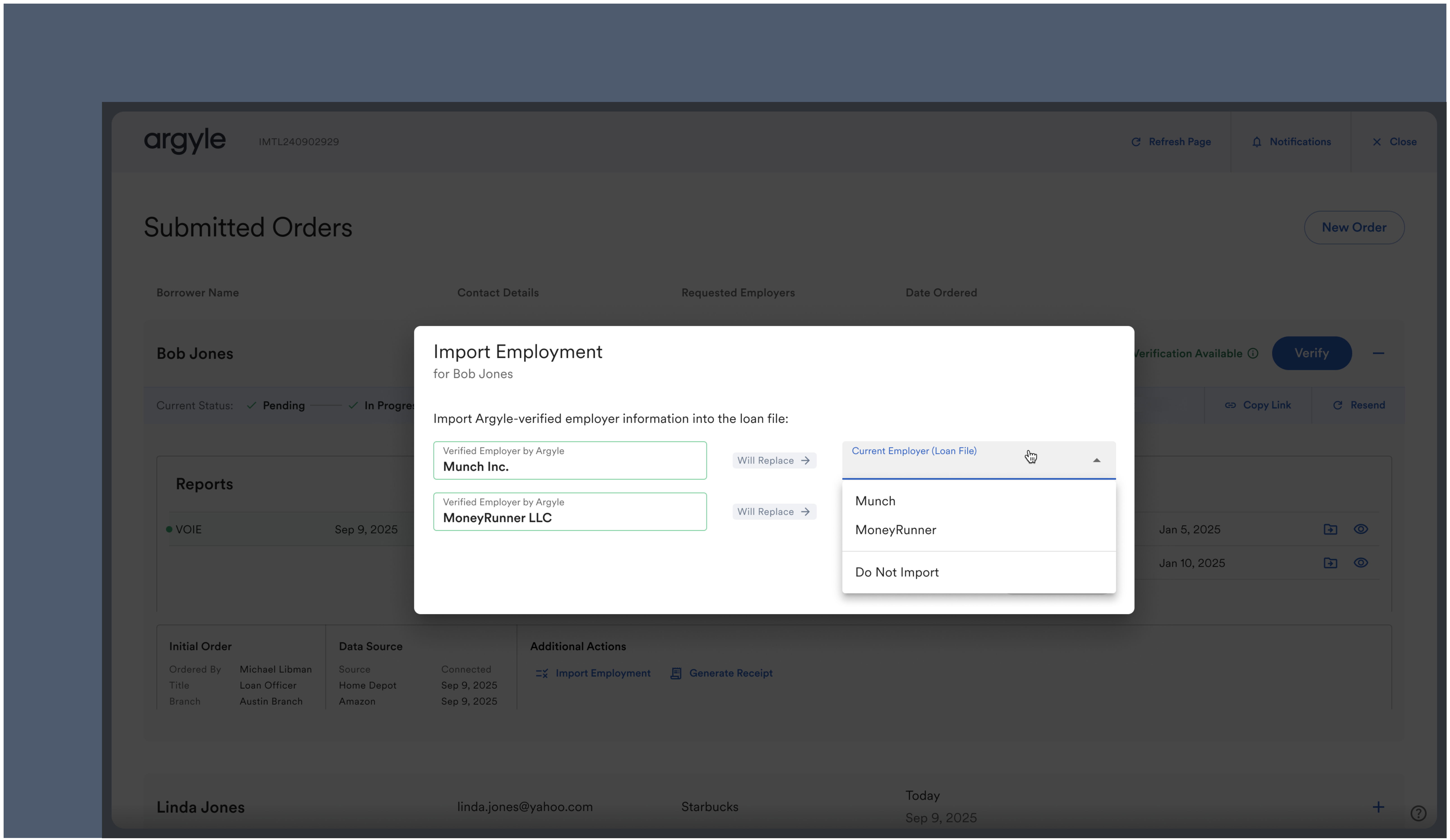
Resolving employer name mismatches will help maximize Day 1 Certainty® and AIM rep & warrant relief.
1. Select **Import Employment** under **Additional Actions**.
2. Resolve any conflicts between the employer name in the loan file and the employer name Argyle retrieved from the connected payroll account.
 ### Automatic updates
Argyle attempts to maintain an ongoing connection to the borrower's connected payroll accounts
and will continue to retrieve new data and documents as they become available.
New payroll documents will automatically be forwarded and appear in the Argyle interface within Encompass®, and can be previewed and **pushed to eFolder** as needed.
### Generating receipts
1. Select **Generate Receipt** after selecting an individual borrower to automatically generate a receipt and push it to eFolder.
Receipts are made available for each individual borrowerer after orders are **Completed**, and will indicate the fees associated with the verification order.
## Order statuses
### Pending
The borrower has been sent an invitation to connect via Argyle, but has not taken action.
### In progress
The borrower has connected their payroll accounts. Argyle is currently processing the verification order.
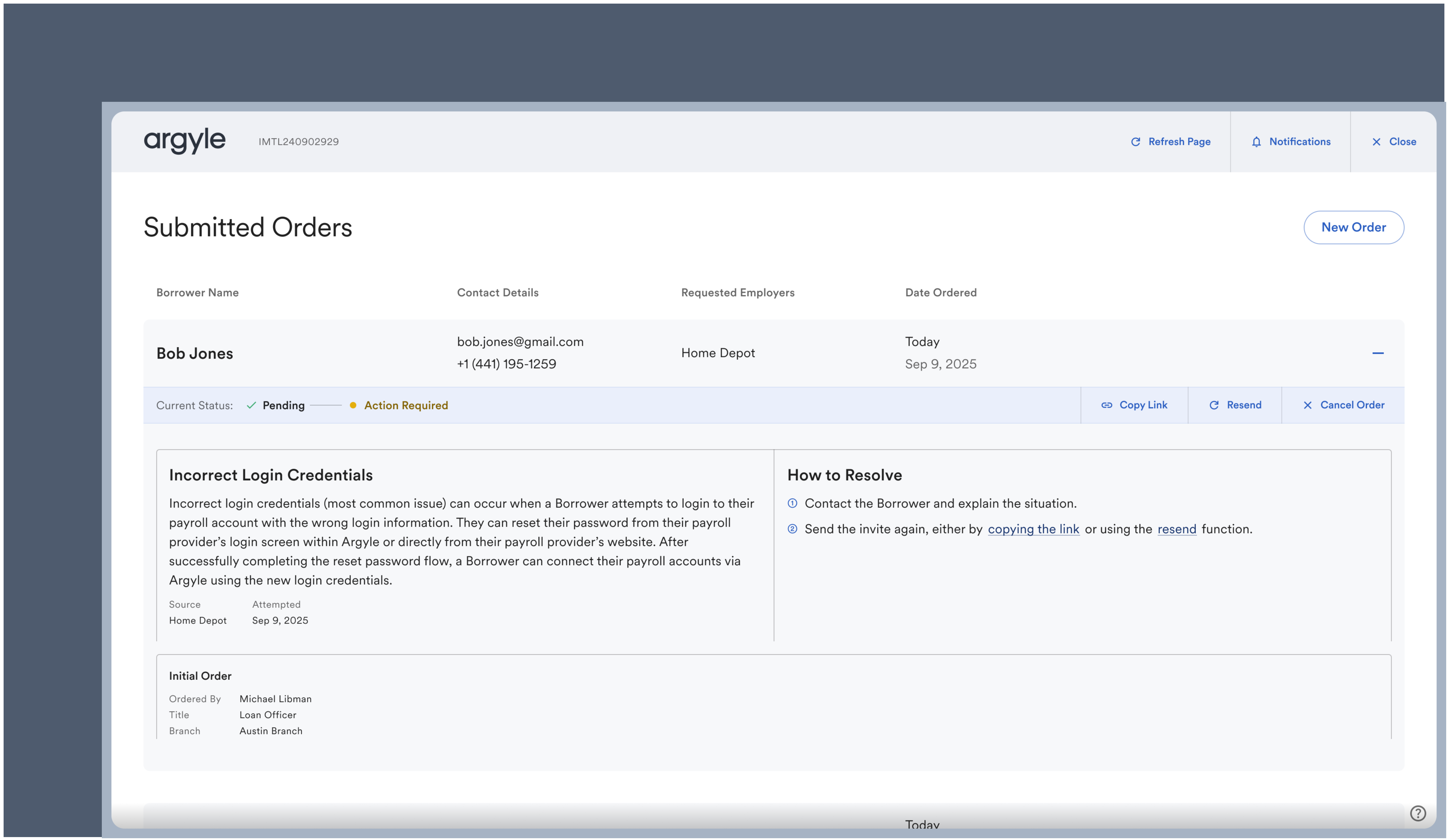
### Action required
The borrower needs to take additional action before the order can be completed. More details on the underlying issue and recommended actions will be provided within Encompass®:
### Automatic updates
Argyle attempts to maintain an ongoing connection to the borrower's connected payroll accounts
and will continue to retrieve new data and documents as they become available.
New payroll documents will automatically be forwarded and appear in the Argyle interface within Encompass®, and can be previewed and **pushed to eFolder** as needed.
### Generating receipts
1. Select **Generate Receipt** after selecting an individual borrower to automatically generate a receipt and push it to eFolder.
Receipts are made available for each individual borrowerer after orders are **Completed**, and will indicate the fees associated with the verification order.
## Order statuses
### Pending
The borrower has been sent an invitation to connect via Argyle, but has not taken action.
### In progress
The borrower has connected their payroll accounts. Argyle is currently processing the verification order.
### Action required
The borrower needs to take additional action before the order can be completed. More details on the underlying issue and recommended actions will be provided within Encompass®:
 ### Cancelled
The verification order was manually cancelled within Encompass®.
Argyle may also cancel orders due to processing timeouts or unresolvable issues.
### Completed
The verification order has been completed.
## Testing
1. Choose `Argyle Sandbox` (Sandbox testing) or `Argyle` (Production testing) when [selecting a verification service](/integrations/pos-los/encompass/legacy-guide/payroll-verifications#select-argyles-verification-service).
2. When ordering a report, use your test email or phone number as the borrower's contact details.
3. After receiving the invitation, use Argyle's [sample user credentials](/overview/sandbox-testing#connect-sample-users) to log in to:
* (Sandbox testing) Any employer or payroll provider
* (Production testing) `Platformtronic` or `Employertronic` as the employer
4. For specific scenario testing, the following sample users are also available:
| | Homer Loanseeker | Suzi Builder | Andy Freddie |
| ------------------ | ----------------------------------------- | ------------------------------------- | ---------------------------------------- |
| Email | homer\_loanseeker@argyle.com | suzi\_builder@argyle.com | andy\_freddie@argyle.com |
| Username | homer\_loanseeker | suzi\_builder | andy\_freddie |
| Password | passgood | passgood | passgood |
| Verification code | 9081 | 9084 | 9088 |
| Phone number | (800) 900-0101 | (800) 900-0104 | (800) 900-0108 |
| Driver's license # | D1230101 | D1230104 | D1230108 |
| **Returns** | **1 active employment** | **2 active employments** | **1 active and 1 terminated employment** |
### Cancelled
The verification order was manually cancelled within Encompass®.
Argyle may also cancel orders due to processing timeouts or unresolvable issues.
### Completed
The verification order has been completed.
## Testing
1. Choose `Argyle Sandbox` (Sandbox testing) or `Argyle` (Production testing) when [selecting a verification service](/integrations/pos-los/encompass/legacy-guide/payroll-verifications#select-argyles-verification-service).
2. When ordering a report, use your test email or phone number as the borrower's contact details.
3. After receiving the invitation, use Argyle's [sample user credentials](/overview/sandbox-testing#connect-sample-users) to log in to:
* (Sandbox testing) Any employer or payroll provider
* (Production testing) `Platformtronic` or `Employertronic` as the employer
4. For specific scenario testing, the following sample users are also available:
| | Homer Loanseeker | Suzi Builder | Andy Freddie |
| ------------------ | ----------------------------------------- | ------------------------------------- | ---------------------------------------- |
| Email | homer\_loanseeker@argyle.com | suzi\_builder@argyle.com | andy\_freddie@argyle.com |
| Username | homer\_loanseeker | suzi\_builder | andy\_freddie |
| Password | passgood | passgood | passgood |
| Verification code | 9081 | 9084 | 9088 |
| Phone number | (800) 900-0101 | (800) 900-0104 | (800) 900-0108 |
| Driver's license # | D1230101 | D1230104 | D1230108 |
| **Returns** | **1 active employment** | **2 active employments** | **1 active and 1 terminated employment** |
*For further assistance or specific feature requests, please reach out to [support@argyle.com](mailto:support@argyle.com) or your Customer Success Manager.*