> ## Documentation Index
> Fetch the complete documentation index at: https://docs.argyle.com/llms.txt
> Use this file to discover all available pages before exploring further.
# Document Verifications
> Document-based income verifications within the Encompass® by ICE Mortgage Technology® platform.
## Overview
Verify borrower income using **paystub** and **W-2** documents within the Encompass® by ICE Mortgage Technology® platform.
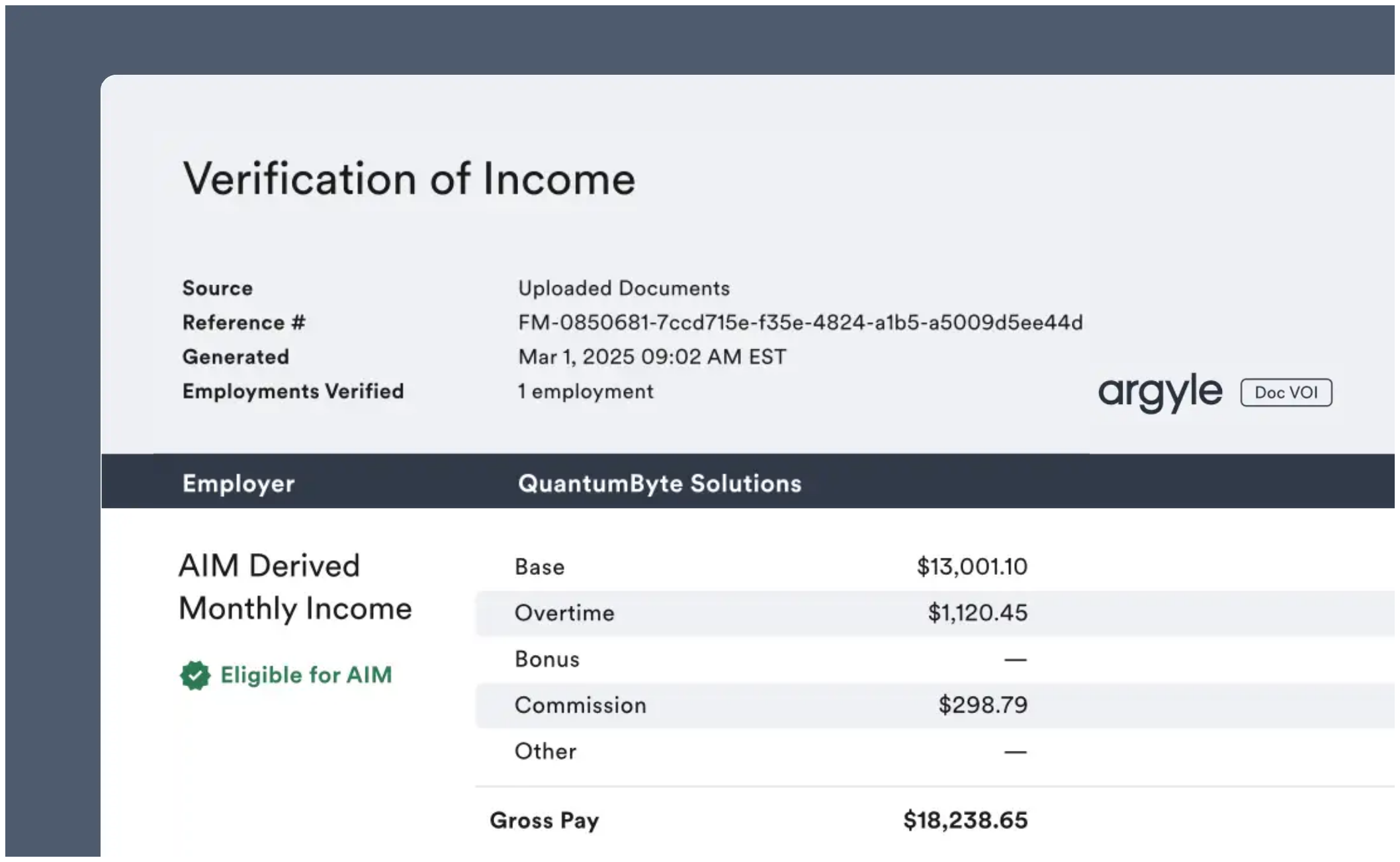
* Generate **Doc VOI** (document-based income verification) reports.
* Receive GSE-calculated monthly income values.
* Receive eligibility determination for **AIM rep & warrant relief**.
 ## How it works
1. Order an Argyle verification within Encompass® and select the **Doc VOI** report type.
2. Upload borrower paystubs and W-2s directly from the Encompass® eFolder or your local drive.
3. Argyle automatically retrieves borrower and employer information from the 1003 URLA Part 1 and 1003 URLA Part 2 in Encompass®.
4. Argyle provides a Doc VOI verification report with monthly income values and AIM rep & warrant relief eligibility determination.
## Ordering verifications
1. Select a loan in Encompass®.
### Required URLA details
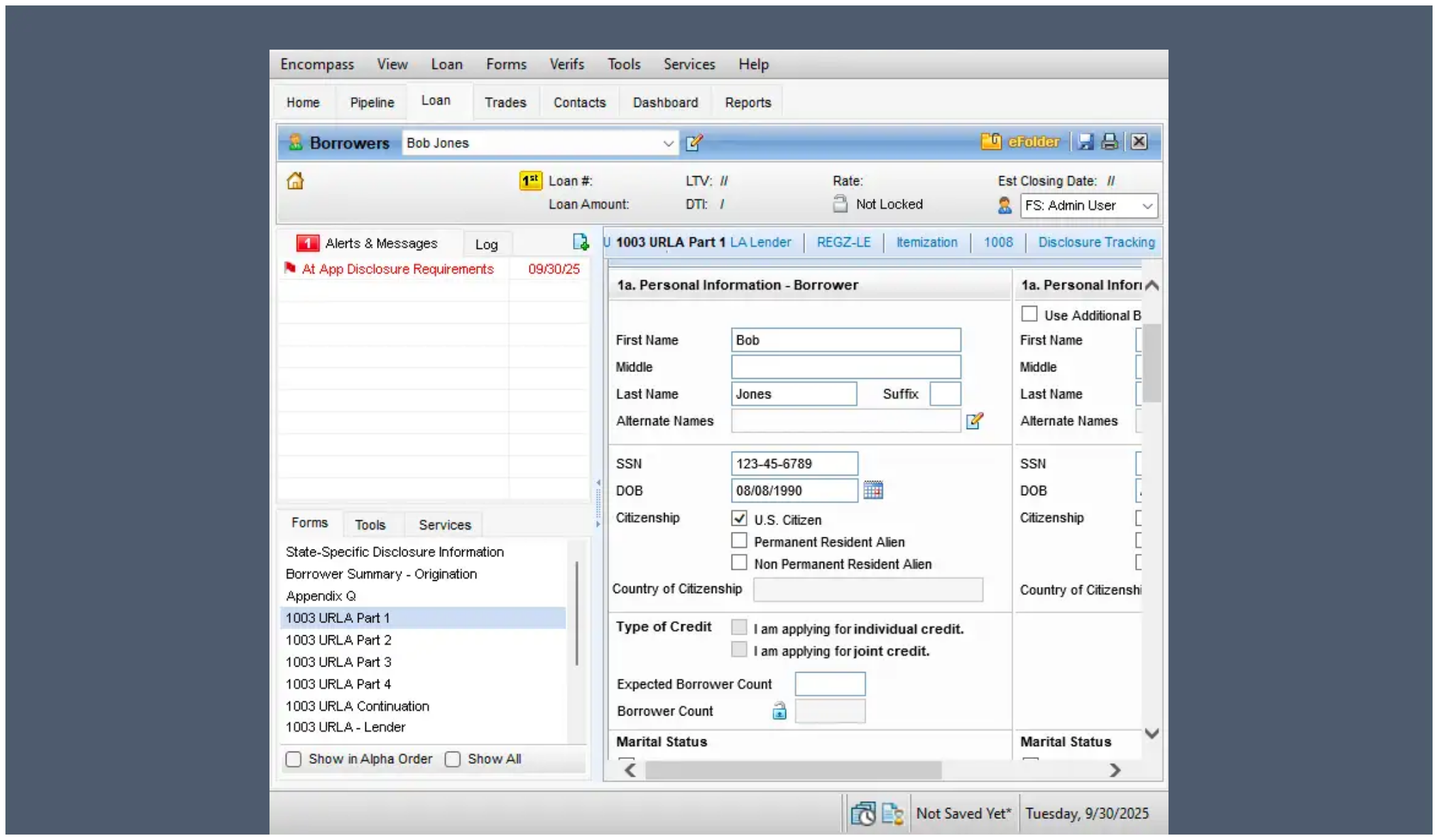
1. Ensure borrower first name, last name, and social security number have been entered in the **1003 URLA Part 1**.
## How it works
1. Order an Argyle verification within Encompass® and select the **Doc VOI** report type.
2. Upload borrower paystubs and W-2s directly from the Encompass® eFolder or your local drive.
3. Argyle automatically retrieves borrower and employer information from the 1003 URLA Part 1 and 1003 URLA Part 2 in Encompass®.
4. Argyle provides a Doc VOI verification report with monthly income values and AIM rep & warrant relief eligibility determination.
## Ordering verifications
1. Select a loan in Encompass®.
### Required URLA details
1. Ensure borrower first name, last name, and social security number have been entered in the **1003 URLA Part 1**.
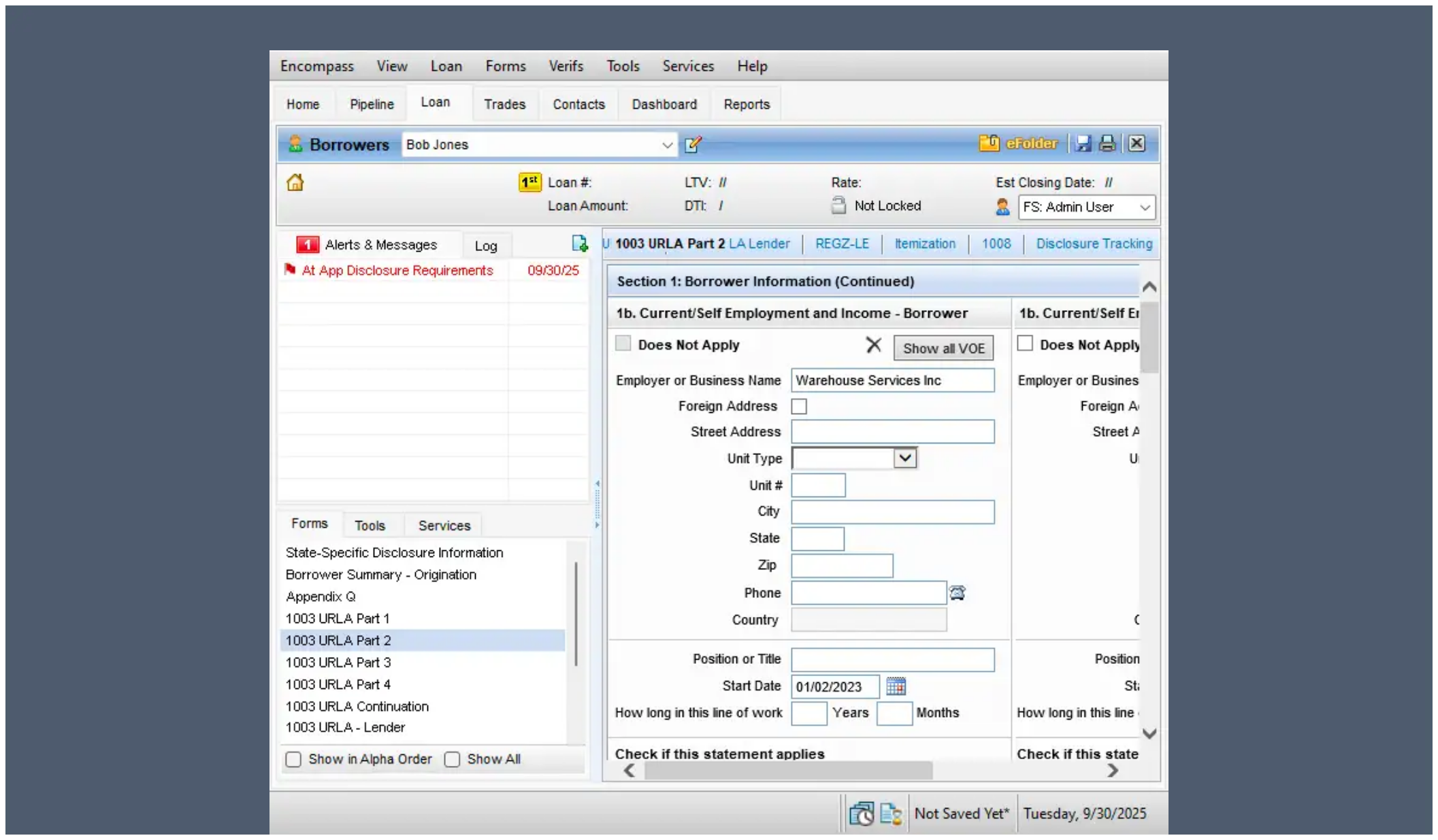
 2. Ensure all employer names, start dates, and end dates (for previous employments) have been entered in the **1003 URLA Part 2**.
 ### Order Argyle verification
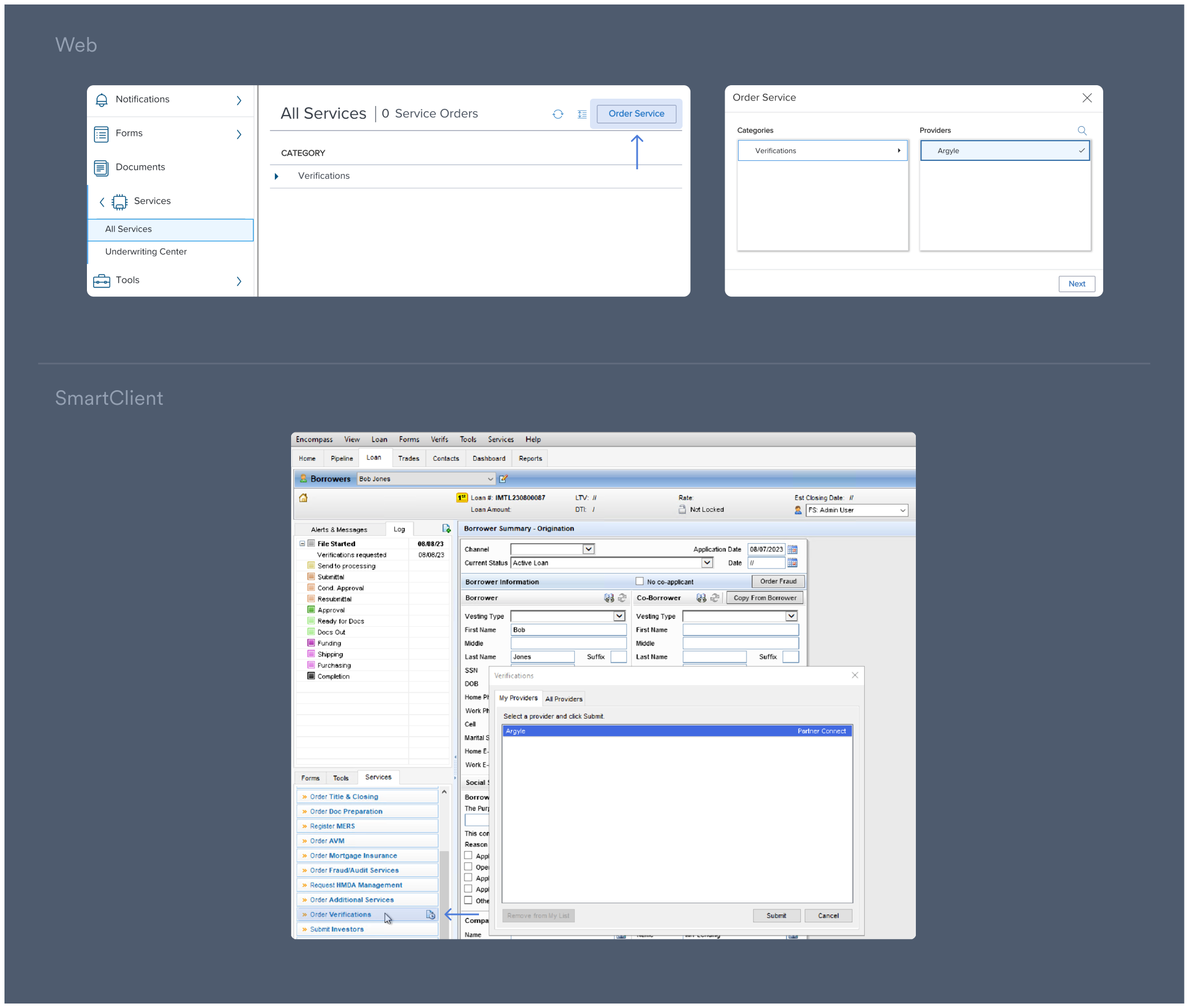
1. Under **Services**:
* \[Web] Select **All Services** and then **Order Service**. In the pop-up, click
**Verifications** under Categories.
* \[SmartClient] Select **Order Verifications**.
2. In the pop-up, select **Argyle** under Providers.
Then click **Next/Submit**.
### Order Argyle verification
1. Under **Services**:
* \[Web] Select **All Services** and then **Order Service**. In the pop-up, click
**Verifications** under Categories.
* \[SmartClient] Select **Order Verifications**.
2. In the pop-up, select **Argyle** under Providers.
Then click **Next/Submit**.
 ### Request Doc VOI report
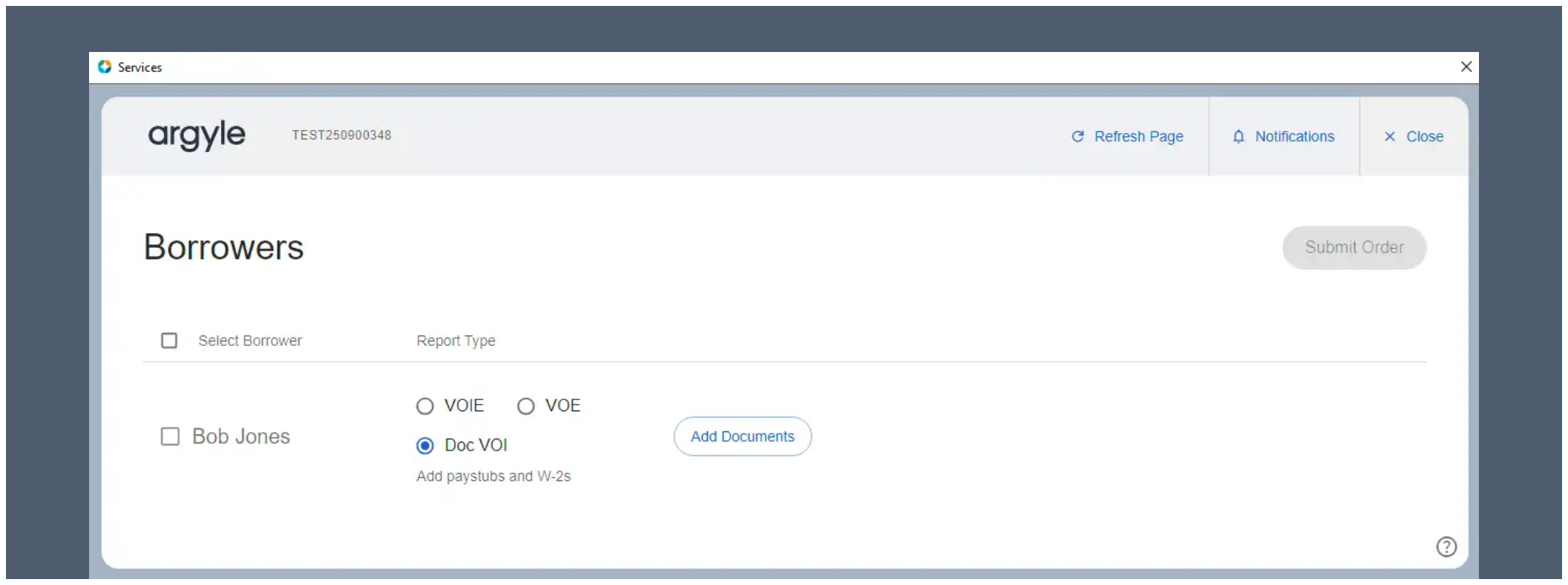
1. Select the **Doc VOI** report type within Argyle's Encompass® interface.
2. Select **Add Documents**.
### Request Doc VOI report
1. Select the **Doc VOI** report type within Argyle's Encompass® interface.
2. Select **Add Documents**.
 ### Uploading documents
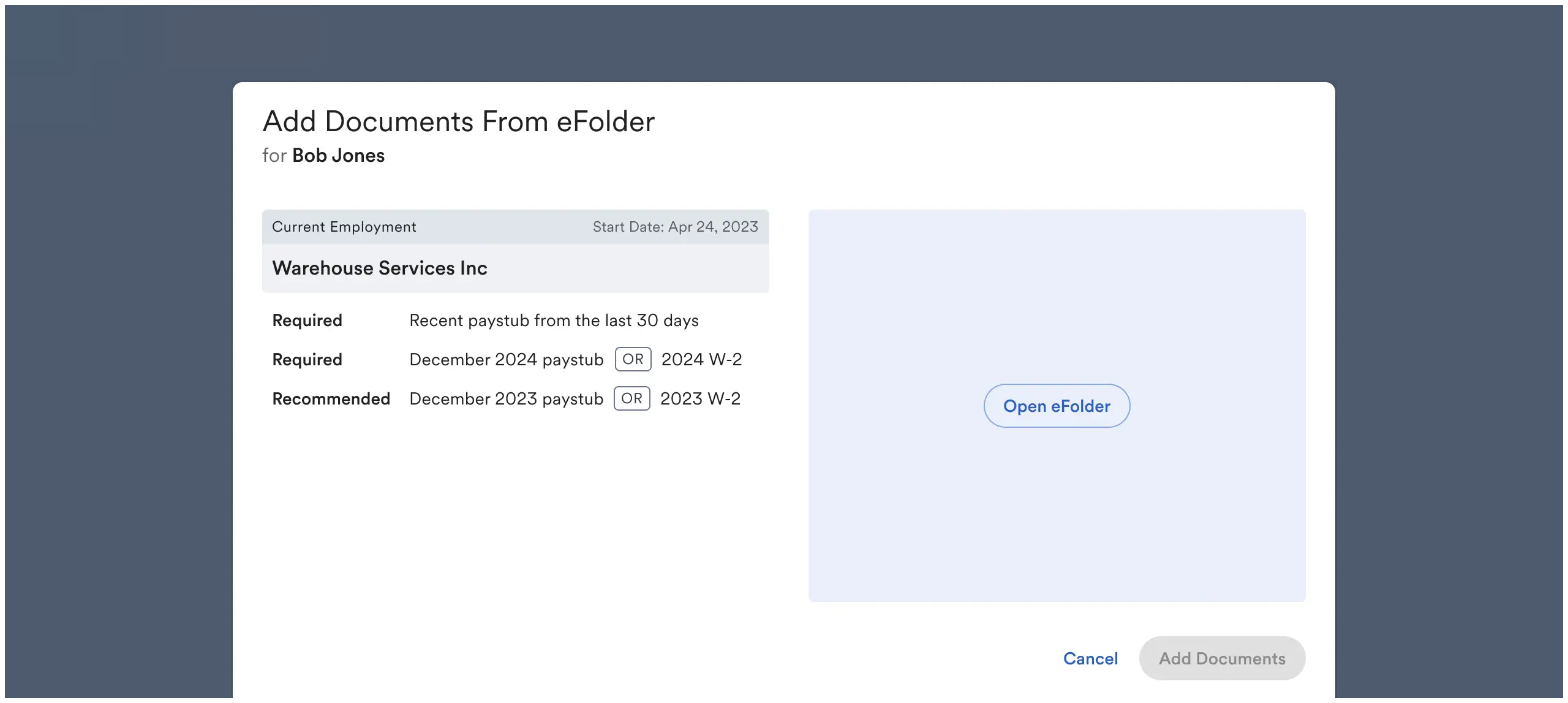
1. Follow the instructions on which borrower documents to upload.
2. Select **Open eFolder** to begin uploading documents.
### Uploading documents
1. Follow the instructions on which borrower documents to upload.
2. Select **Open eFolder** to begin uploading documents.
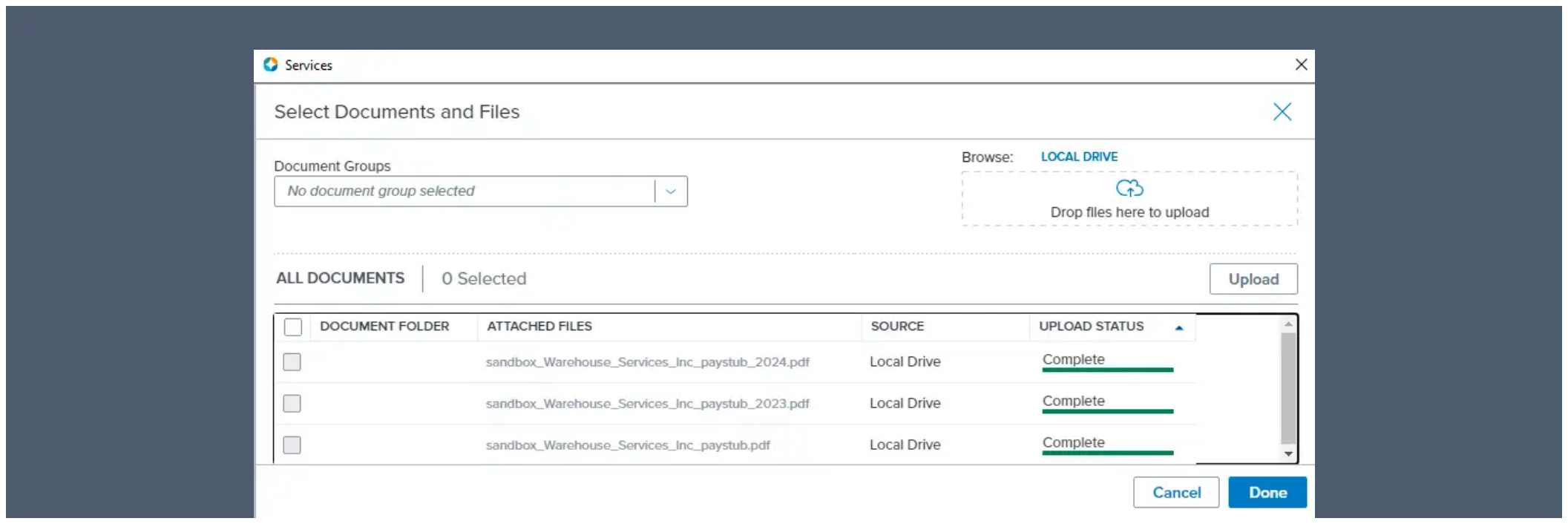
 3. Select documents from the eFolder, or upload from your local drive.
 4. Make sure the borrower is selected and **Submit order**.
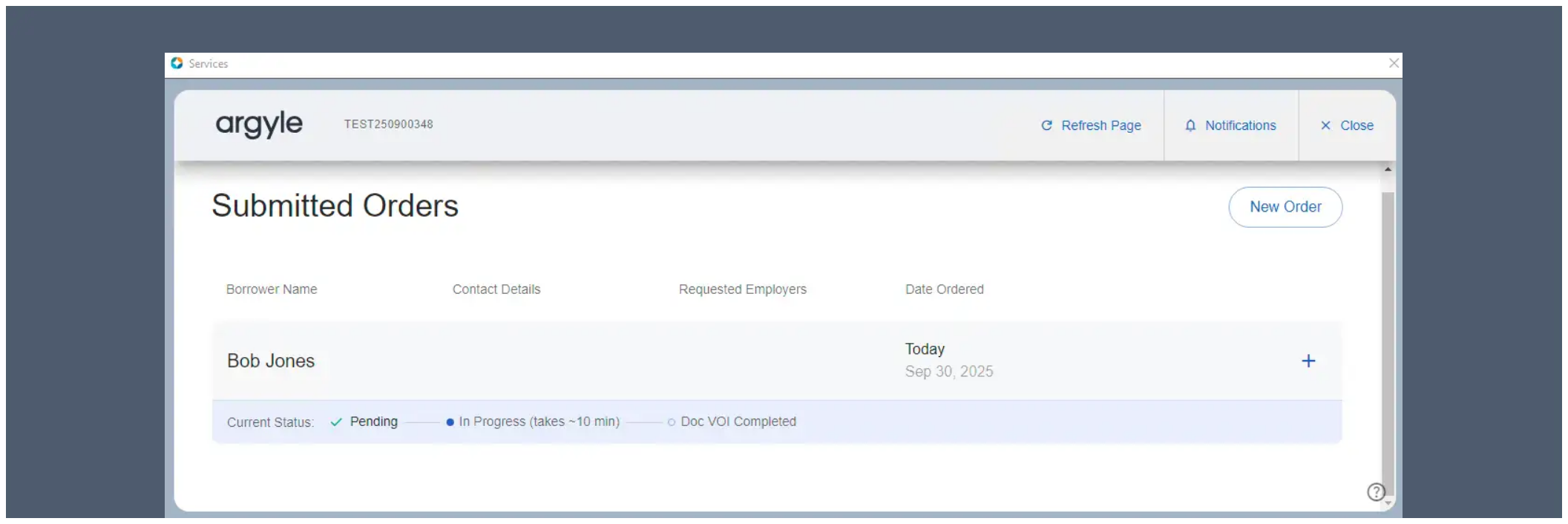
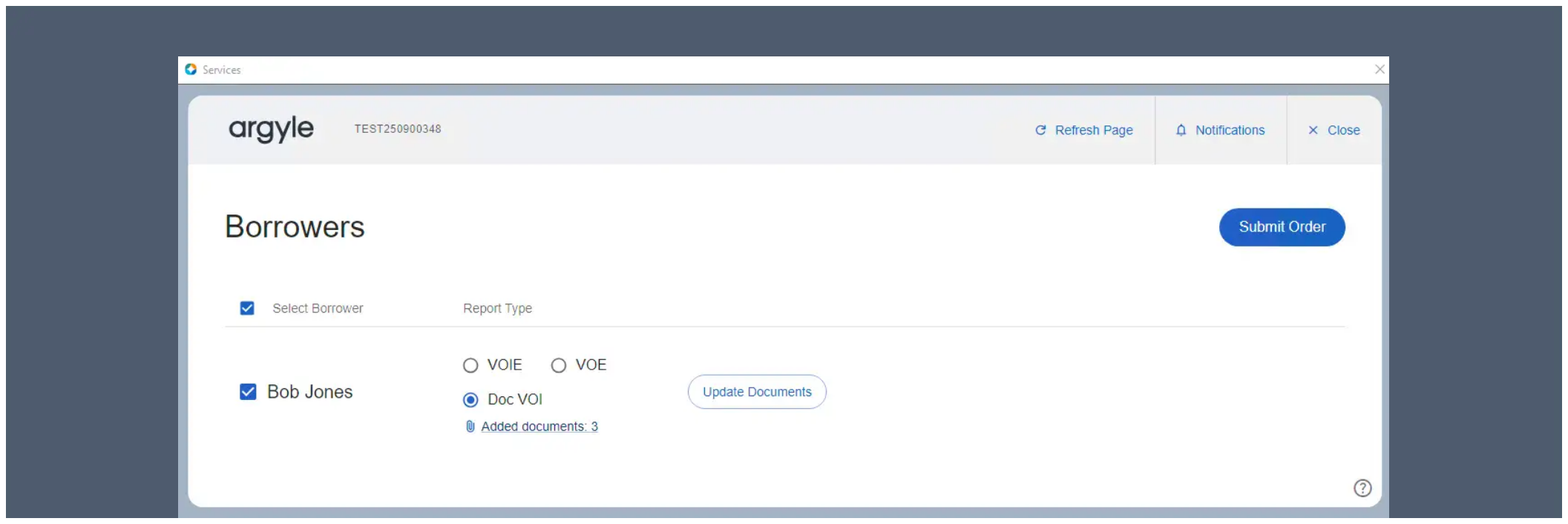 Documents will begin processing immediately after the order is submitted.
Typical processing time is around 10 minutes.
Documents will begin processing immediately after the order is submitted.
Typical processing time is around 10 minutes.
 ## Completed orders
### Viewing reports and documents
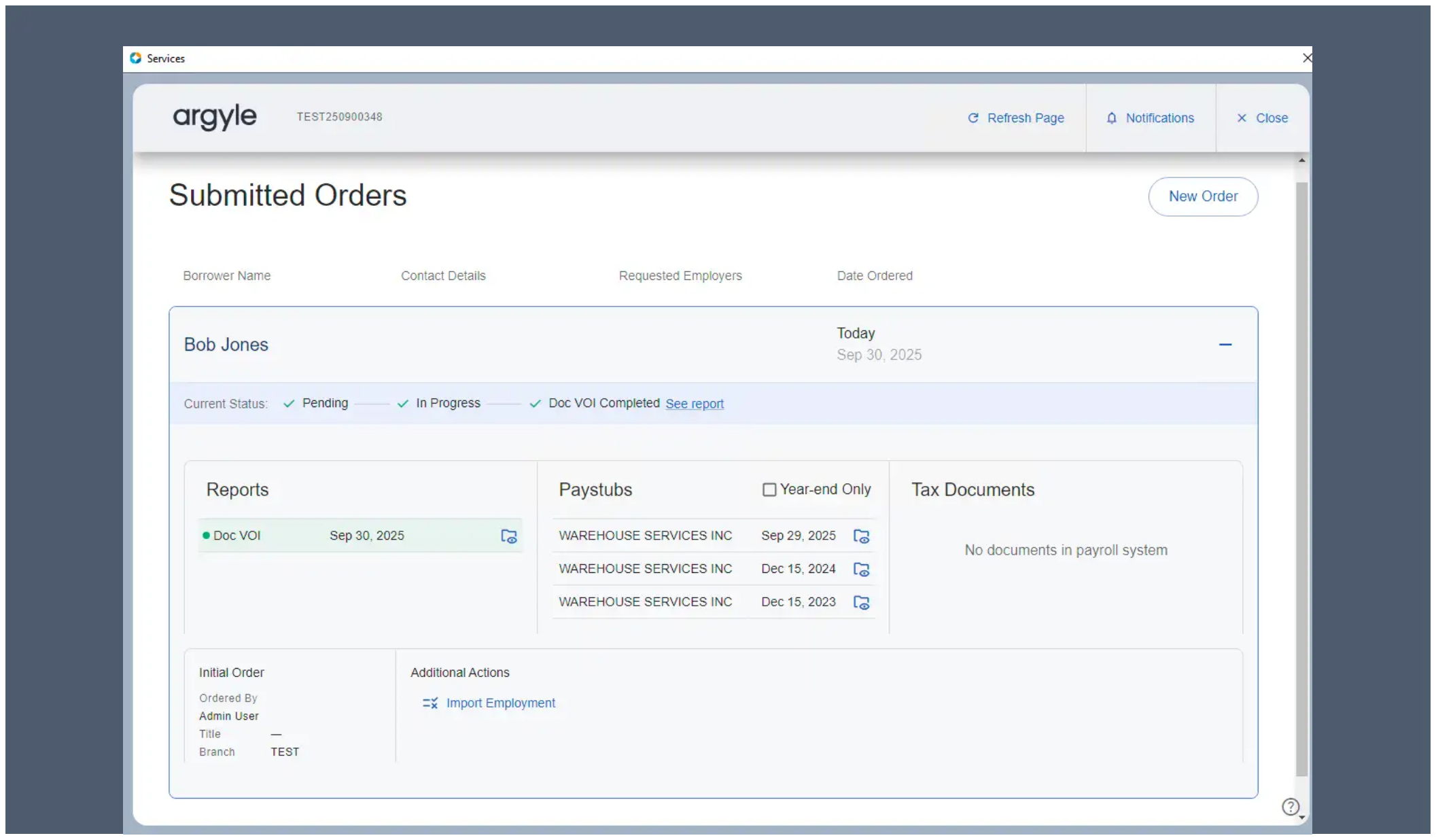
Once the order completes, you can retrieve the Doc VOI verification report.
Only the documents used in the report will be shown in the Argyle interface.
## Completed orders
### Viewing reports and documents
Once the order completes, you can retrieve the Doc VOI verification report.
Only the documents used in the report will be shown in the Argyle interface.
 ### Resolving employer name mismatches
1. Select **Import Employment** under **Additional Actions**.
2. Resolve any conflicts between the employer name in the loan file and the employer name Argyle retrieved from the connected payroll account.
Resolving employer name mismatches will help maximize GSE rep & warrant relief.
### Generating receipts
1. Select **Generate Receipt** after selecting an individual borrower to automatically generate a receipt and push it to eFolder.
Receipts are made available for each individual borrowerer after orders are **Completed**, and will indicate the fees associated with the verification order.
### AIM eligibility and reference IDs
* Doc VOI reports provide Freddie Mac's eligibility determination for rep & warrant relief.
* Argyle's Encompass® integration will automatically the populate the Encompass® loan file with the necessary report identifier (**Reference #**).
### Resolving employer name mismatches
1. Select **Import Employment** under **Additional Actions**.
2. Resolve any conflicts between the employer name in the loan file and the employer name Argyle retrieved from the connected payroll account.
Resolving employer name mismatches will help maximize GSE rep & warrant relief.
### Generating receipts
1. Select **Generate Receipt** after selecting an individual borrower to automatically generate a receipt and push it to eFolder.
Receipts are made available for each individual borrowerer after orders are **Completed**, and will indicate the fees associated with the verification order.
### AIM eligibility and reference IDs
* Doc VOI reports provide Freddie Mac's eligibility determination for rep & warrant relief.
* Argyle's Encompass® integration will automatically the populate the Encompass® loan file with the necessary report identifier (**Reference #**).
*For further assistance, please reach out to [support@argyle.com](mailto:support@argyle.com) or your Customer Success Manager.*