> ## Documentation Index
> Fetch the complete documentation index at: https://docs.argyle.com/llms.txt
> Use this file to discover all available pages before exploring further.
# Empower
> Verify income and employment within the Empower® LOS platform.
## Overview
Entirely within the Empower® Loan Origination Platform, you can verify income and employment using Argyle's direct connections to U.S. employee payroll accounts.
* Generate **Verification of Income** and **Verification of Employment** reports.
* Access and view **W-2's** and **paystubs** from connected payroll accounts.
* **Re-verify employment** prior to final closing.
## How it works
1. Loan officers select Argyle as the **Exchange Verification** provider and choose a product:
* Initial Verification of Income (VOI) and Verification of Employment (VOE)
* Re-verification of Employment (VOE only)
2. After submitting a verification order, the borrower is invited to [connect their payroll accounts](/overview/how-argyle-works#connecting-accounts) through Argyle.
3. The following documents are made available in the Empower® **Document Repository**:
* VOI and VOE report PDFs
* The borrower's last two W-2s
* The borrower's paystubs from the last 30 days
## Enabling the integration
1. Reach out to your Empower® account representative to enable Argyle's verification of income and employment integration.
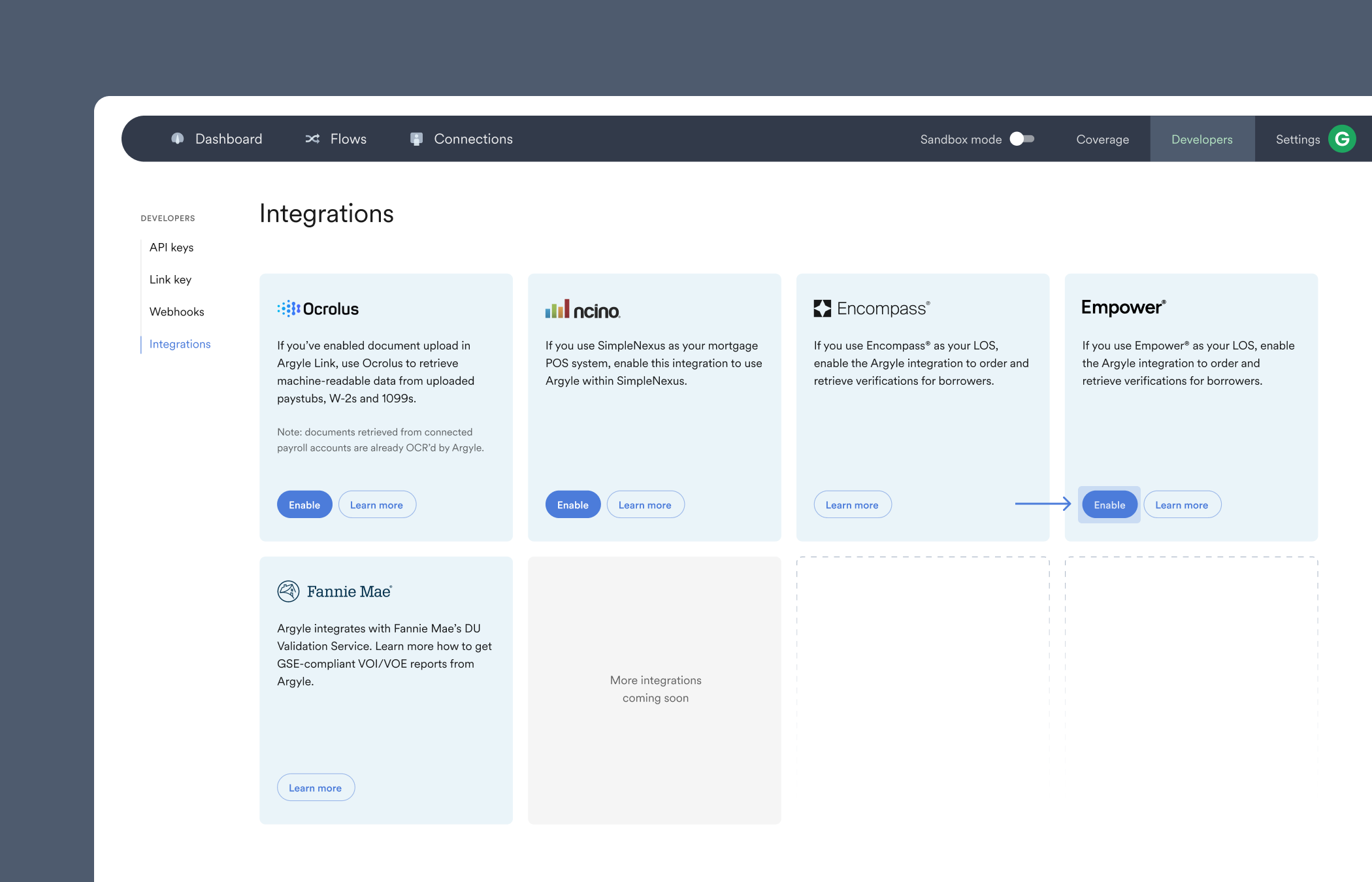
2. Once you receive your Party ID from Empower®, go to the Integrations section of Argyle Console and **Enable** the integration.
3. Enter your Party ID and assign it to Sandbox (testing) or Production. Multiple Party ID's can be added and assigned independently.
 ## Ordering a verification
1. Select **Exchange Verifications** from within a loan file and **Begin a New Order (Service Request)**.
2. Choose `Argyle` as the verification **Provider**.
3. Select a verification **Product** — `VOE/VOI` or `Employment Re-verification`.
4. Choose `Conventional` as the **Program Code**.
5. In the **Additional Property Information** section, within the **Contact Type** dropdown select `Primary Borrower`.
Argyle does not currently support multi-borrower orders — we recommend restricting verification orders to one borrower at a time through your Empower settings.
6. Input the **Full Name**, **E-Mail Address**, and **Day Phone** of the borrower (if not already auto-populated).
7. In the **Loan Information** section, within the **Contact Type** dropdown select either `Processor` or `Underwriter` depending on the loan officer's role.
8. Input the **Full Name**, **E-Mail Address**, and **Day Phone** of the loan officer (if not already auto-populated).
9. In the **Borrower Information** section, within the **Primary Borrower** dropdown select the `[Name]` of the primary borrower.
10. Click **Validate Submission Data** in the toolbar to ensure all required fields have been filled.
11. Click **Submit Request** in the toolbar. An **Order Status** of `Ordered submitted` followed by `Order acknowledged` will appear at the bottom of the page.
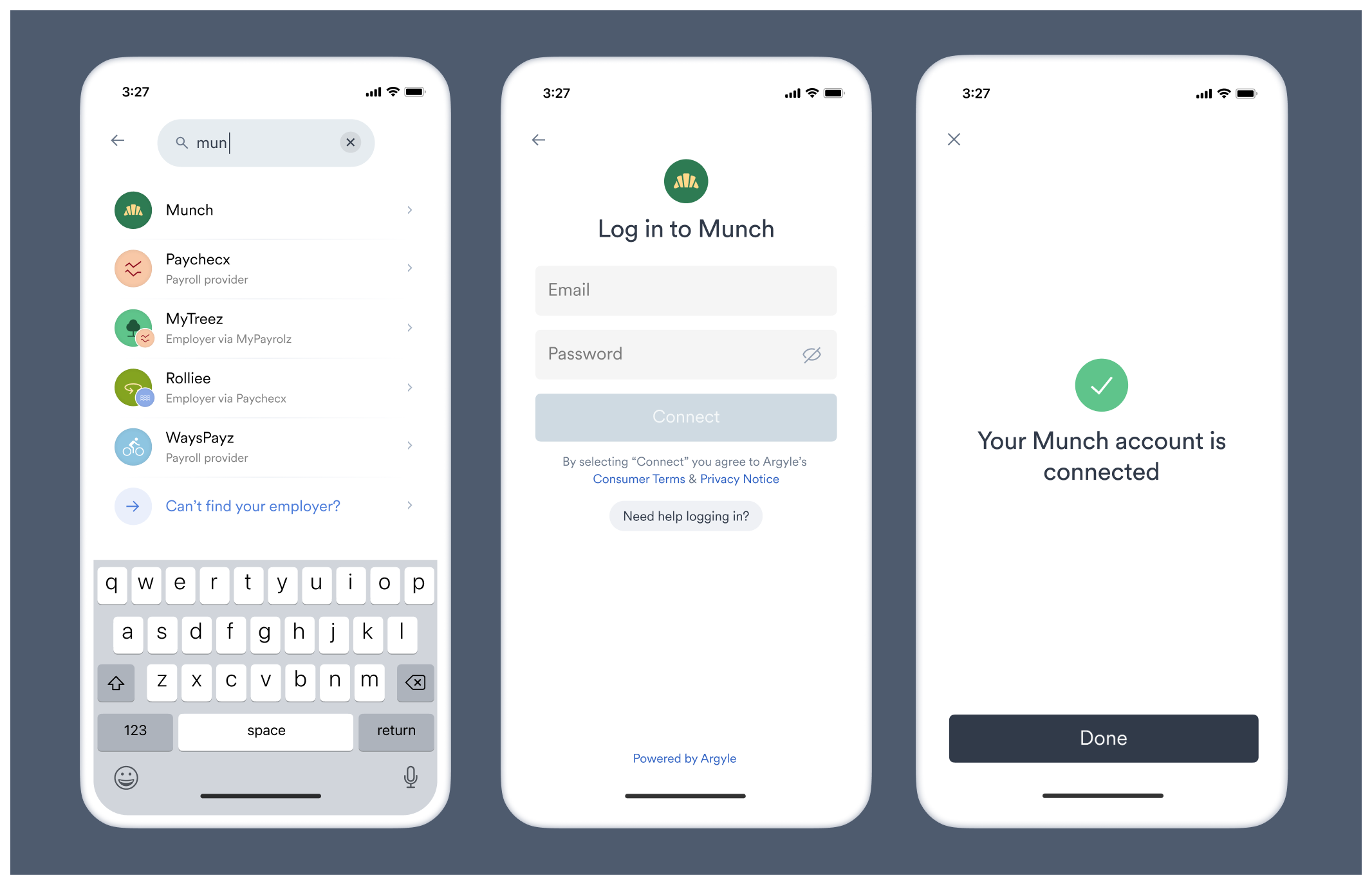
12. After an order is submitted, the borrower will be invited via text (SMS) and email to connect their payroll account(s) through Argyle.
## Ordering a verification
1. Select **Exchange Verifications** from within a loan file and **Begin a New Order (Service Request)**.
2. Choose `Argyle` as the verification **Provider**.
3. Select a verification **Product** — `VOE/VOI` or `Employment Re-verification`.
4. Choose `Conventional` as the **Program Code**.
5. In the **Additional Property Information** section, within the **Contact Type** dropdown select `Primary Borrower`.
Argyle does not currently support multi-borrower orders — we recommend restricting verification orders to one borrower at a time through your Empower settings.
6. Input the **Full Name**, **E-Mail Address**, and **Day Phone** of the borrower (if not already auto-populated).
7. In the **Loan Information** section, within the **Contact Type** dropdown select either `Processor` or `Underwriter` depending on the loan officer's role.
8. Input the **Full Name**, **E-Mail Address**, and **Day Phone** of the loan officer (if not already auto-populated).
9. In the **Borrower Information** section, within the **Primary Borrower** dropdown select the `[Name]` of the primary borrower.
10. Click **Validate Submission Data** in the toolbar to ensure all required fields have been filled.
11. Click **Submit Request** in the toolbar. An **Order Status** of `Ordered submitted` followed by `Order acknowledged` will appear at the bottom of the page.
12. After an order is submitted, the borrower will be invited via text (SMS) and email to connect their payroll account(s) through Argyle.
 ## (Optional) Event notifications
Ask your Empower® admin to set up event notifications, so when different events are received (such as a `150 — Product Delivered` event) loan officers are notified that Argyle verifications reports and the borrower's payroll documents are now available in the Empower® **Document Repository**.
## Retrieving reports and documents
Select `Document Repository` in the sidebar to view VOI and VOE reports, W-2s, and paystubs retrieved from the borrower's payroll account(s) once an order has completed.
## Day 1 Certainty® and AIM
Argyle's income and employment verification reports provide lenders an automated way to achieve Day 1 Certainty® through Fannie Mae's Desktop Underwriter® (DU®) validation service and assessment of borrower income and employment through Freddie Mac's asset and income modeler (AIM).
Reach out to your Customer Success Manager to enable Argyle's Day 1 Certainty® and AIM functionality.
To add a Day 1 Certainty® or AIM eligibility check for a loan through Empower®:
1. Ensure your Empower integration is configured to use Argyle with Fannie Mae's DU validation service and Freddie Mac's asset and income modeler (AIM).
* For Day 1 Certainty®, refer to Empower's Argyle Configuration Guide (PDF).
* For AIM, make these additional adjustments:
1. Update your Verification Providers `Display Value` to `Argyle` instead of `Argyle (DU Only)`
2. Insert an entry into your LPA Verification Providers and use Argyle's LPA enumeration: `ARGL`
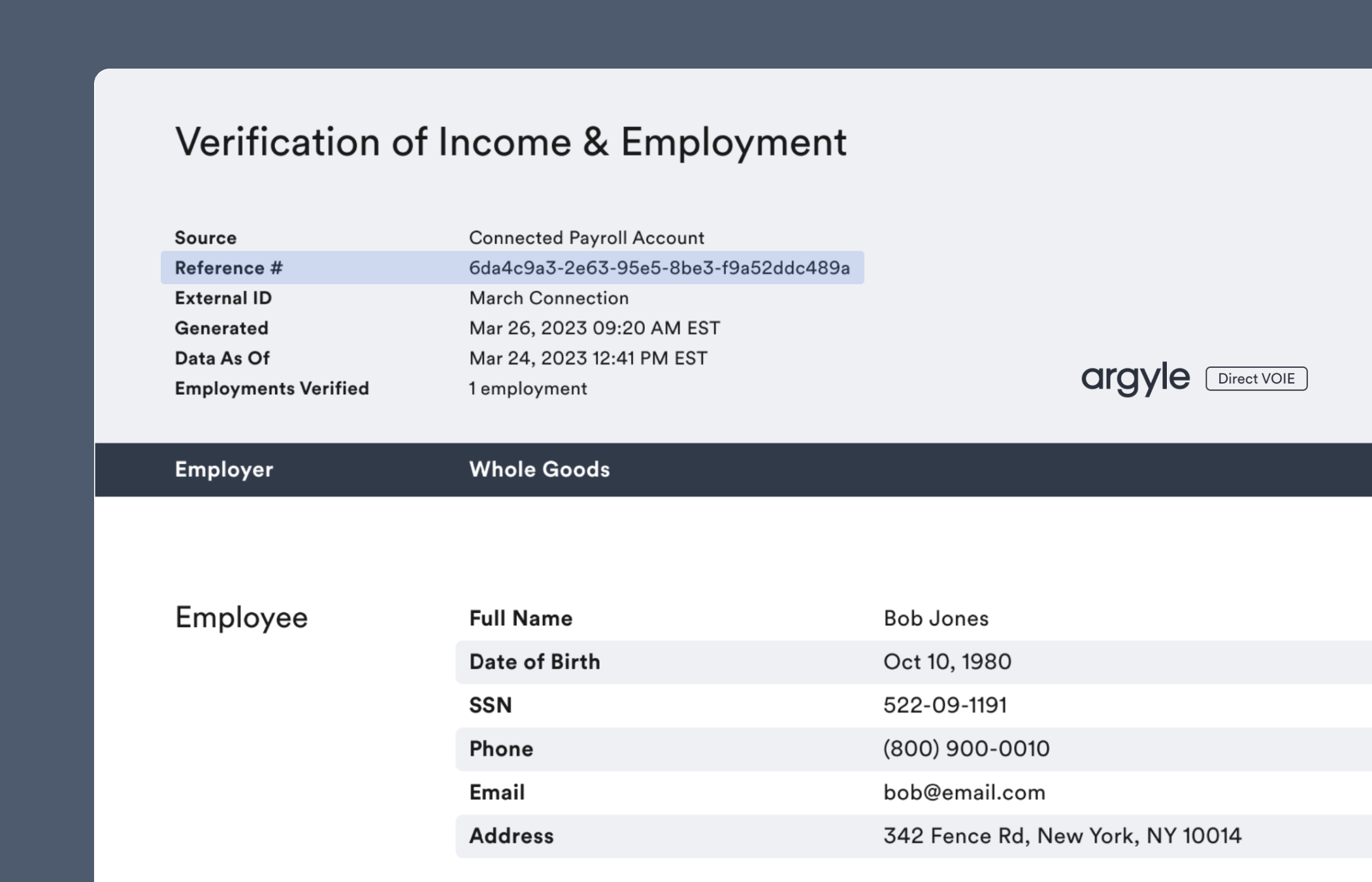
2. A `Reference #` will be listed at the top of Argyle's verification report that can be submitted to Fannie Mae for Day 1 Certainty® and Freddie Mac for AIM eligibility determinations:
## (Optional) Event notifications
Ask your Empower® admin to set up event notifications, so when different events are received (such as a `150 — Product Delivered` event) loan officers are notified that Argyle verifications reports and the borrower's payroll documents are now available in the Empower® **Document Repository**.
## Retrieving reports and documents
Select `Document Repository` in the sidebar to view VOI and VOE reports, W-2s, and paystubs retrieved from the borrower's payroll account(s) once an order has completed.
## Day 1 Certainty® and AIM
Argyle's income and employment verification reports provide lenders an automated way to achieve Day 1 Certainty® through Fannie Mae's Desktop Underwriter® (DU®) validation service and assessment of borrower income and employment through Freddie Mac's asset and income modeler (AIM).
Reach out to your Customer Success Manager to enable Argyle's Day 1 Certainty® and AIM functionality.
To add a Day 1 Certainty® or AIM eligibility check for a loan through Empower®:
1. Ensure your Empower integration is configured to use Argyle with Fannie Mae's DU validation service and Freddie Mac's asset and income modeler (AIM).
* For Day 1 Certainty®, refer to Empower's Argyle Configuration Guide (PDF).
* For AIM, make these additional adjustments:
1. Update your Verification Providers `Display Value` to `Argyle` instead of `Argyle (DU Only)`
2. Insert an entry into your LPA Verification Providers and use Argyle's LPA enumeration: `ARGL`
2. A `Reference #` will be listed at the top of Argyle's verification report that can be submitted to Fannie Mae for Day 1 Certainty® and Freddie Mac for AIM eligibility determinations:
 3. Open **Desktop Underwriter** from the sidebar, then click **Asset Verification IDs** in the toolbar.
4. Select a borrower from the **Borrower Name** dropdown, then click **Add**.
5. Select either `Argyle (DU Only)` (if only submitting for Day 1 Certainty®) or `Argyle` from the **Asset Verification Provider** dropdown. Then enter the `Reference #` from Argyle's report in the **Asset Verification ID** field.
3. Open **Desktop Underwriter** from the sidebar, then click **Asset Verification IDs** in the toolbar.
4. Select a borrower from the **Borrower Name** dropdown, then click **Add**.
5. Select either `Argyle (DU Only)` (if only submitting for Day 1 Certainty®) or `Argyle` from the **Asset Verification Provider** dropdown. Then enter the `Reference #` from Argyle's report in the **Asset Verification ID** field.
*For further assistance or specific feature requests, please reach out to [support@arygle.com](mailto:support@arygle.com) or your Customer Success Manager.*