> ## Documentation Index
> Fetch the complete documentation index at: https://docs.argyle.com/llms.txt
> Use this file to discover all available pages before exploring further.
# Custom Sending Domain
Custom sender domains are currently available on request. Contact your Argyle Customer Success Manager to enable the feature, then follow this setup guide to configure it in Console.
## Overview
By default, Argyle sends borrower invite and data-sharing request emails from `notifications@argyle.com`. With custom sending domain, you can configure Argyle to send these emails from your own domain instead — for example, `verifications@yourlender.com`.
This means borrowers receive emails from a domain they already recognise and trust, which typically improves open rates and conversion rates.
***
## How it works
You provide your domain and a from address. Argyle generates a set of DNS records that authenticate your domain with our email infrastructure. Once your IT team adds those records and you verify them, Argyle will send all consumer emails from your configured address.
The setup is a one-time DNS change. Once verified, no ongoing action is required from your side.
***
## Prerequisites
* Access to your organisation's DNS settings (or a contact at your IT team who does)
* A domain you control (e.g. `yourlender.com`)
* A from address on that domain (e.g. `verifications@yourlender.com`)
***
## Setup steps
### 1. Open Console settings
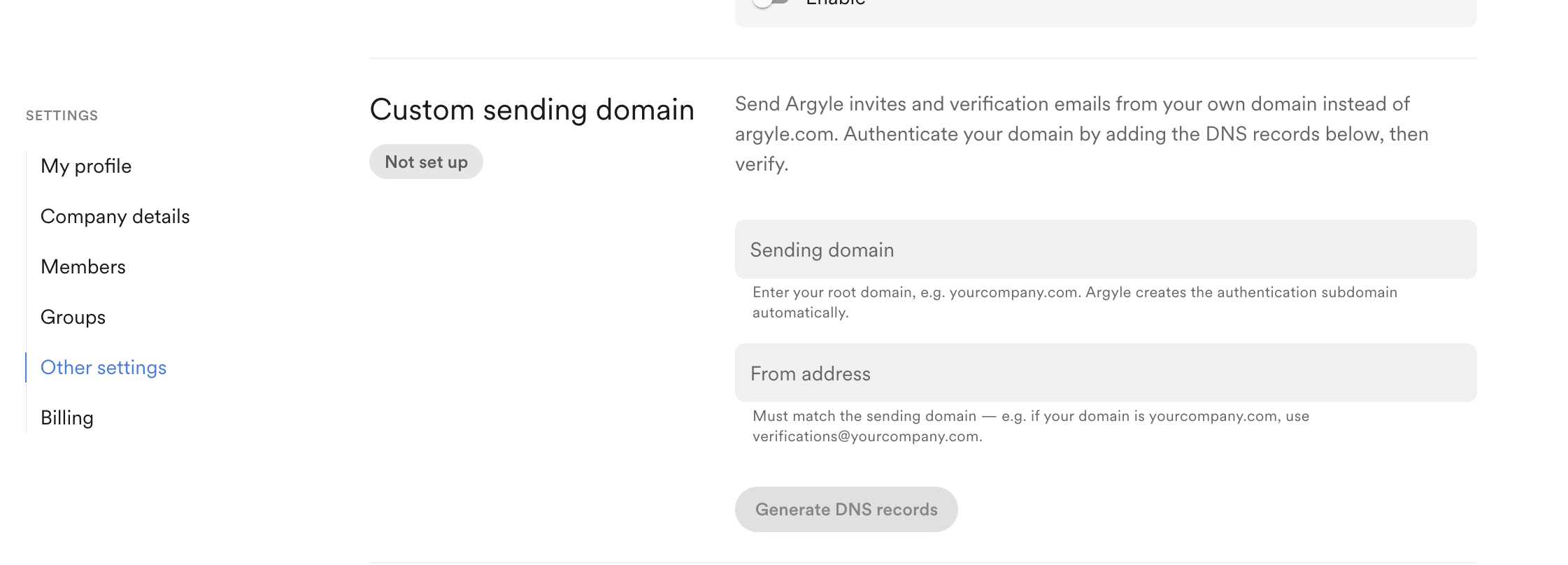
In the Argyle Console, go to **Settings → Other settings → Custom sending domain**.
### 2. Enter your domain and from address
* **Sending domain:** enter your root domain, e.g. `yourlender.com`
* **From address:** enter the address borrowers will see, e.g. `verifications@yourlender.com`
Click **Generate DNS records**.
 ### 3. Add DNS records
Argyle will generate 3 CNAME records. Share these with your IT team and ask them to add all 3 to your DNS provider (e.g. Cloudflare, Route 53, GoDaddy).
### 3. Add DNS records
Argyle will generate 3 CNAME records. Share these with your IT team and ask them to add all 3 to your DNS provider (e.g. Cloudflare, Route 53, GoDaddy).
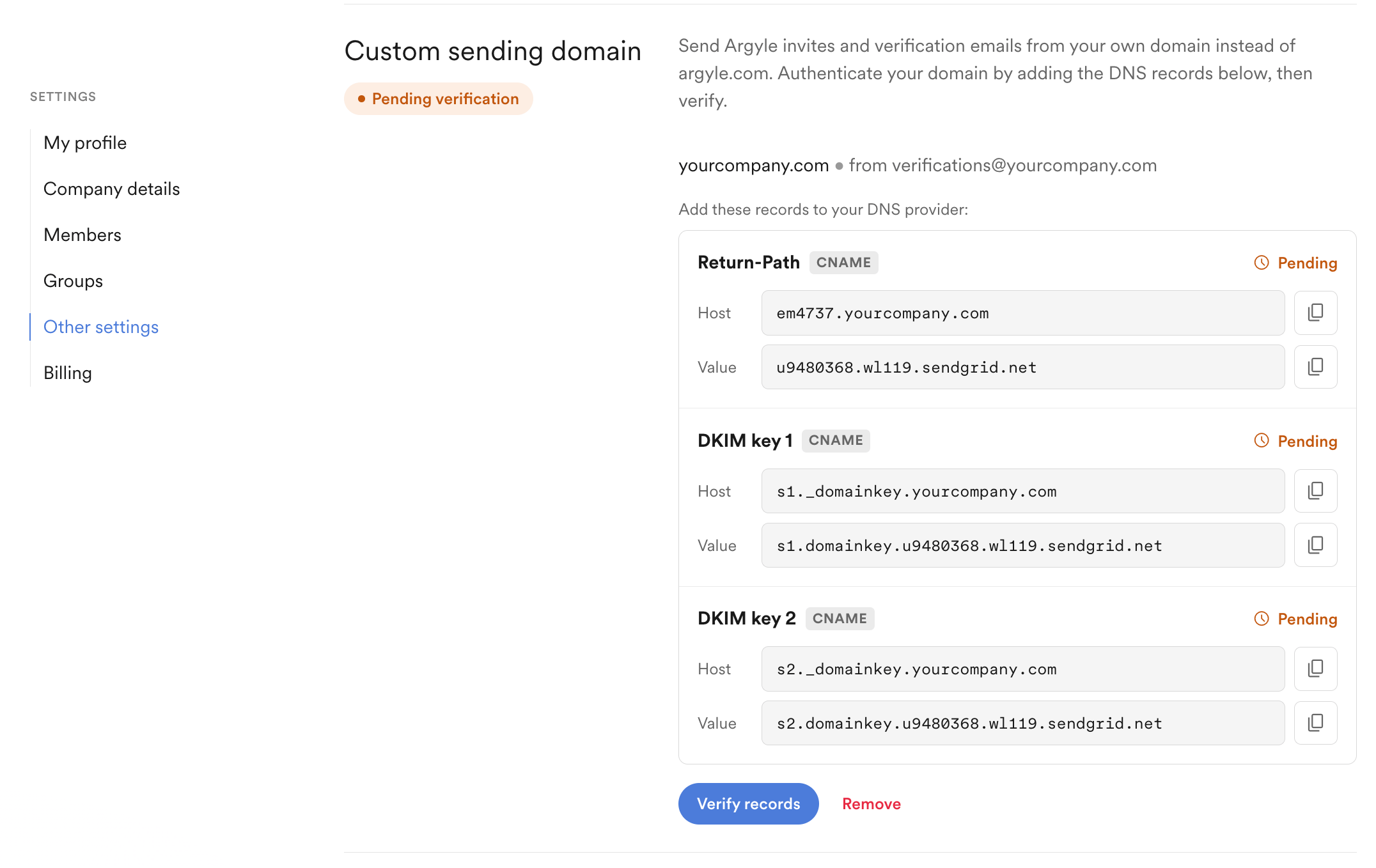 | Record | Type | What it does |
| ----------- | ----- | ----------------------------------------------------------------------- |
| Return-Path | CNAME | SPF authentication — authorises Argyle to send on behalf of your domain |
| DKIM key 1 | CNAME | Email signing key — proves emails haven't been tampered with in transit |
| DKIM key 2 | CNAME | Backup signing key, rotated automatically for ongoing security |
DNS changes can take up to 48 hours to propagate, though they typically complete within a few hours.
### 4. Verify
Once your IT team has added the records, return to Console and click **Verify records**. Argyle will check each record and confirm the setup.
If verification fails, the Console will show which records were not found. Check that the values were entered correctly and try again after allowing more time for propagation.
### 5. Done
Once verified, Argyle will send all borrower emails from your configured address. You'll see a confirmation in Console and can remove the custom domain at any time.
***
## Removing a custom domain
To stop using your custom domain, click **Remove** in Console. Argyle will revert to sending from `notifications@argyle.com`. You can set up a new domain at any time by going through the setup steps again.
***
## FAQ
**Will borrowers see any Argyle branding in the email address?**
Once verified, the from address will show exactly what you configured (e.g. `verifications@yourlender.com`). Argyle will only be mentioned in the footer.
**Does this affect email deliverability?**
It improves it. Emails sent from an authenticated domain are less likely to land in spam. The DNS records you add are the industry-standard mechanism (DKIM and SPF) for proving the email is legitimate.
**Can we use a subdomain instead of the root domain?**
The setup will use a subdomain for authentication infrastructure behind the scenes, but the from address will use your root domain. You only need to provide the root domain.
**What if our IT team needs more context on the DNS records?**
The 3 CNAME records are standard email authentication records used by email providers. They do not grant Argyle any access to your domain or email systems — they only allow Argyle to send emails on your behalf with proper authentication.
| Record | Type | What it does |
| ----------- | ----- | ----------------------------------------------------------------------- |
| Return-Path | CNAME | SPF authentication — authorises Argyle to send on behalf of your domain |
| DKIM key 1 | CNAME | Email signing key — proves emails haven't been tampered with in transit |
| DKIM key 2 | CNAME | Backup signing key, rotated automatically for ongoing security |
DNS changes can take up to 48 hours to propagate, though they typically complete within a few hours.
### 4. Verify
Once your IT team has added the records, return to Console and click **Verify records**. Argyle will check each record and confirm the setup.
If verification fails, the Console will show which records were not found. Check that the values were entered correctly and try again after allowing more time for propagation.
### 5. Done
Once verified, Argyle will send all borrower emails from your configured address. You'll see a confirmation in Console and can remove the custom domain at any time.
***
## Removing a custom domain
To stop using your custom domain, click **Remove** in Console. Argyle will revert to sending from `notifications@argyle.com`. You can set up a new domain at any time by going through the setup steps again.
***
## FAQ
**Will borrowers see any Argyle branding in the email address?**
Once verified, the from address will show exactly what you configured (e.g. `verifications@yourlender.com`). Argyle will only be mentioned in the footer.
**Does this affect email deliverability?**
It improves it. Emails sent from an authenticated domain are less likely to land in spam. The DNS records you add are the industry-standard mechanism (DKIM and SPF) for proving the email is legitimate.
**Can we use a subdomain instead of the root domain?**
The setup will use a subdomain for authentication infrastructure behind the scenes, but the from address will use your root domain. You only need to provide the root domain.
**What if our IT team needs more context on the DNS records?**
The 3 CNAME records are standard email authentication records used by email providers. They do not grant Argyle any access to your domain or email systems — they only allow Argyle to send emails on your behalf with proper authentication.